With iOS 11, Apple has accepted the fact that screenshots are an integral part of our workflow. With their help we
Instant Markup is one of the new features of iOS 11,which appears when you try to edit a PDF file or screenshot. The new design is much simpler and more powerful than before. Now, to take a screenshot, you don’t need to hold down the Power and Home buttons. And there are many more opportunities.
1. Use keyboard shortcuts
Editing screenshots has become very fast and convenient, but if you use an iPad with a keyboard, this process can be done even faster.
You can use keyboard shortcuts to take screenshots. CombinationCmd+Shift+ 3takes a screenshot. CombinationCmd+Shift+ 4takes a screenshot and immediately opens Instant Markup.
2. Swipe the preview and it will disappear
[WPGP gif_id=”22943″ width=”600″]
When you take a screenshot, you will see its preview in the lower left corner. Click on it to open Instant Markup. And if you don’t want to do something with him right away, just swipe it off the screen.
3. Group screenshot previews
[WPGP gif_id=”22945″ width=”600″]
Screenshot preview - an unusual part of the interfaceuser. So even if you take a second screenshot while the preview of the first hangs on the screen, it will not be displayed in the second. This means that you can take some screenshots and they will all be grouped in a corner. You can then open them in Instant Markup or share them.
4. Drag and paste screenshots
[WPGP gif_id=”22947″ width=”600″]
You can drag the screenshot preview to anyattachment. Start by holding the preview with one hand. Now use your other hand to move it where you need it (for example, to Notes). Release the preview to insert it into the application.
5. Hold the first to share


Pinch a screenshot preview (or several), and youYou will see the familiar Share window. Now you can use AirDrop to transfer the screenshot to another device, save it to any storage using the Files application, or share it in messages.
6. Click,so that open editor
If you click on the screenshot preview, the Instant Markup window, which is used in iOS 11 for many things, immediately pops up.
7. Crop image
[WPGP gif_id=”22950″ width=”600″]
Instant Markup makes it very easy to crop a screenshot. You do not need to go into special mode or look for an icon in a few steps (as in the application with Photo).
You will see that the image is surrounded by a blue border, and there are bold frames at the corners. Pinch these frames and slide them. That's it, your image is cropped.
8. Functions Instant markup
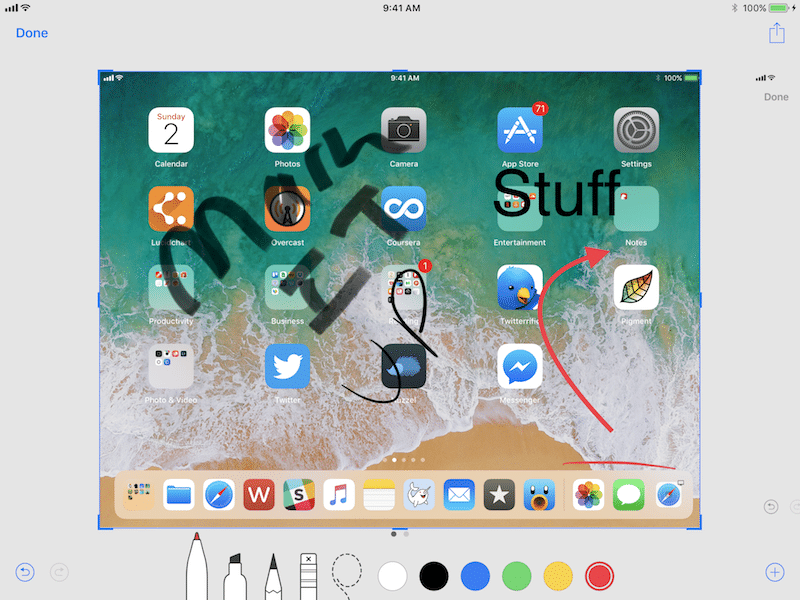

In iOS 11, Instant Markup functions are enough for everyone. You can take notes by hand using 6 colors and different brushes (using your finger or Apple Pencil).
Click on + and you can add your saved signature, text or zoom tool. There is also a tool with arrows and ordinary shapes, like rectangles and circles.
9. Share screenshots


After editing, you will need to share a screenshot. Click Share in the upper left corner and select the application or service to which you want to send the image.
10. Take screenshots without saving to the gallery


When you click Finish, you will have two options: save the screenshot in the Photos or delete it completely.
This is a great feature because you might not want to save screenshots with stupid captions.