Split screen on a Mac allows you to work with two programs on the screen at the same time. It is very comfortable
The good news is that modern versions of macOS have a Split View mode that anyone can use. Below, we’ll show you how to use Split View on macOS.
On macOS, screen sharing is supported by OS X El Capitan and later, including Split View Mac OS Mojave and macOS Catalina.
Split View on Mac: how to use?
Step 1: To get started on your Mac, open the windows thatwant to place on the screen together. It can be browser tabs, programs, documents. Select the first window. In the upper left corner of the window you will see three round buttons: red, yellow and green. With their help, you can control this window.
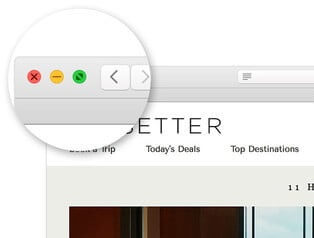

Step 2: If you hover over the green button,two arrows will appear. This is the button we need. Hold and hold it until the window is squeezed to half the screen. If you just click a button, the window will expand to full screen.


Step 3:The first half of the Split View screen is ready.Now select the second window you want to place in the second half. The window will automatically be placed on the remaining half of the screen. Click on windows to easily switch between them.
Set up split screen on Mac OS
Windows in Split View mode should not occupy exactlyhalf the screen. You can choose which window to give more space to. In the center of the screen there is a black line that divides the windows. In macOS High Sierra and other versions of the system, the line is rather thin, but in macOS Mojave it has become thicker. Hold this line and move it left or right to resize windows.


To swap windows, hold one window and drag it to the other side. Windows will automatically swap places.
When switching between screens it is easy to lose a couple of open windows. But don’t worry, in this case you need to look for them in the Dock or side menu.
To turn off Split View, click the green button in the corner of any window. All windows will return to their former state.
Split View via Mission Control
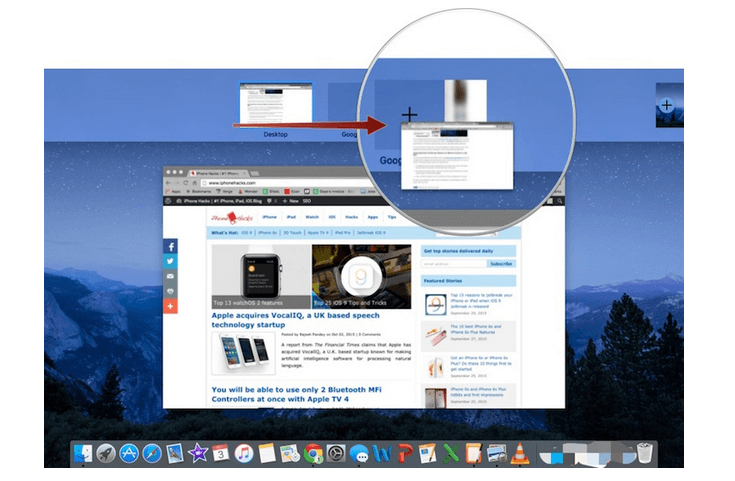

You have more than two windows open and want to seeall of them at once? Then the Mission Control function will help. This mode displays all open windows in the panel at the top of the screen, and also allows you to place multiple windows on the screen itself.
Mission Control can be activated in different ways, butThe easiest way is to simply drag the window to the top of the screen. Mission Control mode is activated automatically. In addition, Apple keyboards have an F3 key for Mission Control. The mode can also be activated in parallel with the Split View.
You can also enable screen sharing through Mission Control. To do this, activate Mission Control mode and drag one window on top of another. This activates the split screen.
Third-party alternative


Perhaps the standard screen split is not for youfits. It's nothing, because there are alternative methods, and one of the best is the Cinch program. The program creates four zones at the corners of the screen and two on the right and left. It is enough to drag a window into these zones to fix it there. If you drag a window into a corner, it will occupy one quarter of the screen. If you drag it to the right or left side, the window will open half the screen.
Some people like to work in fourwindows immediately, with which Cinch can easily cope. A trial free version is available, which can be downloaded from the official website of the program or directly from the App Store.