Externally, when using the iPhone 7 and iPhone 7 Plus, there is no feeling of the presence of any innovations. But if
If you bought a new iPhone 7, then you shouldknow that the device in your hands is more advanced and capable of more than the previous iPhone model. And with this review, we will help you discover and teach you how to use new opportunities.
- No. 1. Customizing the tactile feel of the Home button
- No. 2. A new way to hard reset data on a device
- Number 3. Turning on "Portrait Mode" shooting
- Number 4. Option to save two copies of one photo in Portrait mode
- No. 5. Using Optical Zoom on iPhone 7 Plus
- No. 6. Enable 4K video recording
- Number 7. Fixing the focal length when shooting movies
- No. 8. Turning off the Raise to Wake option (waking up when picking up the device in hands)
- No. 9. Adding widgets to the locked screen
- No. 10. Using your iPhone as a Magnifying Loupe
- No. 11. Battery and music listening at the same time
- No. 12. Using 3D Touch
- No. 13. Unlock iPhone screen without pressing the home button
- No. 14. Disabling haptic feedback (vibration during basic actions)
- Basic
- No. 15. Enabling Two-Step Verification
- No. 16. Increase or decrease the size of text on the screen
- No. 17. Battery percentage display
- Number 18. Closing an application or multiple applications
- No. 19. Move or delete an application from the home screen
- No. 20. Do Not Disturb
- No. 21. Convenient access
- Number 22. Control center
- Number 23. Lantern
- Number 24. Apple ID Account Without Credit Card
- Keyboard Tips
- Number 25. How to add another language keyboard
- No. 26. Adding a special character
- Number 27. Quick way to start a new offer.
- No. 28. Quickly insert punctuation marks in text
- No. 29. Quick capitalization
- No. 30. Quick change domain name extension
- No. 31. To undo the last action - just shake the device
- Number 34. Set of smart quotes
- Number 35. Features of a set of text abbreviations in English
- No. 36. Gestures
- Number 37. Quick access to draft letters
- No. 38. Choosing a piece of text to quote
- Number 39. Adding media files in a new e-mail window
- No. 38. Text formatting
- Number 39. Receive notification of a response to an email
- Tips for using the Safari browser
- Number 40. Return to top of page
- No. 41. Gestures to go to the previous or next page
- Number 42. Display recently closed tabs
- No. 43. Access your browsing history
- No. 44. Reader Safari
- No. 45. Reading list
- No. 46. Search in current page
- No. 47. Close and organize tabs
- No. 48. View pages in privacy mode
- No. 49. Adding RSS feeds in Safari
- Tips for using the Messages app (iMessage)
- No. 50. Send Photos or Videos
- No. 51. Message sending and receiving time
- No. 52. Block Voice Calls, FaceTime Calls, and Messages
- No. 53. Share your location with friends
- No. 54. Exit iMessage General Chat
- Tips for using the “Phone” app.
- Number 55. How to answer a call with a text message
- No. 56. Add photos to your contact profile
- Number 57. Tips for using the Calculator app
- No. 58. Tips for using the Calendar app
- Tips for increasing the operating time of your device on a single battery charge
- No. 59. Turn on auto-lock
- Number 60. Dim the brightness
- No. 61. Identify malicious energy consumers
- No. 62. Locate only when using the application
- No. 63. Application update in the background
- Number 64. Tips for Longer Battery Life
- Tips for using Siri
- Number 65. What is this song?
- No. 66. Hands-Free Siri (Using Siri without hands)
- No. 67. Making Siri Respond Faster
- No. 68. Turning on or off the various modes of the System
- No. 69. Make Siri pronounce your name correctly
- Tips for using the Camera and Photos apps
- Number 70. Favorite Album
- No. 71. How to hide a photo
- No. 72. Delayed Shutter Release
- No. 73. Restore and delete photos.
- No. 74. Focus and exposure control
- Other Convenient Things You Should Try
- No. 75. View IMEI Number
- Number 76. Screen magnification
- No. 77. Headphone Tips
- Number 78. Application extension
- No. 79. Avoiding Short Circuit on Lightning Cable
- Number 80. IPhone device not charging?
Advertising
Advertising
No. 1. Customizing the tactile feel of the Home button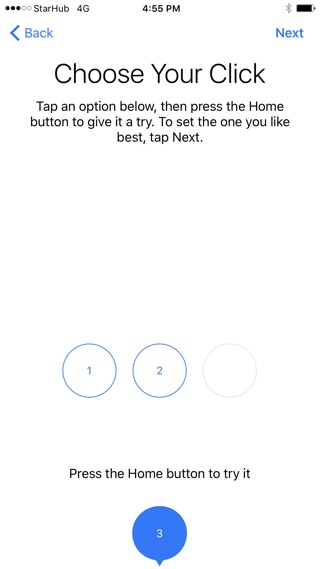

The new Home button is actually not at allis a physical button. Like the Force Touch with pressure recognition in new Mac computers, the new Home button is a capacitive screen. The button itself is stationary, and you feel the response of the button through the use of the Taptic Engine under the button.
This means that it is possible to carry outsetting the response level of this button. There are 3 settings available - “low”, “medium” and “high”. The system asks you for the desired level of tactile sensations from the button at the initial stage of setting up the device. But the parameters can be changed at any time by following the path:"Settings"-> "Basic-> "Home button ».
No. 2. A new way to hard reset data on a device
When your iPhone starts to driveit’s strange, then the first tip is to hard reset the data. On previous models, the combination of the "Home" and "Power" keys was used for this procedure. In the new model, the physical “Home” button is missing, so you should remember the new combination for this recovery procedure. You must press the "Power" button and the volume down button.
Advertising
Advertising
Number 3. Turning on "Portrait Mode" shooting

When using iOS 10.1 on the iPhone 7 Plus, you can notice the new shooting option “Portrait Mode”. It is selected with a simple gesture - with a swipe in the Camera application, like any other shooting mode, for example, as the Panoramic shooting mode.
Number 4. Option to save two copies of one photo in Portrait mode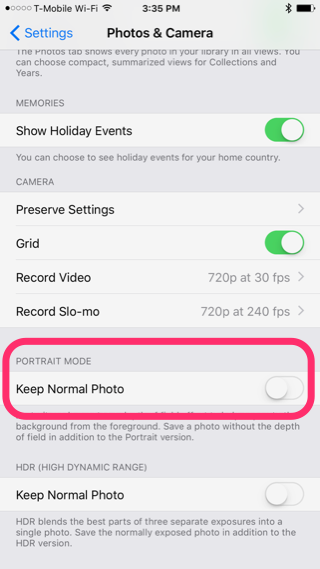

When shooting in "Portrait" mode,iOS also saves the regular version of the picture in case you do not like the version of the picture in “Portrait” mode. Which leads to double the use of free space on the device’s memory. If you are confident in your mastery of using the "Portrait" mode, then you can follow the path: "Settings »-> "Photo and Camera »and disable the option "Keep normal version of photo »in the “Portrait mode” subsection.
No. 5. Using Optical Zoom on iPhone 7 Plus

You should know that your iPhone 7 devicePlus has a double optical zoom, due to the presence of a second telephoto lens on the back cover. To use it, click on the “2x” icon located above the shutter release button. You can also select options from 1 to 10x zoom. Any option above 2x will be the system zoom software.
No. 6. Enable 4K video recording
By default, this option is disabled, but the devicehas the ability to record video in 4K resolution. When shooting video, say at a party, in good light, try turning on the 4K mode. The end result will take up a lot of memory space, but it will look amazing. In the "Settings", select "Photo and Camera. In section "Video Recording »switch to the option “4K at 30 fps.
Number 7. Fixing the focal length when shooting movies
Now the iPhone 7 Plus has in itsoptical zoom is available, so there is a new setting for fixing the focal length of the lens when shooting movies. This means that the zoom function will not be reconfigured when a flash of light appears in the frame or when lighting deteriorates. This option is located there, in the "Video Recording ».
Advertising
Advertising
No. 8. Turning off the Raise to Wake option (waking up when picking up the device in hands)
IOS 10 Appears on iPhone 7new functionality when the device automatically wakes up when it is picked up in the hands of the surface. If this happens often and bothers you, then there is the possibility to turn off this option. "Settings »-> "Display and Brightness ».
No. 9. Adding widgets to the locked screen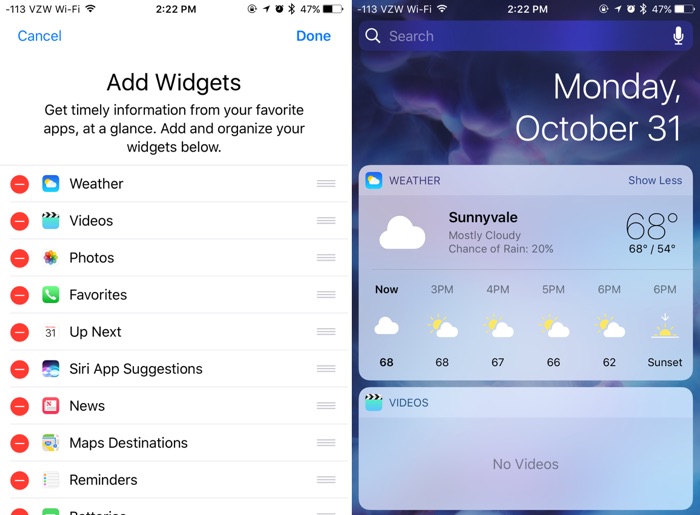

The role of widgets in iOS 10 is very relevant and important. Widgets can now be added directly to the locked screen. Widgets are called by a swipe gesture from left to right on a locked screen. Scroll down and select the “Editing» to select the required widgets. Readour widget guide here.
No. 10. Using your iPhone as a Magnifying Loupe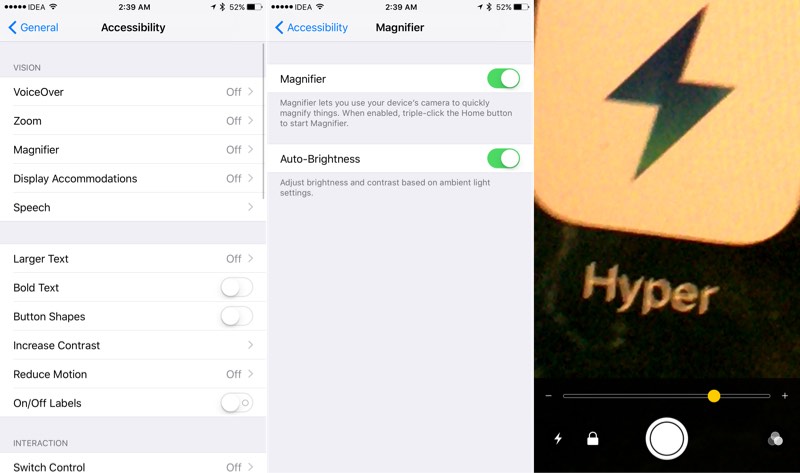

You can use the amazing features of the iPhone camera as a personal magnifying glass for reading texts written in small print. To enable this option, go to "Settings »-> "Basic-> "Universal access» -> "Magnifying glass"And turn it on. To call this functionality, a triple press on the home button will be enough.
No. 11. Battery and music listening at the same time
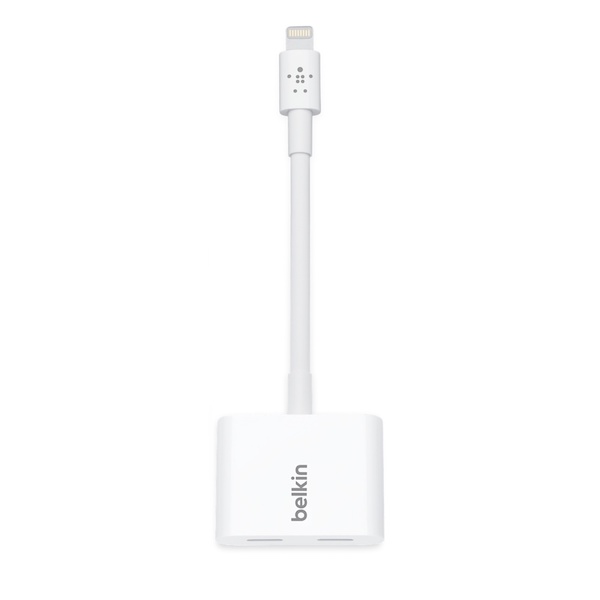

The iPhone does not have a headphone jack.Therefore, if you want to listen to music through Lighting EarPods while charging the batteries at the same time, you will need to purchase an adapter. Belkin makes an adapter with two Lightning ports and it’s called “Belkin Lightning Audio + Charge RockStar”and sells for $ 40... You can also buy Bluetooth headphones. Or Apple AirPods when available.
No. 12. Using 3D Touch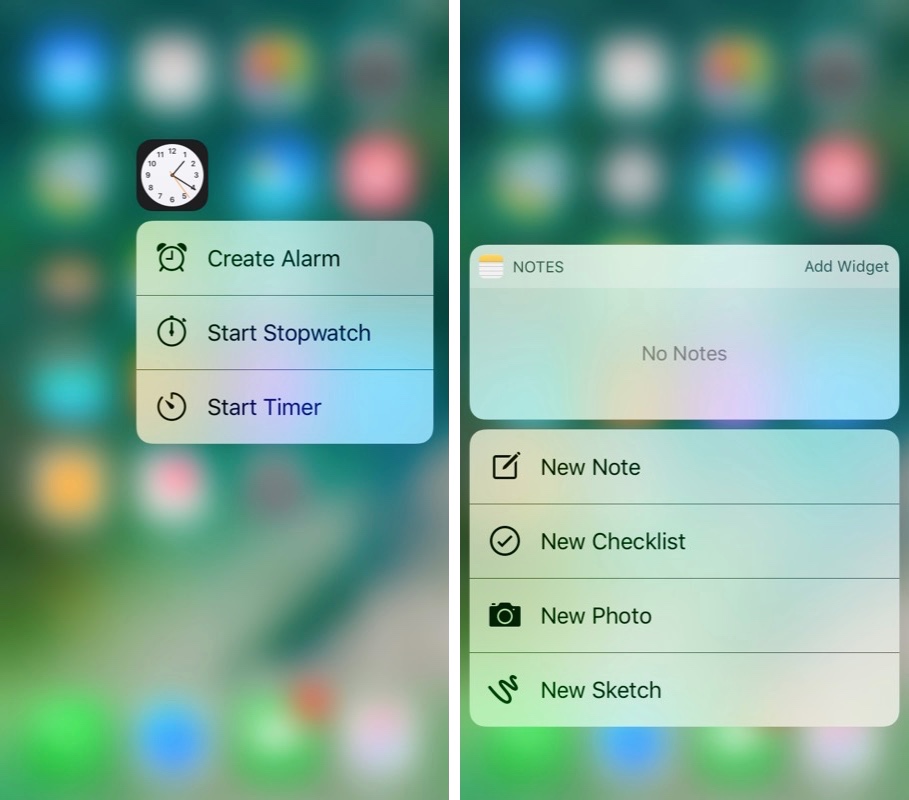

In iOS 10, 3D Touch has morewide use. And it plays a bigger role when you need to reply to a comment on the lock screen or send a message with a visual effect in the Messages app. It is necessary to use the 3D Touch function more often to integrate it into daily practice. Read our list of using 3D Touch on iOS 10.
No. 13. Unlocking the screeniPhone without pressing the home button
В Системе iOS 10 требуется нажать на «домашнюю» button to unlock iPhone. Even on the iPhone 7, which means pressing the Home button until you get a tactile response. What if you want to unlock your device by simply placing your finger on the surface of the scanner / home button? You can do this as long as the screen is activated and with the appropriate accessibility settings.
In the "Settings" application, go to "Basic-> "Universal access"-> "House".And enable the option “Unlock by placing your finger ".
No. 14. Disabling haptic feedback (vibration during basic actions)
The iPhone 7 has verypowerful Taptic motor. And in iOS 10, tactile imitation is used everywhere. Designed to simulate reality. Therefore, when you select a date in any application, then you really feel the scrolling of the date wheel. These sensations are also present in the Mail application when the message is deleted.
But if this functionality is annoying, then you can go to "Settings" and select the new settings panel "Sounds and tactile settings "... At the bottom of the panel, you can turn off the tactile sensing system.
Main
No. 15. Enabling Two-Step Verification
You will use your Apple accountID for so many actions in the Apple world. Purchase from the iTunes Store, enable iCloud services on all your devices, purchase from the Apple Online Store, and much more. Therefore, it is highly recommended that you activate two-step verification on your account to improve its security and prevent it.hackinghackers.
➤How to enable two-step verification for your Apple ID account
➤Five topical security tips for your iPhone
No. 16. Increase or decrease the size of text on the screen
If it becomes necessary to change the size of the text on the screen of your device to make it more comfortable to read, then this can be done in the "Settings", select the settings panel "Display and Brightness",then the option "Text size.Move the slider depending on yourpreferences. It should be noted that the preferred text size will only be displayed in applications that support the Dynamic Type feature.
No. 17. Battery percentage display
By default, the iOS system graphically displaysRemaining battery level in the upper right corner of the status bar on the main screen. To more easily monitor the level of remaining battery charge, you can activate the function to display the charge indicator as a percentage. To enable this option, go to “Settings” > "Basic" > “Usage” and check the “Battery charge in percentage” option.
Number 18. Closing an application or multiple applications
To exit the application completely, orforced close when it is in the background, double-click on the "Home" button to exit to a new window for switching between applications or the multitasking tab and swipe up to close the required application. You can close several applications at once (up to three applications at the same time) using the same gesture, but using three fingers.
No. 19. Move or delete an application from the home screen
If you need to move the iconapplications to a new location on the home screen, you need to tap and hold your finger on the icon of the required application and wait a couple of seconds until all the icons on the screen begin to wiggle. You can now drag and drop and organize app icons on your home screen. If there is a need to move the application icon to another page of the home screen, then drag the icon to the edge of the screen and wait until it moves to the next or previous page. To remove an application, you need to click on the small cross in the upper corner of the application icon in the same icon shaking mode. To exit the rocking mode, you must press the “Home” button.
No. 20. Do Not Disturb
Notifications and alerts help usnot to miss new information received or a new event that has occurred, but if necessary, you can force your iPhone not to notify you about incoming news either during an important meeting or simply when going to bed. To do this, you need to activate the “Do not disturb” option in Settings. The option can be enabled manually:Settings > Do not disturb, and click on the buttonManualto enable an option, or you can set a schedule for that option. When the option "Do not disturbIs turned on, incoming calls and alerts will be muted and the moon icon will appear in the status bar.
No. 21. Convenient access
Easy Access is a new feature thatfirst appeared on iPhone 6 and iPhone 6 Plus devices with larger screen sizes for easier one-handed use. Called by a light double click on the “Home/Touch ID scanner” button. The screen will lower down so that you can reach the required interface element with your thumb. The screen remains in this position for 5-6 seconds, which is quite enough to perform the necessary actions, or remains in this position until the first click on an interface element.
➤How to use Easy Access for easier one-handed operation on iPhone 6 Plus and iPhone 6
Number 22. Control center
Control Center provides quick access toCamera, Calculator applications, AirPlay function and music playback control buttons. You also have access to control screen brightness, enable or disable various system operating modes, such as Airplane mode, Wi-Fi, Bluetooth, Do Not Disturb, and lock or unlock the home screen portrait mode. To access the Control Center, you need to perform a “swipe up” gesture from the bottom edge of the screen.
Number 23. Lantern
You can use your iPhone as a flashlight. Swipe up from the bottom edge of the screen to bring up the Control Center and click on the torch icon to turn on the flashlight.
Number 24. Apple ID Account Without Credit Card
If you are not aware, then we remind you that youYou can create an Apple ID without a credit card to download free apps. Some parents set up these accounts for their children and fund those accounts using iTunes Gift Cards to track children's spending in the App Store.
Keyboard Tips
Number 25. How to add another language keyboard
If there is a need to communicate with colleaguesor with family members in another language, the iPhone offers a one-click solution for switching the keyboard between different layouts. To add a keyboard in another language, launch the "Settings" application and then:Basic -> Keyboard -> Keyboard layouts > Add a new layoutand add the new language to the work listkeyboard layouts. By performing this action only once, you can simply click on the globe icon next to the space bar on the on-screen keyboard to switch between different languages.
No. 26. Adding a special character
Couldn't find the special symbol € onyour iPhone or iPad keyboard? To print this symbol, you must press and hold the $ (dollar) symbol. In the drop-down list, the system will show the available alternative currency symbols, from which you can select the Euro symbol. This trick can be done to insert many other characters into text, such as an inverted exclamation mark, a longer hyphen, etc., by simply pressing and holding the appropriate key.
Number 27. Quick way to start a new offer.
The iOS system keyboard has the ability toBy double-clicking on the spacebar, add a period after the last word, which allows you to quickly create a new sentence. This is especially useful when working with a large paragraph of text. To enable this option, follow the path: “Settings" -> “Basic” -> "Keyboard"and check if the "Hotkey" option is enabled.
No. 28. Quickly insert punctuation marks in text
Many users to view the list of characterspunctuation click on the “123” key and only after that select the required character to insert it into the text. After this, they press the “ABC” key again to return to the keyboard for typing. This procedure can be performed much faster and more efficiently. To do this, press and hold the “123” key and swipe on the keyboard to select the required punctuation mark. After selecting the desired punctuation mark or symbol, remove your finger from the “123” key and the iOS system will automatically return to the letter keyboard for typing. This saves time on switching between keyboard layouts.
No. 29. Quick capitalization
If in the middle of a sentence you needTo type one capital letter, you usually do this by activating the CapsLock key once. There is a faster way: Press the “Shift” key and, without releasing your finger, move it to the key with the required letter to type. When you remove your finger, you'll see that the Shift key has already been deactivated, saving you extra finger movement.
No. 30. Quick change domain name extension
The mobile version of the Safari browser has a verya convenient ".com" key to quickly add a domain name extension to the URL link of the address bar. You can also use the same key to select other extensions such as ".ORG" or ".NET". To do this, hold down the ".COM" key and select the required extension from the drop-down menu. It should be noted an interesting feature that this drop-down menu will contain extensions inherent for the country whose language is added to the list of the international keyboard.
No. 31. To undo the last action - just shake the device
Instead of holding down the delete key to deletetyped text, you can simply shake the iPhone (once to the left and back). Then the screen will ask you to 'Cancel printing'. Pressing the button will automatically delete the recently typed text.
Number 34. Set of smart quotes
By default when you press the quoted keythere is a bunch of normal quotes, often called "dumb" quotes. However, you can invoke and type curved quotation marks (called "smart quotes") by pressing and holding the quotation mark key.
Number 35. Features of a set of text abbreviations in English
When typing the abbreviations "he’ll" or "we’ll,"the iOS system does not automatically correct the text you typed “hell” or “well” to the required text. For automatic correction it is necessary to add an extra letter “l.” Type “helll,” and the system will recommend that you select “he’ll.” Type “welll,” and the keyboard will tell you to select “we’ll.”
This option also works when typing the words “were” and “we’re.” Type in the extra letter “e” (“weree”) and the program will recommend you to choose “we’re.”
Tips for working with the Mail application
No. 36. Gestures
By swiping to the right on the message, you can assignmessage has read or unread status. By swiping to the left to the edge of the screen on the message, you can delete the message or send it to the archive. Swiping left on a message gives more options for working with the message.
➤How to quickly delete or archive a message in the Mail app
Number 37. Quick access to draft letters
For quick access to the listdrafts of emails, you must press and hold the "write new letter" button in the lower right corner. The window that appears will display all of your draft emails. This method allows you to get faster access to drafts than the conventional method.
No. 38. Choosing a piece of text to quote
Sometimes it becomes necessary to choose onlypart of the text from the sent email, but the iOS system by default selects and inserts the entire message in the response. To select a part of the text to include in a reply message, you must use the standard iOS mechanism for selecting text and only then click on the "Reply" button. You will now see the selected text from the received email as a quote in your reply message.
Number 39. Adding media files in a new e-mail window
In the new message window of the Mail applicationthere is no separate button for selecting media files for sending them as an application. But when you long press in the new message field, you will see a menu that appears with a proposal to add a video or photo as an attachment to this letter (you will need to click on the right arrow to see the options offered). When you click on the right arrow, you will see a standard menu for selecting a photo or video to send along with the letter.
No. 38. Text formatting
You can type the text of a new message, and then format it as "bold", "with a slant" or "underline" by selecting all the text and pressing the "BIU" button.
You can increase or decrease the indent sizeselected text. First you need to select the required part of the text, click on the quotes, then click the arrow on the right, and then click on the citation level, and then click on the "increase" or "decrease" buttons depending on the desired text format.
Number 39. Receive notification of a response to an email
To receive a notification that someone replied to a letter, when viewing a message, click on the flag and select "Notify".
Safari Browsing Tips
Number 40. Return to top of page
Clicking above the space of the smart search line will return you to the beginning of the page you are viewing. This eliminates the need to scroll the entire page to the top, which saves time.
No. 41. Gestures to go to the previous or next page
Instead of using the back or forward buttons,You can use edge-to-edge swipe gestures to select web pages saved in the app's history. Swipe from the left edge – go one page back, swipe from the right edge - go forward. These gestures are very useful when working in full screen mode of the application, since the forward/back buttons do not appear in this mode.
Number 42. Display recently closed tabs
If the desired tab was closed by mistake, orif you just need to open a tab from your last session, you can simply click and hold the “+” button to view a list of all your recently closed tabs.
Advertising
Advertising
No. 43. Access your browsing history
You can access your browser history for a specific tab by long pressing the back or forward buttons so that you can quickly jump to a site you have viewed in the past.
No. 44. Reader Safari
You can click on the icon to the left of the smart linesearch (address bar or search field) and get access to the reading mode in the browser, in which articles on the web page will be displayed without ads and other tinsel. The icon turns white when the "Reader" mode is activated.
No. 45. Reading list
If you come across a long article on the Internet,which you find interesting, but do not have time to read it, then this page can be added to the browser's reading list, which syncs with all your iOS devices and Mac computers.
You can save links in the Reading Listby clicking on the "Share" button in the Safari application, and then you must click on the button with the "glasses" icon. From iOS 7 and above, you can add articles to read in Safari from third-party apps, so you can add links from the Share menu in the respective apps.
The Reading List can be accessed by clicking on the bookmarks icon in the Safari toolbar and switching to the tab marked with the glasses icon.
No. 46. Search in current page
To find the required fragment on the currentthe web page needs to enter the text with the keyword in the smart search bar and immediately below you will see a section titled "On this page", which will show all occurrences of matches with the search keyword.
When you click the last cell in the section "On thispage ", Safari will display the first match in the search text, and then you can navigate through each match sequentially using the up or down buttons at the bottom.
No. 47. Close and organize tabs
To close the page, you can simply usegesture "swipe left" or press the "x" button. Tabs can only be closed sequentially, one after the other. There is no option to close all tabs at the same time.
You can arrange the order of the tabs by dragging and dropping them to the desired location.
No. 48. View pages in privacy mode
To turn on and off the PrivateAccess "to browse the web privately, click the tab switch at the bottom of the browser window and then select the" Private Access "button in the left corner of the window.
You will notice that the color of the browser window turns black when you activate Private Browsing, so you can differentiate private browsing from normal web browsing.
No. 49. Adding RSS feeds in Safari
Starting with iOS 8, it became possibleSubscribe to RSS feeds in Safari, which then appear in the Shared Links tab. To subscribe to RSS feeds, go to the subscription site from the Safari application, click on the “Bookmarks” icon, and then on the “@” symbol. Then click on the “Subscribe” button located at the bottom and then select “Add current page”. You will begin receiving updates from the selected site in the “Shared Links” tab.
Tips for using the Messages app (iMessage)
No. 50. Send Photos or Videos
To send a photo, click onthe camera icon in the current conversation, swipe up to take a photo and send it immediately. To send a video, swipe to the right to start shooting a video fragment, and then with a swipe up, stop shooting and send the resulting video fragment.
No. 51. Message sending and receiving time
Open the Messages app and go toany conversation. Here you will see the times are for the entire conversation. In order to see the time of sending a message, you need to drag a specific message to the left.
No. 52. Block Voice Calls, FaceTime Calls, and Messages
In Settings, selectTelephone> Blockedand then click on "Add new ... ", and click on the contact you would like to add to the blacklist. You can also block a contact in the Phone, FaceTime, and Messages apps.
If a contact or phone number was entered in your blacklist, then all voice calls, FaceTime calls, and messages from that contact will be ignored. You can't block voice calls individually, or just calls from the FaceTime app, or just messages from this contact.
➤How to block calls and messages on iPhone
No. 53. Share your location with friends
In the Messages app, select the conversation with your friend with whom you want to share your location. Then click on "Learn More"in the upper right corner. Click on “Send my current location”",if you want to send your current location or click on “Share location",if you want to share your location forever or for a specific period of time.
No. 54. Exit iMessage General Chat
Select the conversation you want to leave in the Messages app, click on Details, and then turn on the toggleDo not disturb".
Tips for using the “Phone” app.
Number 55. How to answer a call with a text message
If you are unable to receive a call at a certain timemoment in time, you can respond to it with a text message. You need to click on the “Messages” icon and send a pre-prepared message, for example, “Sorry, I can’t take your call right now,” or “On my way,” or “Can I call you back later?” You can edit pre-written messages in"Settings" > "Phone" > "Reply by message".
No. 56. Add photos to your contact profile
You can sync profile photosyour friends and family from social networks such as Facebook or Twitter. This way, when they email or call you, you'll see their profile photo from the social network. To synchronize, go to “Settings”, select Facebook or Twitter, log in to your account and click on"Refresh all contacts".
Number 57. Tips for using the Calculator app
You can delete the last digit entered in the Calculator application by swiping from left to right or vice versa on the Calculator application display.
No. 58. Tips for using the Calendar app
The Calendar app makes it easier to use the view“list of events” for a month or a year. Here's how to set it up: You need to go to the month view. Here you need to click on the “list/month view combination” button, which is located to the left of the search icon. Then you need to click on any day of the month. Now click on the list view icon to the left of the search icon. That's all! This will enable the “list” button and all the events of the month should now be displayed as a list.
Tips for extending your device’s battery life on a single charge
No. 59. Turn on auto-lock
The auto-lock function must be activatedscreen on your iPhone in order to cut down on battery power consumption. To select the time after which the automatic blocking will be triggered, go to "Settings", go to "Main"> "Auto-lock"and set the auto-blocking time to 1, 2, 3, 4 or 5 minutes.
Number 60. Dim the brightness
Decreasing the screen brightness also helpssave energy. Therefore, you can set the screen brightness to a lower level depending on your preferences. Go to "Settings", select "Screen and brightness" and decrease the brightness.
No. 61. Identify malicious energy consumers
Starting from iOS 8 and higher, you can determine which application consumes the maximum amount of energy. The information is located: “Settings”, then"Basic" > Use > Battery usage.
This section of settings will containinformation regarding energy consumption by one or another application or various services of the system. It is important to note that an app with a high percentage of battery consumption does not mean that it is. Perhaps you use this application very often, or if the application is running in the background, it downloads or uploads data to the network.
Worry about applicationswhich are on the top list of electricity consumers, but which you have not even used. In iOS 8, there is information as to which activity leads to the most energy consumption, including services running in the background.
No. 62. Locate only when using the application
In iOS 8, Apple added a new customization option in location services called “Only when using the application "... This means that this application willuse location services only when you use this application, not all the time. This can be useful when working with applications like the App Store, which do not have such a need to use geolocation services all the time.
It is possible to view which applicationsused location services in Settings > Privacy > Location services. Applications that have used your location are marked with a compass-shaped indicator. If you select an application in this list, you will see the option “Only when using "... Activate this option if you want tothe app only detects your location when you are using this app. This ensures that the application only uses your location when it or one of its services is displayed.
Please note that this optionAvailable with stock apps and some third-party apps. However, we expect third-party apps to add this option after they are optimized for iOS 8.
No. 63. Application update in the background
Refreshing data in the backgroundallows the application to update when foundin the background. This feature improves the user experience with applications such as RSS clients, news applications and others, which can download the latest data in the background so that you do not have to waste your time updating content when you launch the application. Although Apple optimizes this process as much as possible to reduce power consumption, it is likely that this process reduces battery life, especially on older iOS devices. To disable this functionality, go to “Settings”, select “Basic" > "Update in the Background"and disable this feature for applications like Facebook or other applications that do not have any pressing need to constantly update their data in the background.
Number 64. Tips for Longer Battery Life
iOS 8 or higher offers tips to its users on how to increase battery life depending on the user's operating practices. For example, the system will advise the user“Reduce display brightness”, “Enable Auto-lock”and other. To find out what tips Apple offers to increase battery life, you need to go to"Settings",then "Basic" > Usage > Battery Usage.
Siri Tips
Siri is Apple's personal assistant that...called by long pressing the Home button. He is quite capable of completing many tasks. Click on the "?" to find out what kinds of questions you can ask Siri.
Number 65. What is this song?
If you liked the song that is playingon the radio, you can ask Siri “What song is this?” to find out the title of that song. You can also buy this song from iTunes, if it is offered there, by clicking on the buy button.
No. 66. Hands-Free Siri (UsingSirino hands)
If your device is connected to a sourcepower supply, then instead of pressing the Home button, you can simply say: “Hey Siri.” This will activate the Siri service. Now you can ask questions. There are solutions for voice activation of Siri at moments wheniPhone is not connected to a power source.
No. 67. Making Siri Respond Faster
To get Siri to answer a questionfaster, just hold down the Home button when you ask your question and release it when you're done speaking. Since Siri does not have to identify when the question ends, you will get an answer to the question faster.
No. 68. Turning on or off the various modes of the System
Siri is able to turn on or off varioussystem services such as Airplane mode (enable only), Bluetooth, Wi-Fi, Do Not Disturb modes, and more. All you have to do is say “Turn on Wi-Fi,” “Turn off Bluetooth,” and the like. You can also adjust the screen brightness using Siri. To do this, use commands such as “Brightness up” or “Brightness down”.
You can also open the application settings panel,using Siri capabilities. While in an application, say “Open Settings” to bring up the settings panel for that application. Alternatively, you can say: “Open settings <application name>”, for example, “Open Safari settings” and this will launch the Safari settings panel.
No. 69. Make Siri pronounce your name correctly
You can tell Siri that she's doing it wrongsays your name. You can simply say, “That's not how my name [any name] is pronounced,” to begin the learning process. During training, the system will ask you to pronounce the name several times, and then ask you to choose the most correct pronunciation of this name in its performance, depending on how you yourself pronounce this name. After this, the system will continue to use only the correct pronunciation option. Siri itself may ask you to initiate the process of learning to pronounce your name if it considers that it is having this kind of difficulty.
Tips for using the Camera and Photo apps
Number 70. Favorite Album
Click to select a photo and then clickon the "heart" icon at the bottom of the photo window in order to add it to your favorite photos album. An album of your favorite photos is available in the Photos application.
No. 71. How to hide a photo
To hide the photo, click onphoto and keep holding it while in Moments, Collections and Years view or in Album view, then select the optionHide".
No. 72. Delayed Shutter Release
In the Camera app, frame the shot, thenclick on the “Timer” icon at the top, select the shutter interval (from 3 to 10 seconds), and press the shutter button. After pressing the shutter button, a countdown will appear on the screen until the shutter is released.
No. 73. Restore and delete photos.
When you give the command to delete a photo or video from the Camera application, it is not permanently deleted. The system marks them for deletion after 30 days and moves them to a separate album “Recently deleted",where they are stored during this time. You can either restore an accidentally deleted photo or video fragment or delete them permanently from the album "Recently deleted".
Advertising
Advertising
No. 74. Focus and exposure control
The Camera application allows the user tomanual control of focus and exposure. Aim the device at the subject of shooting, then click on the screen on the required subject to set focus. When the object is in focus of the application, a brightness scale will appear next to it, which is the mechanism for controlling the exposure. By moving the slider with your finger along the scale, the subject becomes lighter or darker.
Other handy things you should try
No. 75. View IMEI Number
It is recommended to always know and store the IMEI numberyour device in case you lose it. This 16-digit number (known as the International Mobile Device Identification Number) uniquely identifies any device that communicates with the mobile network using a SIM card, and allows operators to blacklist the device if it is declared missing.
Blacklisted devices are notoperate on mobile networks, making it difficult for thieves to use or resell them. And if you are planning to purchase a so-called "refurbished" or used device, then before purchasing such a device it is recommended to always check it for being blacklisted.
On your iOS device, go to “Settings» > "Basic" > "About this device"and using scrolling we go down to the IMEI number of the device and other detailed information about this device.
There are other ways to find out the IMEI number of a device, for this read our article on this topic.
Number 76. Screen magnification
Apple has added a new feature called “Screen magnification» for devices with increased screen resolution,namely iPhone 6 and iPhone 6 Plus. This option is offered for inclusion during the initial setup procedure of your iPhone 6 or iPhone 6 Plus. You can also change these settings in the settings panel > "Display and Brightness" > Review. You can choose between Standard and Zoom views.
In the Standard review, the iPhone 6 Plus performs inresolution of 2208 x 1242 pixels, which at 3x magnification gives a resolution of 736 × 414 pixels. In Standard view, the iPhone 6 runs at a resolution of 1334 x 750 pixels, which at 3x zoom gives a resolution of 667 x 375 pixels.
In Zoom mode, iPhone 6 Plusbehaves like the iPhone 6's virtual screen, but with 3 times the "retina" resolution, which when interpolated gives a resolution of 2001 × 1125 (virtual) pixels. Below are some screenshots that give a clearer idea of the difference between the "Large" and "Standard" screen modes of the iPhone 6 Plus. In Zoom View mode, the iPhone 6 behaves like the virtual screen of the iPhone 5s, but with 2x retina resolution, which when interpolated gives a resolution of 1136 x 640 pixels.
Thus, the "enlarged" mode of the screeneach iPhone displays the same Standard Mode UI of the previous, smaller iPhone. This means that instead of displaying more content on the screen, the content itself will be at a larger size, which is very suitable for users who want to see slightly larger text, larger app icons, larger signatures and other larger user interface elements. ...
No. 77. Headphone Tips
You can use the center button of yourheadphone jack (located between the volume up (+) and volume down (-) buttons) to perform many useful actions without having to take your device out of your pocket. Follow the link below for more details.
Number 78. Application extension
Extending an application is a powerful toolwhich was first introduced in iOS 8 and which allows you to significantly expand and control the functionality of the operating system to perform some very cool tasks that were not available in previous versions.
No. 79. Avoiding Short Circuit on Lightning Cable
To avoid short circuit toLightning cable and to avoid the appearance of wires on the outer surface of the cable, you must put springs on both ends of the cable and do not allow the cable to remain in a bent position for a long time. You can use springs removed from any ballpoint pen, which must be wrapped around both cable connectors. Thus, the service life of your cable is significantly extended.
Number 80. IPhone device not charging?
If you find that your iPhone is no longeris charged via a Lightning cable, the likely cause is debris or dust that has accumulated in the Lightning connectors over the course of the cable's use. You can use a toothpick to remove debris from the connector and restore the ability to charge your iPhone.