With the release of the iPhone 6 and iPhone 6 Plus, Apple followed the trend of smartphones with huge screens (see Android devices) to
What is easy access in iOS?
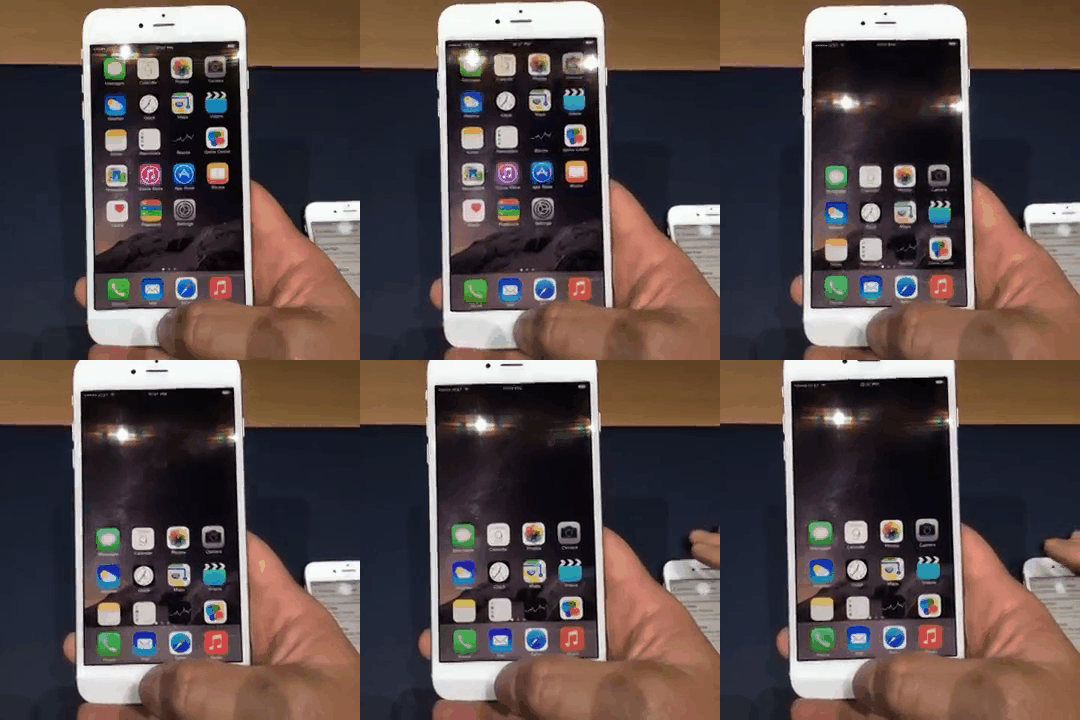
Easy Access is a new feature in iOS8.can be found in the new iPhone 6 and iPhone 6 Plus. What is she doing? It temporarily moves the user interface to the bottom of the iPhone 6 and 6 plus screen. This way, users with smaller hands and those who use an iPhone with one hand can reach the very top element of the UI without having to use a second hand or awkwardly reach for icons. The following GIF shows this function in action:

Advertising
Advertising
How to disable or enable convenient access mode in iPhone 6, 6 plus?
Reachability mode is enabled by default, but if for some reason you want to disable or re-enable it, simply follow these steps:
1. OpenSettings
2. ClickMain
3. ClickUniversal access
4. Scroll to “Convenient access“
5. Here you can disable or enable the modeConvenient access, changing the position of the toggle switch.
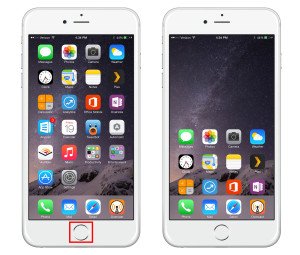
 iPhone 6 plus mode reachability
Once you've turned on easy access, youYou can access this feature by double tapping the Home button. You just need to tap without pressing the Home button, since double-clicking will cause the App Switcher to appear. To return the screen to normal, simply press the top of the screen or the home button. The screen will also return to normal after 10 seconds of inactivity.