With iOS 11, Apple has redesigned the control center again (for the second time in a year). This time all the switches
With a new design, some features have changedlocation. For example, if you extend the control point from the bottom of the screen, you will no longer find the AirDrop icon. But she is there. Just hidden in a new widget dedicated to function switches. Below, we’ll show you how to enable and use AirDrop on iOS 11 and later.
Advertising
Advertising
How to turn it onAirdrop at the control point
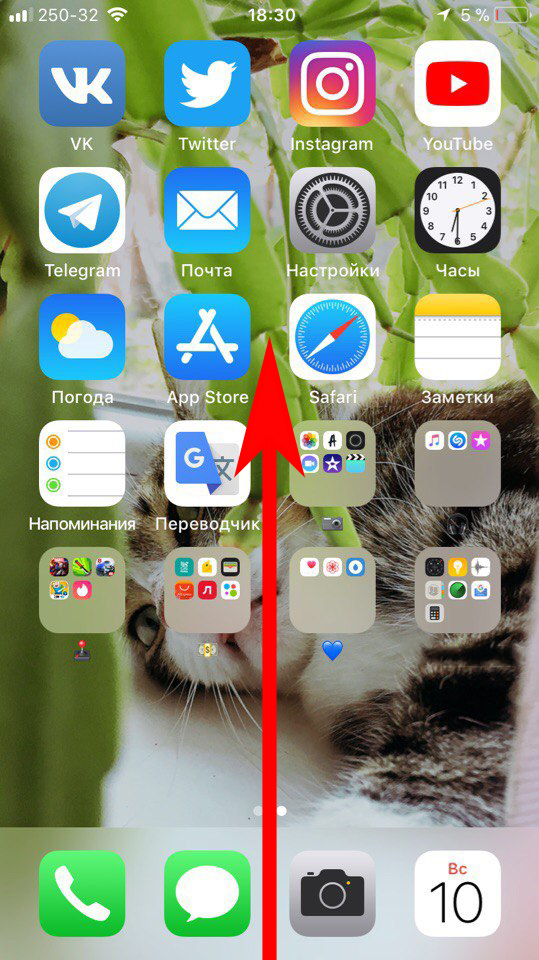
Step 1: Pull out the control item from the bottom of the screen.

Step 2: Top left will be a square with switchesWi-Fi, Bluetooth, etc. If you have an iPhone 6s or a newer model, click on this widget using 3D Touch. If you have an older model, just hold the widget.
Advertising
Advertising
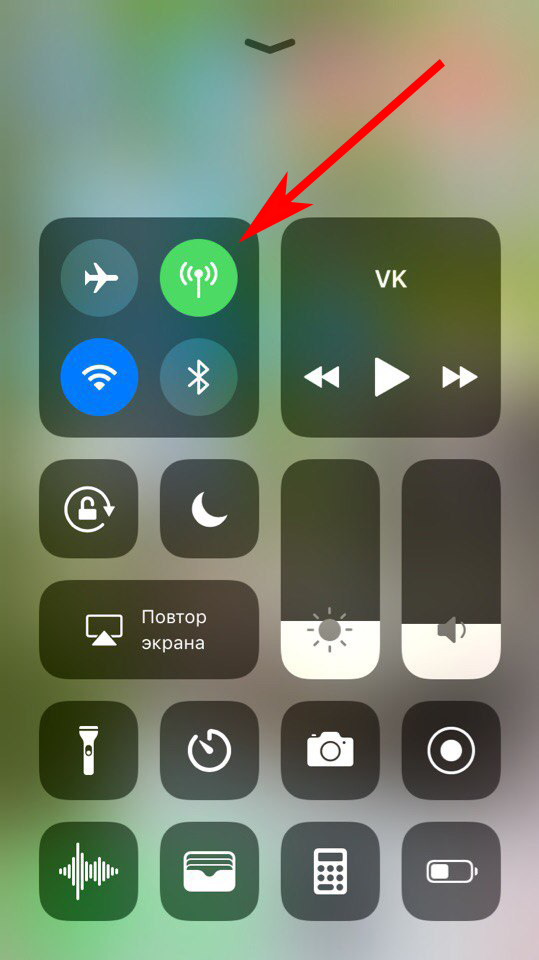

Step 3: The widget will expand to full screen and the AirDrop icon will appear on it.
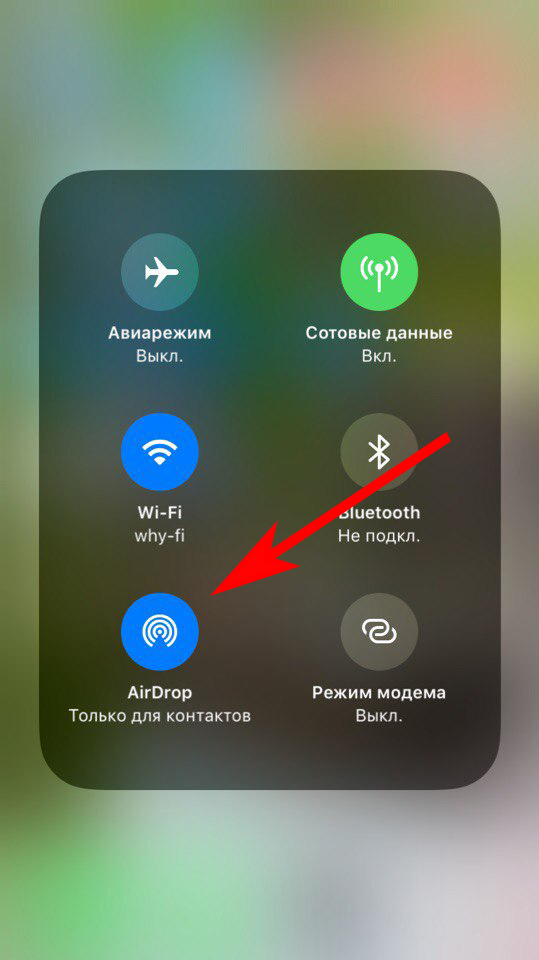

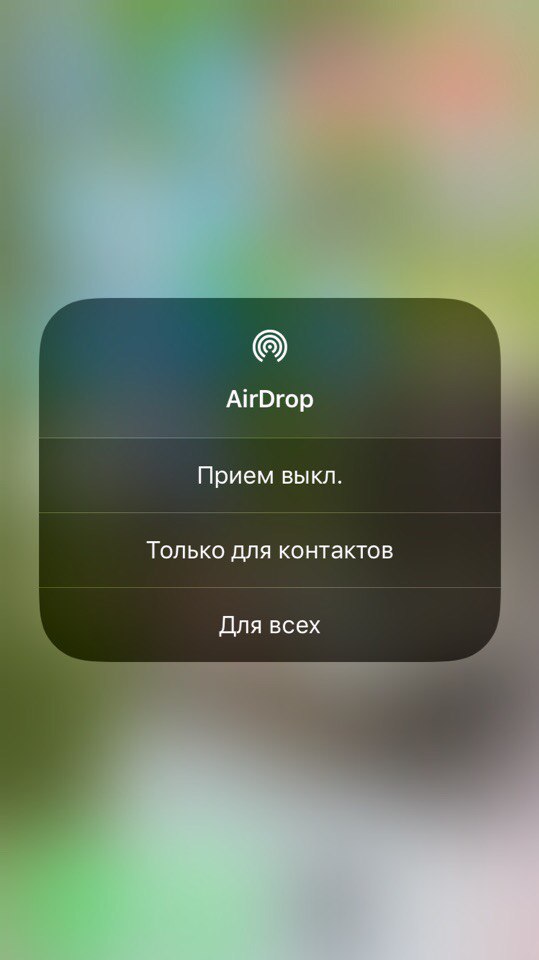
Step 4: Long press the AirDrop icon and a window will pop up with three options –Reception off,For contacts onlyAndFor all. Select the appropriate one and you will be returned to the control center screen.

how turn onAirDropat Settings
The AirDrop function is hidden in the control room, but on iOS 11 there is a separate section for it in the settings.
Step 1: OpenSettings.


Step 2: Go toMain.
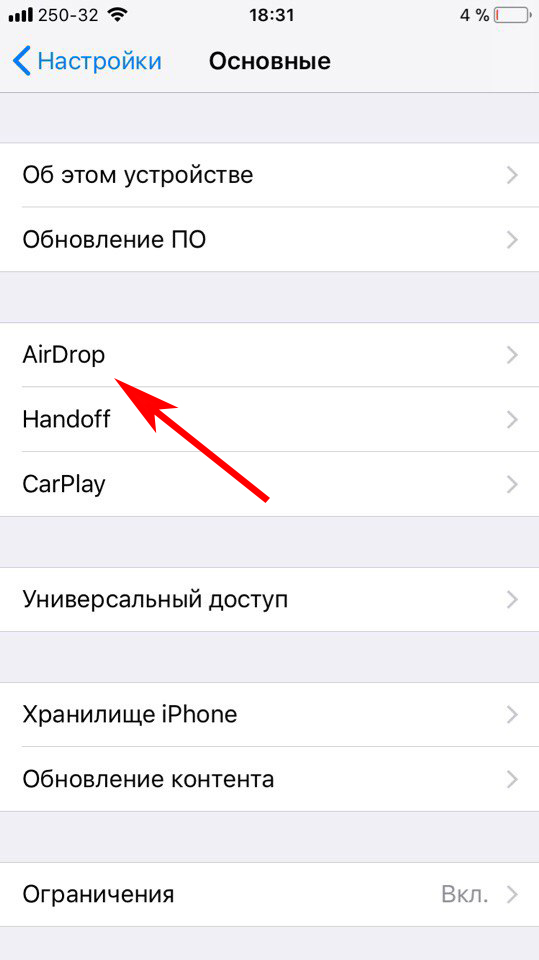

Step 3: SelectAirdrop. Here you will also be offered three options for settings.
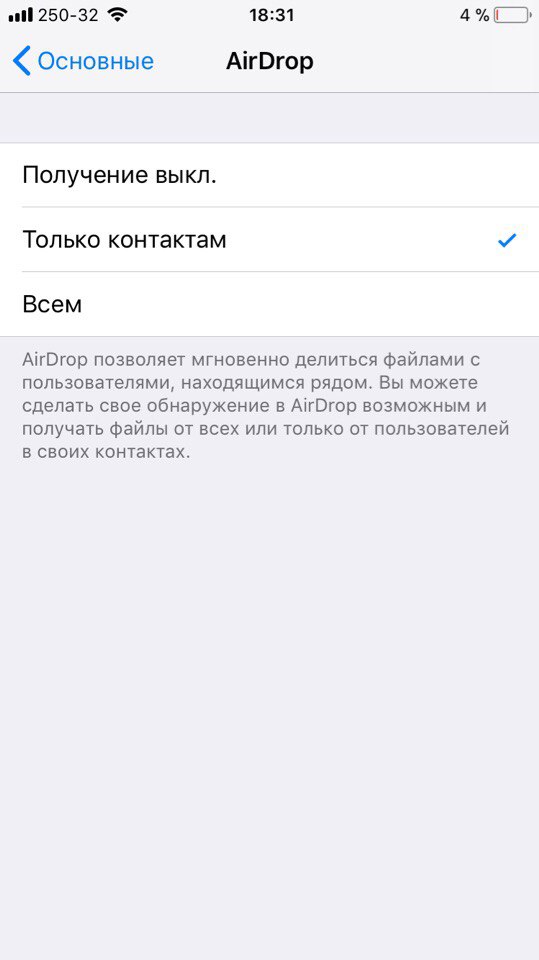

How to turn offAirdrop
To turn off AirDrop, repeat the steps above except for the last point. In the last step, select “Receive Off”