Want to play mp3, m4a or another audio file on Mac, but don't want to add it to your iTunes library?
Eat
Advertising
Advertising
These methods come in handy when you need to listen.one file that you will never need again. Perhaps this is some kind of voice memo or something else that does not need to be saved for the future. There are many convenient programs for this. Today we will talk about the method with iTunes, as well as QuickTime and Quick Look.
How to play audio iniTunes without adding to the library
You can create a playlist with audio files without adding them to your iTunes library. Here's how to do it:
- Open iTunes on your Mac or Windows PC.
- Locate the file on the computer that you want to play.
- Hold down the OPTION / ALT key and drag the file into the iTunes window. It will be added to the iTunes playlist, but will not be copied to your library.
After that, you can delete the audio file from the iTunes playlist at any time.
Advertising
Advertising
In the same way, you can copy audio files directly to your iPhone, iPad or iPod without saving them to iTunes.
If you don’t want to add the file even to the iTunes playlist, there is a way out. Below we will talk about two more ways.
How to play an audio file onMac throughQuicktime
QuickTime makes it easy to play anyMac audio files without using iTunes. The program is great for one listening if you for some reason do not want to use iTunes at all.
- Open QuickTime on Mac (in the program folder).
- Drag the file to the QuickTime icon in the dock or to the QuickTime window to play it.
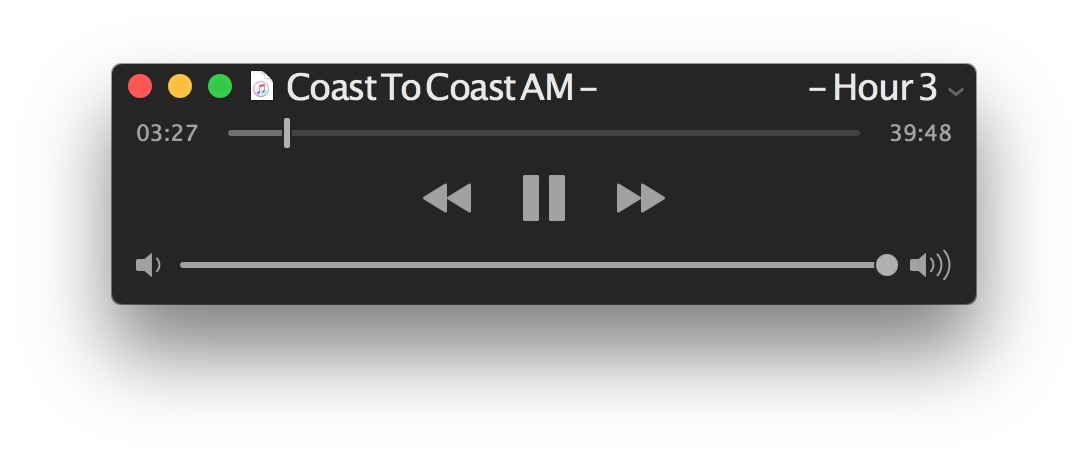

The advantage of using Quick Time is that you can minimize the program and continue playing audio. iTunes can also play audio in the background.
How to play an audio file onMac throughQuick Look
Audio can also be played directly in Finder on Mac using Quick Look:
- In the Finder, find the desired audio file.
- Select a file and press Space.
- Audio will turn on automatically and continue playing until you close the Quick Look window.
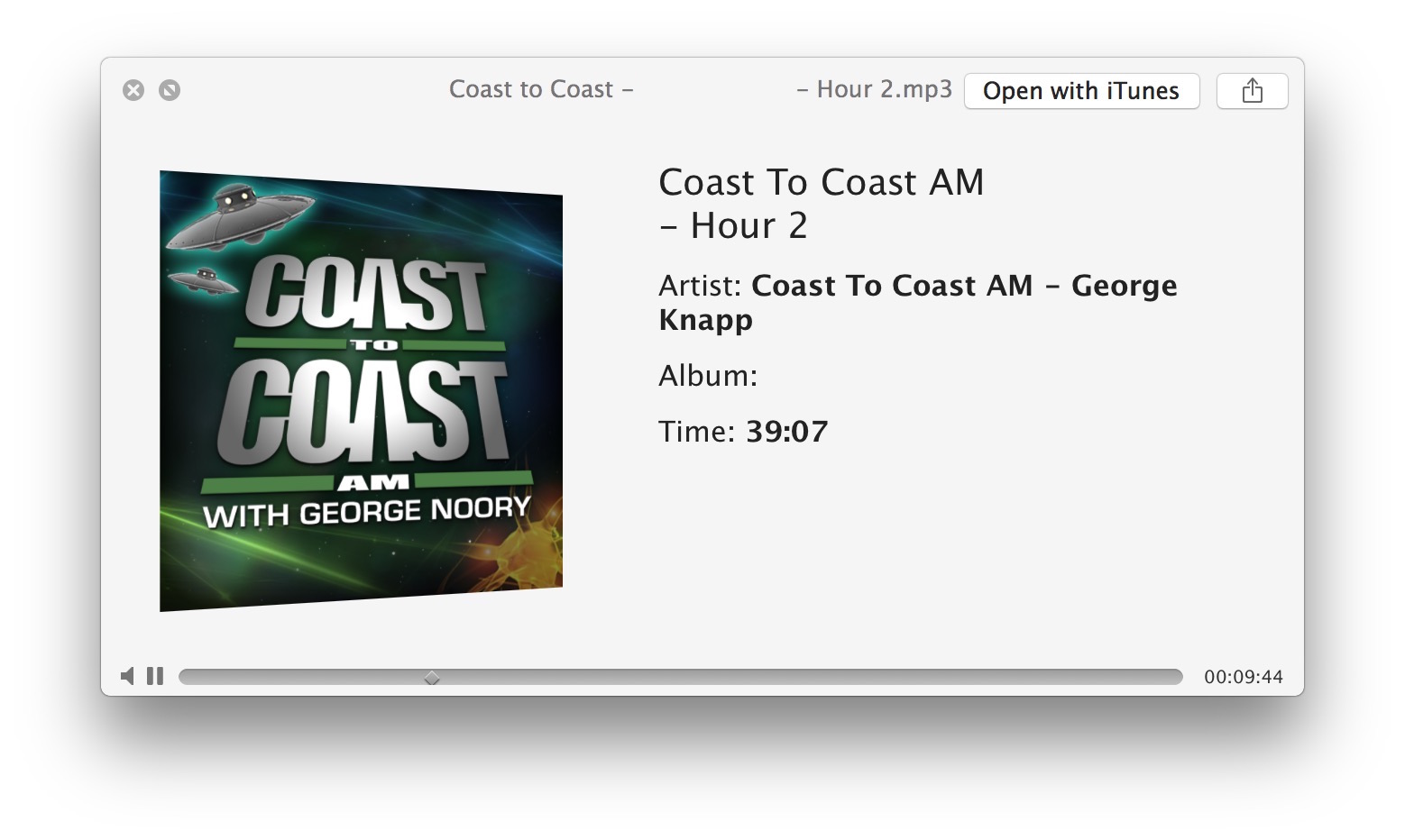

The disadvantage of Quick Look is that the audio will stop playing if you minimize the window or select another file in the Finder.
There are other programs with which you canplay audio files on Mac, but we talked about the standard ones, because they are quite convenient, and you don’t have to download anything else. You can also use the afplay command on the command line, but this method is suitable only for advanced users.