Speeding up your computer? The first thing that comes to mind is the processor, memory and video card. About acceleration
Form factors: mSATA, M.2, 2.5″ and PCI Express-What is the difference?
Indeed, SSDs come in three differentform factors. Strictly speaking, there are also external drives that can have any type at all and connect to the computer via Thunderbolt or USB, but we are not talking about them now.
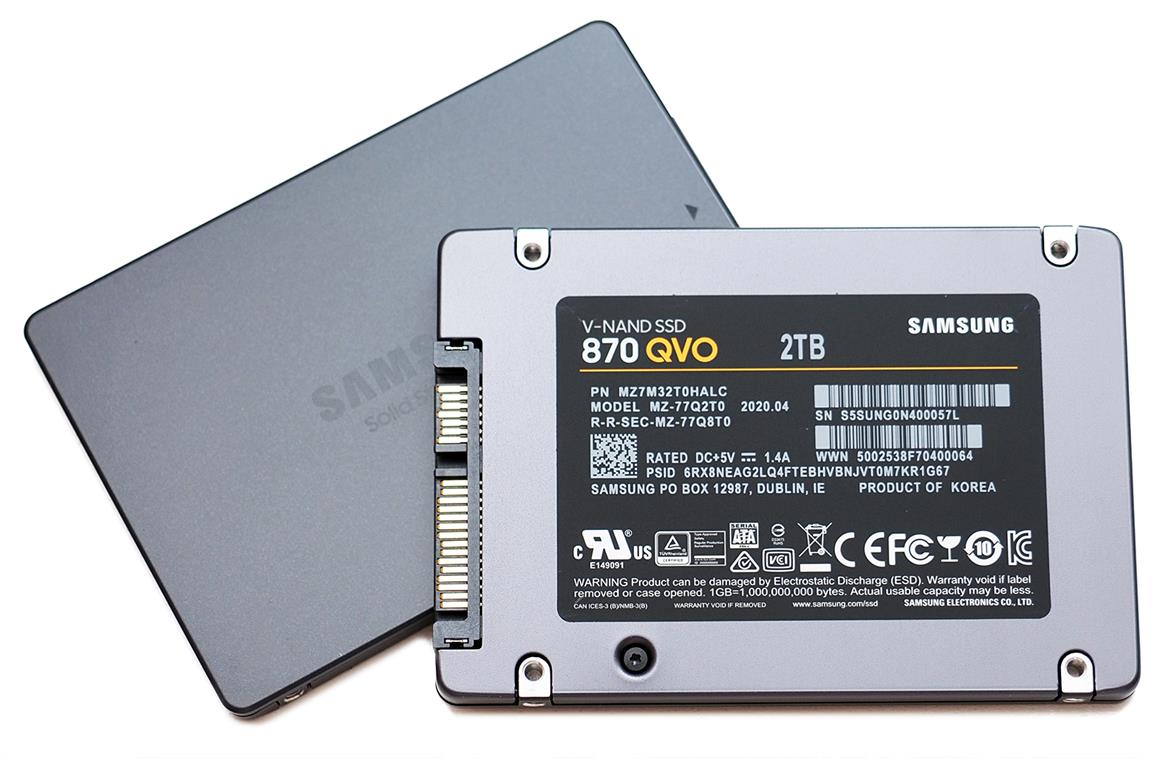
2.5″(two and a half inches) is a typical sizelaptop hard drive. Simple and straightforward, which is why they began to produce solid-state drives in the same case, to make it easier to upgrade old devices, and not to invent anything special for new ones. SATA connector and cable, power supply is the same as a hard drive. Large aluminum housing for good heat dissipation. These are the advantages of the 2.5-inch SSD format. The disadvantages grow from them: SATA is a slow interface. It does not allow SSD technology to reveal itself, and there is no need for such dimensions; modern solid-state drives can take up much less space.
</ img>
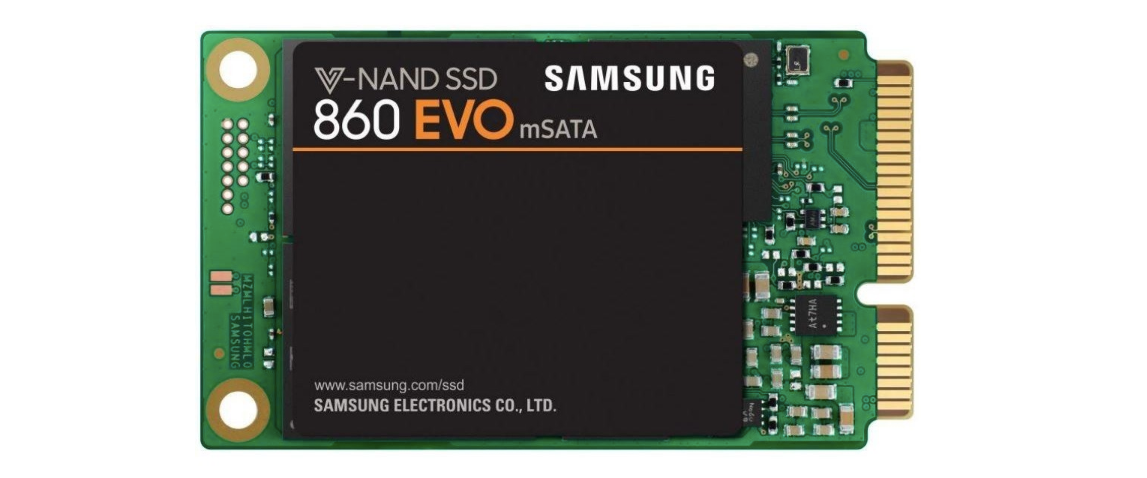
mSATA- the drive format that is easiest to describelike 2.5″ without body. That is, it is a small board with memory chips and data and power connectors according to the SATA standard. More compact than the previous version, but with the same slow interface.
</ img>
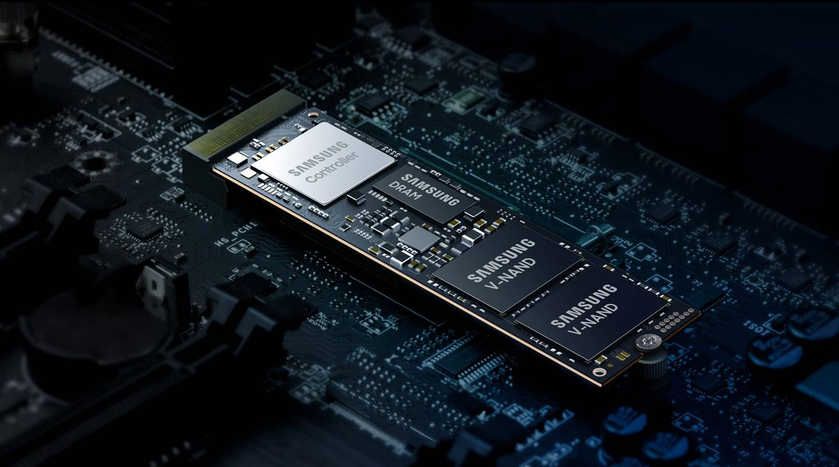
M.2- modern compact format for mostSSD. This is essentially a board with chips that connects directly to the motherboard. No cables or bulky cases. Initially, this format appeared where it is most crowded, that is, in laptops. But over time it took root in desktop computers. The downside of this solution is perhaps the insufficient heat dissipation: some models operating under high loads require additional radiators. In most cases, when choosing an SSD for a home gaming computer, it makes sense to choose the M.2 format. By the way, the numbers 2280 in the name (there are also options 2230, 2242, 2260) indicate only the size of the board in millimeters, where 22 is the width (all are the same), and 80 is the length (essentially it only affects the space occupied inside the system block).

</ img>
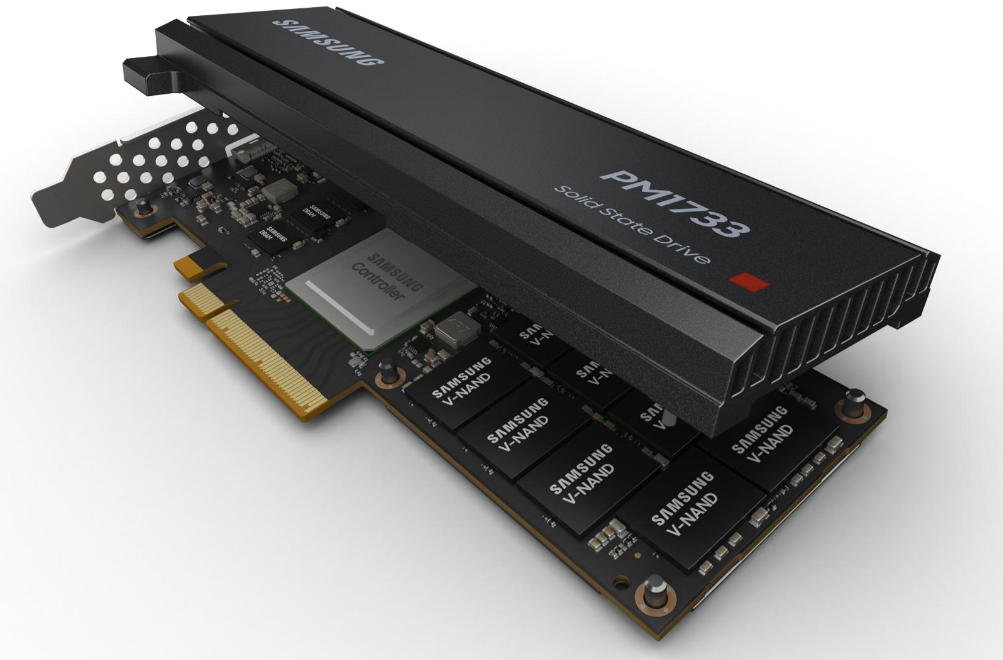
PCI Express- The main thing here is not to get confused.Look: this term refers to both the data interface and the physical connector on the motherboard. Now we are talking about the connector, or more precisely, about the form factor of an expansion card installed in a PCI Express slot. The advantage of this SSD implementation is the ability to use a faster PCIe x8 configuration. But such an expansion card, large and occupying an unexpected slot, is more suitable for a server, although you can experiment at home if your budget allows.
</ img>
What is NVMe and how is it different from SATA?
Now, this is an important point.With form factors 2.5″ and mSATA everything is clear, they work via the SATA interface. Drives in card format for the PCI Express slot operate using the PCI Express interface. But the M.2 standard still forces us to take a deeper look at these interfaces, because there are M.2 drives that work both using the slower SATA protocol and the faster PCIe.
SATA- this is the good old interface for connectinghard drives with familiar red wires (oldfags remember an even older IDE with wide gray cables, but these ancient technologies are useless for SSDs). The maximum SATA throughput reaches 600 MB/sec. This was completely enough for hard drives, but for fast flash memory this is clearly a bottleneck. Therefore, an M.2 drive operating via the SATA interface (it can be identified by two key slots on the connector with contacts) is not the fastest solution.
NVMe(Non-Volatile Memory Express) - fasterstorage protocol. Physically, it uses the same M.2 connector, but transmits data via the PCI Express bus. Which, in turn, has different versions; we’ll tell you in more detail later.
PCIe 4.0: What's the Difference From PCIe 3.0?
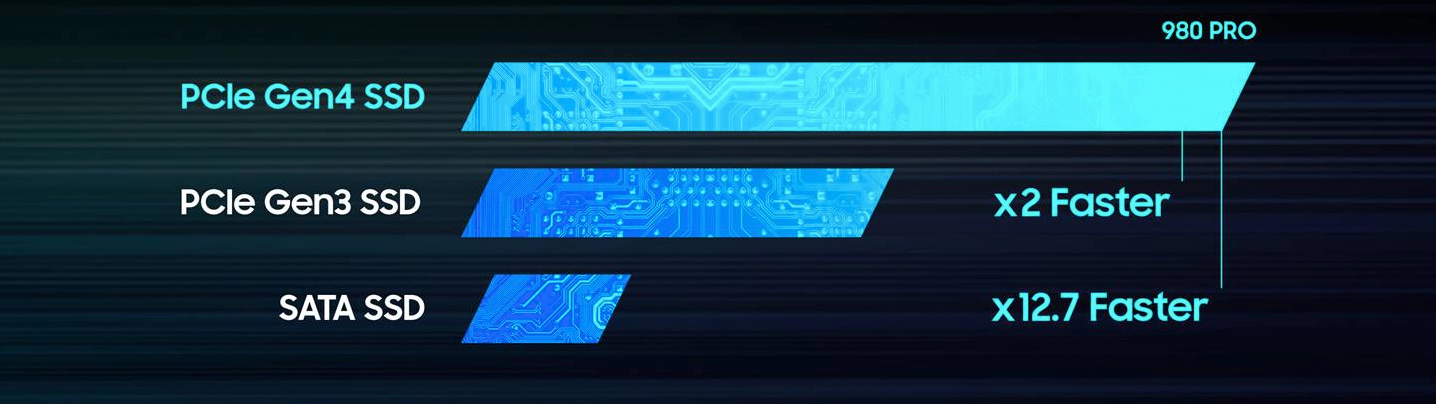
Speed.Yes, the specification says about increased reliability, but the main difference is speed. The throughput of the fourth version of the PCIe interface is twice as high as that of the third. The maximum speed of one channel (PCIe x1) is almost two gigabytes per second (1.969 GB/s). For SSD drives operating via an M.2 connector with a PCIe x4 interface, the ceiling will be, respectively, 7.87 GB/s. As you already know, the limit of SATA III's capabilities is only 600 MB/s, which is about 13 times slower.
</ img>
What about Apple's SSD?
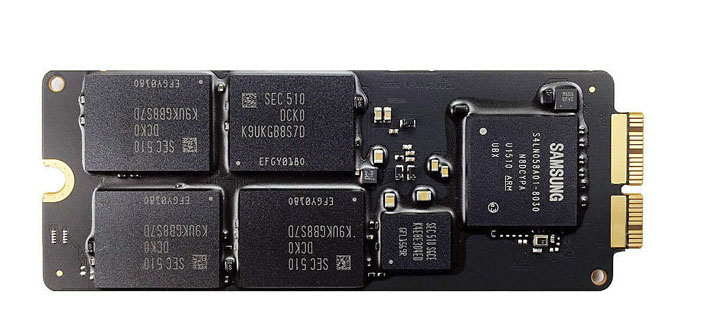
Apple, as always, has its own way.Solid state drives in MacBooks and iPads have undergone a common interface evolution, moving from SATA to PCIe. But the connectors on the drives are their own, incompatible with classic M.2, although the data transfer protocol is the same. So if you upgrade your MacBook, choose a drive that is supported by MacBooks, and pay attention to the features of your particular model.
</ img>
What is IOPS and what does it affect?
IOPS (stands for input/outputoperations per second is an important drive speed parameter. We have already figured out the speed of data transfer over different interfaces, but there is one more nuance. How long are the delays when information gets into the drive and when it is extracted from it? This question is precisely answered by the IOPS indicator. And for SSD drives it is much higher than for classic hard drives. Purely mechanically: a hard drive, in order to read information from a certain area of the platter, needs some time to physically “bring” the magnetic head to the right place. Solid state drives do not have such complications. Therefore, if HDDs have IOPS in the hundreds, SSDs have tens and hundreds of thousands, with the most productive ones like the Samsung SSD 980 PRO having this parameter reaching a million.
SLC, MLC, TLC, QLC - what's the difference?
The difference is in the number of bits of information thatcan be stored in one memory location. The more, the more densely the information is packed in the drive and the larger its capacity at the same cost. However, the access speed may be lower. Let's go in order.
SLC(Single-Level Cell) - a type of flash memory where one bit of information is stored in one cell. Such memory will be fast and energy efficient, but very expensive.
MLC(Multi-Level Cell) - here in one cell you canstore not just one bit of data, but many. As many as two (because cases with a large number of bits subsequently received their own names, more on them later). Accordingly, the data density is higher, the cost per gigabyte is lower, but the speed and endurance of the drive are theoretically inferior to SLC.
However, modern technologies allow thesenuances are gradually compensated. In order not to encounter purely physical limitations in the production of memory chips, cells began to be made three-dimensional, that is, several cells were placed on one layer of the microcircuit at once, as if “in height.” This is how 3D consoles appeared for TLC and QLC memory types.
TLC(Triple-Level Cell) - Three bits of data in a cell.Such memory may also be called 3-bit MLC or MLC-3, because it is actually a type of MLC. Modern production technologies already make it possible to make such chips very fast.
QLC(Quad-Level Cell) - four bits of data in a cell, that is, 4-bit MLC. At the moment, such memory is considered the most accessible, although it is inferior in speed characteristics to other described types.
What does V-NAND mean?
This is one of the types of 3D flash memory mentioned above.First, you should know that all flash memory is divided into two large classes, NAND and NOR. They differ in the logic for organizing data access, and modern SSDs use only NAND memory. But the clarification “V-NAND” indicates that this is a memory with a vertical type of organization of a three-dimensional cell structure. There is also a horizontal type, but you are unlikely to need to delve into such subtleties when choosing a specific drive.
Okay, what does TBW say?
About how much data is guaranteed to bewrite to this drive. This is one of the indicators of drive reliability. As you know, SSDs are also subject to wear and tear, and one cell cannot be rewritten an infinite number of times. The higher the manufacturer's TBW (Total Bytes Written) parameter, the more data can be written to the disk during its life cycle. TBW is usually measured in terabytes. For a home user, a value of 100 may be enough for a good ten years of use, but for a server that constantly overwrites data, this may not be enough.
What is S.M.A.R.T. and why is this technology needed?
S.M.A.R.T.sounds similar to smart, that is, something smart. In the case of drives, this is self-monitoring, analysis and reporting technology, that is, technology for self-analysis of the device’s state. A hard drive or SSD that supports S.M.A.R.T. can promptly warn of impending operational problems. More precisely, not so, the drive can only determine and store a set of important parameters, but technically the operating system or a special program will report them to the user. S.M.A.R.T technology was originally developed specifically for hard drives, so it has many parameters related to its anatomy. But with the advent of SSDs, special parameters appeared for them (number of write cycles, counters for various errors, state of the reserve block pool). This is an important signal for the user: if S.M.A.R.T. indicates the drive is worn out, you can take care of buying a new one and backing up your data in advance. And not in a panic and at the last moment, as usual.
Hooray!Now you can easily decipher a sign like “M.2 2280 PCIe 4.0 x4 V-NAND TLC” (hint: this is a 22x80 mm drive with an M.2 connector that runs on the fast PCI Express 4.0 bus in four threads and contains “3D » flash memory with the ability to store three bits of data in each cell). You can take it.
Powered by Samsung SSD 980 PRO
In working on this editorial material, created with the interests of readers in mindgg, advertiser participated - Samsung company,interested in you learning more about the capabilities of modern SSD drives and, after reading this text, knowing what to look for when choosing such a data storage for your computer.
Samsung SSD 980 PRO: Next Level SSD Performance
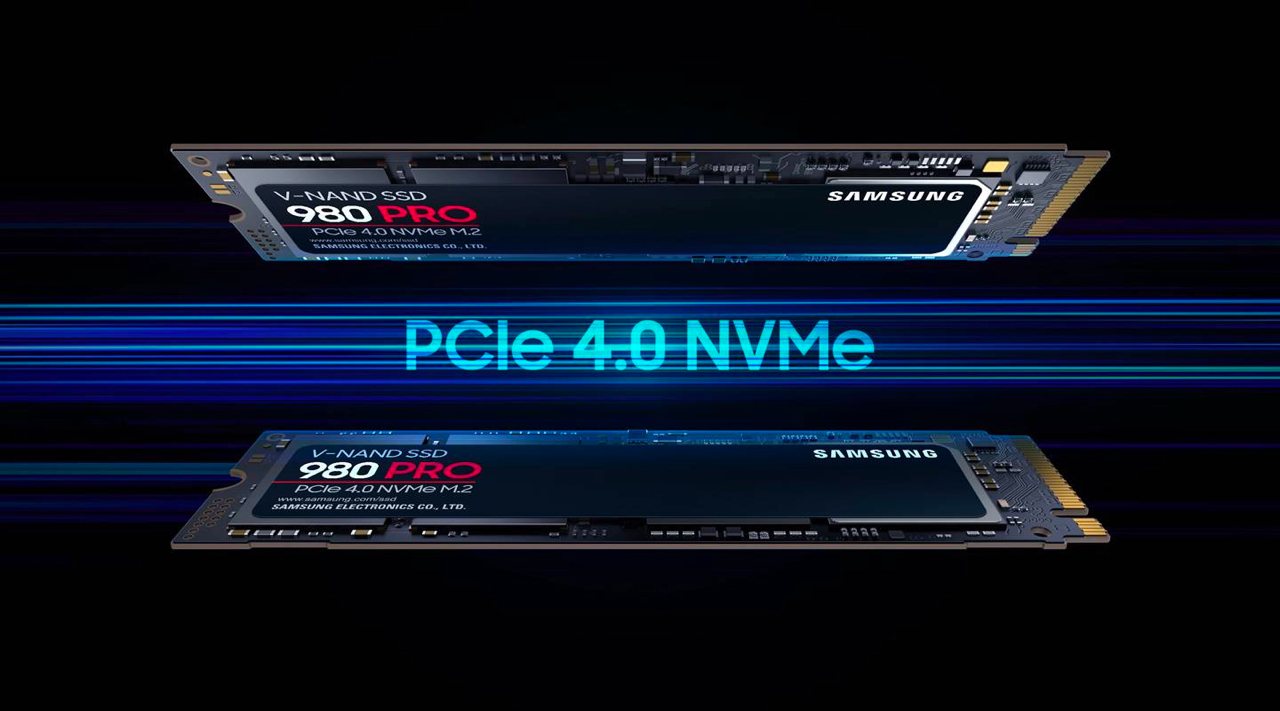
- Samsung's first consumer solid state drive (SSD) with PCIe 4.0 NVMe
- Read speeds up to 7000 MB/s (2x faster than PCIe 3.0 SSD and 12.7x faster than SATA SSD)
- Nickel plating for overheating control and heat dissipation from the NAND chip
- built-in proprietary thermal control algorithm increases durability and stability
- Samsung Magician application for health monitoring, performance optimization and data protection
- quality and reliability of the world leader since 2003 in the production of flash memory
Samsung SSD 980 PRO
Top SSD for high performance gaming and applications
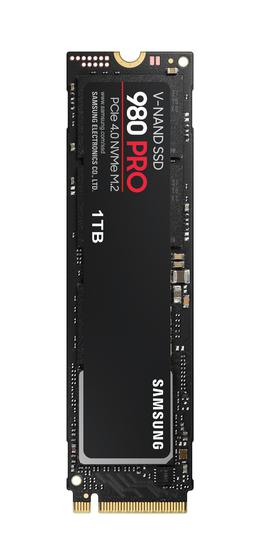
It is an NVMe M.2 2280 with PCIe 4.0 interface. The declared read and write speeds are 7000 and 5000 MB / s, respectively, and the I / O speed reaches one million IOPS. To combat overheating, a passive heat dissipator, nickel plating and special thermal control algorithms are used. Drive status, S.M.A.R.T. parameters, encryption and performance options can be viewed in Samsung Magician Software.
it's better not to find