The Sticky Notes app on your Mac is a handy tool that worksjust like the regular stickers you
Advertising
Advertising
You ask why stickers are needed, if anyNotes and Reminders programs? Well, notes have a few handy features that Notes and Reminders don't have. In addition, all important information is always displayed on the screen.
Below we will tell you about all the functions of the Notes program and how to use it.
- How to open Notes
- How to create a note
- How to set notes
- Scrapbook Navigation
- Sort notes
- Export to Notes
Advertising
Advertising
How to open Notes
Notes can be opened in many ways. Choose the one you like the most.
- Through the program folder in the Dock.
- Through
- Through Spotlight Search.
- Via
How to create a note
To create a new sticky note, open the Sticky Notes program, and on the menu bar, clickFile>New note.
</ p>How to set notes
You can customize your notes. You can change the font style and size, make the text bold or italic, change its size and choose the color of notes.
Tochange font, select the text and right-click on it, and then select the menuFont. You can also clickFonton the menu bar. You can change the font style, size and color.
Advertising
Advertising
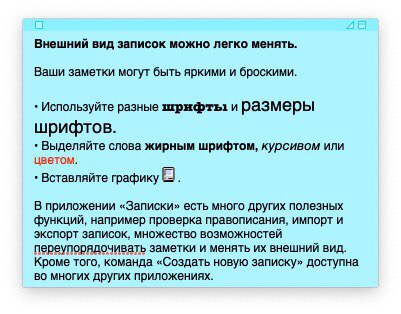

Here are additional ways to customize notes:
- Tochange note sizejust pull one of its corners.
- Tochange note color, select it and clickColoron the menu bar.
- Tomake the note translucent, on the menu bar, selectWindow>Translucency.
- Toadd an image orPdfto a note, just drag the file to the note.
- Tocreate a list, open the note and tapOption+Tab. To end the list, press Enter twice after the last item.


Scrapbook Navigation
Each time you open Notes, all your notes will be displayed.
You can collapse the note on the screen using the button in the upper right corner. You can also double-click the top panel of the note. It will turn into a small panel.
To expand the note, click the triangle in the right corner of the panel. To delete a note, click the button in the left pane.
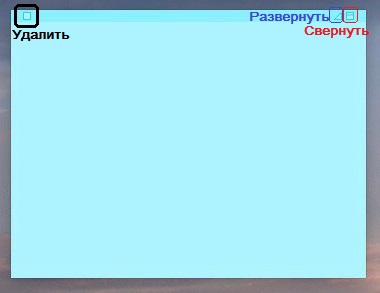

When you create a note, it is automatically saved in the program. If you chooseFile>Closefor a specific note, you will be prompted to save it first. In this case, it will turn into a text file and disappear from Notes.
</ p>Sort notes
You can sort notes on the screen according to different principles. To move a note, simply drag it to another location. You can also use sorting through the menu.
From the menu bar, selectWindow, and thenSort by. You can sort notes by color, content, dates, and screen layout.


You can also move notes over all windows or in the foreground.
On the menuWindowAll your notes are displayed below. This makes it convenient to switch between them.
Advertising
Advertising
Export to Notes
You can turn your scraps into notes using the export feature. To do this, select from the menu barFile>Export all notes to Notes.
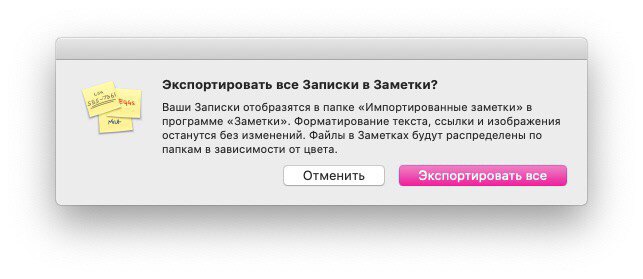

If you want to export text from one note, selectFile>Export text. It can be saved as plain text, RTF or RTFD.
Notes on a Mac are sometimes very useful. With their help, you can fix on the screen some little things that you should not forget about. We hope this article was helpful to you!