Apple first added the ability to record slow-motion video in the iPhone 5s back in 2013.The feature is now available
Advertising
Advertising
Surprisingly, few people can recordSlow motion video on iPhone. At first glance, everything seems very simple, but in fact, when recording a slow-motion video, you need to take into account several nuances. Fortunately, remembering them is quite simple.
If you have an iPhone 6, iPhone 7 or iPhone 8, and you don’t know how to record slow motion video, read on.
About Recording Slow Motion Videos oniphone
Slow motion video is recorded at high frequencyframes, so the small sensor on your iPhone has less time than when recording regular video at 30 frames / s. Because of this, slow motion video is not recommended to be recorded in low light, otherwise it will turn out dark and blurry.
Advertising
Advertising
Indoors, the quality of slow motion video can be ruined by the flickering of a light bulb.
The capabilities of different iPhone models are slightly different. Newer models can shoot slow-motion video at a higher resolution and with a higher frame rate. Here are the full specifications of the models:
- iPhone 6: [email protected] frames/sec
- iphone6s:[email protected] fps, [email protected] fps
- iPhone 7:[email protected] fps, [email protected] fps
- iPhone 8:[email protected] fps, [email protected] fps
As you can see, the iPhone 8 can record slow-motion video in Full HD at 240 frames / s. The higher the frame rate, the slower the video can play.
How to record slow motion video oniphone6,iphone6s,iphone7 andiphone8
Step 1: Before you start recording slow motion video on iPhone, you need to select the resolution and frame rate in the settings.
For some reason, this cannot be done directly in the Camera application. Instead you need to go toSettings -> Cameraand in the sectionSlow down videoselect the desired resolution and frame rate.
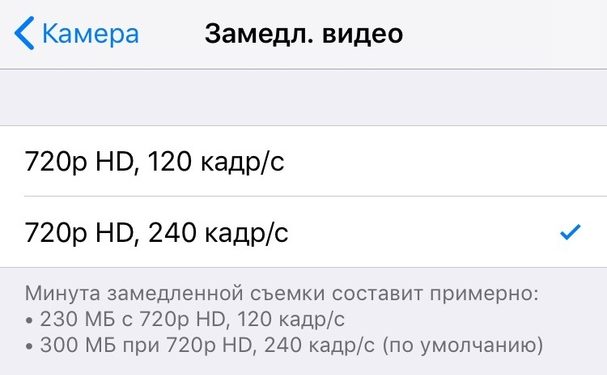

Please note that if you often record slow motion video in low light, it is better to choose a lower resolution and frame rate, sacrificing video quality.
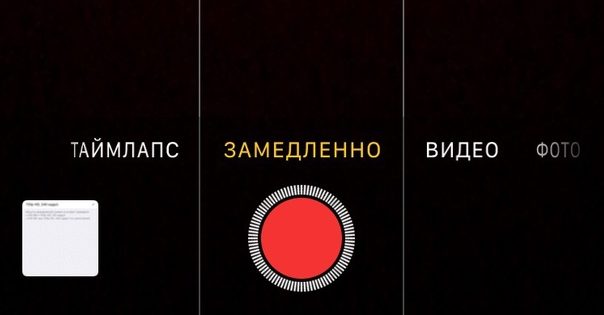
Step 2: Once you select settings, open Camera and select mode from the bottom of the screenSlow motion. Click on the record button to start shooting a video. When done, click on the record button again to stop recording.

Step 3: Now go to the Photos app and selectrecorded video. By default, the first few seconds at the beginning and end of the video will play at normal speed, so you can edit it by clicking the buttonEdit (Edit).
When the editor opens, select the video segment on the slider below. It will play in slow motion, and the rest of the video at normal speed.
After that, save the video and, if desired, share it with your friends or relatives, like any other video.