Sometimes Mac users may need to use Windows programs. Perhaps some kind of program
ThanParallelsit's betterBoot CamporVirtualBox?
Of course you can use Boot Camp, but forYou will need to restart your computer each time to use Windows. Parallels runs Windows directly on macOS using the Virtual Machine. It allows you to quickly switch between Mac and Windows. You can even use two systems at once and run Windows from the Mac dock.
Advertising
Advertising
Virtual machines are complex, but with ParallelsYou can easily configure everything. There are other options, but Parallels is designed specifically for Mac users. Yes, it is more expensive, but at the same time it is much more convenient.
how many is worthParallels?
It’s not very easy to find prices on the Parallels website, so we have written them for you.
- The latest version of Parallels Desktop starts at RUB 3,990. It allows you to use Parallels on one computer
- An upgrade costs another 2,490 rubles, and it will need to be done every couple of years with the release of new versions of macOS.
There is also a free trial version of the program on14 days, which can be downloaded without your own credit card number. In addition, there is an option for Parallels Desktop Lite, which can be downloaded for free from the Mac App Store. It allows you to create Linux and macOS virtual machines. However, you can create a Windows virtual machine by paying for a subscription.
Advertising
Advertising
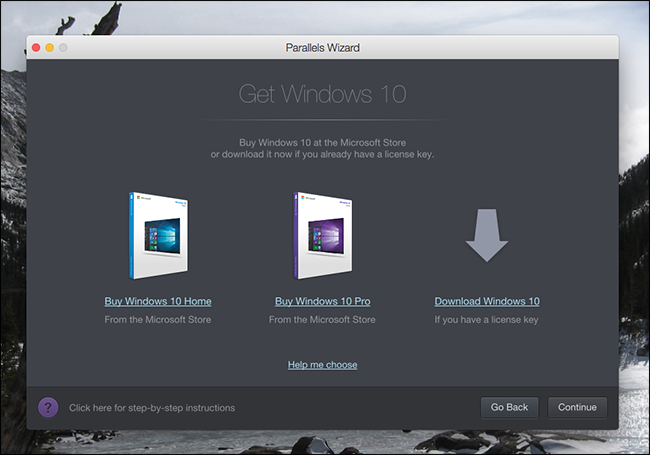

Purchasing Parallels does not provide a license or Windows key. If you have an official Windows disk or a valid key, you can use it. Otherwise, you have to buy Windows 10.
It's worth noting that you can download Windows 10 from Microsoft's website for free, but you'll still need a Parallels key to create a virtual machine.
how to establishWindowsatParallels
When you start Parallels, the creation of a new virtual machine will begin.
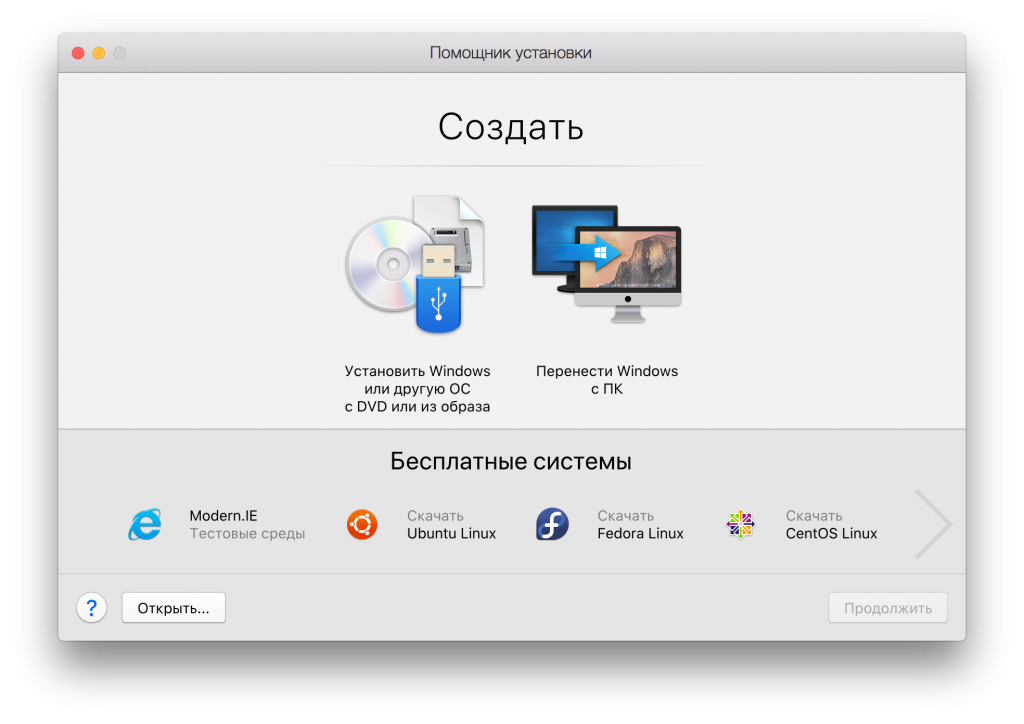

If you already have a Windows disc or disk image ready, click "Install Windows or another OS from a DVD or from an image."
Advertising
Advertising
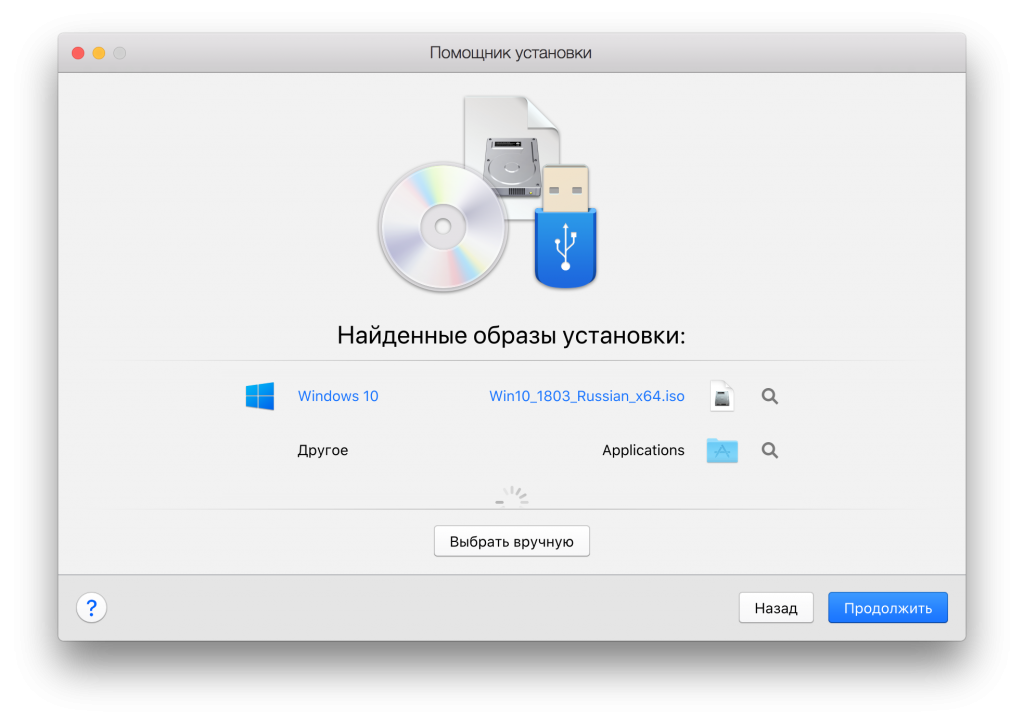

The disk or image should be detected automatically. If not, click “Select manually” and then “Continue."
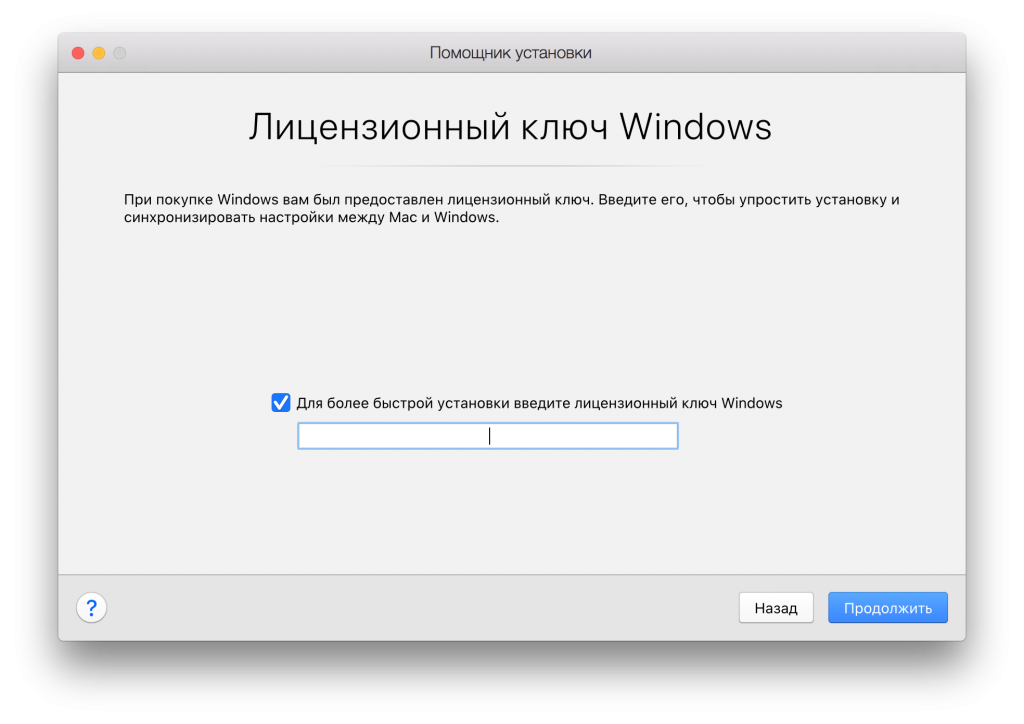

Advertising
Advertising
You will be prompted with an Express installation that automates the process.
Select it or configure each step manually.
Then you need to choose a plan: office programs, software development, software testing, design or for games.


If you select "Games Only", virtualthe machine will use more resources. Choose this option only if you plan to play powerful games (which is not the best solution). In addition, if there is not enough free memory on your computer, the program will run slowly. This setting can be changed later, but we recommend choosing the option “Office programs” immediately.
Advertising
Advertising
After that, you will need to specify a few details: the name of the virtual machine, its location, and whether you want to add an icon to the desktop.
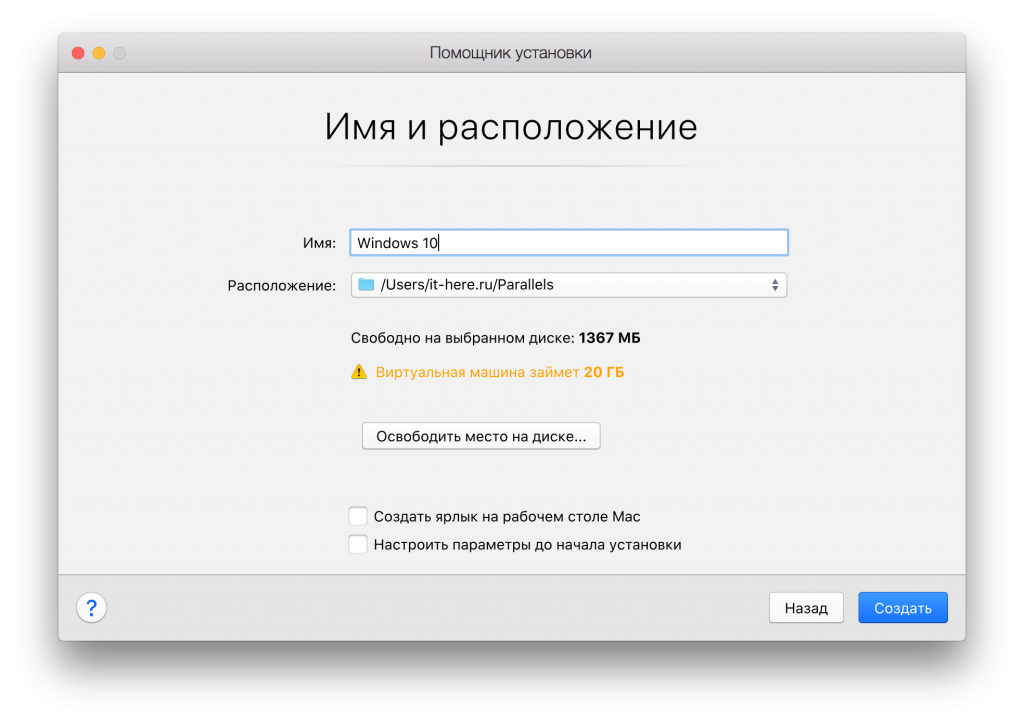

You can change other settings during installation, but we recommend that you do this later. For now, just click Create.
Windows installation starts. If you selected Express installation, you don’t need to do anything. If not, click the Next button several times and enter the key as you would with a typical Windows installation.
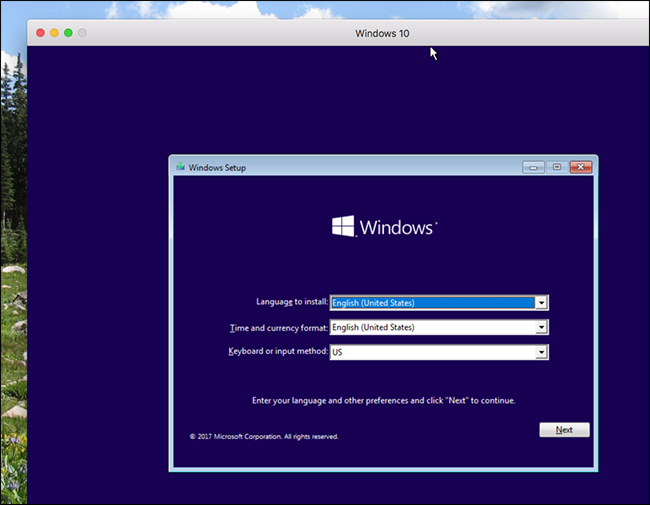

The installation process can take a long time if you use hard drives or DVDs. If the installation is with an SSD, then it will take no more than a few minutes.


At the end you will see the Windows interface. We are almost done.


How to integrate a virtual machine intomacOS
You can start using Windows now, but if you want to use Parallels to the fullest, there are a few more steps to complete.
In the upper right corner of the window you will seeExclamation point. This means that you need to install Parallels Tools. So you can move the mouse cursor between macOS and Windows in one motion, and also access Mac files directly from Windows. To start, click on the exclamation mark and select Install Parallels Tools.
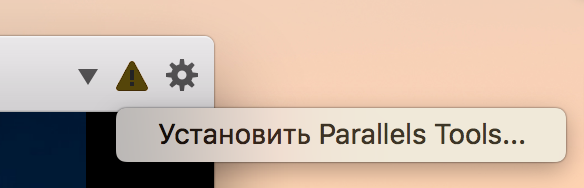

This mounts the virtual CD in the Windows virtual machine. On the pop-up window, select “Install Parallels Tools”.
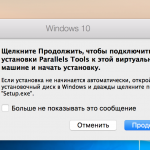

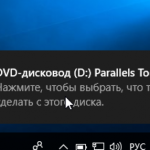

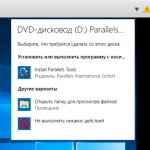

Installation will take several minutes, and then Windows will need to reboot. After that, everything will be ready - the virtual machine will be integrated with macOS.
You can do the following:
- Moving the mouse cursor in Windows is quick and easy.
- Copied on Windows can be pasted on Mac and vice versa.
- Documents, Downloads, and the Windows desktop are linked to the corresponding macOS folders. Change the file in one system, and it will change in the second.
- If you use Dropbox or iCloud on macOS, these folders will be available in Windows Explorer.
- If you use OneDrive on Windows, it will be available on macOS.
- Some Windows programs appear on the Mac dock.
These are not even all the features, and each of them can be changed or disabled in the settings.


You can disable shared folders on the Sharing tab.
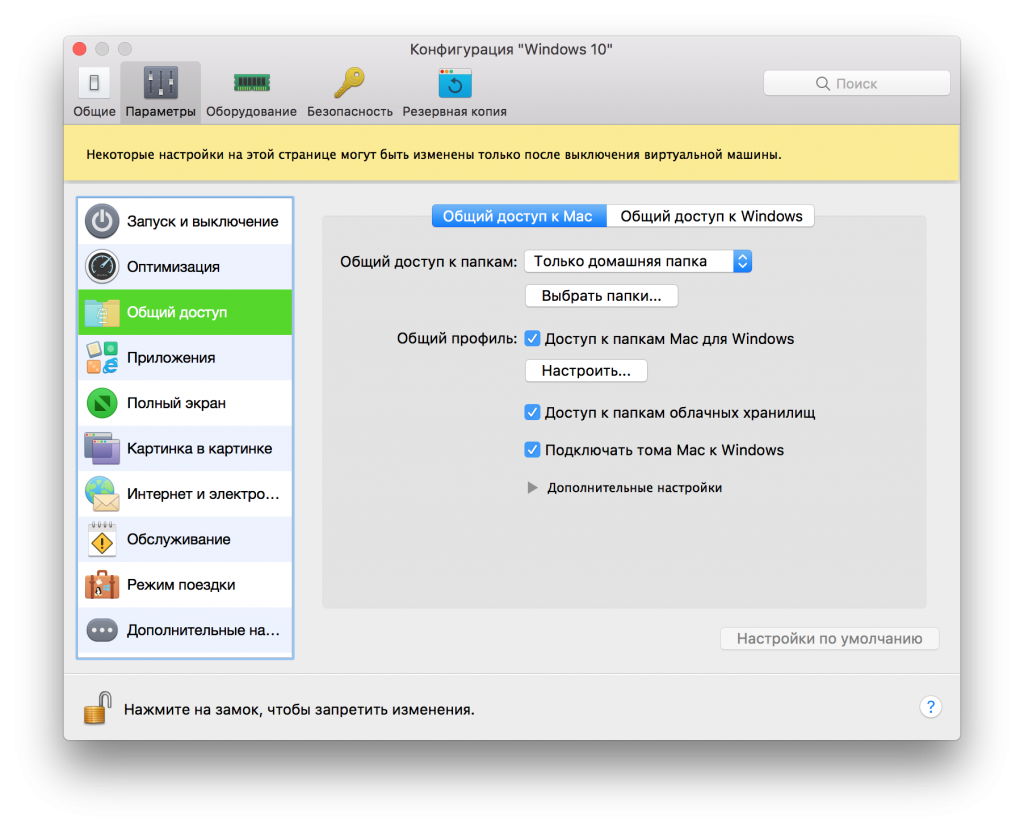

On the Applications tab, you can remove Windows programs from the Mac dock.


You can configure a lot more, but you will experiment.
More than justWindows
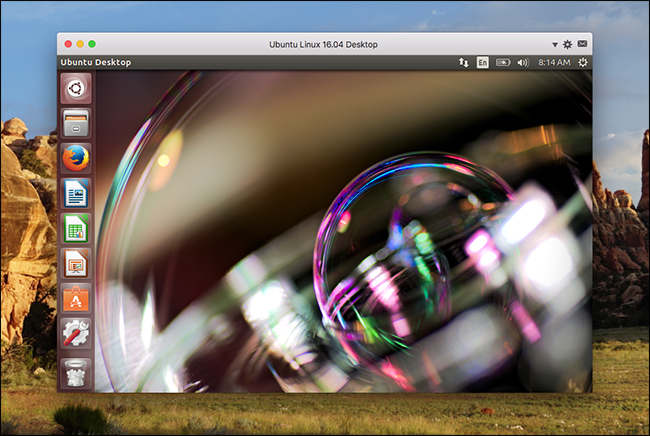
With Parallels, you can use not only the Windows virtual machine, but also Linux, ChromeOS, and even macOS.