Search by image allows you to find similar images and photos. For example, if you have a photo
Advertising
Advertising
Below, we’ll show you how to use Google Image Search in your Chrome browser.
How to search by image in Chrome
The method will be the same in Chrome browser versions for Mac, Windows, and Linux.
- To get started, open the Google Chrome browser and open the image you need.
- Right-click the image (or use two fingers on your Mac trackpad) and selectFind a picture.
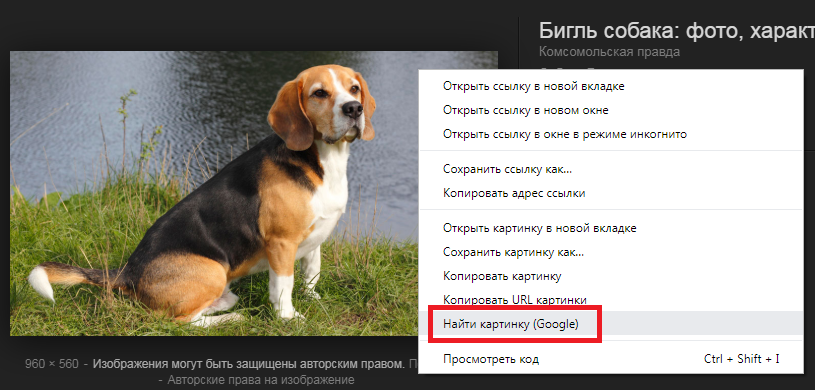

Advertising
Advertising
- A new tab opens in the browser with the search results in the picture. You can view them and find the information you need.


As an example, we used the image of a dog. As you can see, there are a lot of the same images in the results, since the photo is very common.
Sometimes a search may lead to nothing. Most often this happens with personal photos that are not online. However, in most cases you will see dozens, if not hundreds of results.
In Google Chrome, image search is especially simple and convenient. Through Google, image search can be used in any other browser, the result will be the same.
Use image search is useful when youtrying to find out the authenticity of the image or find its source. This is useful for checking news from social networks. In addition, in this way you can find information about the photo or the same images in the best quality.