Sometimes you need to sign a PDF document for work, add some illustrations to a photo, etc., and this can be done
Advertising
Advertising
how open Markup tool
Open the Mail program, create a new e-mail and follow the steps below.
one)Attach an image or PDF file to your email. This can be done by dragging the file into the program window, or by selecting from the menuFileAndAttach Files.
2)Click on the attached file. if you havebadgeMarkupin the tools menu, click it. Otherwise, click on the arrow in the upper right corner of the file and selectMarkup.
Advertising
Advertising
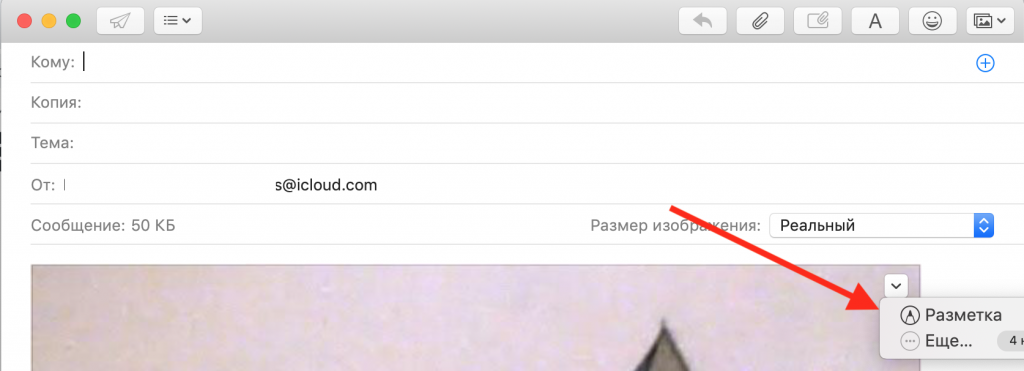

Note: If you don't have the Markup icon, turn it on in settings: click onbadge Apple>System settings>Extensions. ClickActionsand check the box next toMarkup.
3)The Markup window will open, allowing you to begin working.
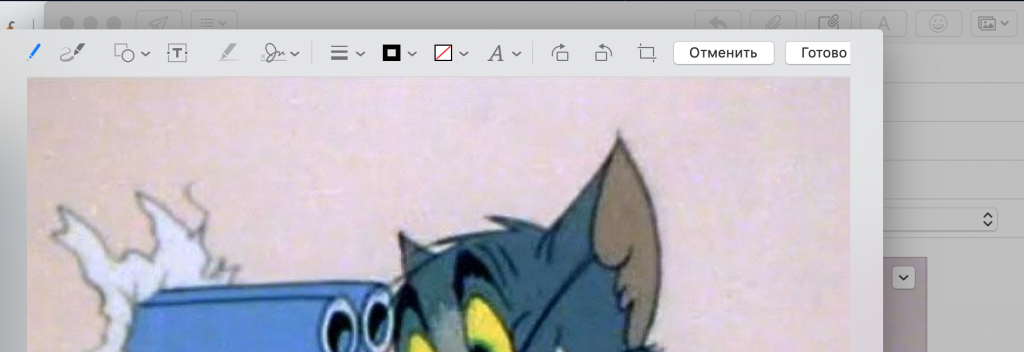

How to use the toolsMarkup
You can do a lot of things with a document. The following tools are available:
- Outline: Draw or write on a document.
- Painting: Same as outline, but for Force Touch trackpad.
- Figures: Add shapes, arrows, lines, etc. to the document.
- Text: Add text to documents.
- Signature: If you have a digital signature saved, it will be displayed here. Or you can create a new one.
- Shapes Style: Change the thickness of the shapes.
- Outline color: Change the color of the outline of the shapes.
- Fill color: Change the fill color of the shapes.
- Style text: Change the font, size, text color, etc.
When you're done editing the file, clickIs done. All changes will be applied.
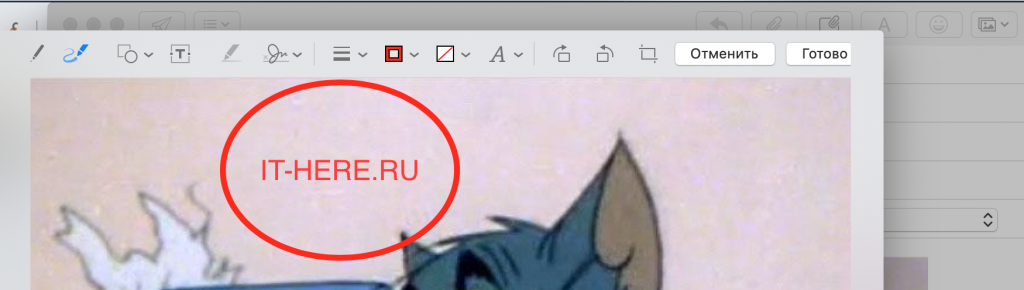

You will notice that the file size has increased. If desired, it can be made smaller.
The markup in the Mail is very convenient when you quickly need to change a file and immediately send it in an email.