Screen Time is the name of the new section of Apple's health-related settings in iOS 12. In it, you'll learn everything about
Also read:Best iOS 12 features in GIFs
Advertising
Advertising
How to view screen time

Step 1: Open the Settings app.
Advertising
Advertising
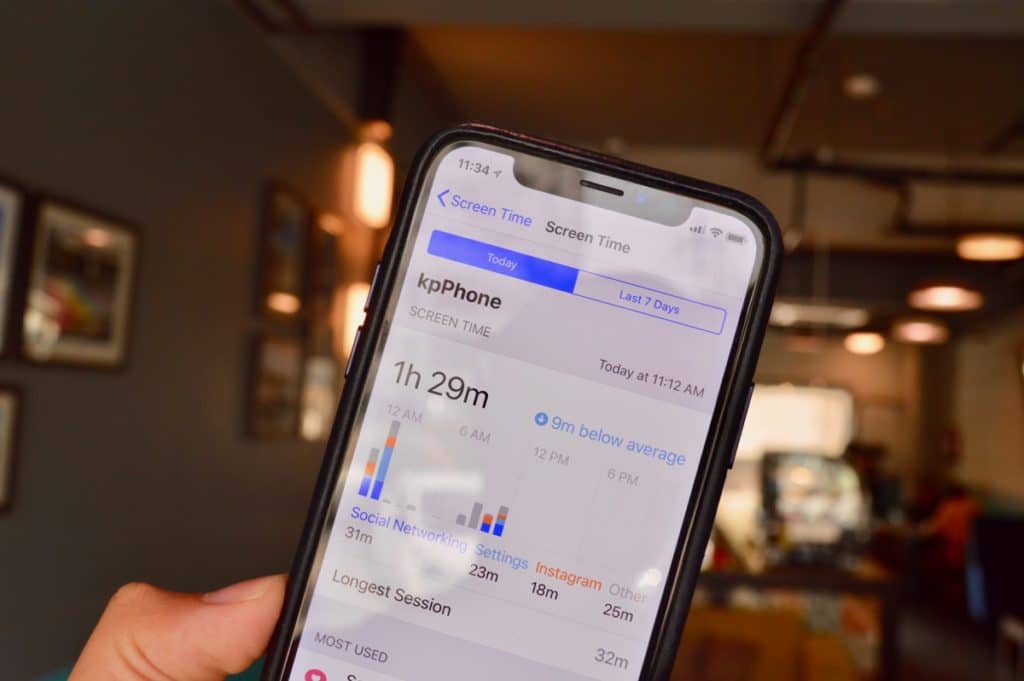
Step 2: Scroll to the Screen time section and enter it.
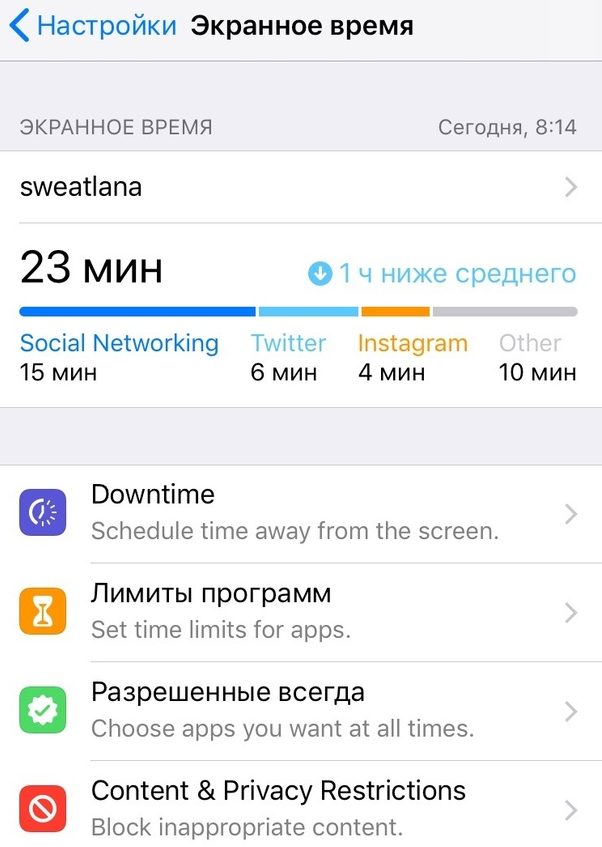
Step 3: Here you will see how much time you spend onyour iPhone or iPad. The total time is divided into categories: Social networks, Messages and Other. If you often use an application, the time you spend on it will also be shown here. You'll also see the average time for your day.
Step 4: Click on the section over time and you will seedetailed information on the use of applications. You can switch between the indicators for Today and the Last 7 days. In the graph, you will see hourly or daily data on the use of applications.

Step 5: Below you will find data on the time spent on each application in three categories:Most used,UpsAndNotifications.
Step 6: In sectionMost Used(most used)you'll see the apps you use most often. Below you can find out how often you pick up your phone (the number may be shocking and makes you think).
Step 7: Even lower is the sectionNotificationswhich says how many notifications you receive.


At the top are the applications from which you receive notifications most often.
how tune Limits of programs
In the Screen Time section, there are several items: Downtime, Program Limits, Always Permitted, and Content and Privacy Restrictions.
Advertising
Advertising
Let's start with the program limits.
Step 1: ClickAdd limit.
Step 2: You will be asked to select a categoryapplications. You can even choose all the applications, but it is best to start with social networks or games. The system pretty well divides applications into categories. Moreover, the social networking option works even in Safari. When time runs out, you won’t even be able to access social networking sites through Safari.
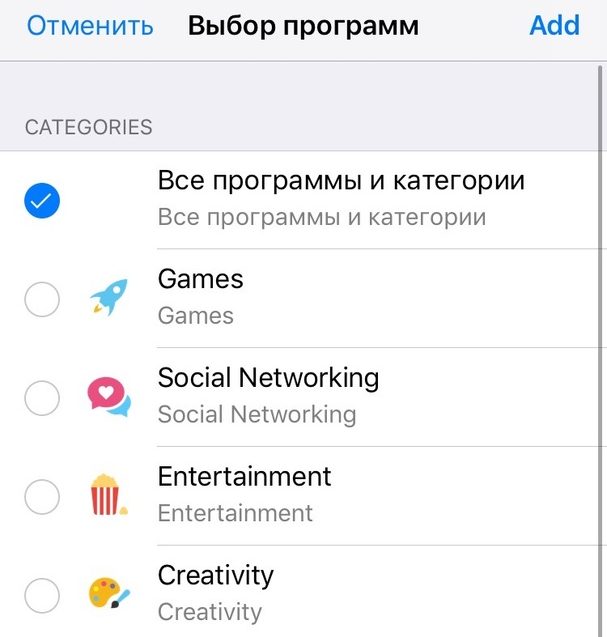

Step 3: Select a category and then time. You can choose different times for different days. Here you can restrict only entire categories of applications.
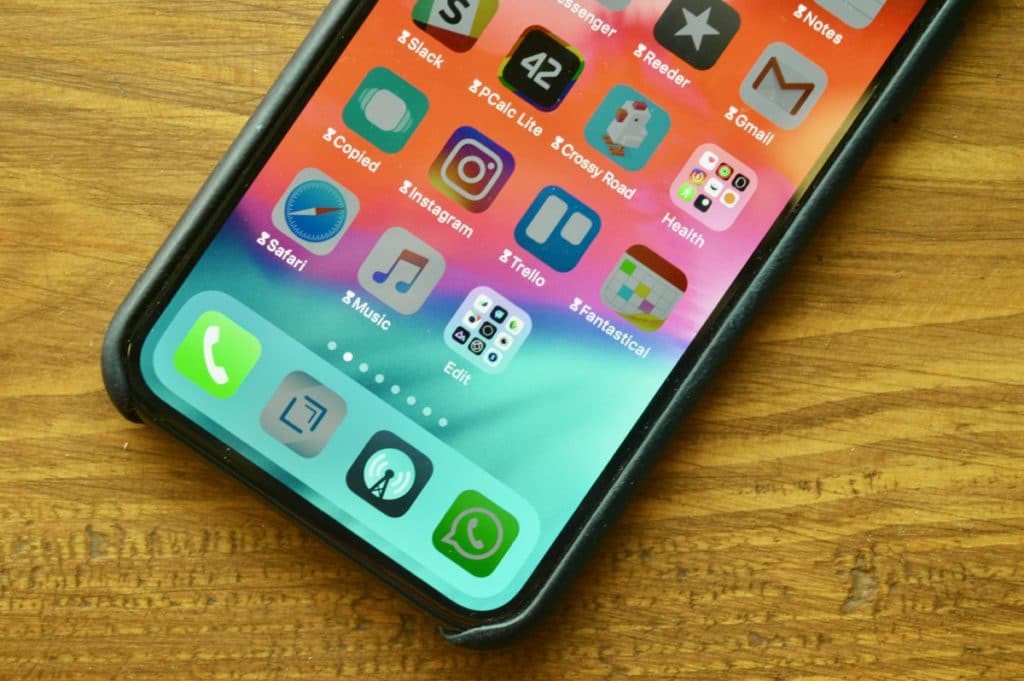
Step 4: To add a limit for a specific application, you need to return to the Screen Time section. In pointMost Usedyou'll see hourglass icons next to apps.
Step 5: Click on this icon and a screen with a restriction for the selected application will open.
Step 6: When time runs out, you will receivenotice of this. After the limit expires, the application will not open - you will see a screen with a message that the time has expired. It can be ignored and get an additional 15 minutes or all day.
How to turn it onDowntime and configure Allowed Applications

Advertising
Advertising
Downtime is a Do Not Disturb on Steroids mode. When it is active, you will not be able to access any applications and sites other than those permitted.
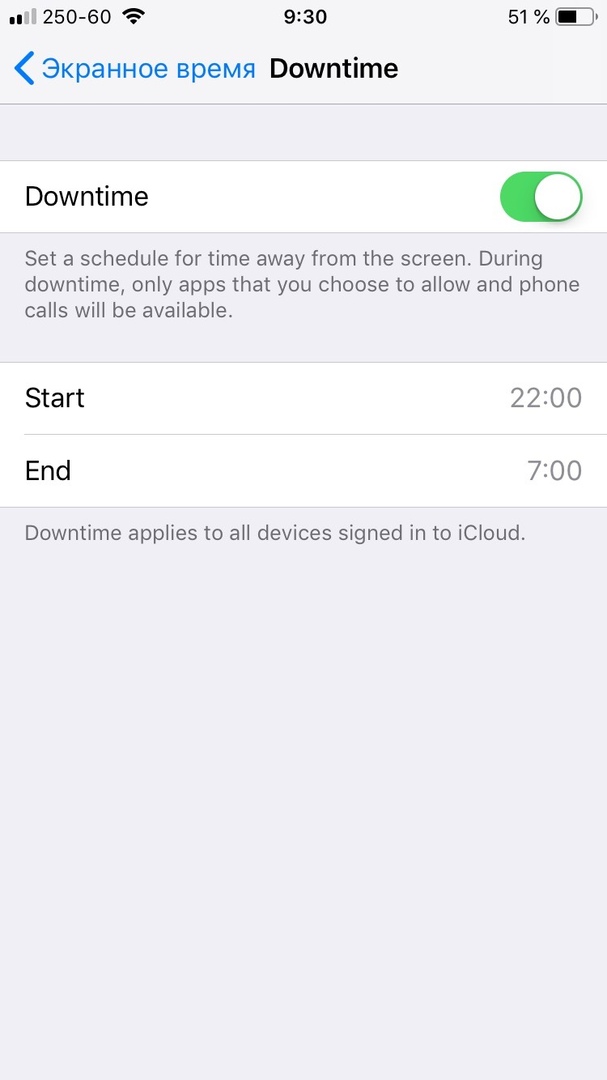

If you are one of those who can not tear yourself away from Instagram or Twitter at night, then this function is for you. Like Do Not Disturb, you can set a schedule for Downtime.
However, some applications need to enable access at night. For example, Weather and Music. This can be done under Permitted always.
how turn onContent and Privacy Restrictions
Limitations in iOS 12 were moved to the Screen time section and renamed a bit. Here you can completely disable access to some functions and applications.
If you have active Family access, then you can restrict content on smartphones of your children.
Also read:20 new iOS 12 settings you need to know about
Synchronization throughiCloud
Every week you will receive a report on screen time, and for this you do not even need to go anywhere. The notification will be similar to the Activity notification on the Apple Watch.
In addition, Screen Time is synchronized on all your devices. If you go to Instagram via the iPad, this time will also be added to the limit.