HomePod has Bluetooth 5.0 for automatic setup. It doesn't work as a regular Bluetooth speaker, but it does
It is worth noting that using Siri on the HomePod you can not start a call. You will have to do this on your iPhone, and then simply output the audio to the speaker.
Advertising
Advertising
This method works with all calls, from regular calls to FaceTime, WhatsApp, Viber, Facebook Messenger, etc.
Before you begin, you should know that calls to the speaker can only be transferred from the device that was used to configure it.
How to display calls from iPhone to HomePod
one)Start or answer a call on your iPhone.
Advertising
Advertising
2)During a call, tapAudioin the applicationPhone.
3)Select from the listHomePod.
When the call goes to HomePod, a green light will appear on top of the column.
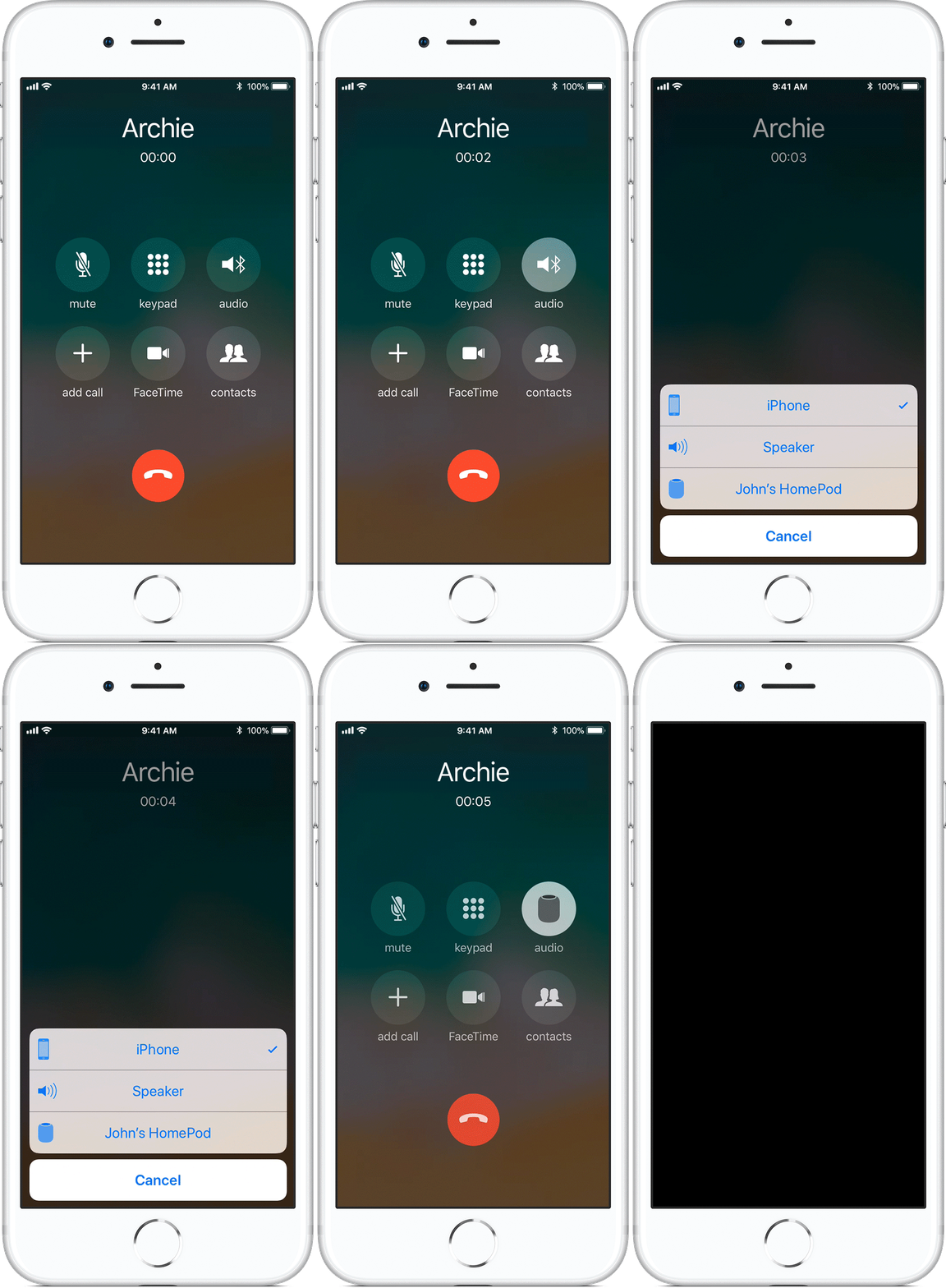

You can now continue to talk hands-free, and the HomePod will act as a speaker.
To end a call, tap the top of the column or do it via iPhone.
How to get a call back to iPhone
To return audio output during a call to your iPhone, you can tap the Audio icon again at any time and select from the listiphone.
Manage multiple calls on HomePod
If, while you are talking through the HomePod, you receive another call, you can do the following:
- End current call and answer new one- For a few seconds, touch the green light on the top of the HomePod.
- Reply to the new one and put the current one on hold- quickly touch the green light on the top of the column.
- Switch between calls- Touch the top of the HomePod.
Apple warns that in some cases, switching calls may cause problems. It is also worth knowing if this feature is supported by your operator.