IFTTT is a user-friendly application that allows you to automate both simple and complex tasks. Given
Did you know that IFTTT can find games for you andapps on the app store? You will find out when discounts for your favorite games appear and application updates come out, and you can also search for applications by category, all this automatically with IFTTT.
Advertising
Advertising
Use the ready-made IFTTT Applets
The easiest way to view available IFTTT Applets for the App Store is to search. Open the application and clickSearchor go to the IFTTT website and clickSearchthere. Type "App Store" and then select Apple App Store from the results.
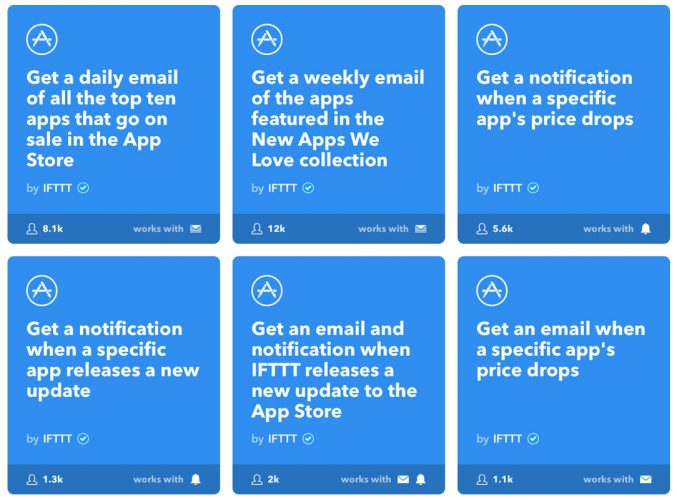
You will see about a dozen ready-made templates.Applets that you can use. Note that some of them do the same thing, but in different ways. For example, you can learn about price reductions using notifications or by e-mail, these are two different Applets.

Advertising
Advertising
You can use the following Applets templates:
- Receive dailye–mail with top 10 apps at a discount.You can choose the time to send an e-mail and be aware of sales every day.
- Receive notifications of price reductions for a specific application.Select this Applet and enter a nameapplication or link to receive notifications about changes in its price. This way you won't miss out on discounts on games and applications that you've been wanting to download.
- Receivee–mail at lower prices.This template works like the previous one, but notify you by e-mail.
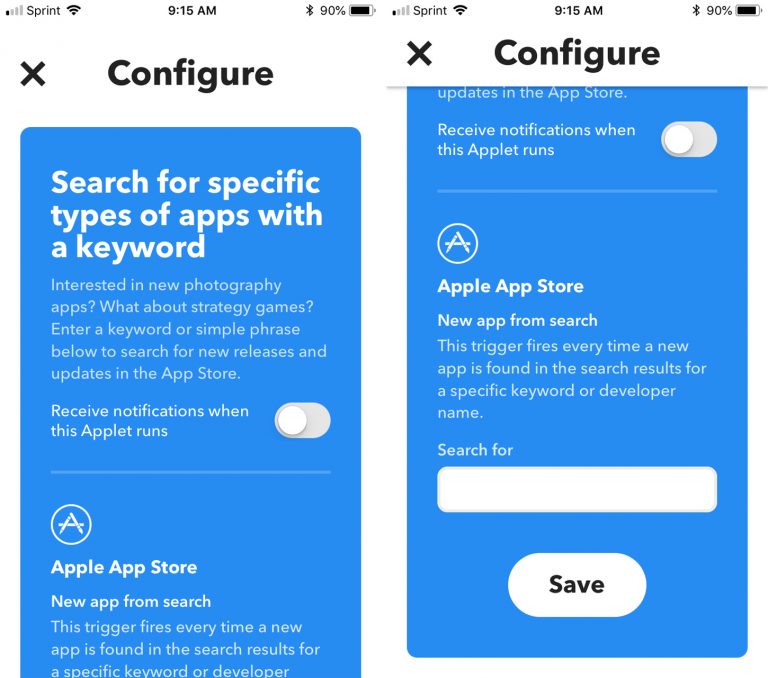
- Search for apps by keywords.This applet is perfect if you like appscertain categories. For example, action games, new applications or system tools. Turn on the Applet, enter a keyword and receive notifications.
- Receivee–mail with updates to games and applications.If you have automatic app updates turned off, this Applet is for you. With it you won't miss a single update of your favorite applications.
How to include Applets templates
The process is the same both in the application and on the site.
one)Select the desired Applet and click the switch next to it.
2)Add the necessary settings (time of day, application name or category).
3)Decide whether you want to receive notifications, if so, click the switch.
four)ClickSave.

How to disable Applets templates
one)In the application, clickMy Appletsat the bottom of the screen, and on the websiteMy Appletsabove.
2)Select the Applet you want to disable.
3)Click the switch to disable the template. It will turn gray.


Build Your IFTTT Applet Templates
You might like the applet template concept,but none of the ready suits you perfectly. In this case, you can create the Applet yourself, and this is done quite simply. Below you will see many steps, but the IFTTT application makes the process of their implementation extremely simple.
one)In the app or website, selectMy Applets.
2)In the application, click onplus signat the top of the screen. On the website clickNew Applet.
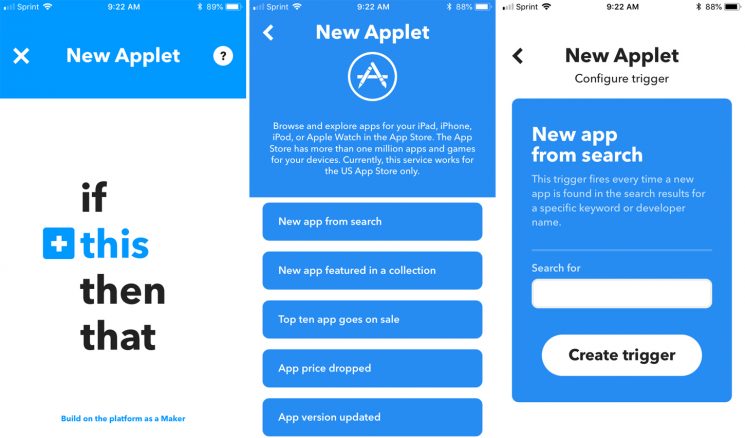
3)When the New Applet screen appears, select+this.
four)Scroll through the list yourself and find the Apple App Store in it, or do this through the search.
Advertising
Advertising
five)On the screenChoose Triggerselect one of the options.
Advertising
Advertising
6)On the screenComplete Trigger Fieldsenter all details. The categories will be different depending on the selected trigger.

7)On the next screen, select+that.
eight)On the screenChoose Action Serviceselect the desired action. This is where you can really customize your Applet to the maximum. Perhaps you want to receive email or messages, add reminders, or create notes.
9)The options on the next screen will depend on the action you choose. You need to choose one.
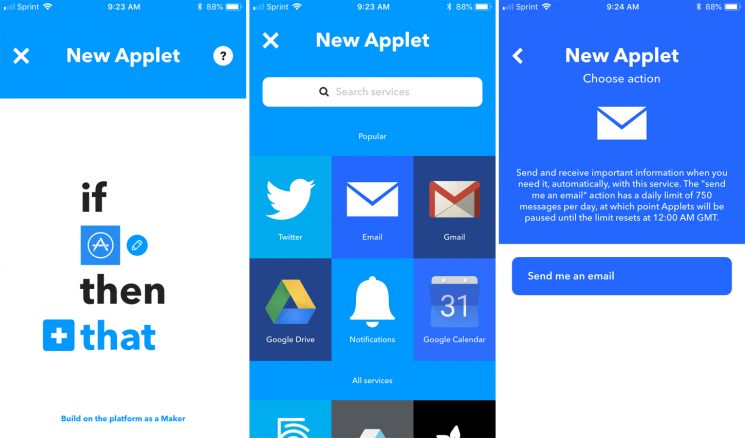

ten)Next, you will need to add more details for your action. Here the options will also be different for everyone. Once completed, clickCreate Action.
eleven)Decide whether you want to receive notifications when the template is running.
12)ClickFinish.
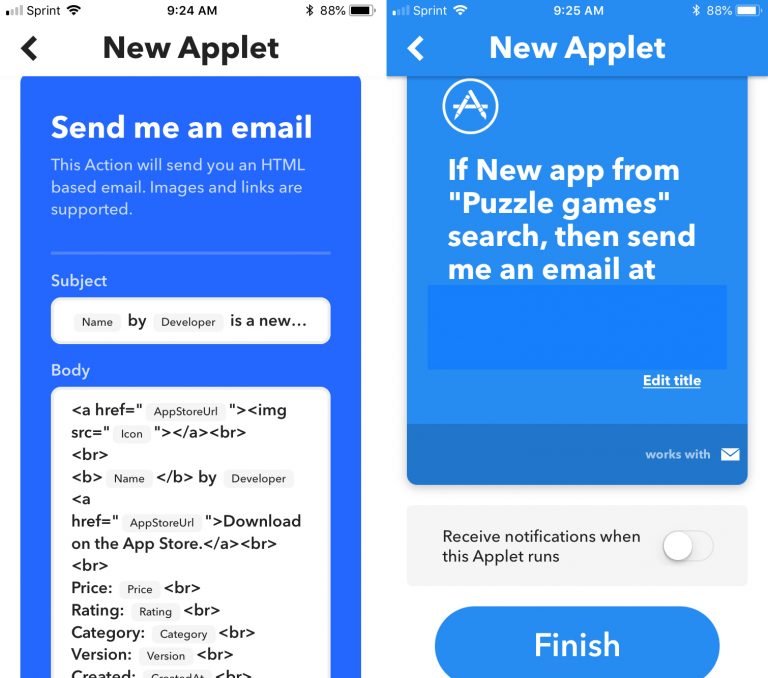

Once the process is complete, you will see the Applet you created. To turn it on immediately, clickCheck Now. After this it will be displayed inMy Appletswhere it can be disabled or changed.