Mission Control sounds like some kind of space mission, but it's really just a Mac feature to control
Advertising
Advertising
If you just bought a Mac recently, then you need to know how to set up and use the Mission Control feature. Below we will talk about all this.
How to open mission control
There are several convenient ways to open Mission Control. You can use the one you like the most.
- Swipe up with three fingerson the trackpad.
- Double tap with two fingersthe surface of the Magic Mouse.
- Use a keyboard shortcutControl+Up arrow.
- UseKeyMission Controlon your keyboard (you may need to hold down theFnalong with Mission Control).
- Click onbadge Mission Controlin Launchpad or Dock.
How to use Mission Control
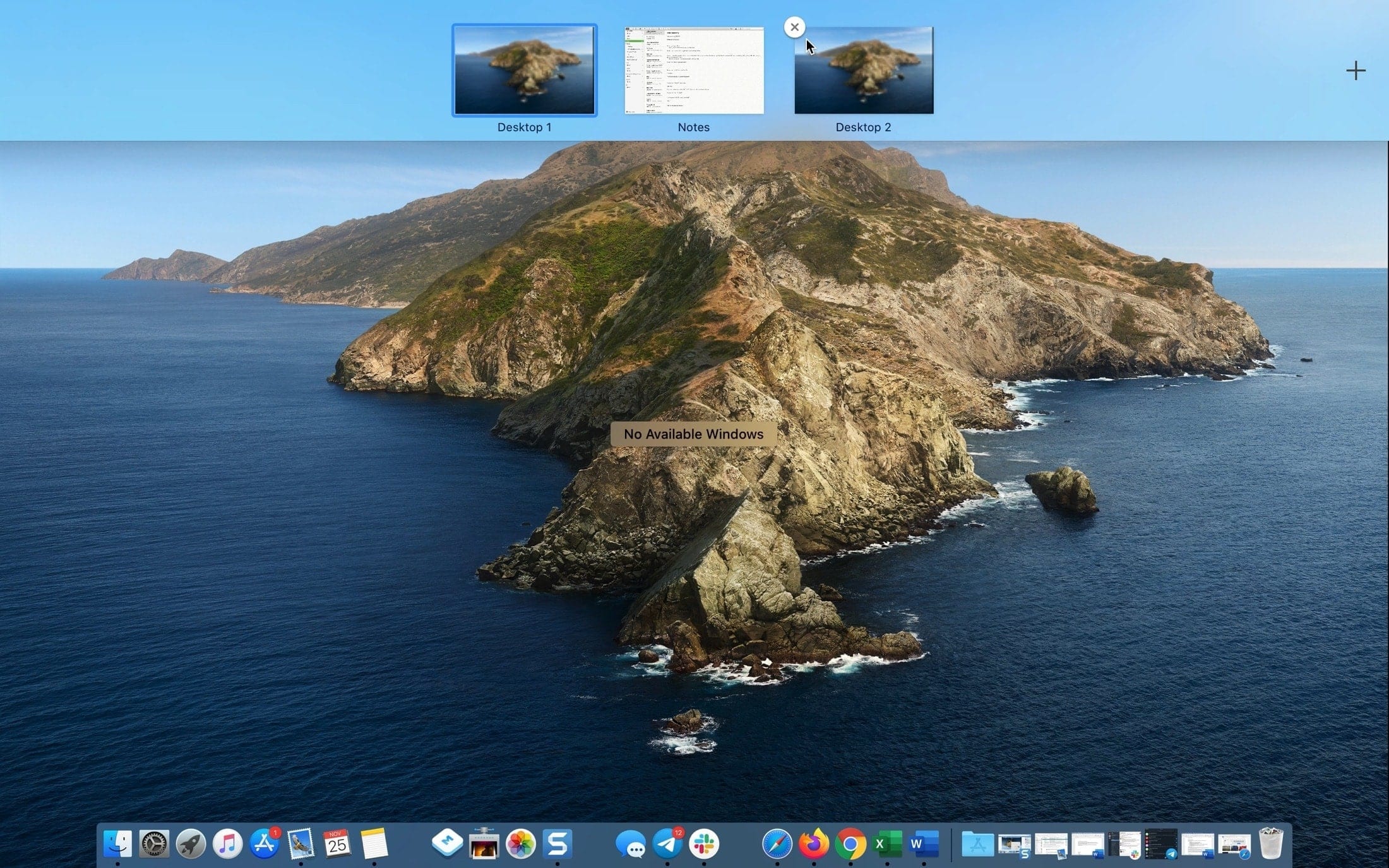
After you open Mission Control, you can quickly switch between open program windows. To do this, hover over the desired window and click on it.
Advertising
Advertising
If you use Split View, someIf the program is open full screen or if you have several desktops, then all this will be displayed at the top of the Mission Control screen. You can go to any of these items.
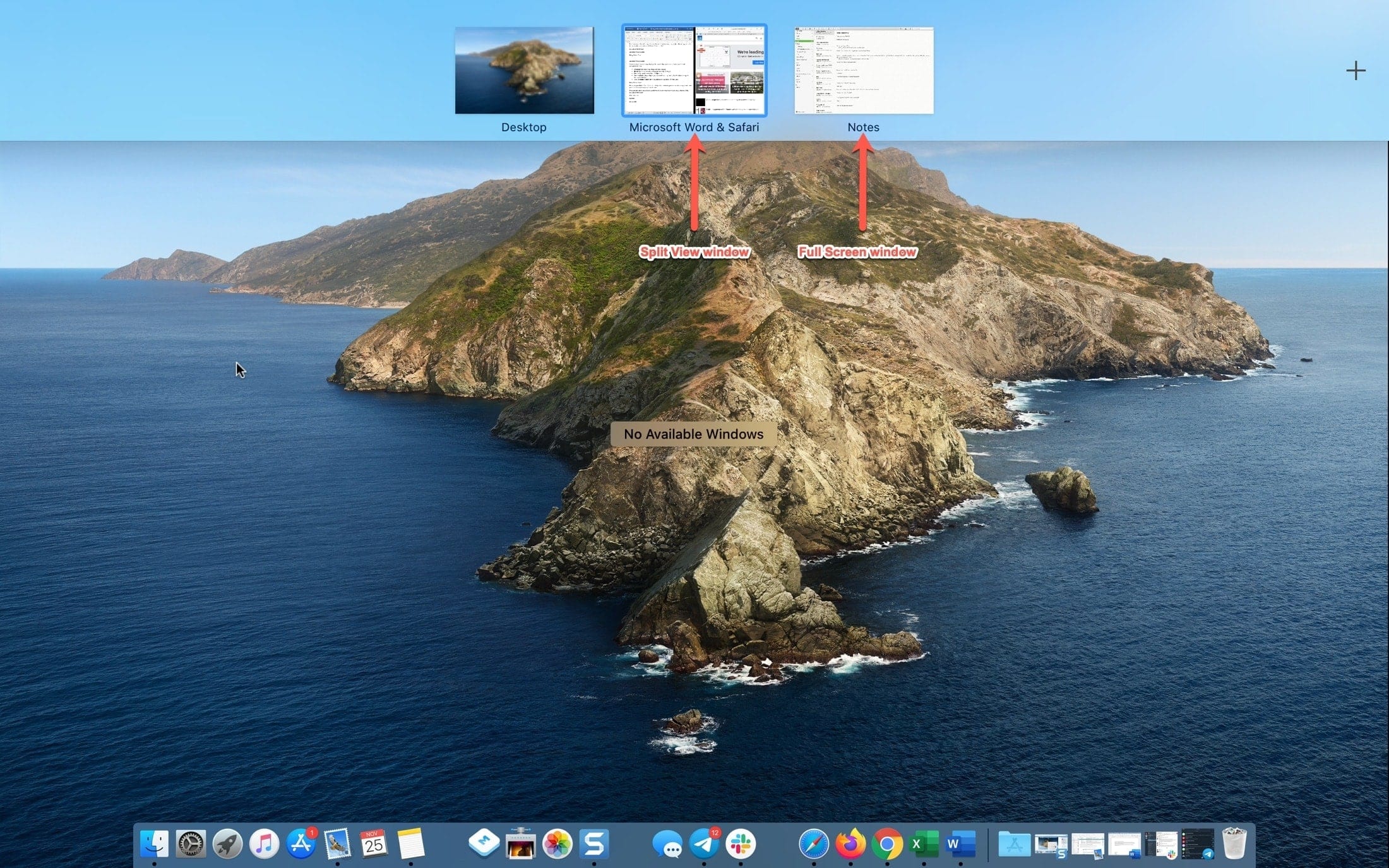

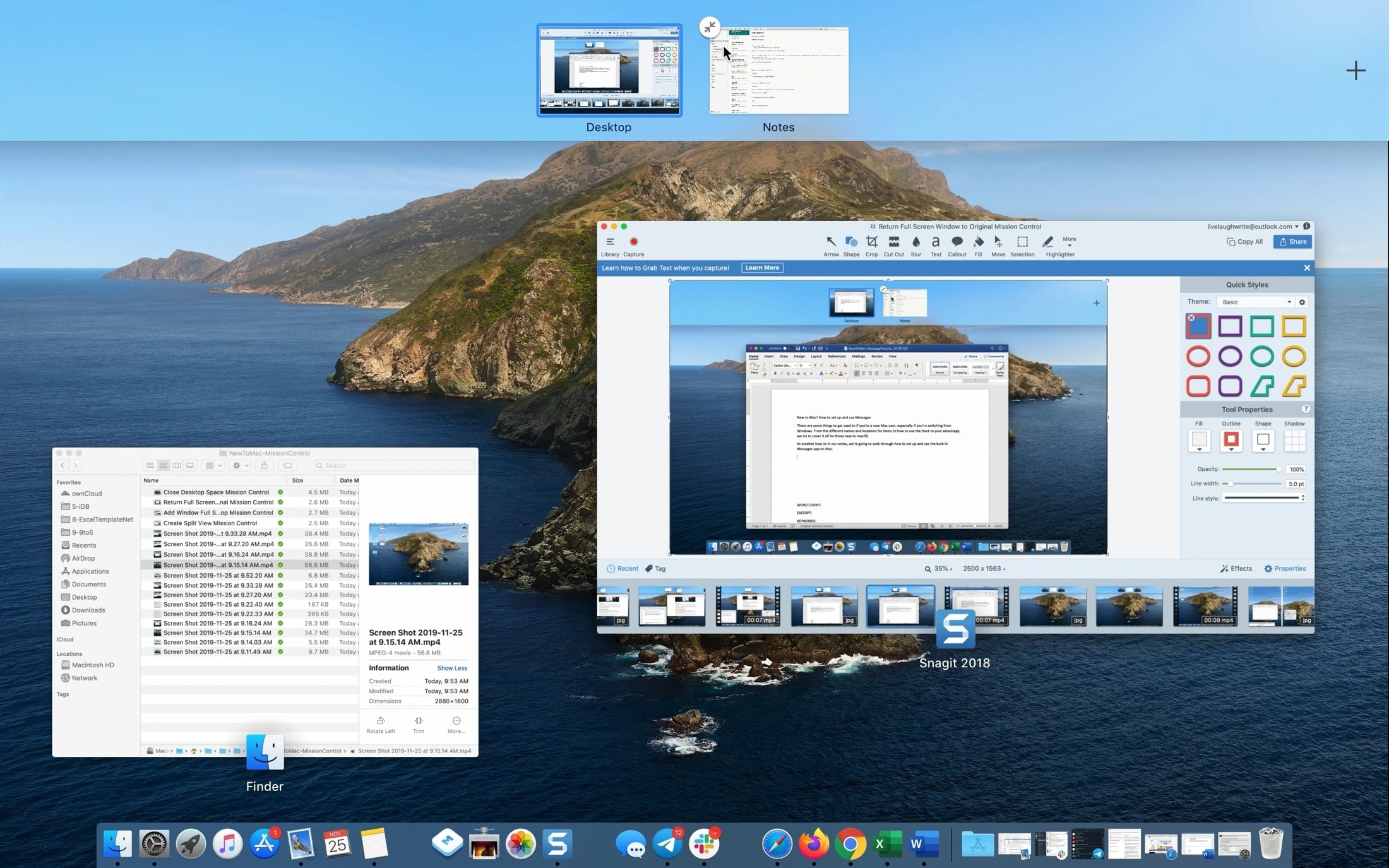
You can also minimize the window open to the fullscreen, through Mission Control. To do this, click on the arrow in the upper left corner of the preview or just pull the preview down. The window will revert to its original size.
Advertising
Advertising

Advertising
Advertising
If some program is open full screen, and you want to create a new desktop, just drag the program window to the top of the Mission Control screen. When plus appears, release the window.
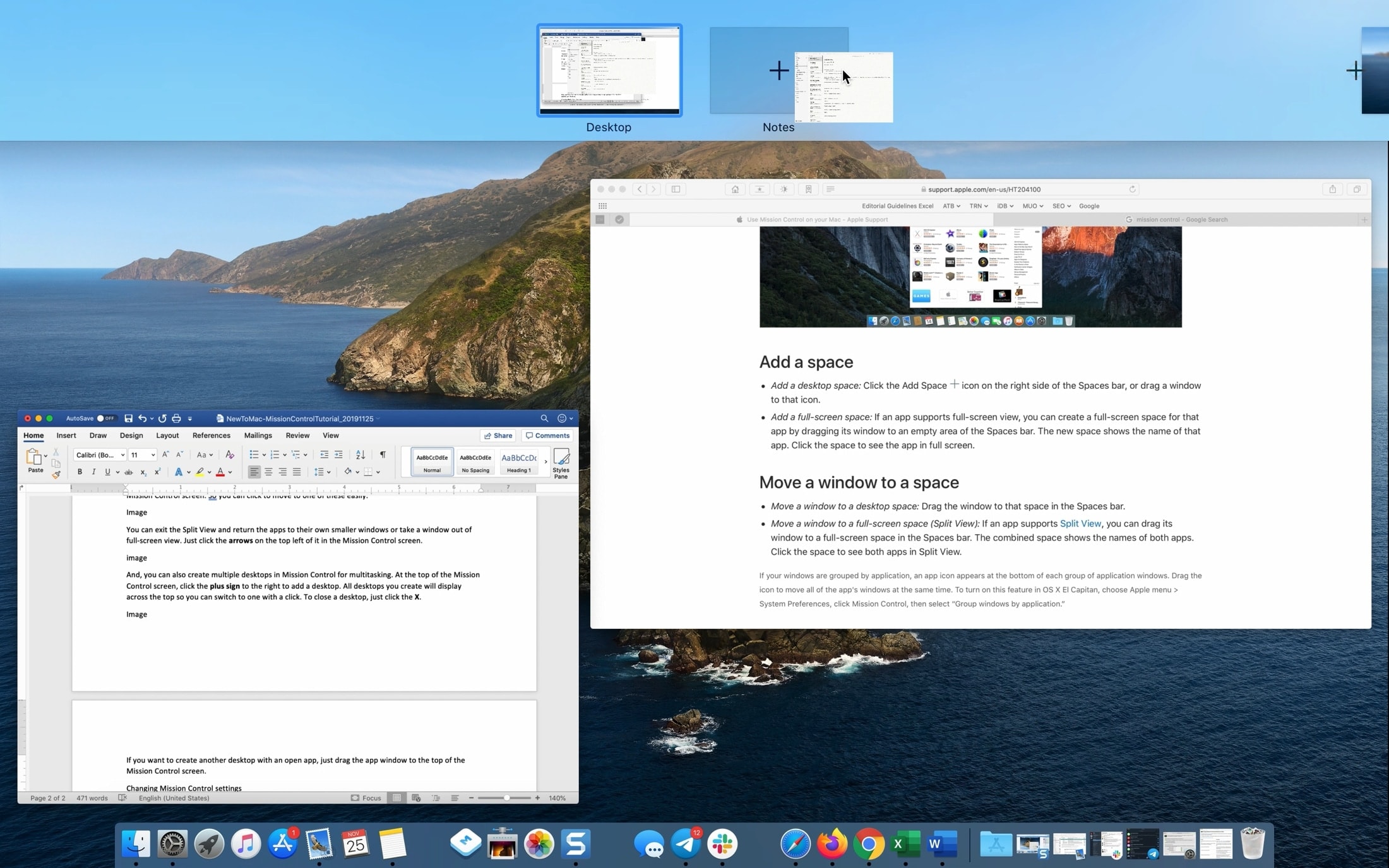

You can also create Split View screens in Mission Control. To do this, one window should be in the form of a preview at the top of the screen. After that, just place the second window on top of the preview of the first.


You can close the Split View and split the windows. To do this, click the arrows on the preview or simply drag the Split View down.
You can create multiple desktops (spaces) for multitasking. At the top of the Mission Control screen, click the plus on the right.
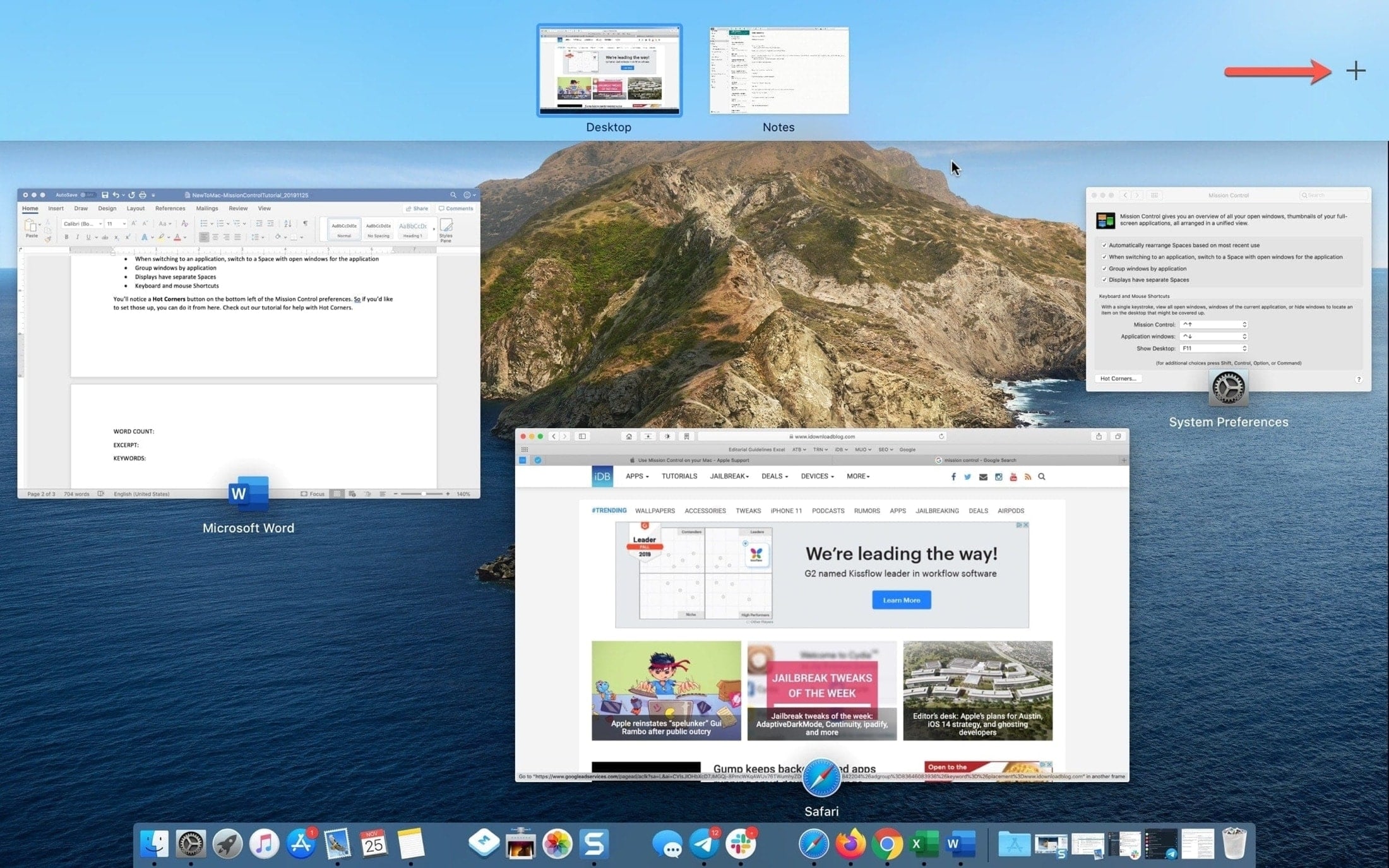

All workspaces will be displayed at the top, so you can quickly switch between them. This can be done even with gestures.
- Swipe left or rightthree or four fingers on the trackpad.
- Swipe left or rightwith two fingers on the surface of the Magic Mouse.
- Use a keyboard shortcutControl+Right arroworControl+Left arrow.
To change the location of the desktops, hold one and drag it to another location. To close it, click the x in the upper left corner of the preview.

How to change mission control settings
Like most other macOS features, you can customize Mission Control. To do this, go to System Preferences and select the Mission Control section.
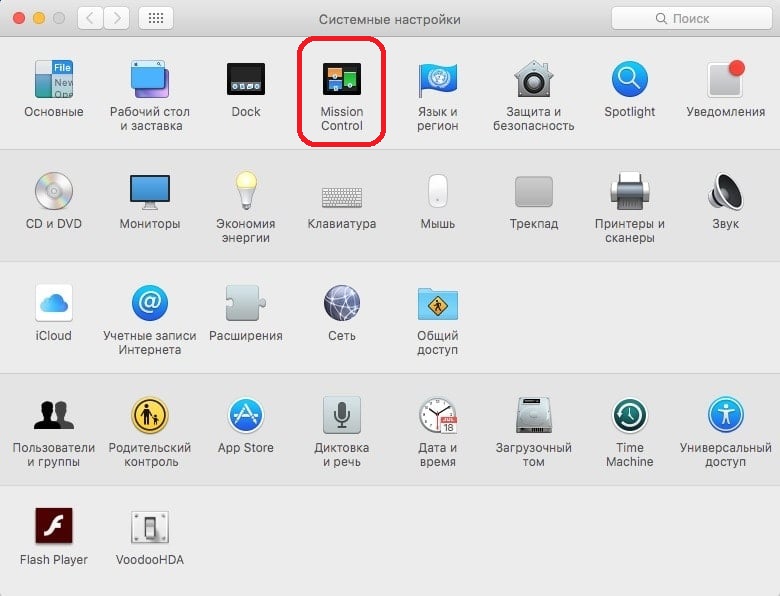

You can enable or disable the following options:
- Automatically use the latest space layout.
- When switching to a program, switch to a space with open program windows.
- Group windows by program.
- Monitors with different spaces.
- Keyboard and mouse keyboard shortcuts.
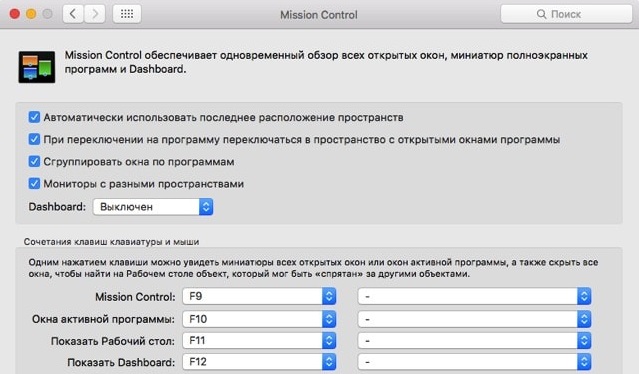

At the bottom there is also an Active Corners button. We have a separate article about them.
Mission Control is one of those features that you find useful only after you start using them. Now you know how to do it.