Due to the massive transition of employees to remote work during the COVID-19 pandemic, the demand for an application for
We have already written about how to set up and useZoom on a computer. In this article, we show you how to schedule and start a conference yourself or join a video conference organized by another user in the Zoom application foriOSAndiPadOS.
Advertising
- How to create a conference in Zoom on iPhone or iPad
- How to schedule a conference in Zoom on your iPhone or iPad
- How to join someone else's conference in Zoom
- Conference Features on iPhone or iPad
How to create a conference in Zoom on iPhone or iPad
- To start the conference, download the application and register. Zoom is free to download for iPhone and iPad. For the organizer registration is required.
- Log in to your account in the app on your iPhone or iPad.
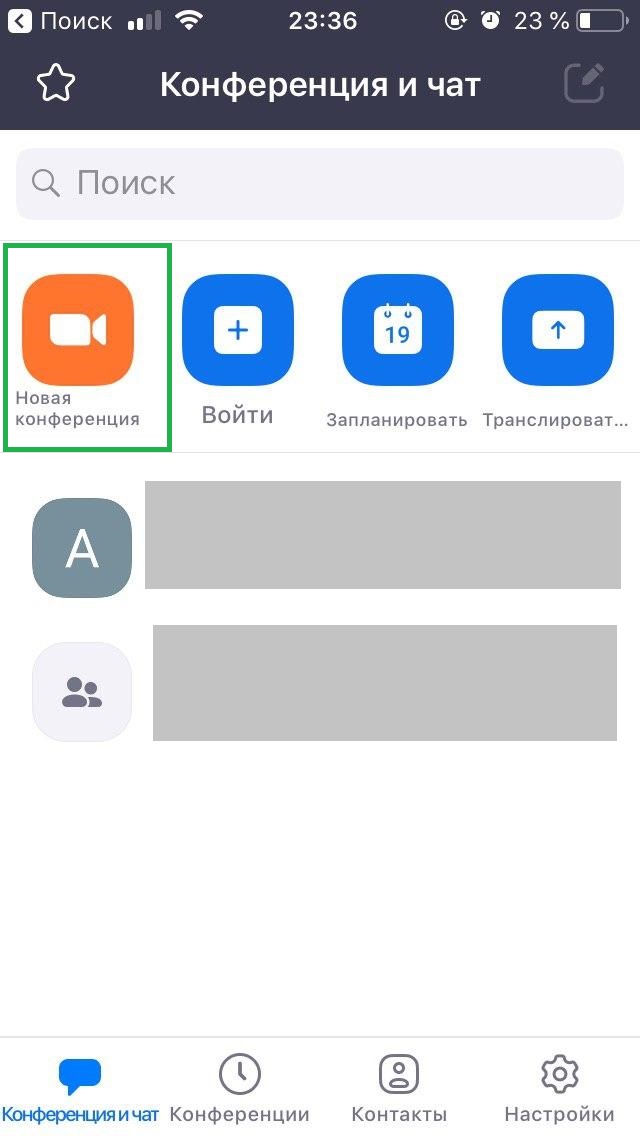
- In theConference and chatclickNew conference→Start a conference.

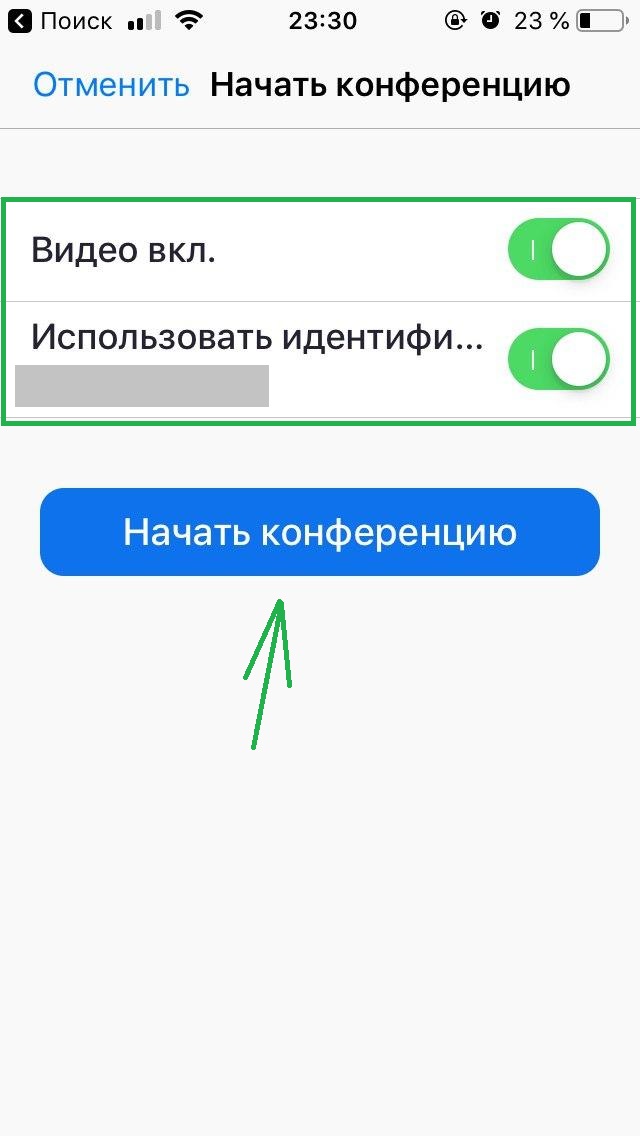

- Activate the toggle switches to turn on the video ifwant to connect with the video, and use the conference ID (knowing it, other users will be able to join the meeting without a link to the video conference). If you do not specify this parameter, the application will assign a random code to the conference.
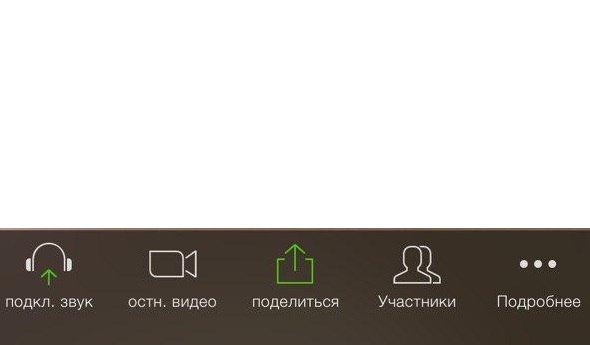
- To hear others, the program will prompt you to turn on the sound: clickCall using sound over the Internet. After starting the conference, you can turn off the sound or video at any time by clicking on the corresponding buttons in the lower menu of the conference window.
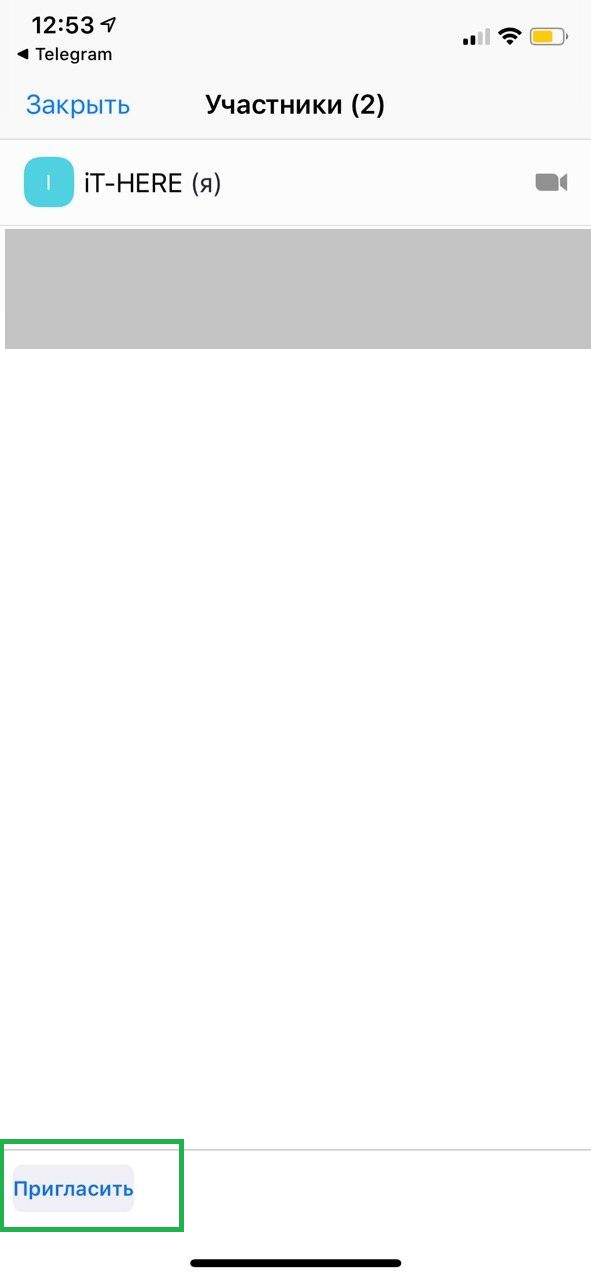
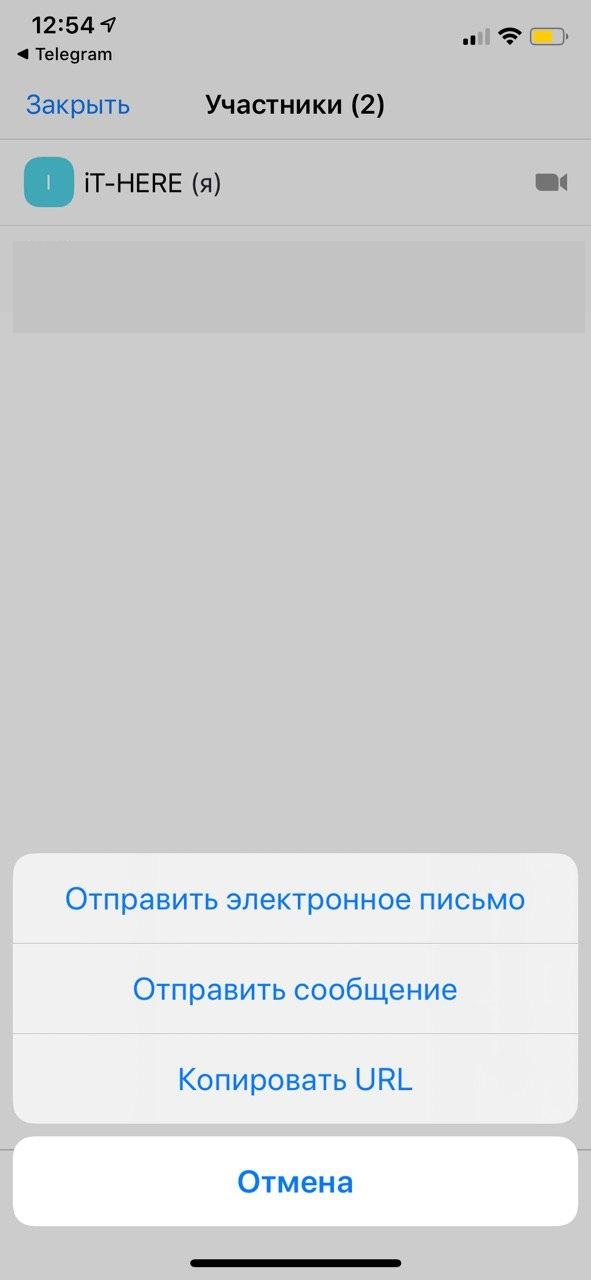
- To invite users, clickMembers→To invite→ select a method:send an email, message or copy the URL. The most convenient way is to select the last option and send the copied link to the person via any messenger. By clicking on the link, the user will join the video meeting without having to enter a password.
-



Advertising
Advertising
For a more formal invitation, useemail option: the application will automatically generate the text of the letter with all the necessary data, including the date and time of the meeting, a link to the conference, identifier and password (if the organizer has set a password).


If you have activated the functionWaiting hall- that is, each new participant awaits your confirmation before entering - as soon as the confirmation message appears, clickAccept.You can disable this feature in the conference settings.



How to schedule a conference in Zoom on your iPhone or iPad
The conference can be scheduled in advance and synchronized with the calendar. In a few minutes, you and all users to whom you send an invitation will receive a reminder to start a video call.
- To schedule a conference, open Zoom.
- In theConference and chatclickTo plan→ enter the settings you need → clickIs done.


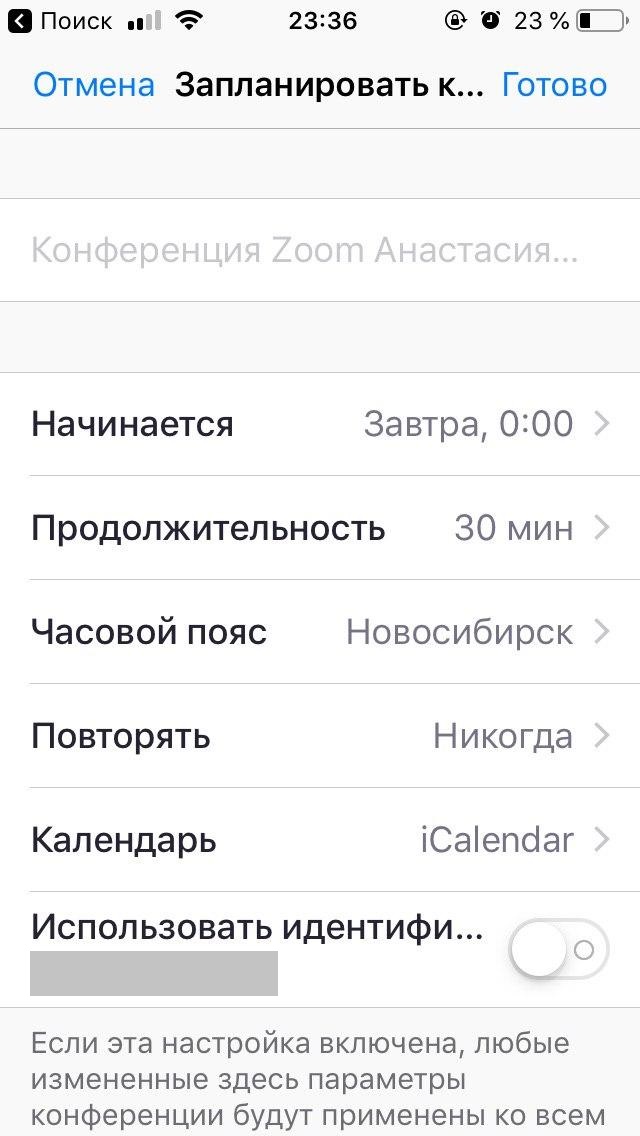

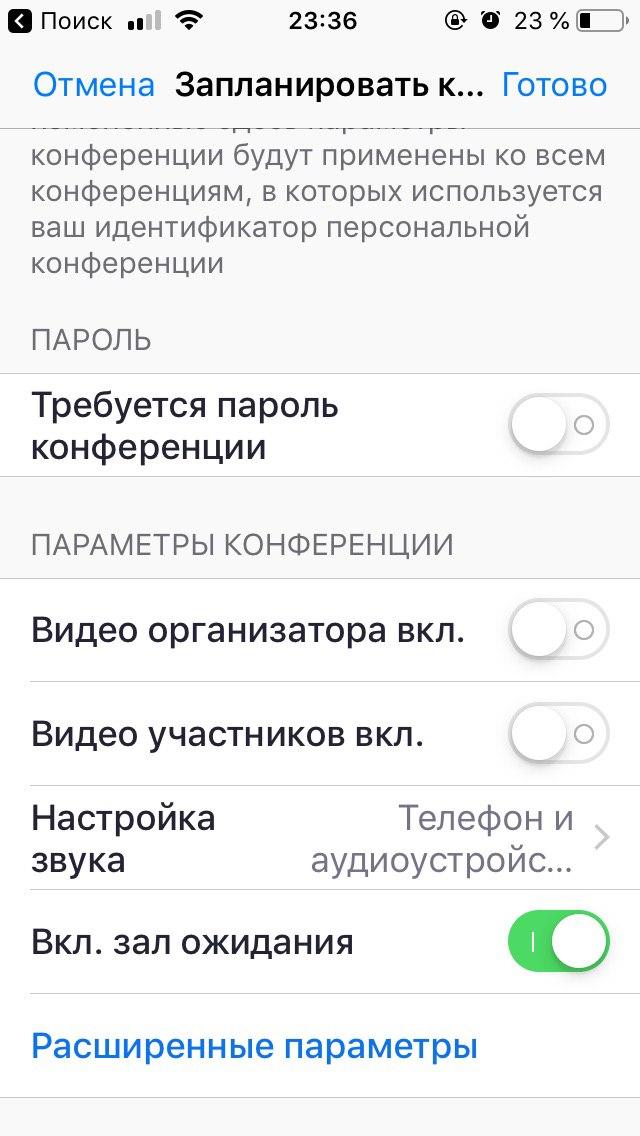

- The program will prompt you to add an event to the calendar → enter the required parameters → clickTo add.
How to join someone else's conference in Zoom
To join the meeting, you do not need to register for Zoom or log in to your account.
Advertising
Advertising
The easiest way to join the conference isfollow the link that the organizer sent you. Depending on what parameters the conference organizer has set, you will need to wait until the organizer sees and allows you to join, or you will connect immediately. The link will automatically open in the Zoom application.
You can also connect to someone else's conference using the conference ID, if you know it. To do this, go to the application and on the main page clickLog in to the conference. Then enter the digital ID in the appropriate line, clickTo come in.
Advertising
Advertising
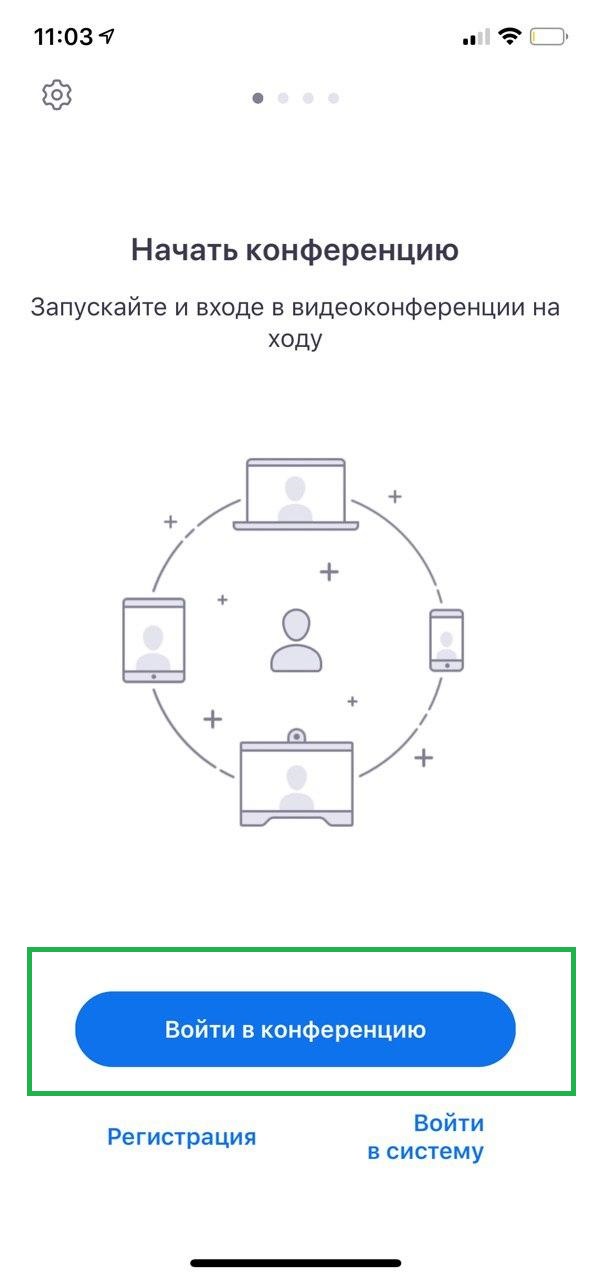

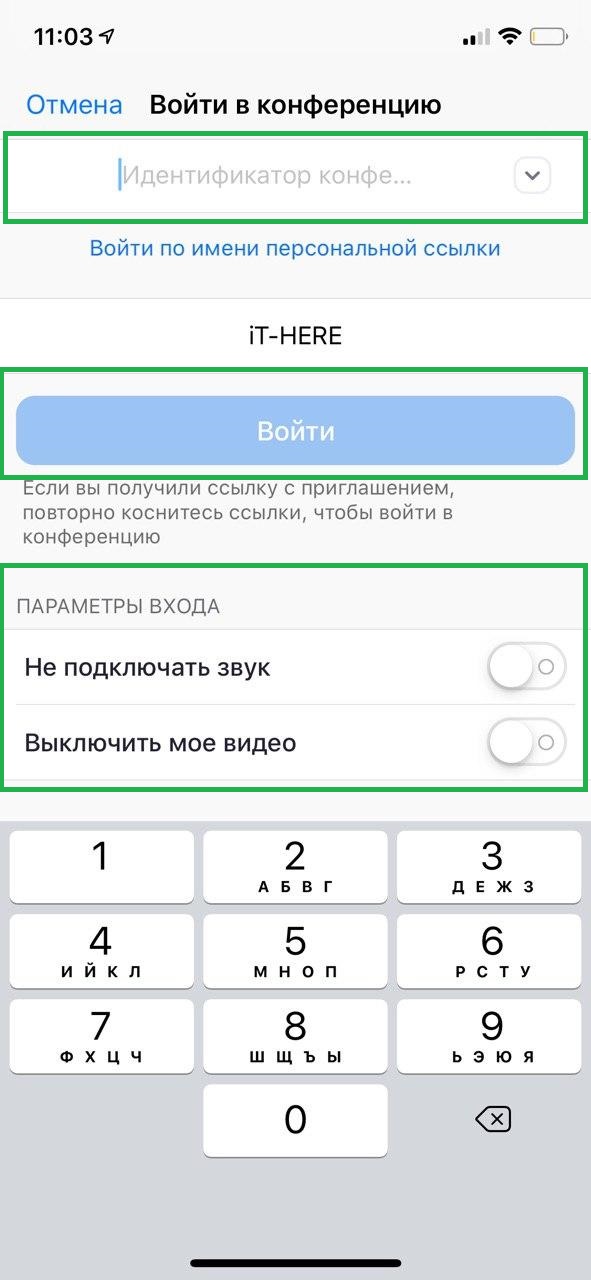

You can immediately set the input parameters: turn off the sound and / or video. In any case, already at the conference itself, you can enable or disable audio and video at any time.
Conference Features on iPhone or iPad
All the main features of the video call are concentrated in the lower menu of the conference window on iPhone or iPad:


- To turn the sound on or off, click onheadphone icon.
- To turn the video on or off, click oncamcorder icon.
- In pointShareyou can send the file or link you need to your interlocutor, or share the screen:


- In theMembersyou will have access to chat with your interlocutor and invite users.
- In the contributionMore detailsYou can also go to chat, conference settings, choose a virtual background (for example, if you do not want to show the interior of your apartment), and also raise your hand if you want to attract attention.


- By default, the video conference recording feature is only available in the PC version of Zoom. But you can still record a conference on an iPhone or iPad using the screen recording function.
- If there is no item “Virtual background” in the menu of the “Details” section, most likely you have an outdated version of iOS.