Converting documents and files is an integral part of the average user's routine. Sometimes the Pages document
Advertising
Advertising
DownloadPDF Converter: Docs To PDF
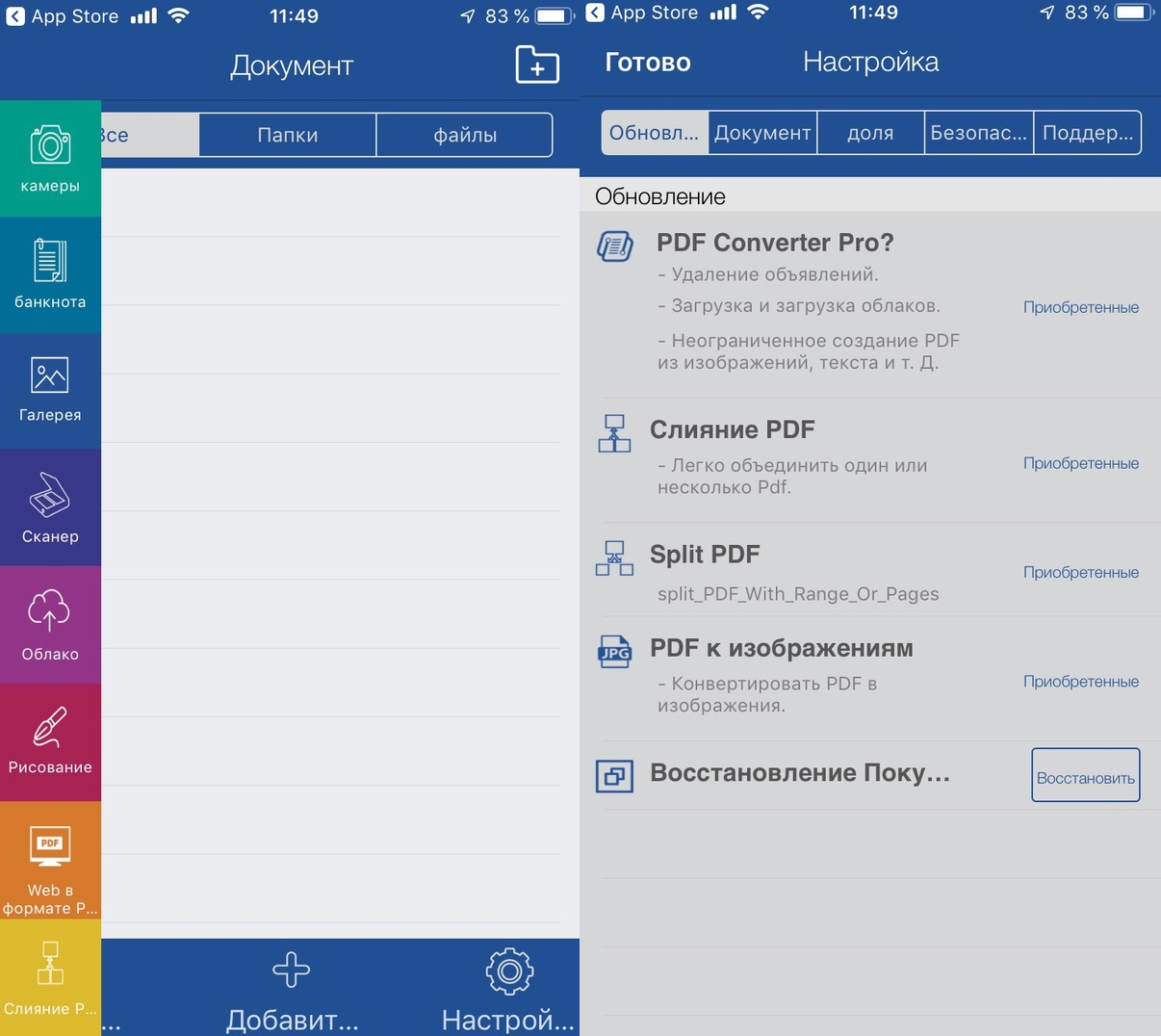
To get started, do not let the name of the application cast doubt on you. PDF Converter: Docs To PDF can do much more than its name says, including converting PDF to PNG.
This application differs from similar ones in the following features:
- It is available on both iPhone and iPad.
- There are no in-app purchases in the app.
- There is no limit to the number of files.
- No need to wait for the result.
- The application is free.
- It contains many advanced features like document scanning, editing tools, file management, etc.

Advertising
Advertising
How to usePdf Converter
To get started, you can open the application and study its interface. If you do not want to do this, go directly to the instructions.
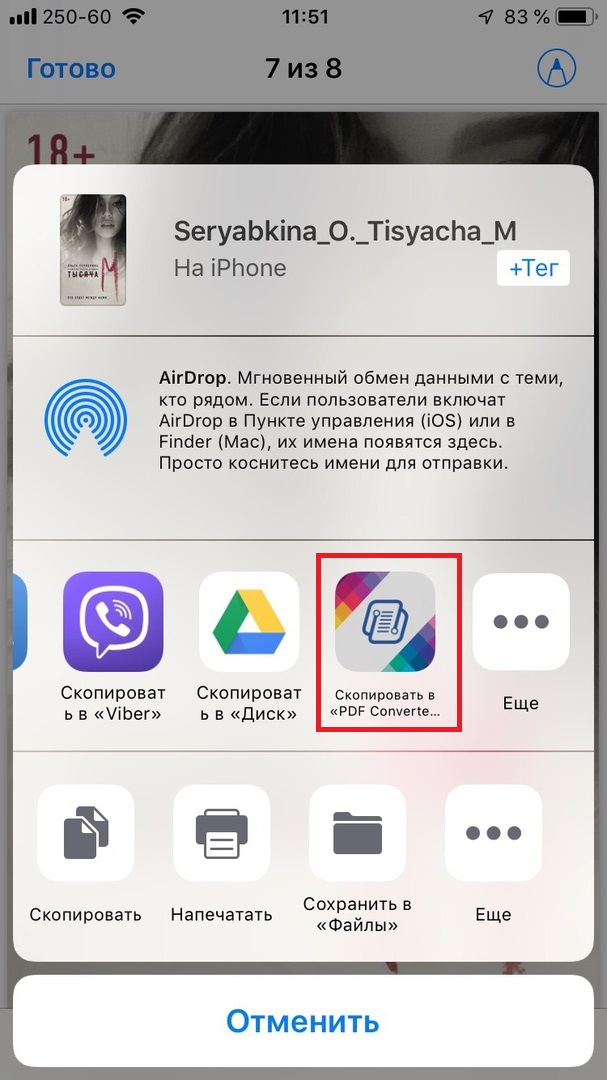
one)Open the PDF in any app where you can share it.
2)Open the Share menu and select from the end of the list of applicationsCopy to Pdf Converter.
3)The document will be sent to the application.

The PDF Converter application should open automatically. Click Finish to return to the main screen.
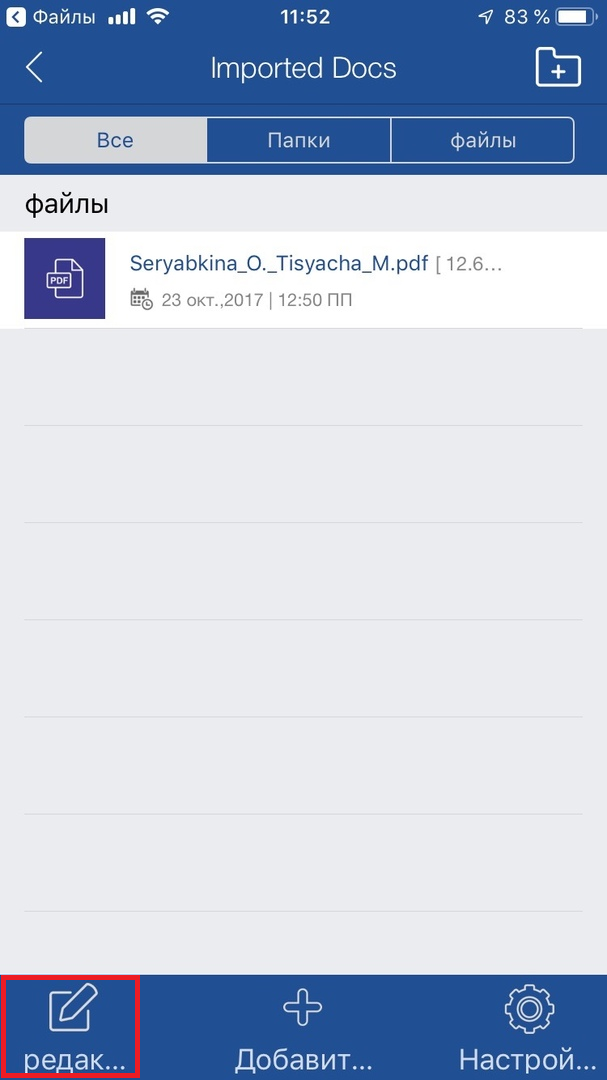
one)Select a folderImportedDocsand find your file there.
2)At the bottom of the screen, clickEdit.

3)Select the required document.
four)SelectPDF to imagesin the menu below.
five)Go back to the app's home screen and select the folder with the name of your file.
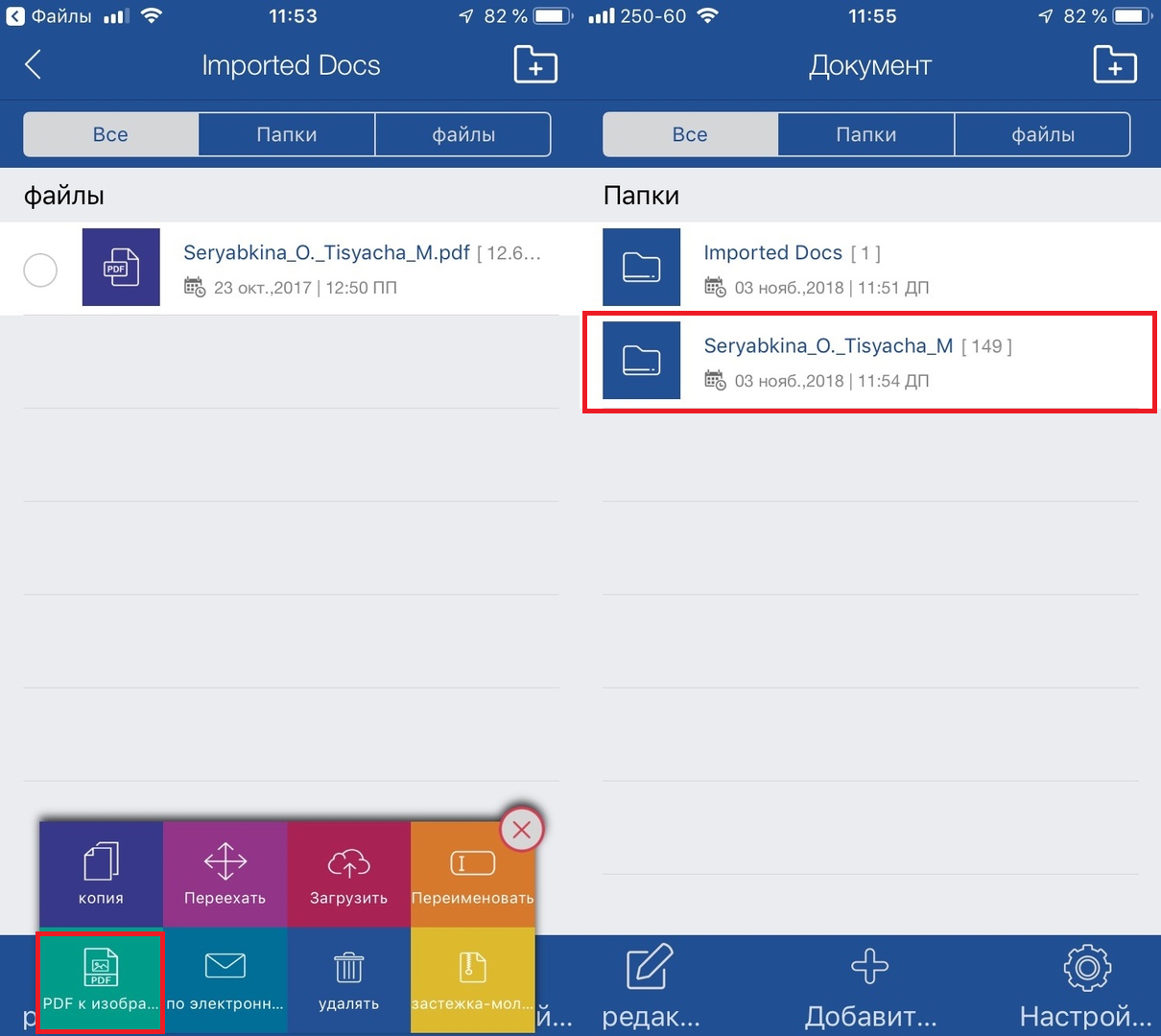

Images will be inside this folder. To open and view the image, just tap it. Here you can immediately share it.


Convert PDF documents to images quickly and easily. Most importantly, in the PDF Converter: Docs To PDF application, this can also be done for free!