The Teams app launched with iOS 12, but it's gotten much better in iOS 13. Now the application is cramped
Advertising
Advertising
For example, using the command, you can change the wallpaper at least every day with the click of a button. Wallpaper can be taken from your album or even an online source. Below we will tell you how to do it.
How to change wallpaper using the command
This is done with a simple command. You can recreate it yourself using the screenshot below, or simply import the finished command into the application and start using it. For the team to work, you will need iOS 13 and newer.
Before proceeding with the instructions, you need to create an album with your favorite wallpapers. The team will automatically center the wallpaper, so it’s better to crop it manually.
Advertising
Advertising
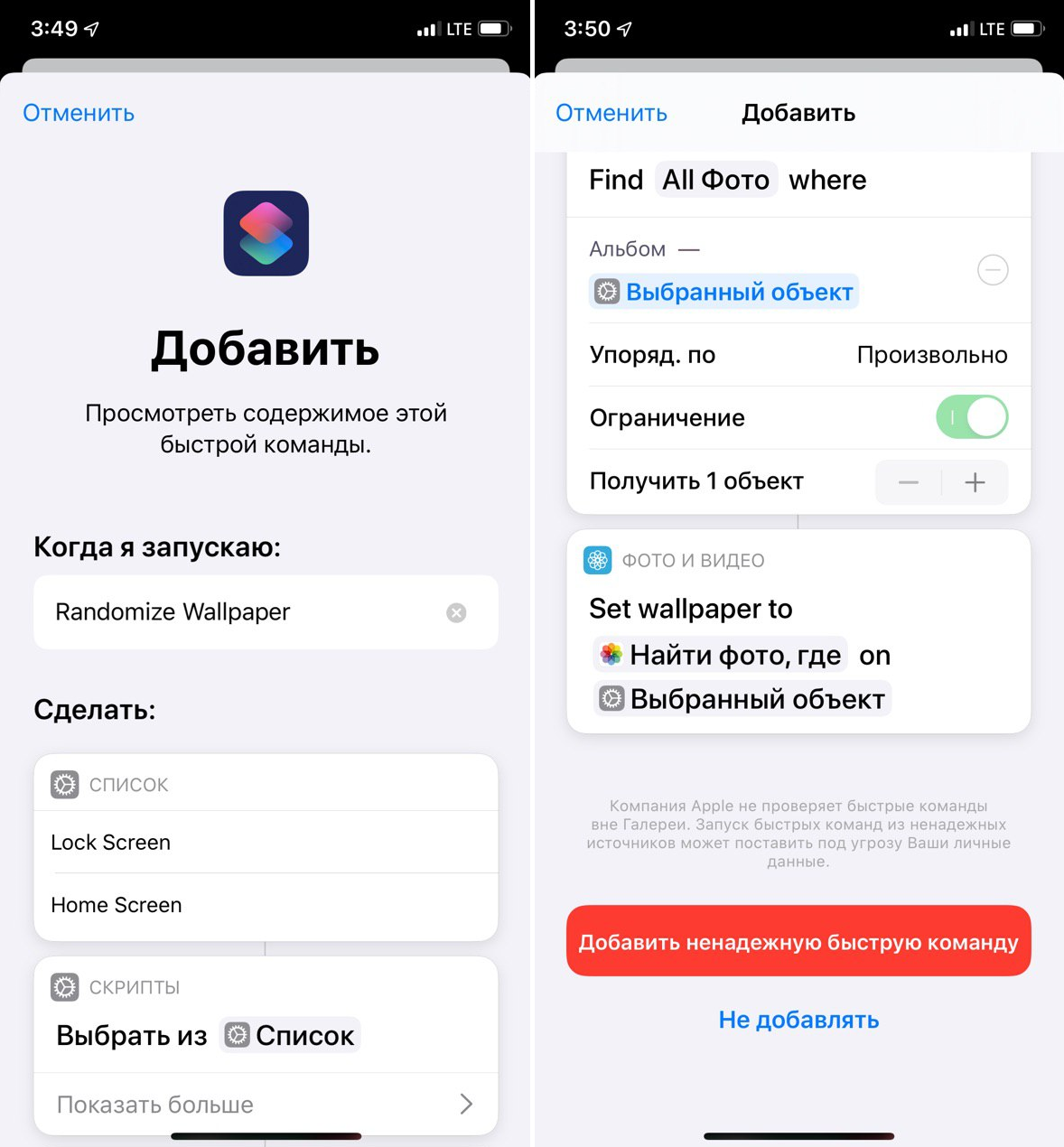
Step 1: Download the commandRandomize Wallpapersfrom here. Follow the link and clickGet a quick team.

Advertising
Advertising
Step 2: The Commands application opens.If this is your first time opening a third-party command in iOS 13, it won't work. You will see a notification asking you to allow unverified sources through Settings. To do this, go toSettings->Teams->Unreliable fast commands.
Step 3: Now go back to the link and download the command. When the Teams app opens, scroll to the bottom of the page and tapAdd Unreliable Fast Command.
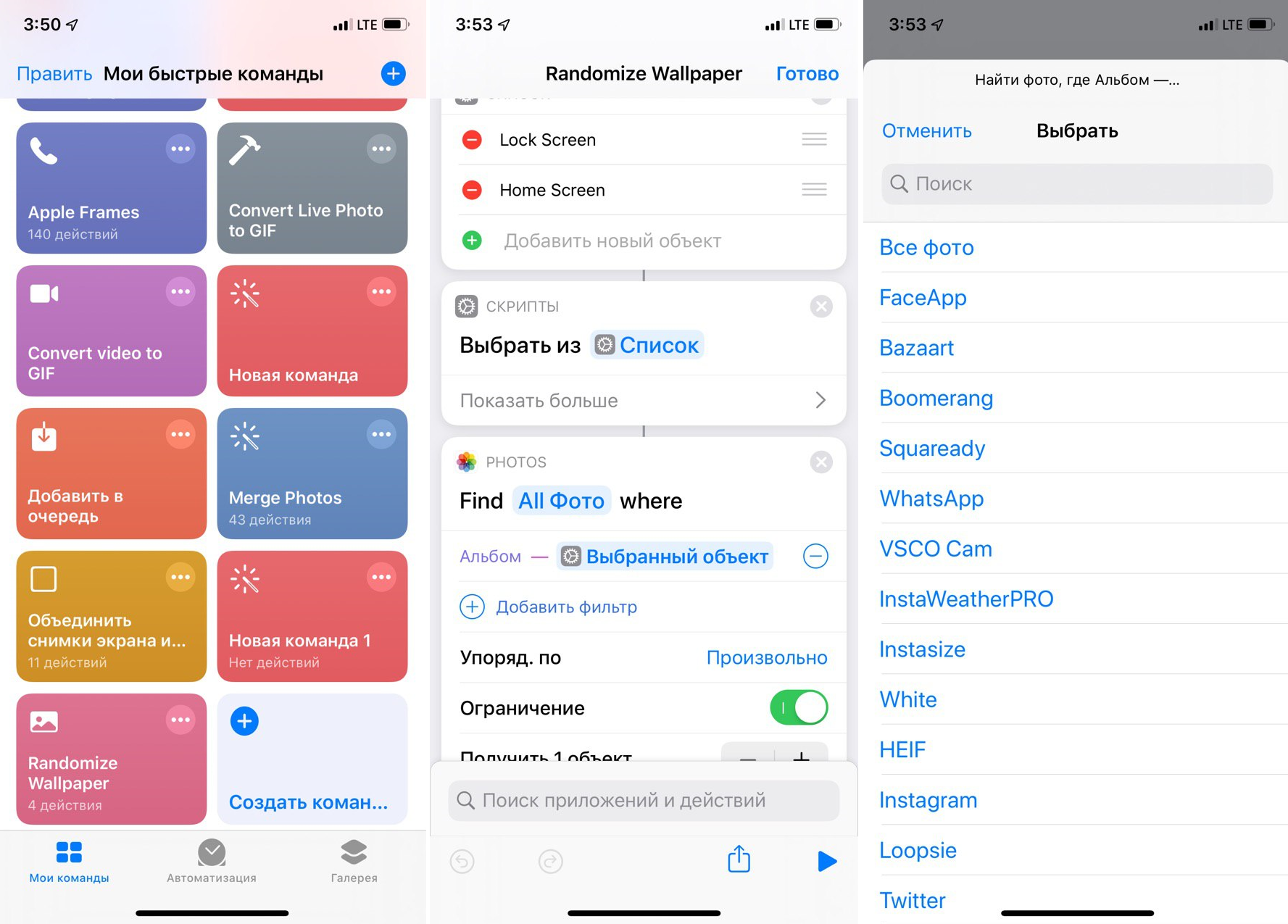

Step 4: The command will be added, and now it needs to be configured. Find it in your gallery and click the menu button in the upper right corner of the command. Here you need to choose the album from which the wallpaper will be taken.
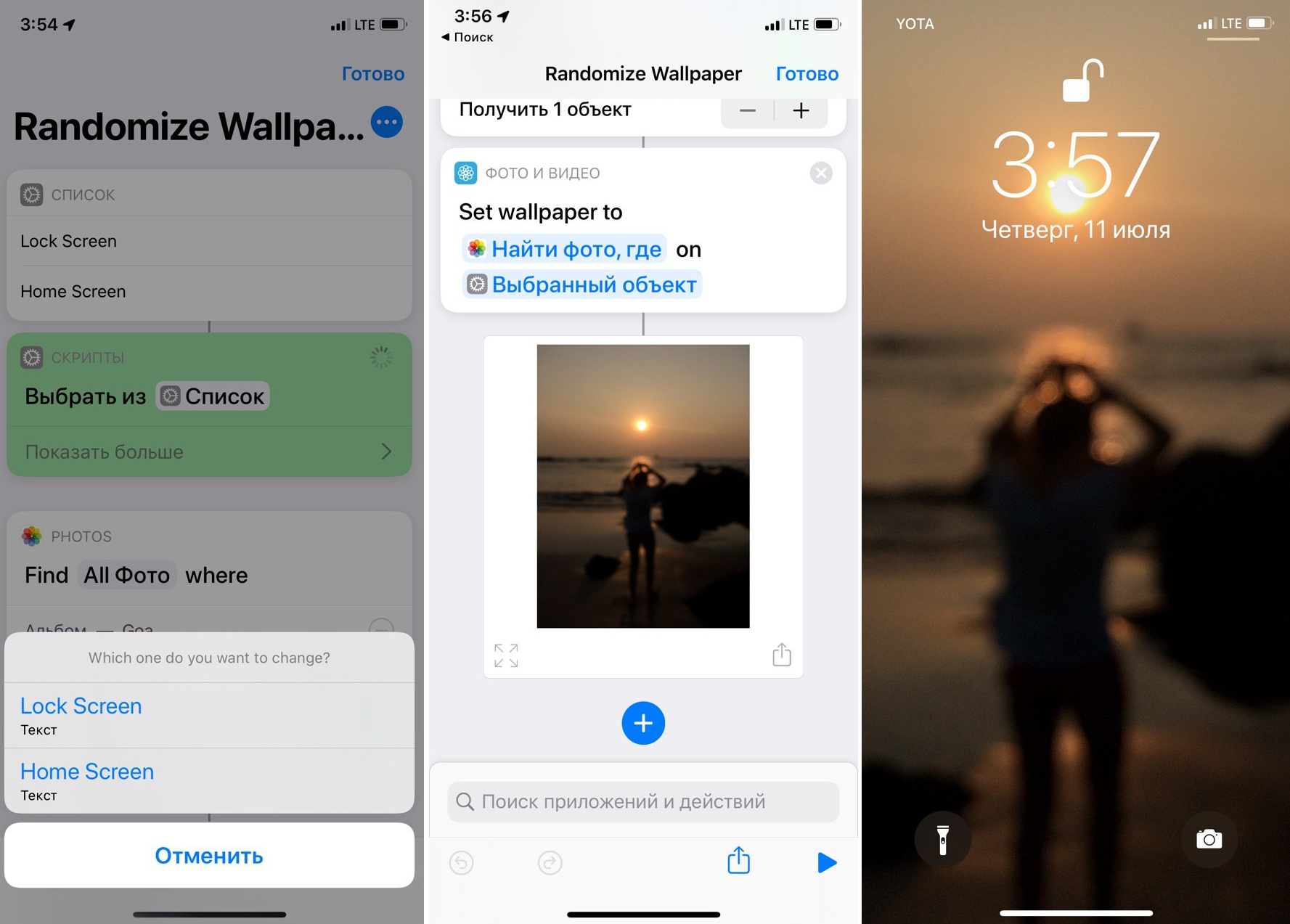

Step 5: You can return to the main screen or run the command immediately. Select your home screen or lock screen and wait a couple of seconds until the wallpaper changes.
Download: Randomize Wallpaper
How to automatically change the wallpaper on a schedule
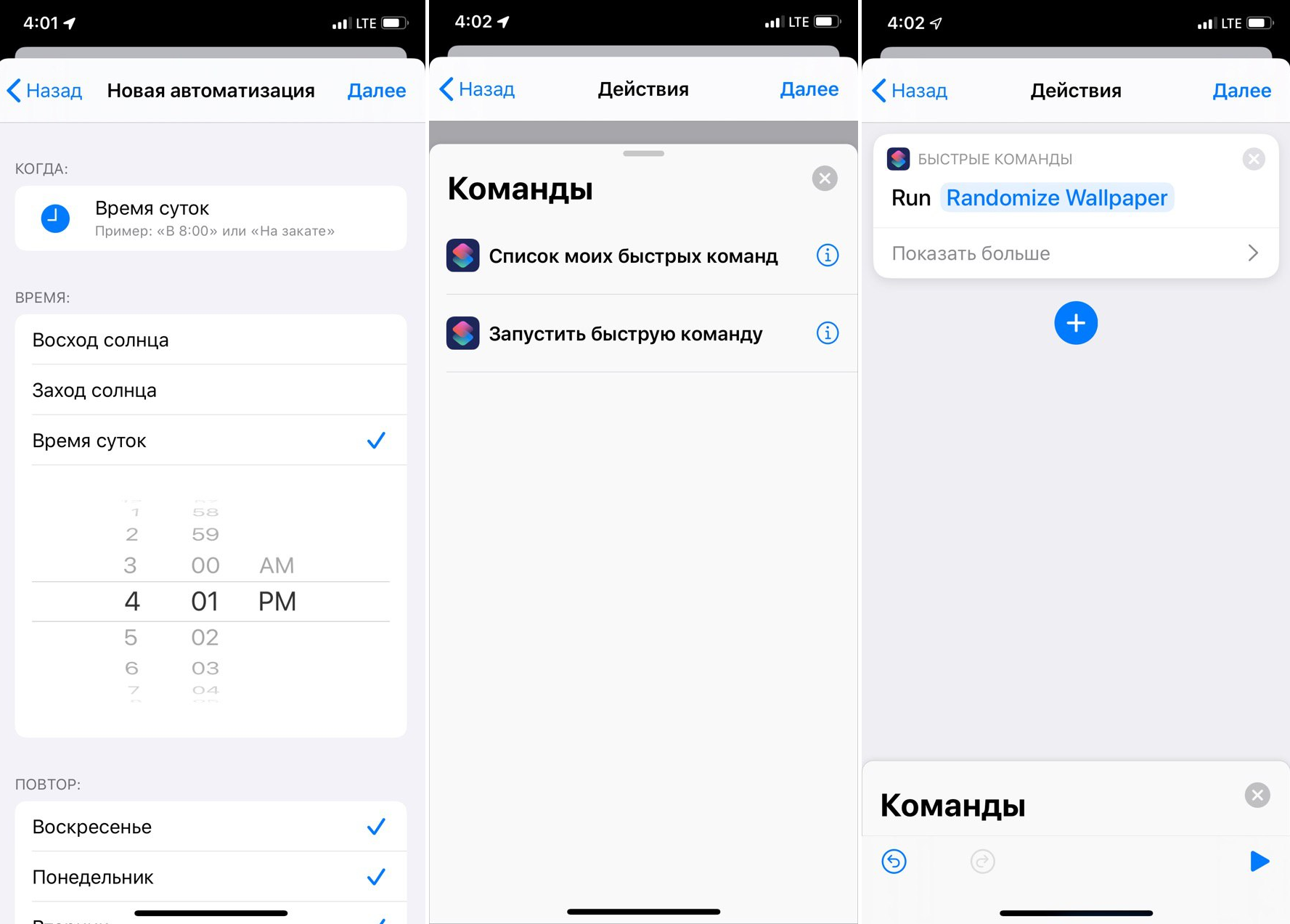

IOS 13 introduced various triggers for teams. You can run the command using the NFC tag or set up a schedule for it. Please note that in beta versions of iOS 13, not all automation functions may work correctly.
On the Automations tab, you can create automation for the team above by setting up a schedule for it. After that, your wallpaper will change automatically, for example, every day.
How to take wallpaper from online sources
There is another version of the command that makes the process even easier. You do not need to create a wallpaper album, you can choose an online source with wallpapers like Artpaper and use the wallpaper from the online catalog.
Shortcuts in iOS 13 allow you to automate setting wallpapers.
I made a shortcut which pulls & sets a random wallpaper out of @ArtpaperHD’s 1300 ultra-hd artworks. https://t.co/dV6wZhRFVD
/ cc @viticci @Jim_Gresham @shawnblanc pic.twitter.com/bAmTDEKipX
— Alex Chernikov (@chernikovalexey) July 9, 2019
Download: Set New Wallpaper