In iOS 12 Settings, a whole section has appeared dedicated to battery usage statistics. Now you
Advertising
Advertising
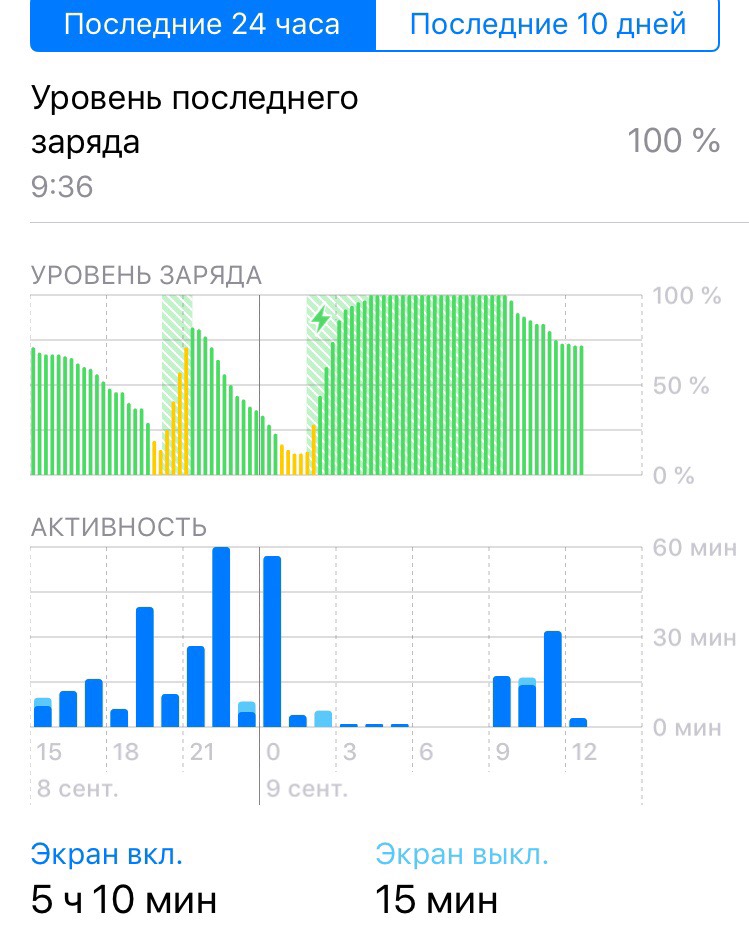
Last 24 hours
Now you can view graphs of charge level and activity. In addition, you can find out how long the screen has been on and off. It's all inSettings -> Battery.
There are two tabs under the charts: last 24 hours and last 10 days. Let's start with the first one.

Advertising
Advertising
Here are the apps you use.use the most, and the time that you spent in them is indicated. To find out the time, not a percentage, click on the blue word “Activity”. You will see the exact time in hours and minutes.
You can interact with the chart above. If you click on one of its sections, you will see which applications were used the most in a given period of time.
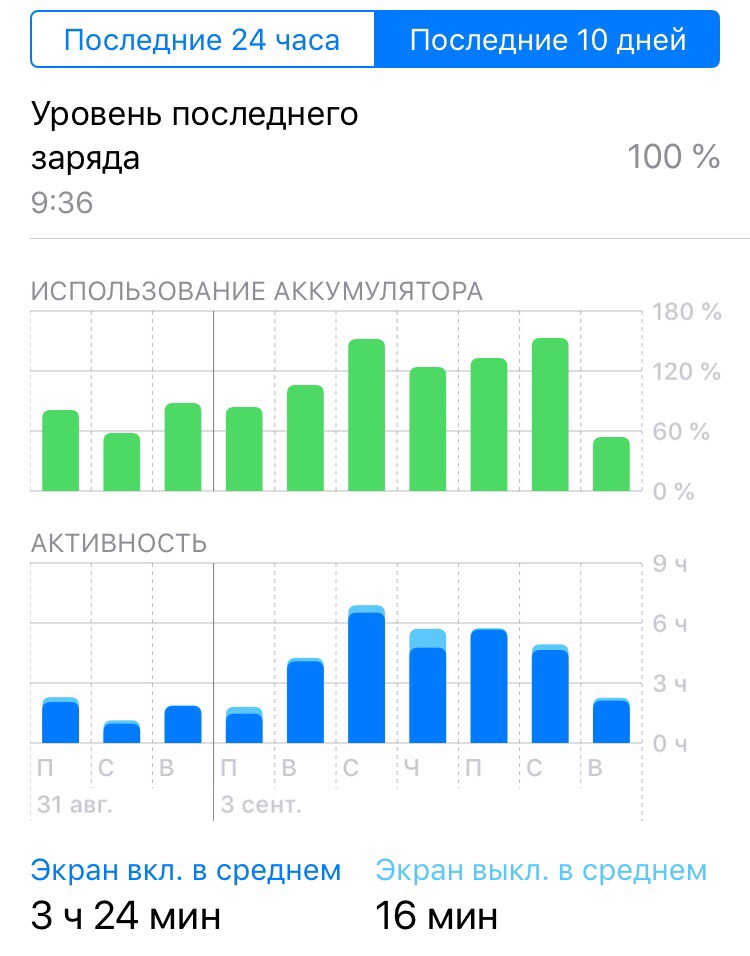
Last10days
If you installed iOS 12 more than 10 daysback, then next to the first tab will be the tab "Last 10 days." Switch to it, and other data will appear below. To view activity for a specific day, select it on the chart.

If you used the application for a little time, but in the background it worked for many hours, then it probably consumes a lot of battery.
What apps are using up your battery?iphone?
Step 1: Go to the tabLast 10 daysand click onBattery usage. Above will be the apps that consume the battery most.
Step2: ClickActivityand see app usage in hours and minutes. If an application has been running a lot in the background, then it is very energy-consuming.
Step 3: To view your most used apps over the past 24 hours, switch to theLast 24 hours.


If the application works a lot in the background without the need, you can turn off the background update for it or just delete it.
Sometimes the iPhone battery can drain on anything40% in a short period of time. This happens due to specific applications. Fortunately, in iOS 12 you can find out for sure when and which application spent the entire charge.