On a Mac, you can set the screen saver to automatically turn on after a specified period.
This article contains three ways to set up the screen saver on your Mac so it launches quickly when you need it.
Advertising
Advertising
Using hot corners
The easiest and most convenient option for launching a screensaver is using active corners. You can activate the screensaver by dragging the mouse to one of the corners of the screen.
1) Click on the lineapple menu>System Settings > Desktop and screensaver.
Advertising
Advertising
2) Open the tabScreensaverand pressActive angles.
3) Specify the angle that will activate the splash screen, select from the drop-down menuEnable screensaver.
4) ClickOk.


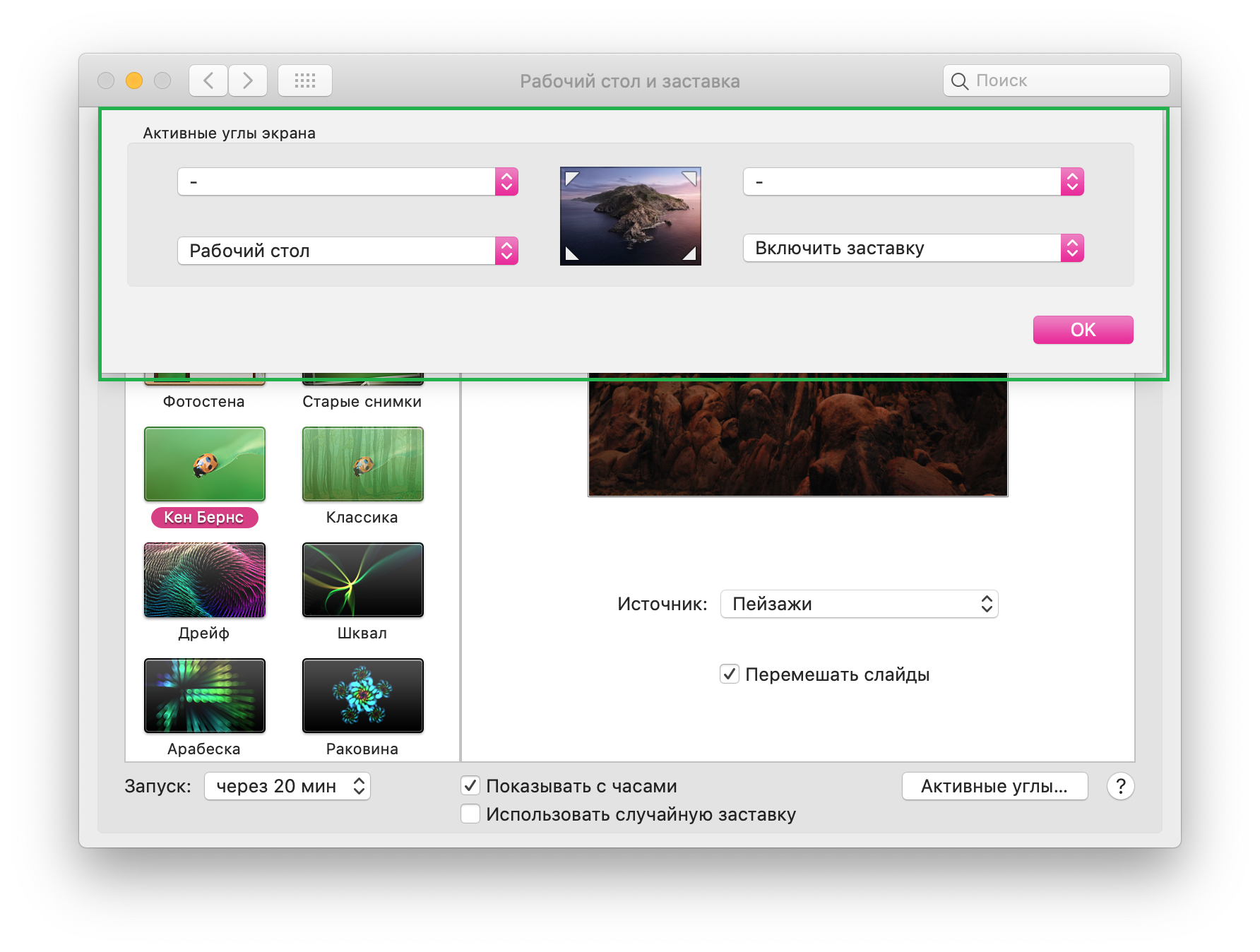

To turn on the screensaver, move the cursor to the configured corner of the screen. To return to the desktop, tap the trackpad or move the mouse.
Using the dock
Another way to launch the splash screen on Mac is to add a splash screen shortcut to the dock.
1) OpenFinder, pressGo to>Go to folder.
2) Enter the following path and clickGo to.
/ System / Library / CoreServices
3) In the folder that opens, find the fileScreenSaverEngineand drag it to the dock.
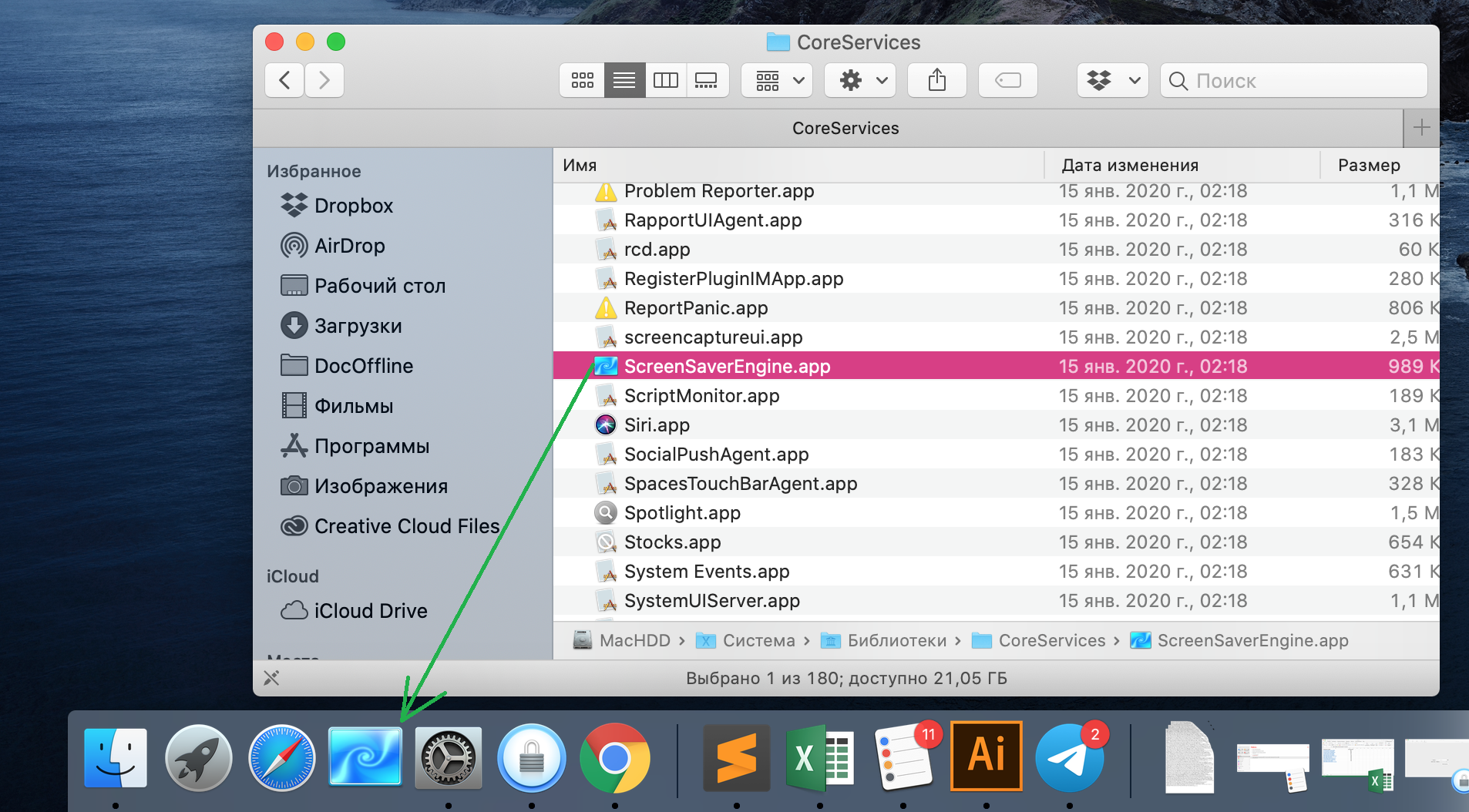

To turn on the screensaver, click on the screensaver icon in the dock.
Using a keyboard shortcut
Automate the startup screen saver on Maccan be done using Automator. It will take time to create a command, but then the splash screen can be launched as quickly and simply as possible - with the specified keyboard shortcut.
Create a team in Automator
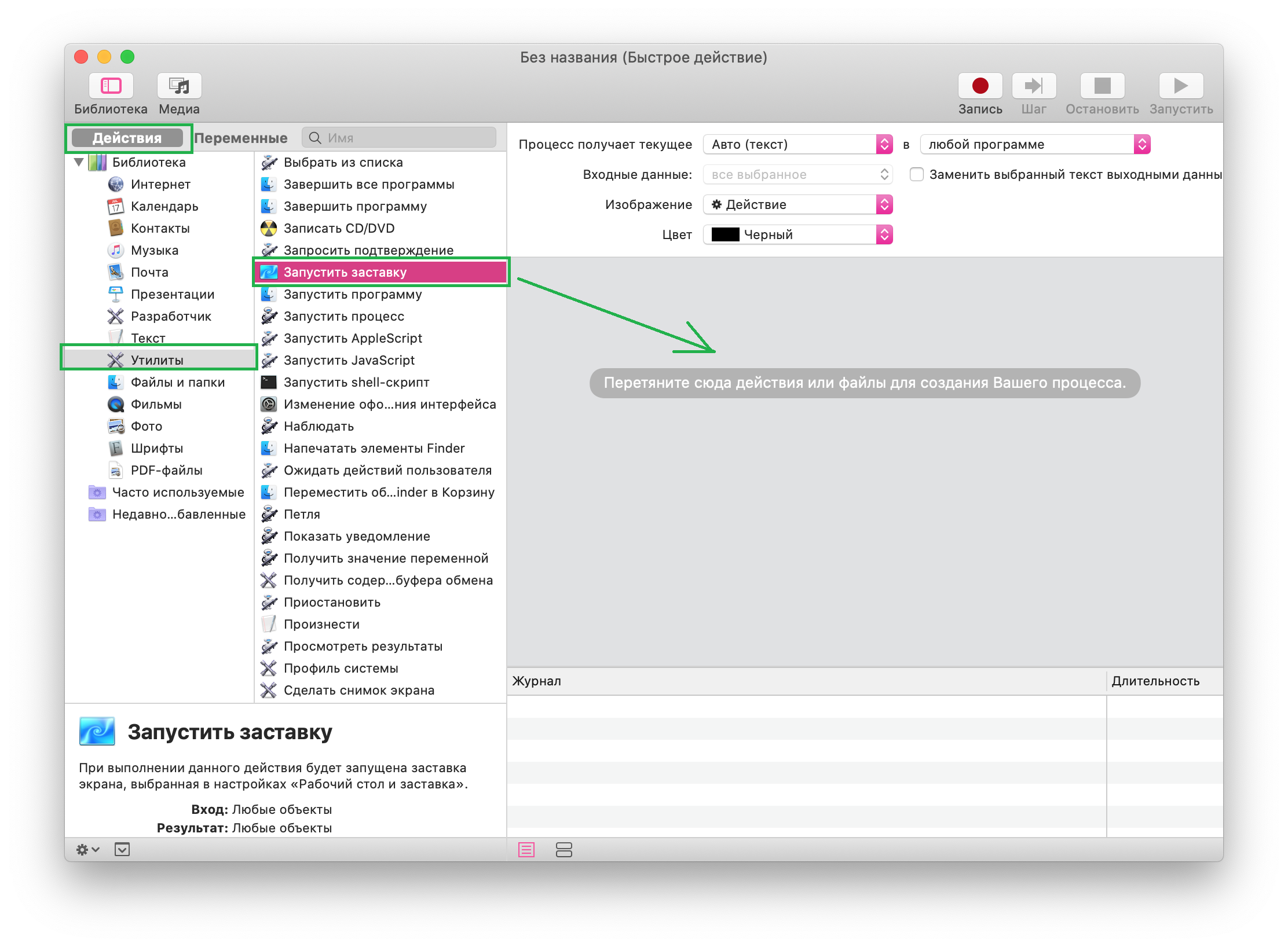
1) Open Automator from the Applications folder to the Dock or using Spotlight.
2) Clicknew document, in the window that opens, selectQuick action>Choose.
3) Make sure the tab at the top is selectedActions, in the menu on the left, clickUtilities.
4) Select fileStart screensaverand drag it to the window on the right.

5) ClickFile>Save, give the process a name, such as Start Screen Saver, and click againSave.
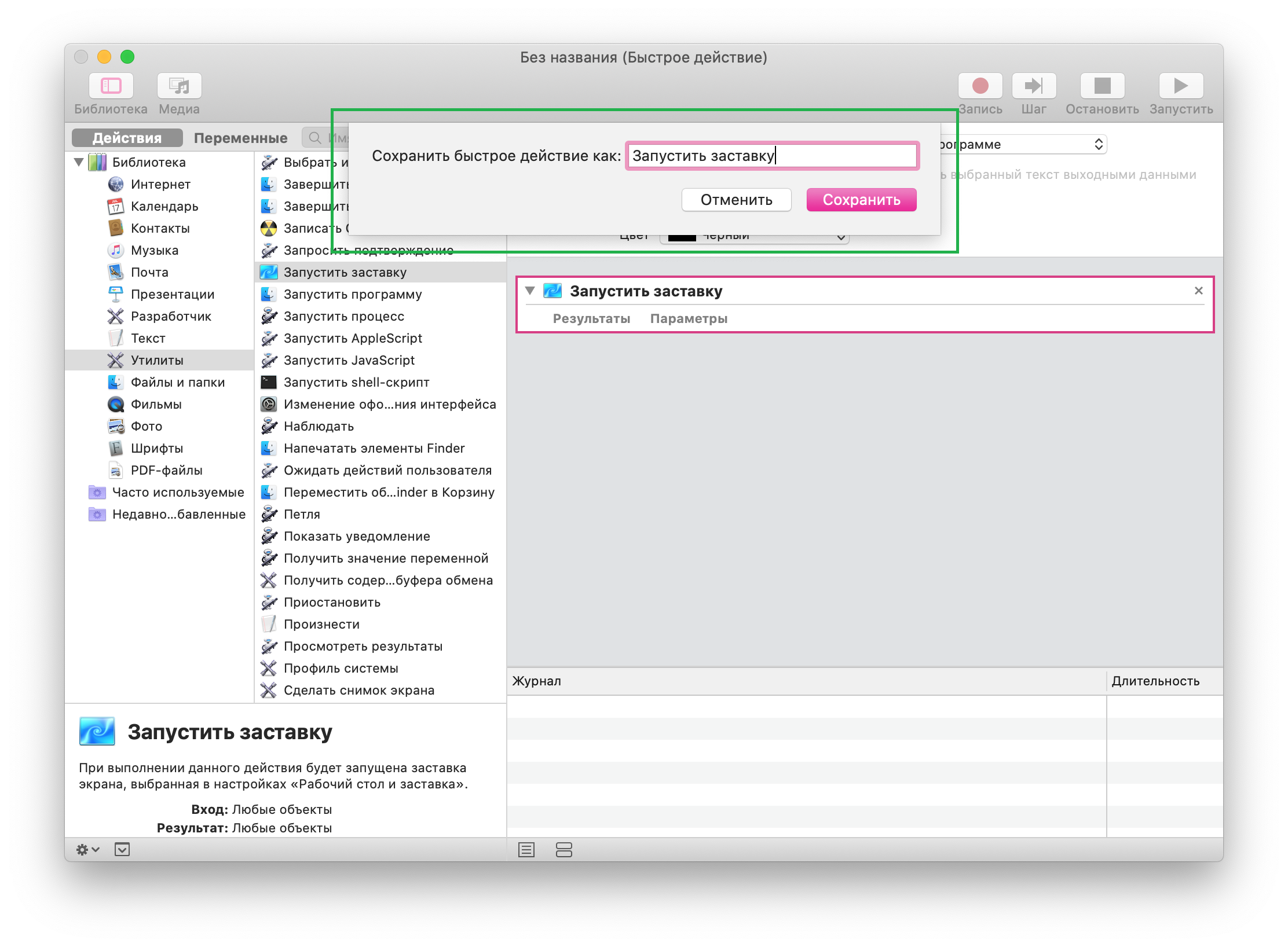

For the new service, you need to set a keyboard shortcut
Customize the keyboard shortcut to launch the screen saver
1) Open System Preferences from the Dock or MenuApple>System settings.
2) Select a sectionKeyboard,open the tabKeyboard shortcut.
3) In the menu on the left, selectServices.
4) On the right in the sectionMainThe name of the created quick action appears. ClickTo addand enter the key combination you want to use. The keyboard shortcut must be new (not set for other commands).
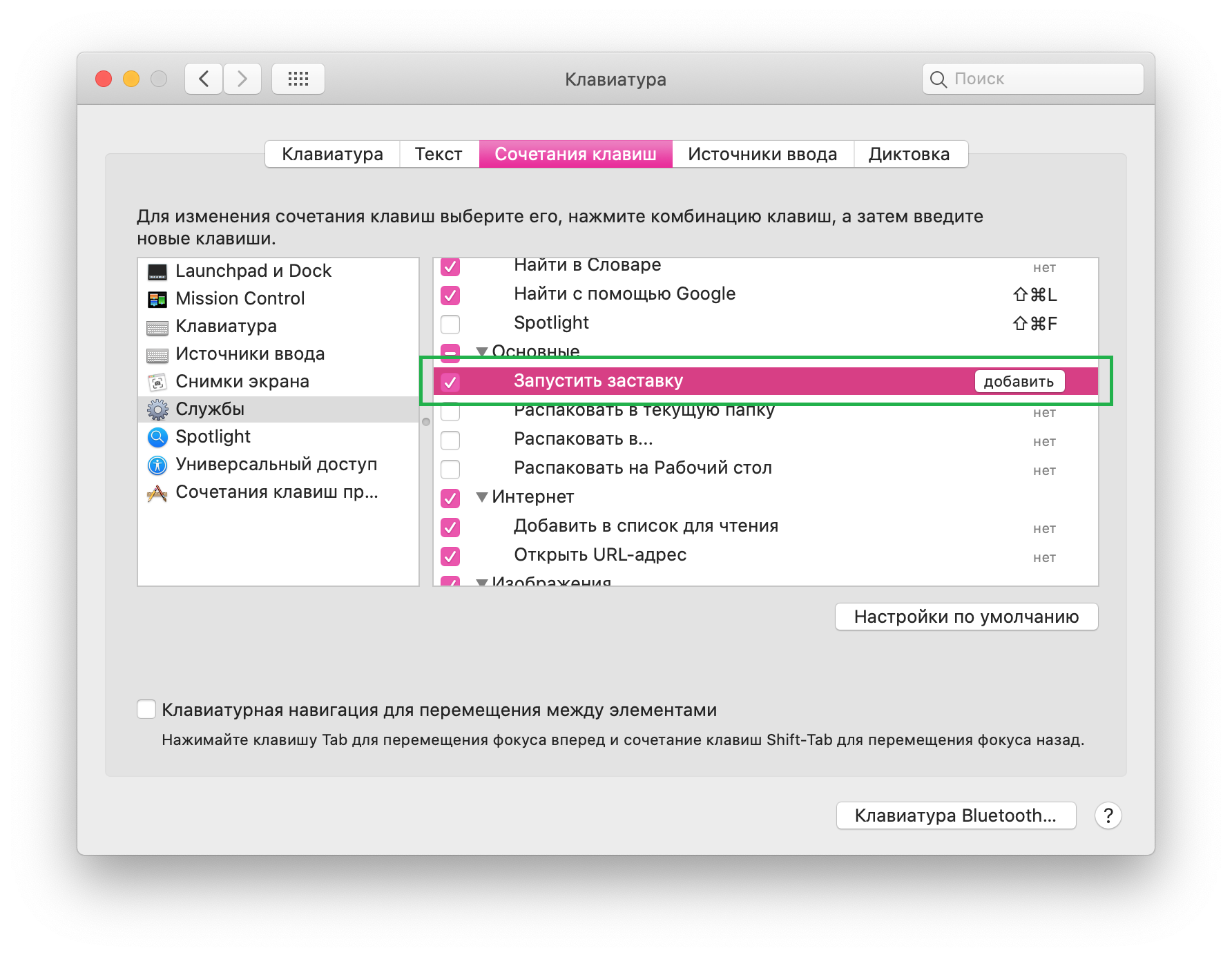


Close preferences and enter a new keyboard shortcut to activate the screensaver.