If you use Slack, you already know that it is a great tool for communicating with helpful people.
Advertising
Advertising
How to open Slack settings
There are two ways to access Slack settings.
one)ClickSlackin the menu.
2)SelectPreferences.
Advertising
Advertising
OR
one)Click on yoursusernamein the top left of the Slack window.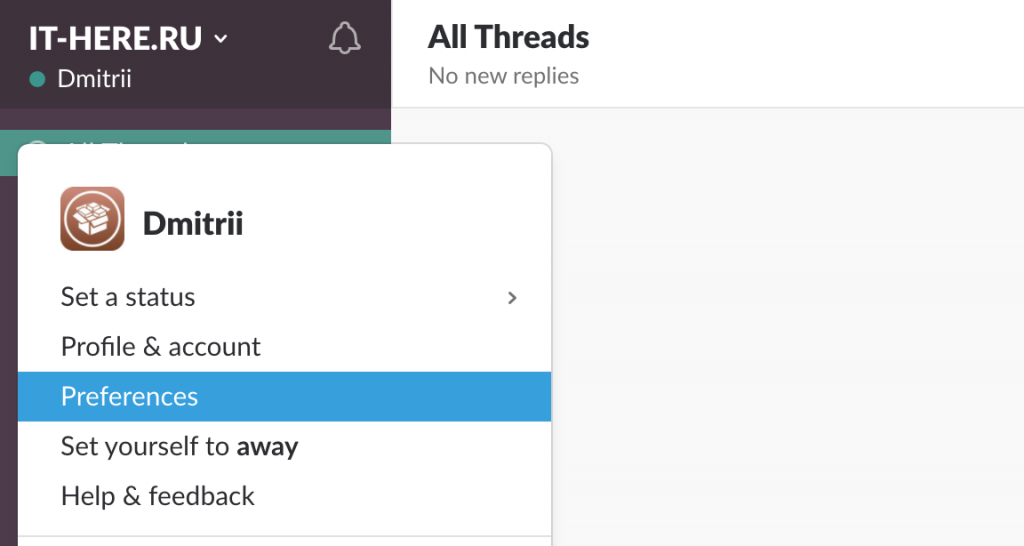

2)SelectPreferences.
Both methods will open the same window with Slack settings.
Notifications
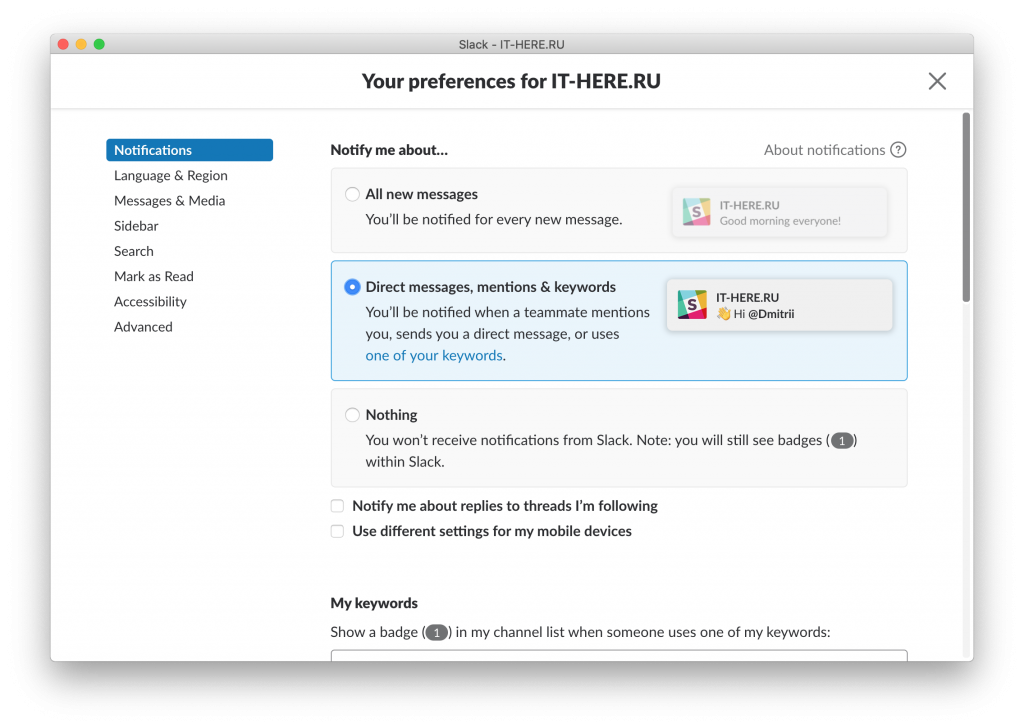
- Notifications: Here you can set up alerts for all new messages (All new messages), private messages (Direct messages), mentions, and keywords (mentions&keywords) or disable all (Nothing) You can also receive notifications from the posts you follow and change settings for mobile devices.

Advertising
Advertising
- Keywords: If you chooseDirect messages,mentions&keywordsin the first section, you can enter keywords of your choice. When someone uses one of these keywords, you will receive a notification about it.
- Do not disturb: This option works the same as the “NotDisturb ”on iPhone and iPad. You can set the time at which notifications from Slack will not arrive at all. Other users can bypass this restriction if necessary.


- Sounds and interface: Five options are available here related to message previews, sounds and icons. You can select other sounds by clicking Change (Change) and configure different for each window.
- No activity on the computer: If you use Slack also on your mobile device, and not just on a Mac, you can receive notifications for it when the computer program is not active.
- Channel Notifications: Here you can change the settings for specific Slack channels in both mobile and full versions.


Messages and Media
- Topic: You can choose a themeCleanwith user icon, time and messages. Or choose a topicCompactno icon to save space.
- The names: Here you can select the display format of the user name.
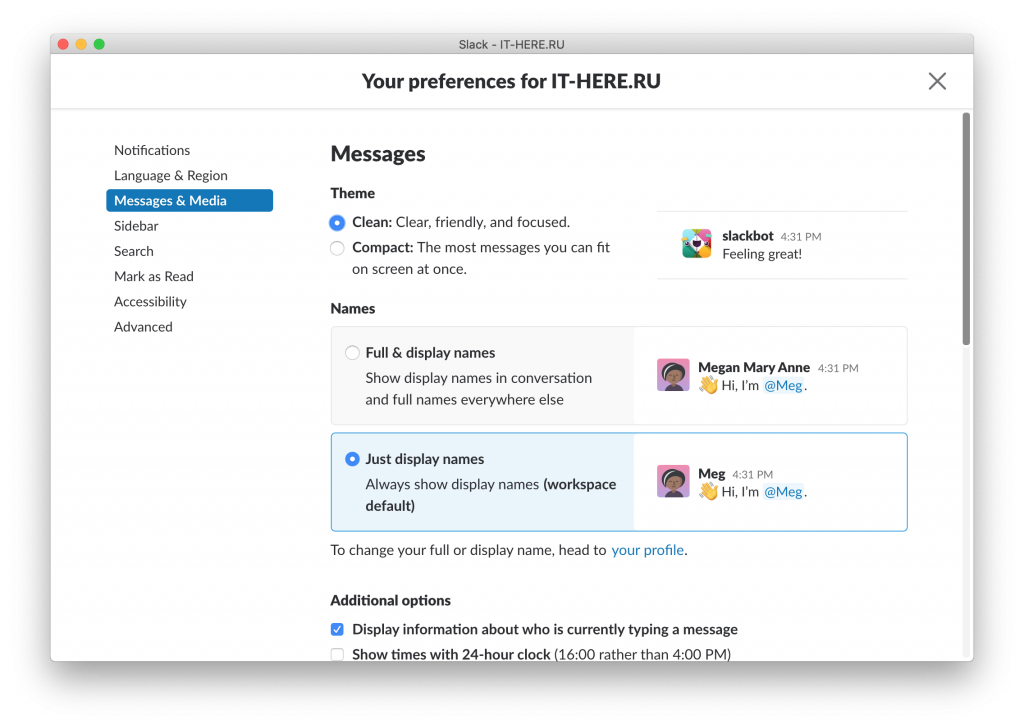

- Additional options: Here you can choose whether you want to know that someone is typing a message, use the 24-hour format and adjust the display of colors.
- Emoji style: If you do not like to see emojis, you can enable their display as text. You can also increase the size of emojis or enable automatic conversion of text to emojis.
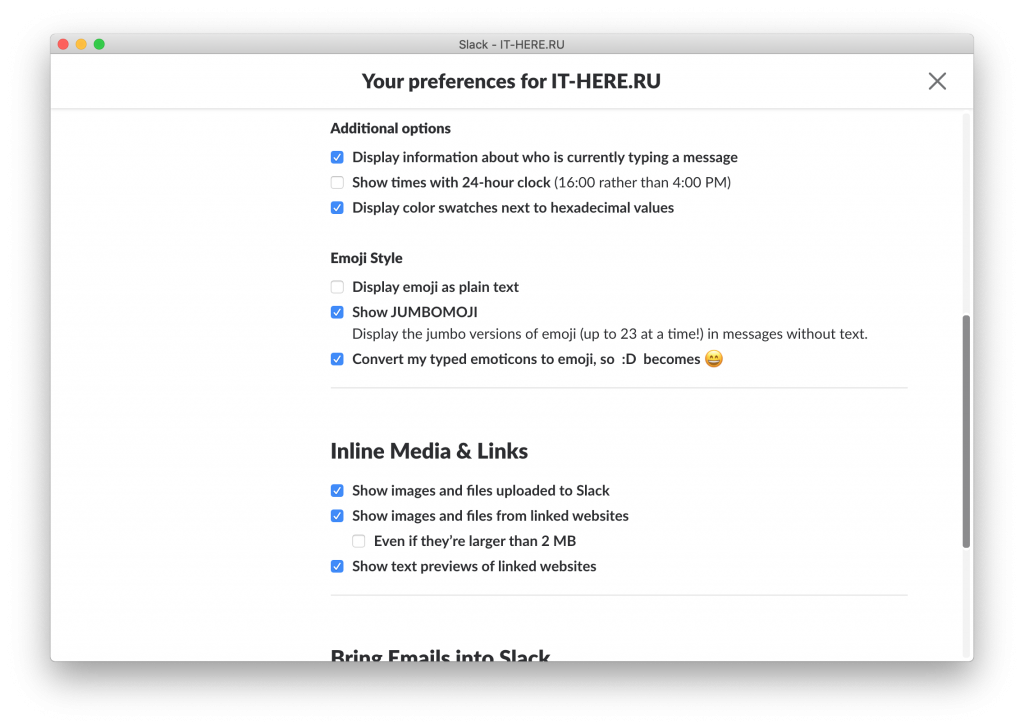

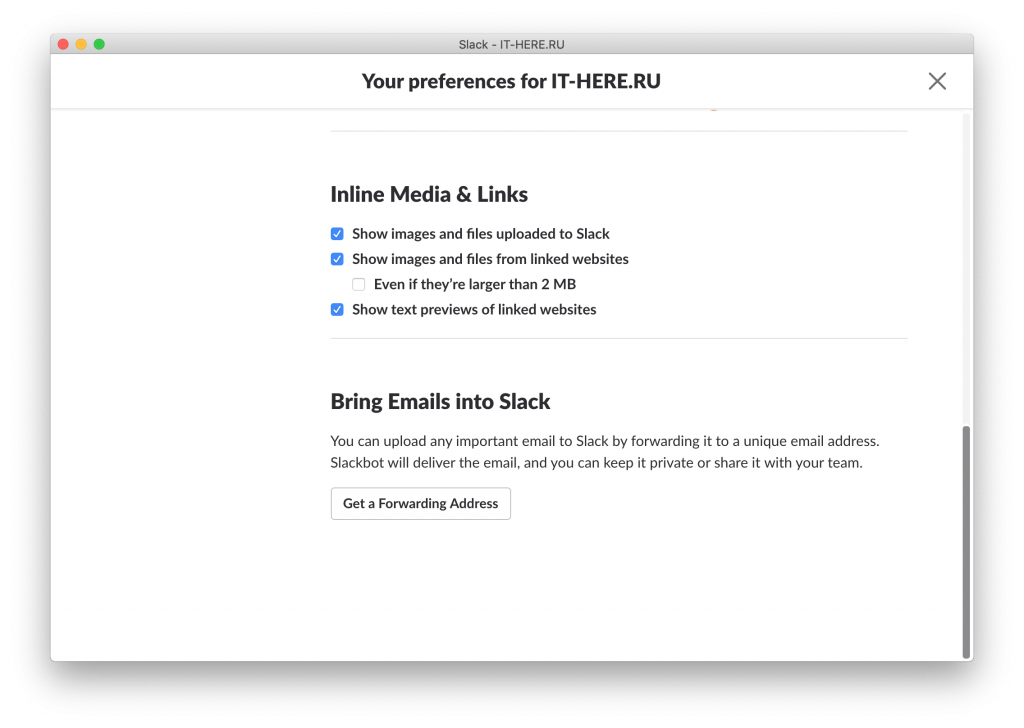
- Media and links: Here you can choose in which format you want to see the media and links that are sent to you.
- Email: You can import your emails into Slack with the click of a button.

Sidebar
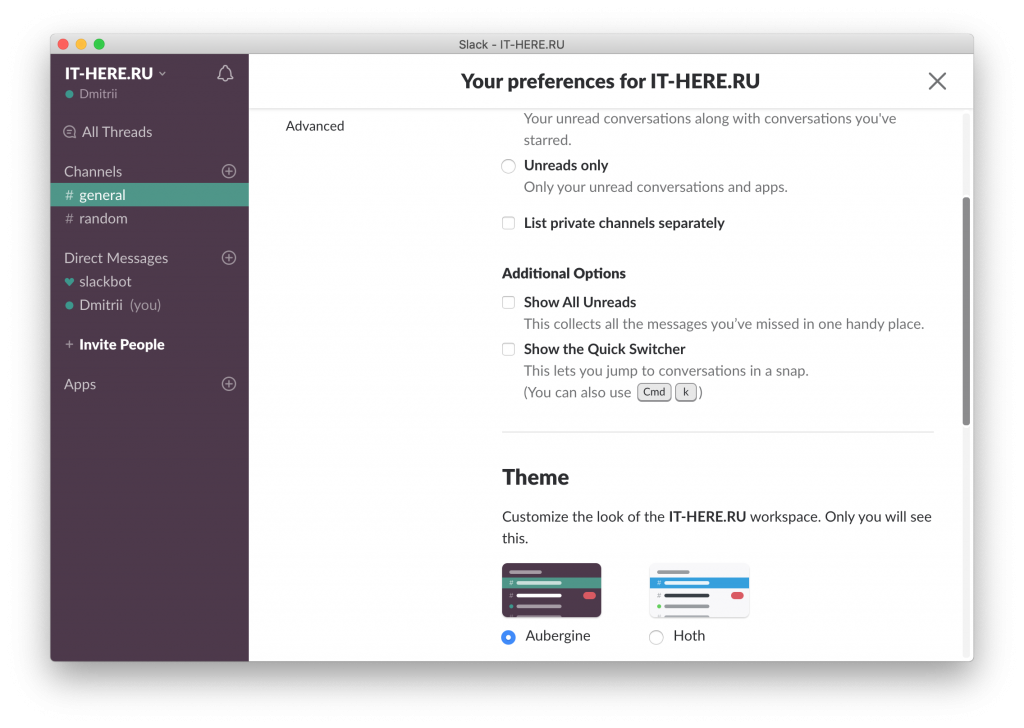
You can customize the appearance of the side menu, which is especially convenient if you use several Slack windows - they can be made different.
- Appearance: Select what you want to see in your side menu: All (Everything), Unread and Favorite Messages (Unreads and starred conversations) or only Unread (Unreads only) This way you can not overload your menu.
- Additional options: If you turn onShow all unreads, a category with all unread messages will appear above the channels.Show the Quick Switcherwill add the ability to quickly switch between channels.
- Topic: You can choose from six available topics. This way you will immediately understand which window is open. In addition, the themes themselves can also be customized.

Mark as read
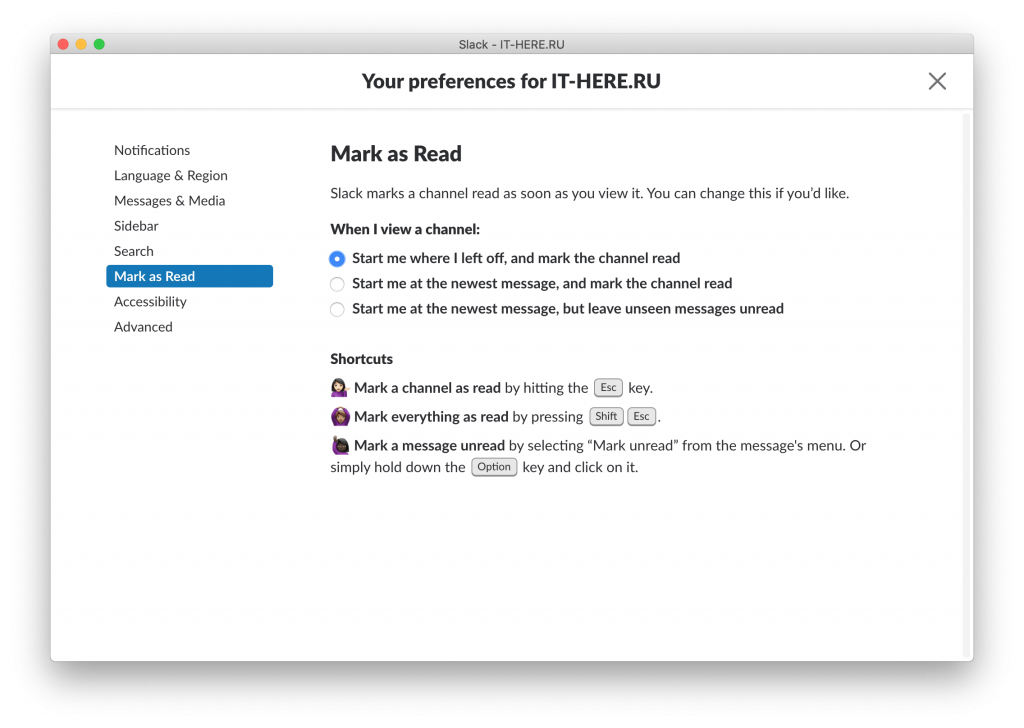
When you open messages in Slack, they are automatically marked as read. However, this can be changed in a special section.

Advertising
Advertising
You can also add convenient ways to mark messages as read.
Other settings
You can select the zoom percentage and enable or disable animations in the sectionAccessibility.
Language and time zone are selected in the sectionLanguage&Region. Unfortunately, there is no Russian language.
Change search options in the sectionSearch.
In sectionAdvancedYou can enable spell checking, automatic status settings, and more.
If you use Slack regularly, it is best to customize it to your liking. Setting options will make the program even more convenient and useful.