If your family shares a computer, you need to set up parental controls for children. This
Create user account
Step 1:Click the Apple logo in the menu and select System Preferences.
Advertising
Advertising
Step 2:Select Users and Groups.
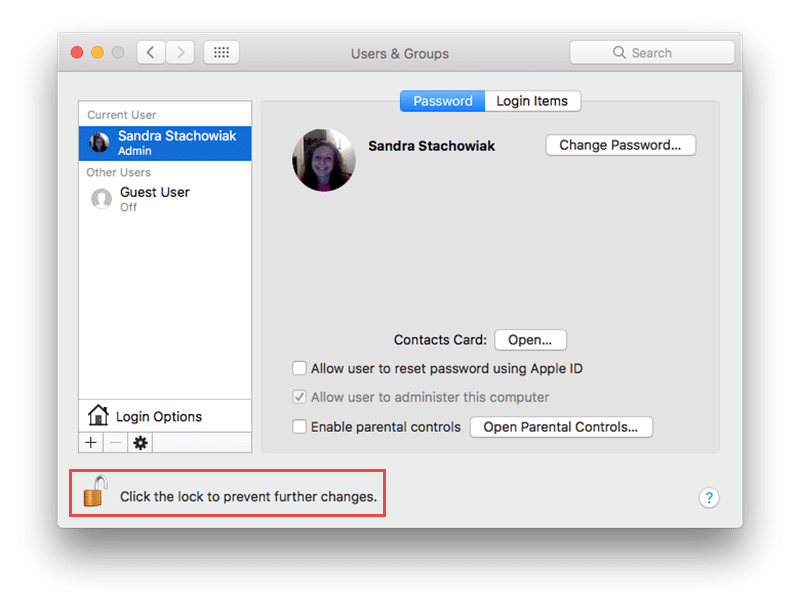
Step 3:Click the lock icon to allow changes and enter your password when prompted.

Advertising
Advertising
Step 4:Click the "+" button to add a new user.
Step 5:From the New Account drop-down list, select Managed by Parental Controls.


Step 6:Fill out the remaining information for your child's account and click Create User.
Advertising
Advertising
Opening Parental Control
Option 1:If you have just created a user account, click on the "Parental Controls" button on the user screen.
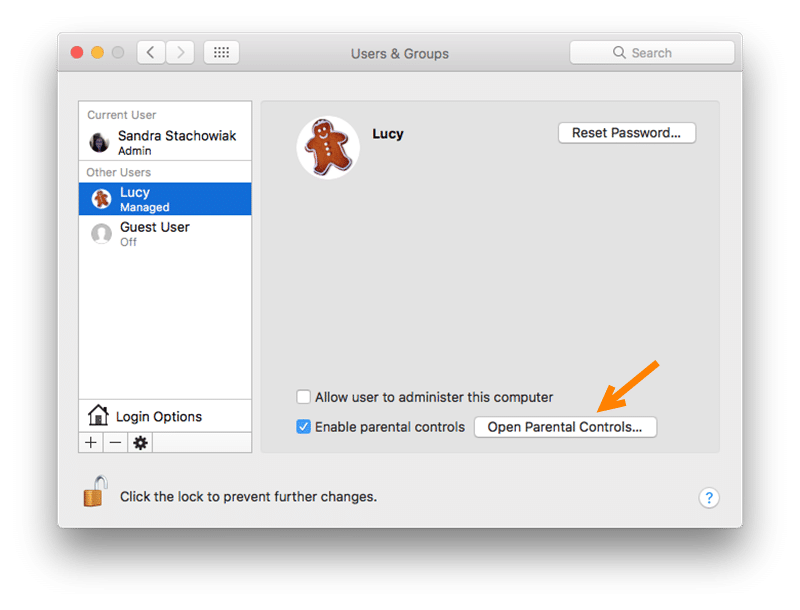

Option 2:If a user account already exists,Click the Apple logo in the menu. Then select System Preferences > "Parental control". Click the lock icon to allow changes and enter your password.
In any case, before making any changes, make sure that you select the correct user on the left.
Customize controls
Programs - Choosing Access to Programs
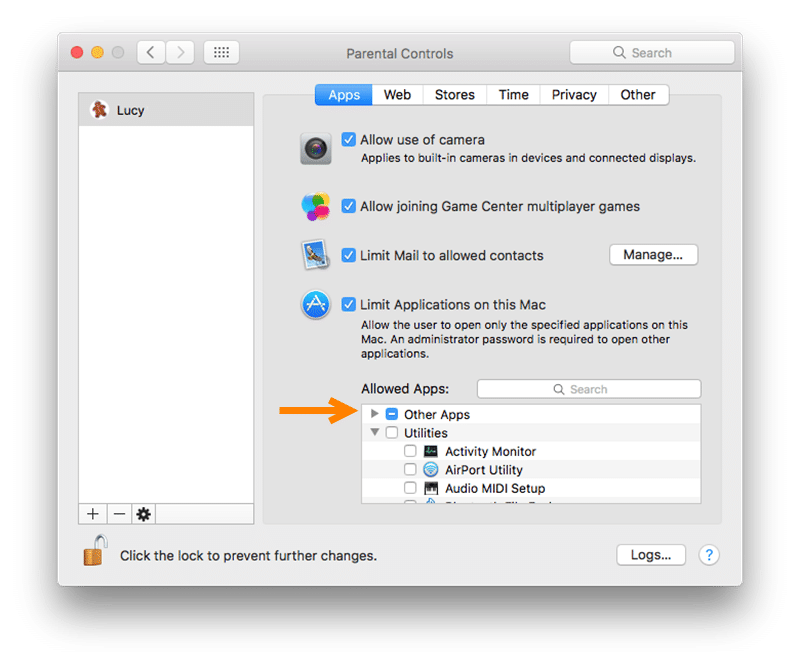
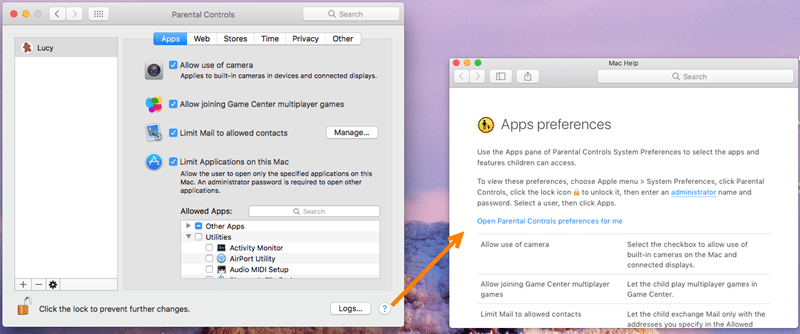
The first section of the controls allows you to determine which programs your child should have access to on a Mac. Just check or uncheck the boxes for the items you need.
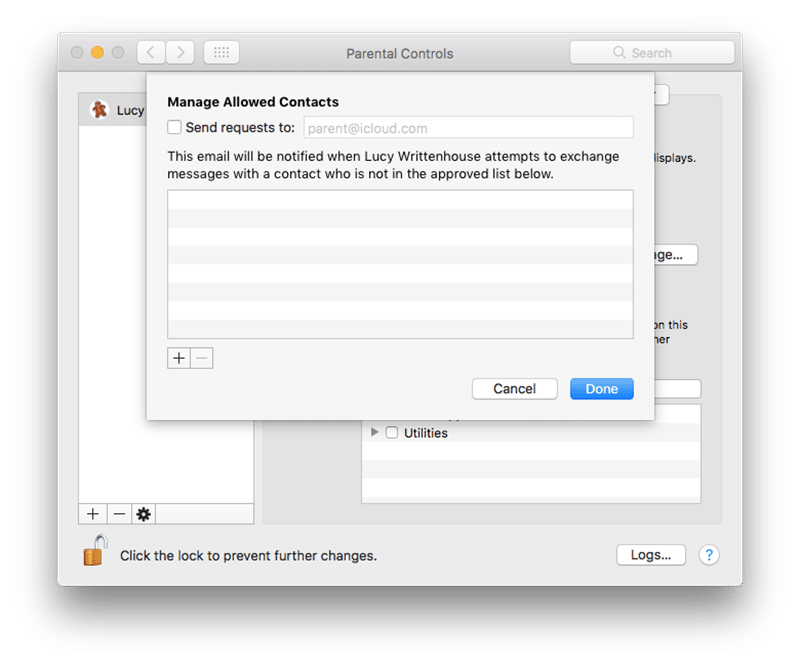
If you decide to restrict the Mail, you need to clickManage to specify a list of allowed contacts. You can also enter the email address to which the notification will be sent if the user tries to exchange messages with someone who is not on the list of allowed contacts.

If you decide to limit the Programs usedon a Mac, you can select the ones you want to allow in the Allowed Programs window. Just click on the arrow next to “Other Programs” and “Utilities” to open the list of programs that you select.

Web - Setting browser restrictions
Choose from three options that displayunlimited, customizable, or specific access to websites. Since this is done for your child, you will most likely choose the third option - access to certain sites.
Advertising
Advertising
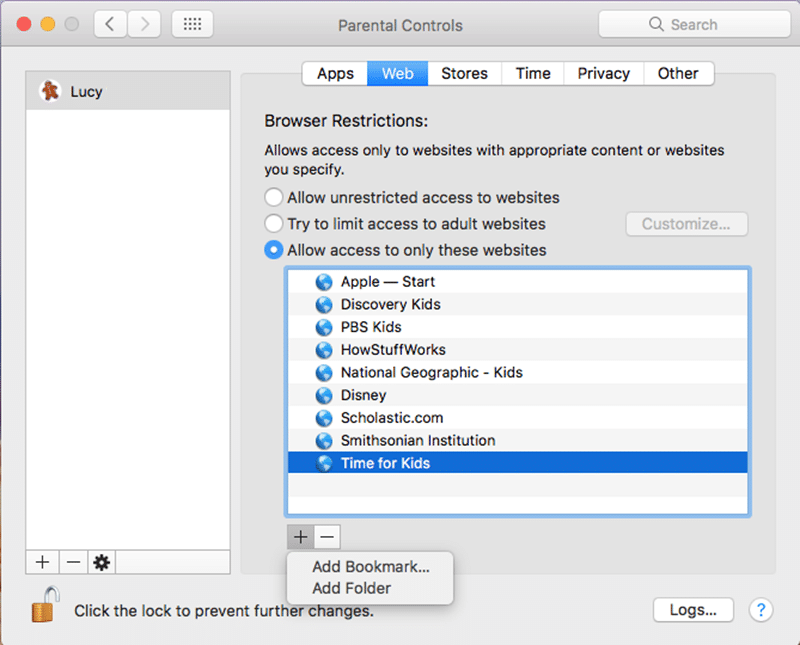

Press the “+” button and select “Add Bookmark” to enter the link, or “Add Folder” to create a new folder.
To remove a link or folder from the list, select it and click the “-” button.
Stores - Disable or limit stores
In the next section, you can disable access to the iTunes Store, iTunes U, and iBooks Store. Just check or uncheck these options if necessary.
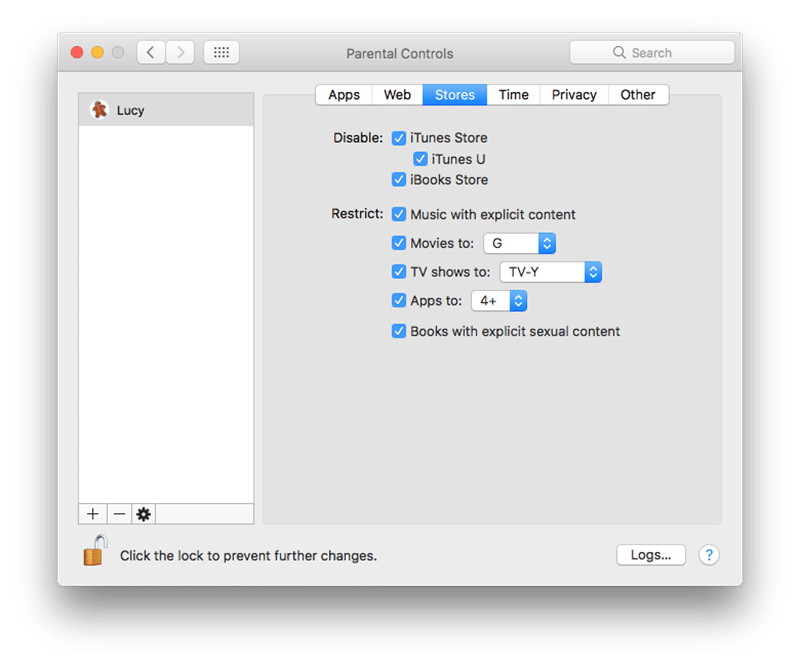

You can further restrict media such asfilms, music and books. Again, check or uncheck if necessary. And note that movies, television shows, and programs offer rating and age options.
Time - Limit computer work
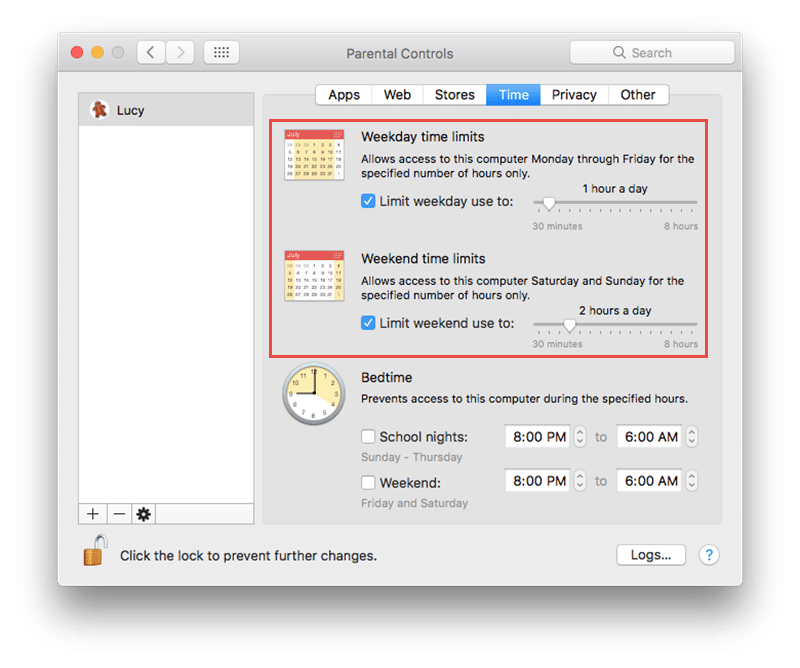
So that your child uses the computer onlyat the specified time, you can set up an individual schedule. This is to ensure that you complete your homework in a timely manner, adhere to sleep patterns, and reduce computer overuse.
Weekend and Weekend Restrictions
Browse through one or both fields, and thenadjust the amount of allowed computer hours per day. You can choose from 30 minutes to eight hours for each option in increments of 30 minutes.

Night Time Settings
Along with limiting the number of hours duringwhom your child can use a computer every day, you can limit its use. For the time on the eve of school and weekends, review one or both of the fields, and then adjust the valid parameters for each period.


Privacy - Manage Privacy Settings
Firstly, you can manage programs,requesting access to items such as location, photos, and contacts. Click on the “Change Privacy Settings” button to make adjustments.
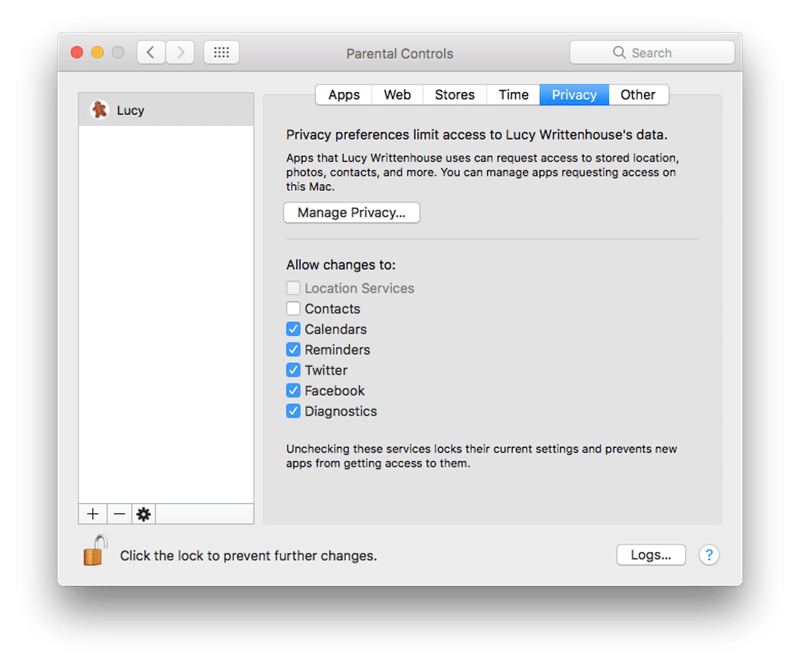

Secondly, you can highlight someprograms to lock their current settings. This means that new programs will not have access to them and includes programs such as calendar, reminders, diagnostics and social networks.
Other - Other settings
In the last section of Parental Control, you can enable or disable some functions. This includes access to Siri, printer settings, CD and DVD burning, and more.
Additional tips
If you have a question or want more information about a specific control, click on the question mark in the lower right corner.
To view your child’s activity, click on “Logs” in the lower right corner. Select the time period from the top, and then click "Programs" or "Web."
When you have completed all the settings, be sure to click on the lock icon again to block the changes.

Now that you have set up parental controls,You can feel relaxed when your child uses a shared Mac. And remember that you can make adjustments to these controls at any time. Do you find parental control useful for your child?