If you would like your MacBook Pro or Air's keyboard backlight to turn off after a period of time without
Advertising
This option applies only to the keyboard backlight, not the Mac screen, so it differs from a simple screen fading without activity.
How to automatically turn off the keyboard backlight
- From the Apple menu, selectSystem settings.
- SelectKeyboard.
- On the Keyboard tab, check the box next to “Turn off the keyboard backlight after 5 seconds. inaction. "
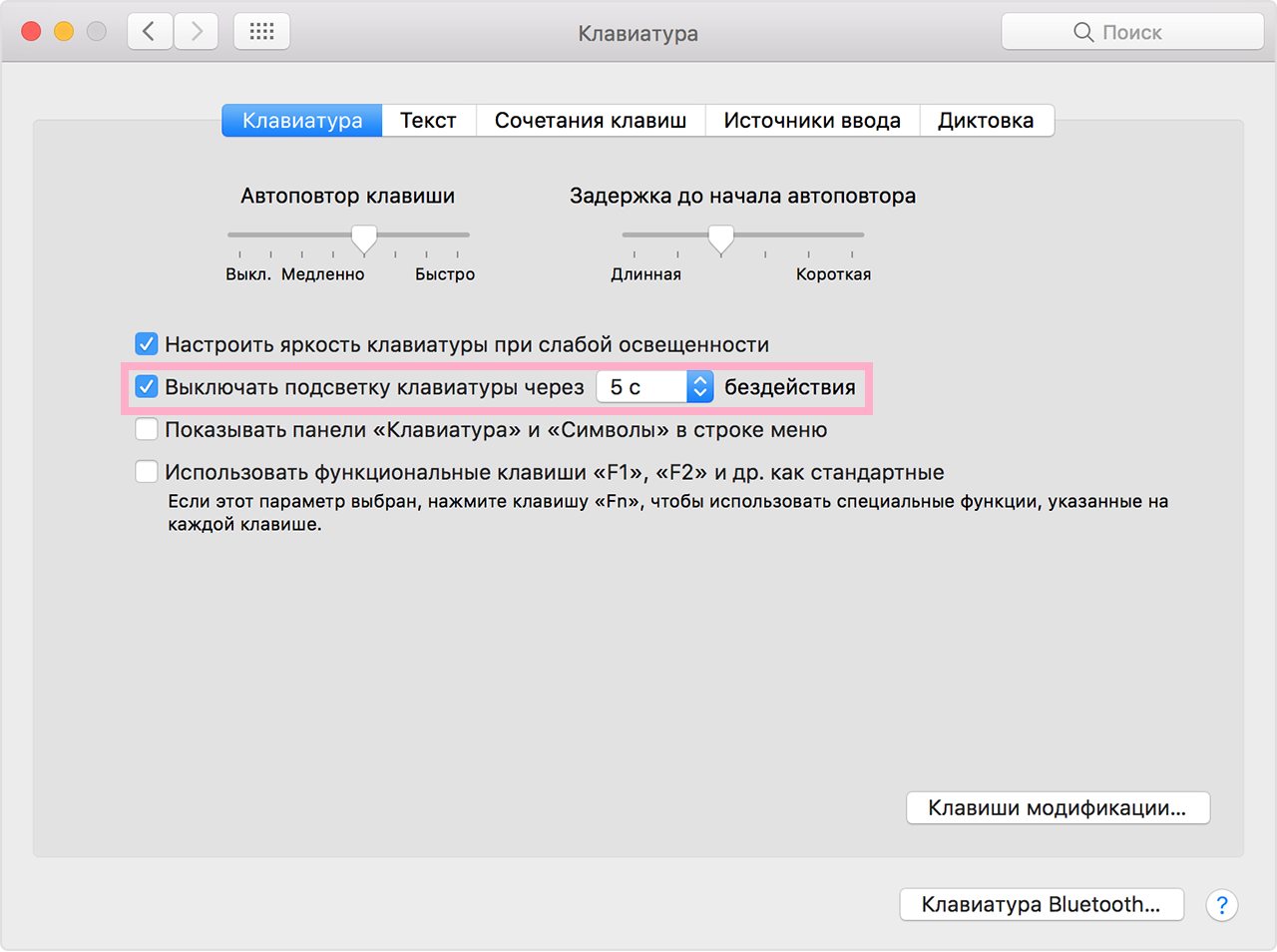

- You can also set the time after which the backlight will turn off: 5 seconds, 10 seconds, 30 seconds, 1 minute or 5 minutes.
- You can close System Preferences.
Recall that this function does not apply to energy saving functions, such as turning off the display without activity. It concerns only the keyboard backlight.
Advertising
Advertising
You can adjust the keyboard backlight by pressing a special key combination on Mac laptops (usually f5 and f6).
It is not known whether this function affects the flow rate.battery, because the keyboard backlight and so it works very economically. Nevertheless, it still consumes some energy, so you can notice a minimal difference.
This method works in modern versions of MacOS. Older ones have a switch that essentially works the same way.
The backlit keyboard on the MacBook Pro, MacBook Air, and MacBook is one of their best features, which is especially handy when working at night or in low light.