Video autoplay is common when browsing the web, and many of them start to crash
Important Note: in the latest versions of Safari (except High Sierra), after disabling autoplay, you have to click on each video to turn it on. In most cases, you have to click on the video, and then again on the play button. All videos will stop playing on their own, but you’ll lose the ability to just click on “play” to view them. Instead, the videos will require two steps to start. You can try to disable this feature and see if it is convenient for you, and if not, it is just as easy to turn it on by returning to the settings and enabling auto play.
Advertising
Advertising
How to disable video autoplay inSafarionMac
By changing this setting, you will stop auto-playing all the videos in Safari, and you will have to double-click them to turn it on.
- Close Safari on Mac.
- Open the Terminal program on MacOS, which can be found in / Applications / Utilities /.
- Enter the following command, it will enable the Debug menu in Safari:
defaults write com.apple.Safari IncludeInternalDebugMenu 1
- Press Enter to run the command.
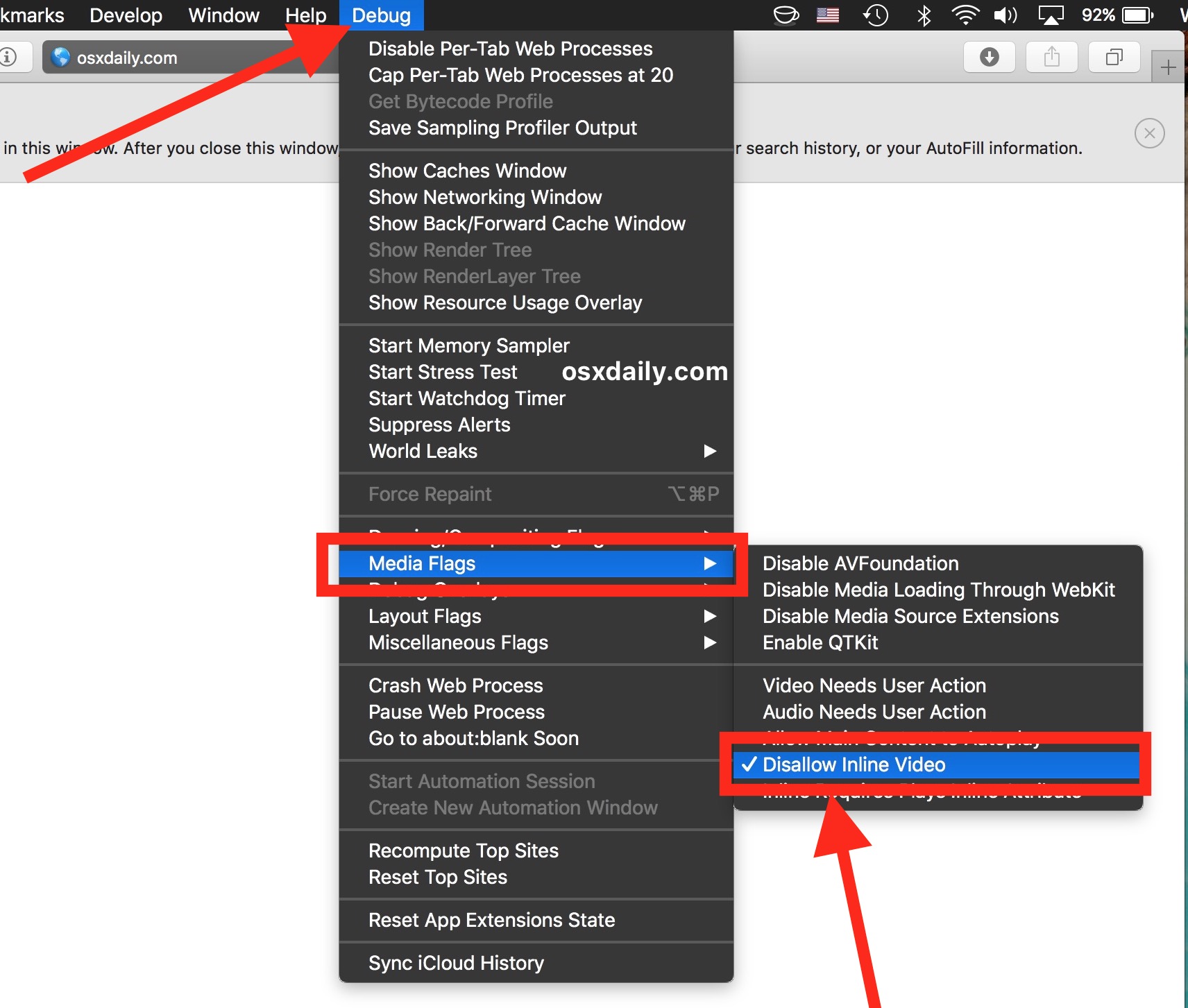
- Open Safari on Mac and go to the just activated Debug menu. Select the “Media Flags” tab, and then “Disallow inline video”.

Advertising
Advertising
- Refresh the pages to activate the setting on them.
You can try it yourself - open any pagewith auto-playing video, and it will no longer start. For example, any random video on YouTube or this page on Bloomberg.com. Usually the videos play themselves immediately after downloading, but with this setting they will stop. Now you need to allow the video to load, and then turn it on.
Advertising
Advertising
Remember that turning off “inline video” (in thiscase auto-play), you disable in Safari the ability to play any video without user permission. Even videos on YouTube and Vimeo will stop loading automatically until you click on “play”. Some users find this too uncomfortable and immediately try to re-enable auto-play of the video.
How to enable video autoplay inSafarionMac
If you didn’t like the previous setting and it’s too difficult to play each video manually, just activate auto play again:
- In Safari, open the “Debug” menu, then select the “Media Flags” tab and click on “Disallow inline video” again to uncheck it.


Advertising
Advertising
- Refresh the open pages and everything will come back.
Now all videos will be played as usual without additional user intervention. But auto-play video on sites is also activated.
* Safari on MacOS High Sierra 10.13 and higher makes disabling auto-play video even easier. So this instruction applies to earlier versions of MacOS and Safari.
The hidden Debug menu in Safari also containsmany useful settings, especially for web developers. So if you are a developer in the field of design, web pages or just programs, it will be useful and interesting for you to explore the possibilities of this menu. Most of the Debug menu settings are very advanced, and they are definitely not intended for general use. And remember that if you play a lot with the menu settings, Safari may stop working properly. So change only those settings that you understand, and which you need to change, do not click on random menu items for fun (or at least remember where you press, then to return everything back).