Don't like that your iPhone vibrates every time there's a new message in your email
There are two ways to turn off vibration.If you have several accounts, then you can turn off vibration for each one separately (or leave it for one of them), or in one action prevent the phone from vibrating, regardless of which account the letter was sent to. If you only use one account, then both methods will also work.
Advertising
Advertising
How to completely turn off vibration
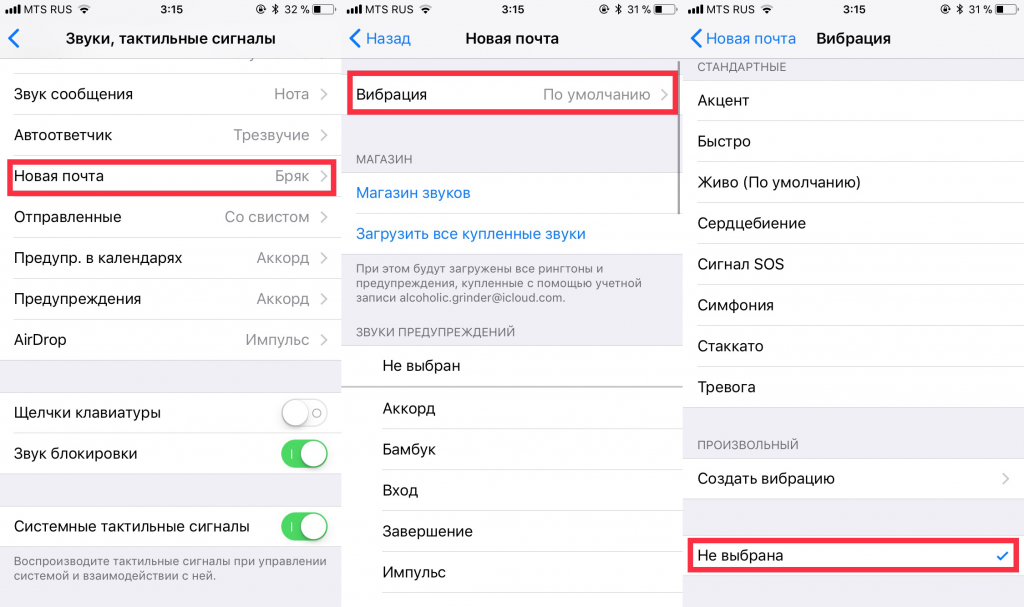

- OpenSettings.
- Select a tabSounds, tactile signals.
- Scroll down a little and click onNew mail.
- Select an itemVibration.
- Scroll down and click onNot selected.
Thanks to this method, your iPhone will no longer vibrate with incoming emails, regardless of account.
How to disable vibration for individual accounts

Advertising
Advertising
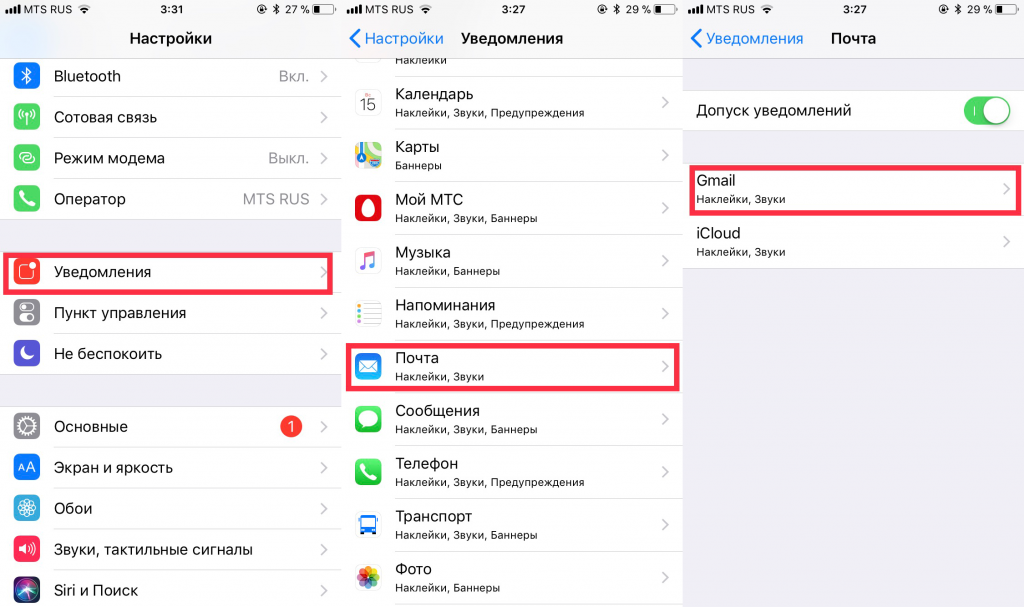
Follow this method if you want to selectivelydisable vibration when incoming mail to one or more accounts. Thanks to this, you can, for example, turn off vibration in your personal mail, but leave it for your work account so as not to miss an important email.
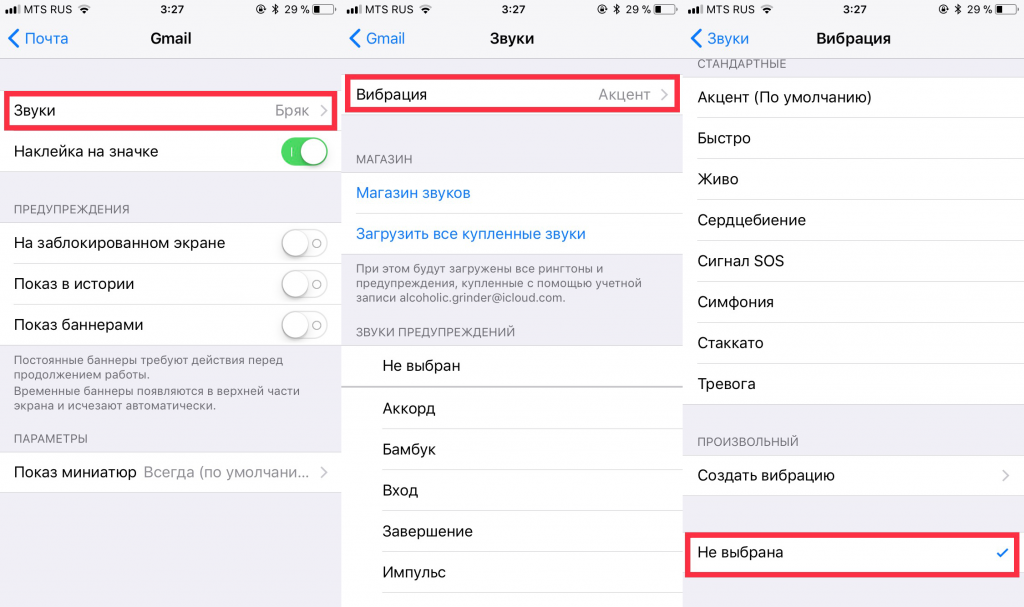

- OpenSettings.
- Click onNotifications.
- Scroll down and select an applicationpost office.
- From the list of accounts, select the one for which you want to turn off vibration.
- Click on the tabSoundsat the very top.
- Scroll up and tap on the itemVibration.
- Scroll down and click onNot selected.
The described steps can be repeated for the number of accounts you need. For all other accounts, the vibration selected in the settings item will be usedSounds, tactile signals.