You cannot change the default browser on iPhone and iPad. If you are using the Chrome browser, you can simply
Advertising
Advertising
Luckily for Chrome users, there’s now a way to easily open links on iPhone and iPad in Chrome. Below we will tell you how to do it.
Use the Teams app
To get started, make sure the Chrome app (free) is installed on your iPhone or iPad.
Now you need the Commands app (alsois free). Most likely, you already have it installed. If you do not know about it, then this is a very useful application that automates actions on your device.
Advertising
Advertising
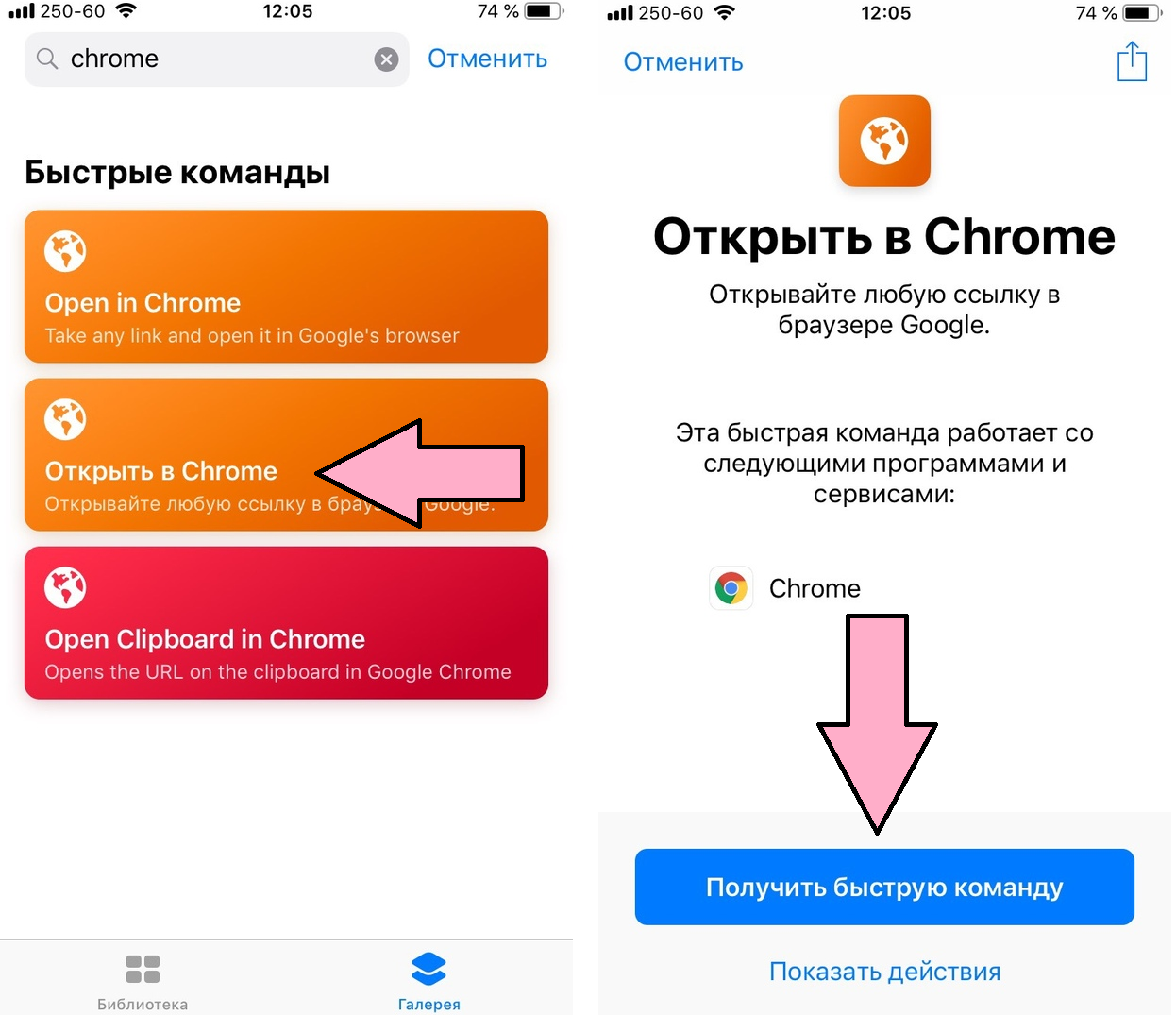
Fortunately, you do not need to create a team yourself, since it is already in the Gallery.
one)Open the appTeams.
2)Select a tabGallery.
3)Type "Chrome" into the search bar and selectOpen inChromefrom the results.
4)ClickGet a quick team.

There are two different ways to use this command, and we will talk about both. After that, you can choose the one that you like best, or use both at once.
Clipboard method
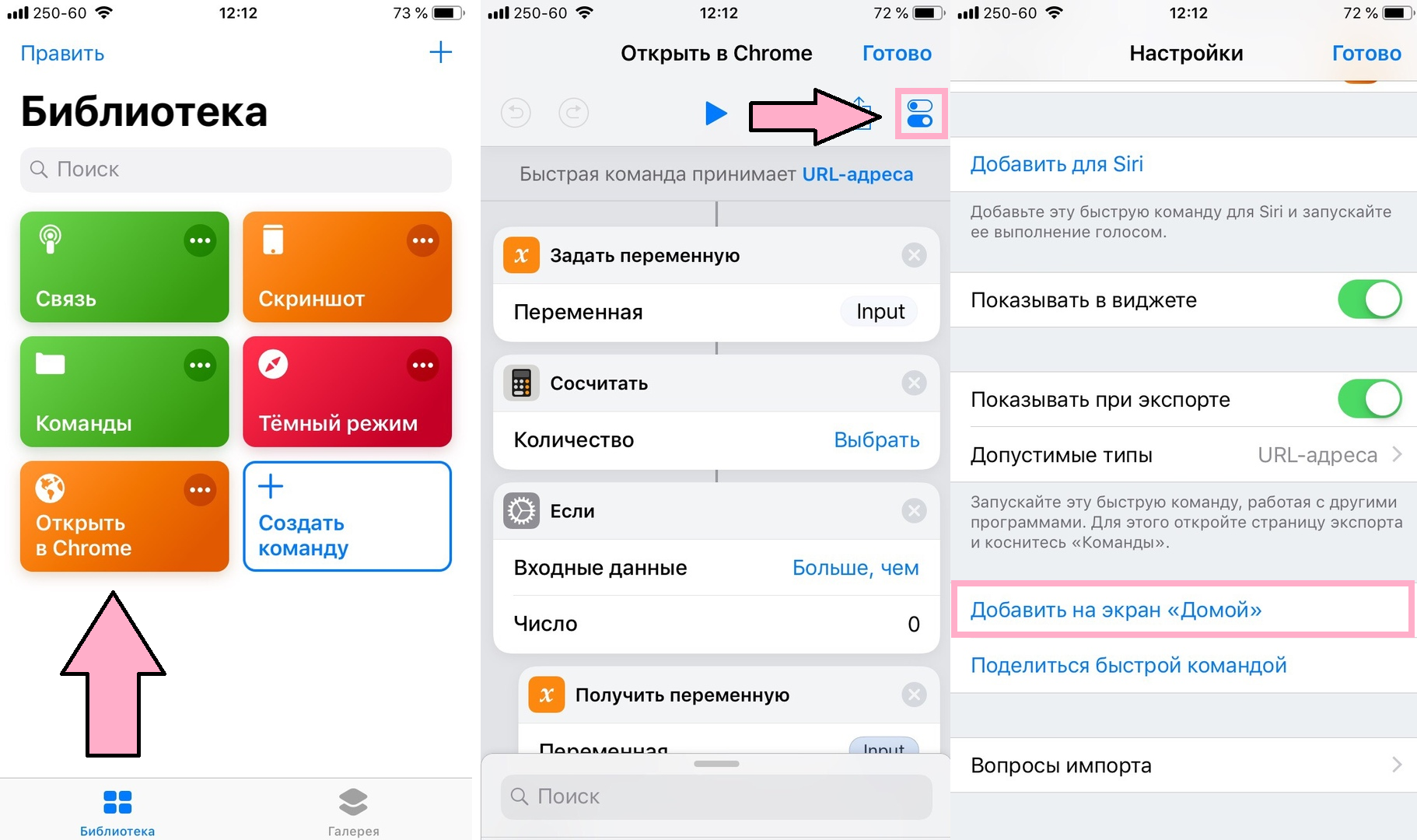
The first way is connected to the clipboard of your device and the command icon on the home screen. In this case, you will not need to open the Commands application in order to use the quick command.
one)Open the appTeams, find the shortcut you want and click...in the upper right corner of its cell.
2)Clicksettings iconin the upper right corner of the screen.
3)SelectAdd to Home Screen.
four)Follow the onscreen instructions to add a team icon to your home screen.

Now you can copy a link to the clipboard, and then just click on the command icon to open that link in Chrome.
For example, we copied the link from VKontakte, clicked on the team icon, and the link immediately opened in Chrome.
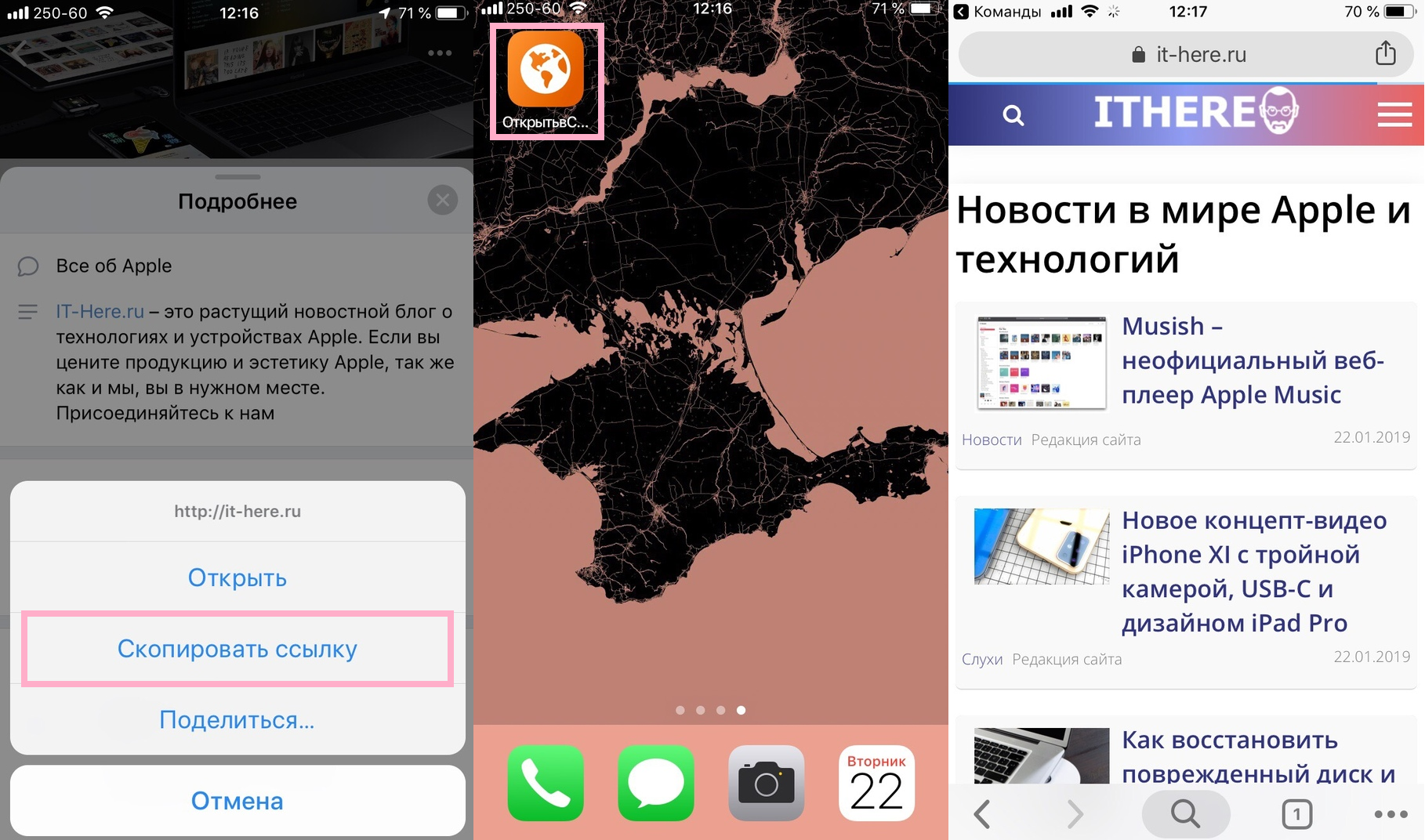

In the process, the Team application opens, butit only takes a couple of seconds and you don’t have to do anything. When you add the command icon to the home screen, you only need one touch to use it.
The method with the menu "Share"
The second way is connected to the “Share” menu. At the same time, you don’t even have to copy anything.
one)Open the app with the link you want to open in Chrome. We're using Safari as an example.
2)Click the iconShareat the bottom of the screen.
3)SelectQuick commands. If you don’t have this option, select More, and then click on the switch next to Quick Commands. If you wish, you can drag an item on the list to change its position.
Advertising
Advertising
four)When the Teams app opens, selectOpen inChrome.
After that, your link will open in the Chrome browser.
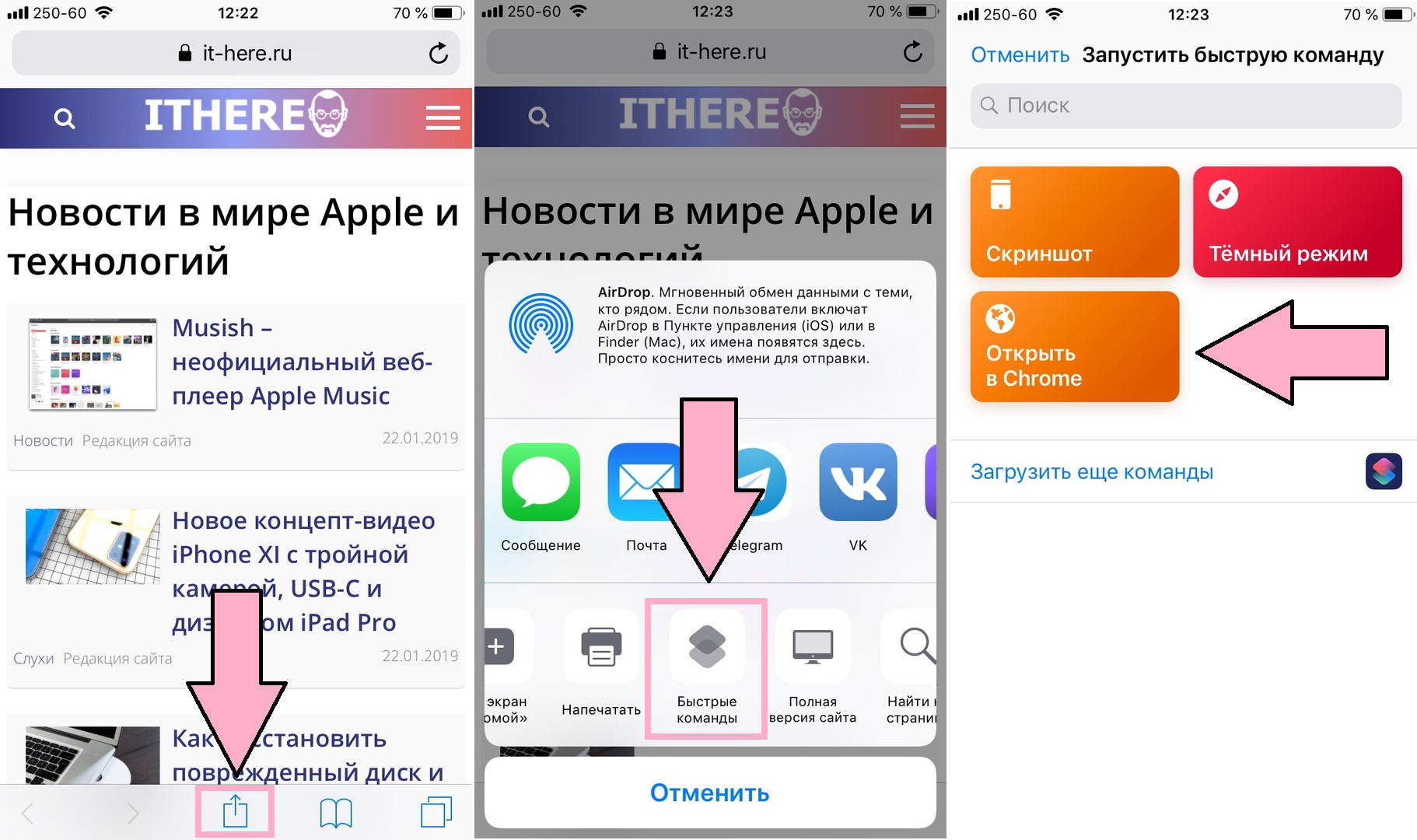

This method seems long, but some will like it.
If you prefer Safari Chrome to your browser, you can now use it on your iPhone or iPad and easily open links.