Perhaps you want to change your YouTube name to be more recognizable, or you want to completely change
Keep in mind that your Google account name is alwayswill match the YouTube account linked to it. The same goes for the name of the channel. In other words, the name of your Google account is your YouTube name. If this suits you, you can follow the first three steps to change the name everywhere immediately.
Advertising
Advertising
However, if you want to keep your name on Google, but change the name on YouTube, you will need to change the settings of your channel. In this case, you can start right away with the fourth step.
</ p>Go to YouTube settings
Web–version:
Advertising
Advertising
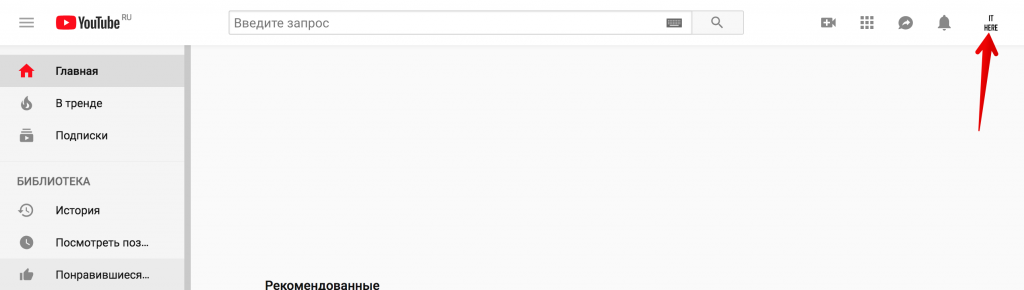
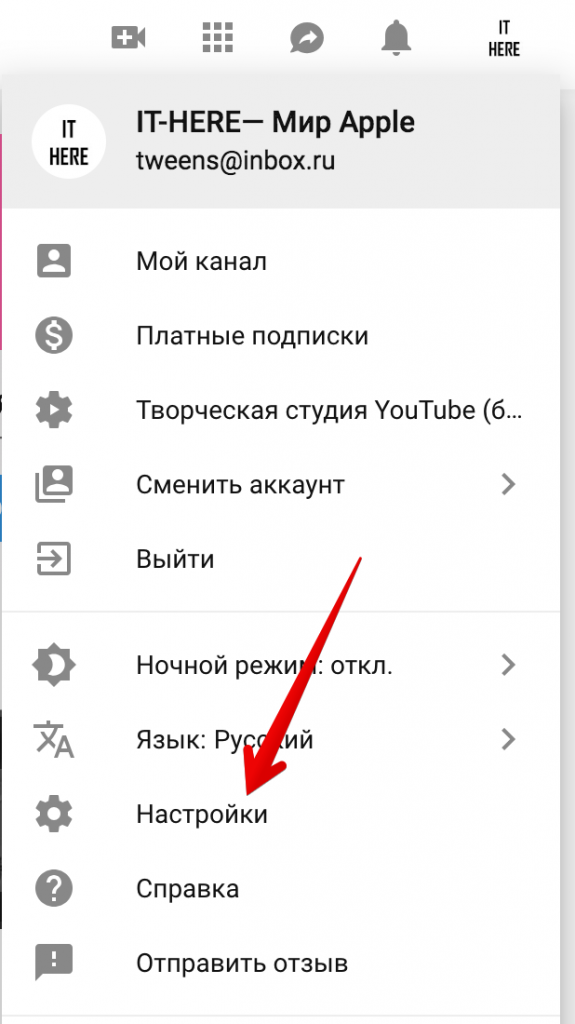
Go to YouTube.com and sign in to your account. Click on your profile icon in the upper right corner of the window, and then select Settings from the menu that opens.


Application:
Open the app, log into your account (if you haven't already) and click on your profile icon in the top right corner of the screen.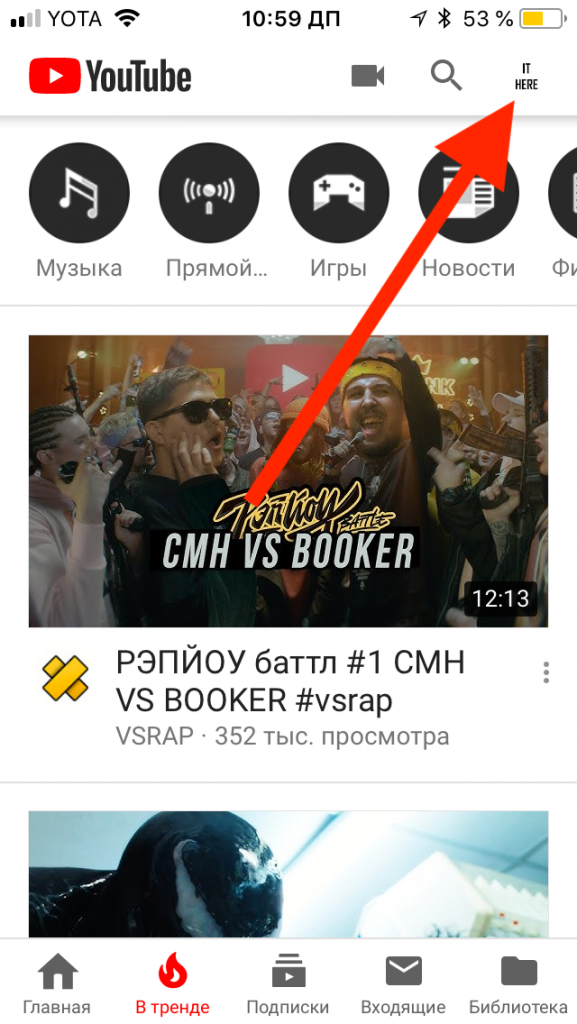

Open the name editor
Web version:
ClickChange toGooglenext to your name.


Application:
SelectMy channel. On the next tab, clickgear icon.
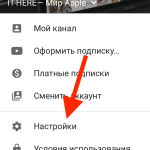

Settings


Gear – settings
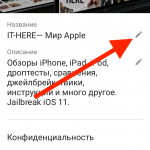

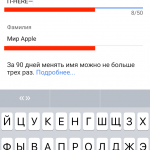
Change name

Create a brand account if you want to change only the name of the channel
Many bloggers are faced with the following dilemma: they want to keep their real name on Google, but change the name on YouTube. In this case, creating a brand account will help.
If your channel is associated with a Google Account, theythere will always be the same name. But if you create a brand account, you can get around this limitation. You can easily switch between your main channel and brand account.
This cannot be done through the application, so YouTube must be accessed through a browser.
Web version only:
- Login to your account and clickyour profile icon>Settings.
- ClickShow all channels or create a new one.
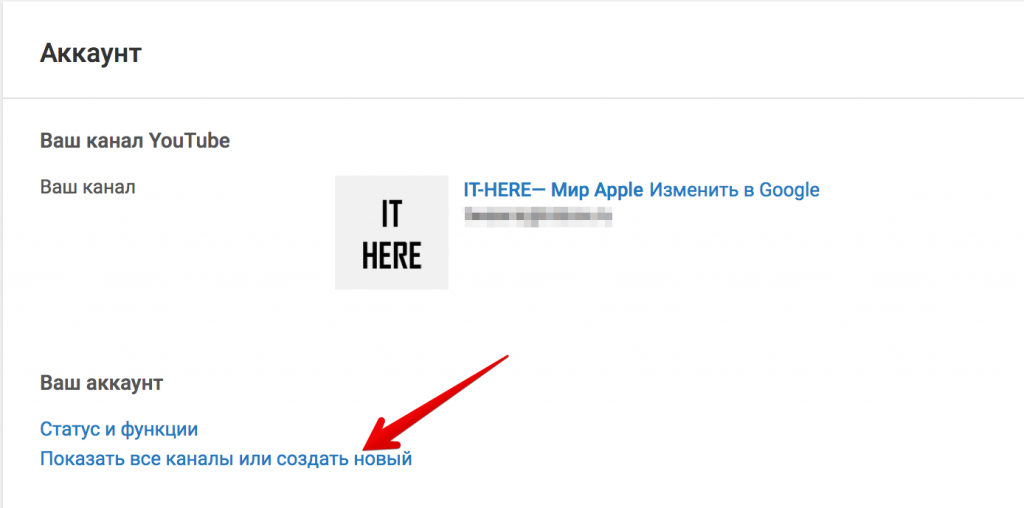

- SelectCreate channel.


- Enter the name you want and then clickCreate. You will be redirected to the page of the created channel, which you will replace with your main channel by following these steps.
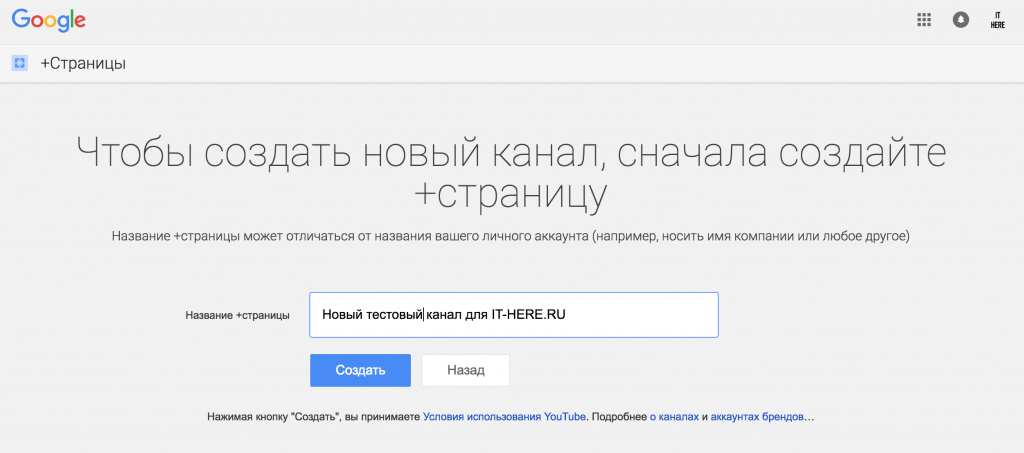

Replace your brand account with your primary
To return to your main account, click onempty profile icon>Change accountand select yours (the one you want to rename).
- Pressyour profile icon>Settings.
- ClickAdvanced settings in the left menu.


- ClickLink a channel to a page.


- Log in to your account again.
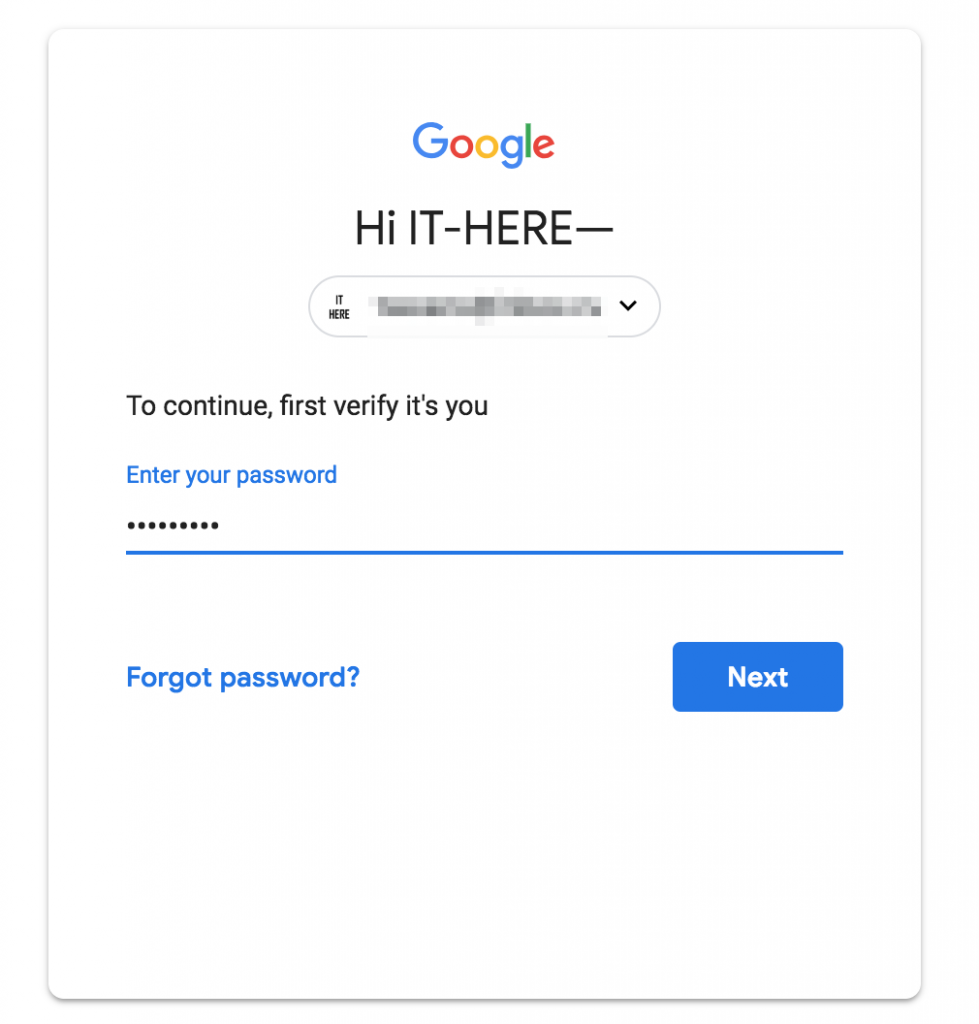

Note:If URL change is available to you, you will seeadditional item in channel settings. To do this, your channel must be at least 30 days old, you must have at least 100 subscribers, and you must have a profile photo and channel header installed.
Advertising
Advertising
Confirm action
ClickChoose account.
Selectjust created channel.
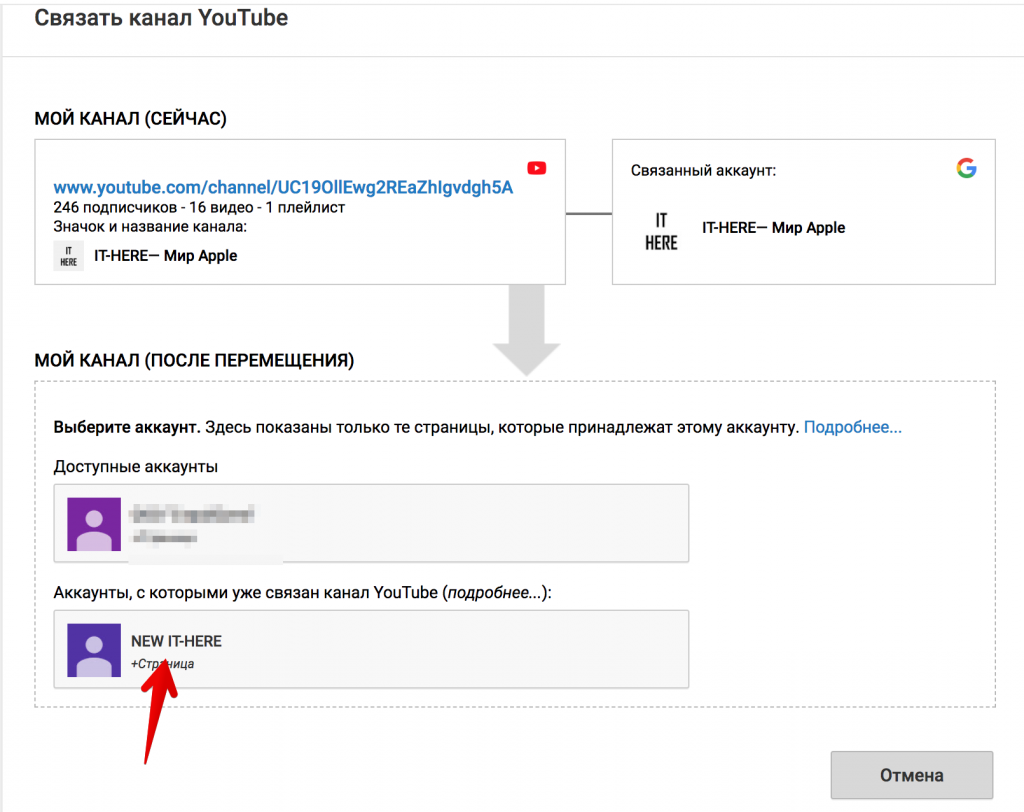

A message will appear stating that the brand account already has a YouTube channel and its content will be deleted if you link the channels. It does not matter, because there is nothing on the newly created account.


ClickDelete channelAndLink Channelto replace your brand account with your primary.
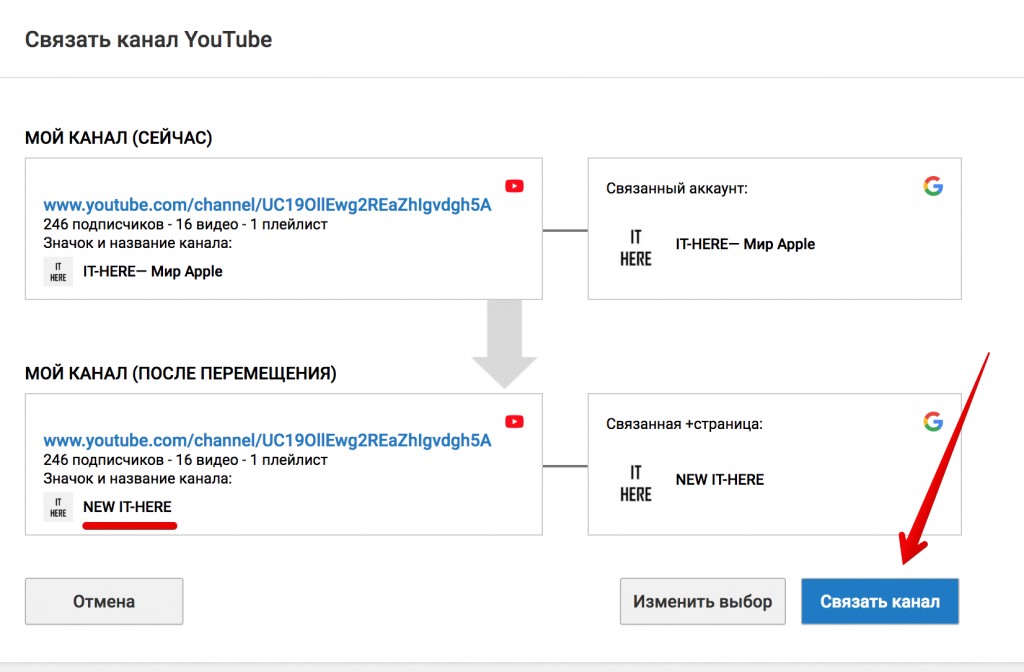

That's all, you have successfully renamed your YouTube channel.