You've just started using a brand new iPhone and need to transfer your existing ones to it.
How to transfer contacts from an Android device
Sync with Google Services
Android OS automatically creates copies and synchronizes your contacts with your Google account tied to the device.
Advertising
Advertising
And that means syncing your contactsiPhone is a matter of seconds. First of all, we’ll set up the correct process for synchronizing your contacts on your Android device.
On your Android device, open"Settings"and select the menu"Accounts".
Select your Gmail account and make sure the option is checkedContact Sync. This means that all your contacts are in sync with your Gmail account.
Advertising
Advertising
Now, on your iPhone, open the Settings app.
Choose"Contacts"and team"Add account". If you're already signed in to your Google account for the email app, that account will already be listed in this menu. If not, then select the command"Add account".
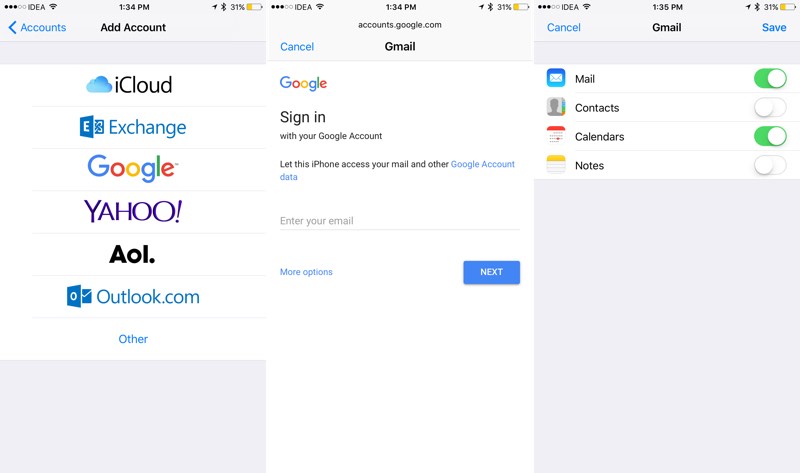

Next, select the Google service and log in to your account with your ID.
On the next screen, turn on the switch next to the option"Contacts"to activate the synchronization process. Then click on the button"Save". After this, the process of synchronizing your contacts in the Google service with your iPhone will begin. In a few seconds you will find all your contacts in the application"Contacts".
Transfer contact information from the Gmail service to the iCloud service
If there is a need to completely changeSince the storage location of contacts, you will need to transfer all your contacts from the Gmail service to the iCloud service. If this is your case, then follow the instructions below.
You must complete all of the above steps fromof the previous section to synchronize the contact details of your Android device with the Google service. After that, we switch to using your PC or Mac.
On a PC, open the Gmail.com link. In the upper left section of the interface, click on the optionGmailand select the menu"Contacts".


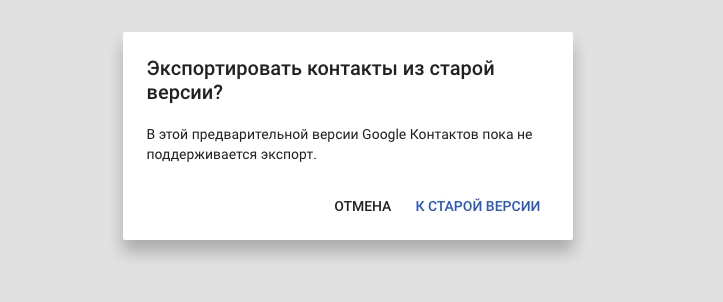
 A list of contacts stored in the Google service will open in a new bookmark. In the sidebar, select"Yet"and then the command"Export". A pop-up menu that appears will say that this function is only available in the old version of the service. We agree and click on the button"To the old version".

In the menu that appears, put a check mark on the first check box to select all the contacts or select manual contacts to be synchronized and transferred.
After selecting the required contacts, click on the button"Yet"And"Export".

For the data format, you must select the format"VCard Contacts".


After which the file will begin downloading, with all the data of your contacts.
Advertising
Advertising
Then go to the “iCloud.com” service and log into your account. Select a bookmark"Contacts". Here you will find the lack of contacts. Let's import contacts from the just downloaded Gmail service file.
Advertising
Advertising
Below we click on the icon"Settings"and select a team"Import vCard". In the menu that appears, select the file you just downloaded.


After a second or two, all your contacts will appear in the corresponding tab.
Now go to your iPhone device.
Now you need to sync your contacts stored in your cloud service account"iCloud"with your device so that they appear in the application"Contacts".
Opening"Settings"and go to settingsICloud. Make sure that the contact synchronization option is enabled. After which, if you run the application"Contacts", then you will find there all your synchronized contacts.
We use the Move to iOS application
Apple has released its own application called"Move to iOS"which allows you to transfer your dataGoogle service accounts, instant messages and applications on your iPhone. This operation is only performed during the initial setup of your iPhone, when the “Move Data from Android"[Transfer data from Andriod device].
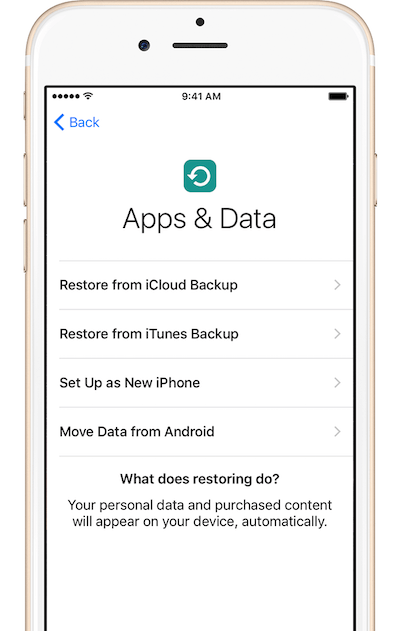

On your Android device, make sure thatcontact details have been synchronized. Then, make sure that both devices are connected to the same Wi-Fi network and, after that, carry out the procedure of pairing both devices with each other. Then, in the menu, mark the line “Google Account” as an object to move. Start the transfer process and wait a bit.
From my sad experience, I can say that the application"Move to iOS"doesn't work well. I would recommend that you only use this app if you are transferring your account data from a service"Google", but not heavy files in the form of photos and videos.
How to transfer contacts from an old iPhone device
Turn on iCloud service synchronization while setting up a new device
On your current iPhone device, you need to make sure that all your contacts data is synchronized with the service servicesICloud.
In case of serviceICloud, go to"Settings"then inICloudand make sure that the ID data specified there really belongs to you.
Then we make sure that the option"Contacts"included.
Advertising
Advertising
Now, select a bookmark"Backup copy"and select a team"Back up". Your iPhone will begin syncing its data to the cloud serviceICloud. This may take some time.
After that, during the initial setup of your new phone, in the section“Applications and data”, select a teamRestore from iCloud Copy. You will need to enter your account detailsrecords in the iCloud service and wait while the data recovery process is in progress. At the end of the recovery process, the data of your contacts will appear on the device.
Sync with Google Sync Services
If you plan to continue to use the services of the Google service to synchronize the data of your contacts, then the method for transferring them to your new iPhone device is described below.
First of all, we make sure that the data synchronization option with the Google cloud service is enabled on the old iPhone device.
Let's go to"Settings"->"Mail, addresses, calendars"->"Accounts"->Gmailand make sure that the option"Contacts"included. Also make sure that you have an Internet connection so that the data can be synchronized with the Google service.
Then, on the new iPhone device, run"Settings", select a bookmark"Mail, addresses, calendars"->"Accounts", and click on the command"Add account".
Select a service from the listGoogleand make sure that the menu"Contacts"selected before clicking on"Save". All your contacts data stored in your cloud accountGooglewill appear on your new iPhone device.