There are a huge number of reasons why you might need to forward a message. Perhaps this is an indication
Advertising
Advertising
In any case, forwarding messages is very easy, and below we will tell you how to do it on iPhone, iPad and Mac.
Forwarding messages to iPhone and iPad
Open the applicationMessageson your iPhone or iPad and follow the steps below.
one)Select the one you needdialogue.
2)Clampmessageyou want to forward.
3)SelectStill.
four)Clickarrowin the lower right corner of the screen.
You can check multiple posts with a checkmark to forward them all at once.
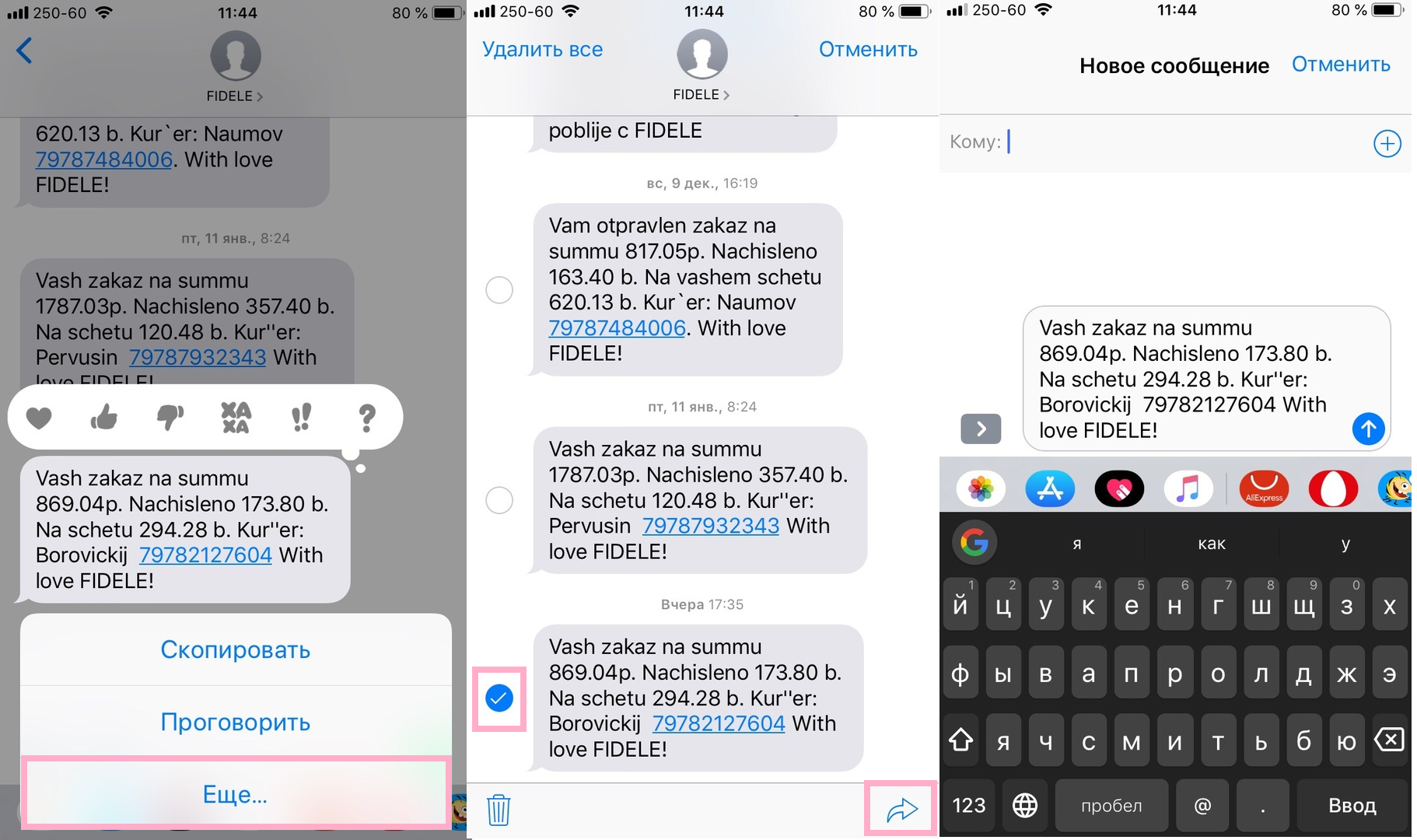

When you click on the arrow, a new dialogue will be created, and you just have to add the recipient.
Forwarding Messages on Mac
Open the programMessageson your Mac and follow the steps below.
one)Selectdialoguefrom the list on the left.
2)Selectmessageyou want to forward. It will be highlighted.
3)Right-click on the message.
four)SelectForward.
The message will be inserted into a new dialogue, and you will only have to choose a recipient.
Now you know that forwarding messages is very easy and fast.