When you need to convert a document or web page to PDF format, your first idea is to use
Any Mac app with printabilityallows you to use the PDF format for printing. Some applications use the standard macOS print dialog, others use their own versions, but in any case, starting to print documents and web pages in PDF format remains a simple task.
Advertising
Advertising
How to printPdfusing the standard print dialogmacOS
Applications created by Apple, such as Pages,Numbers and Keynote use the standard macOS dialog box for the print job. Moreover, some third-party programs, such as Microsoft Word, use the same dialog box.
Step 1:
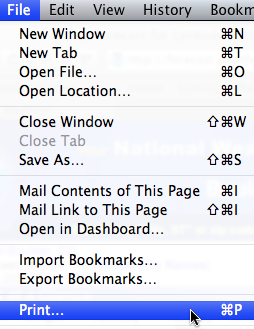
To print a Word document in PDF format, you must run it and select "Print" in the "File" menu.
Advertising
Advertising

Step 2:
Advertising
Advertising
A print dialog box appears. Call the drop-down list by clicking on the “PDF” in the lower left corner. In the menu that appears, select the option “Save as PDF”.


Step 3:
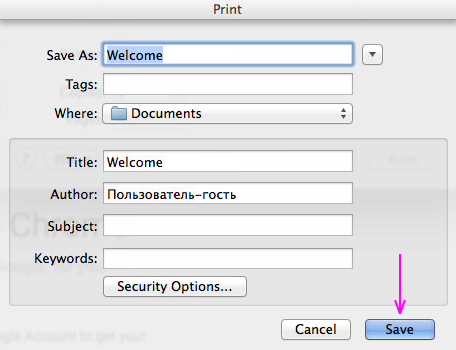
A window appears on top of the print dialog box.save the PDF document. In the drop-down list, the default location for the saved file is set. If necessary, change it by clicking the down arrow to the right of the input field of the “Save As ...” option, where the standard file name is displayed.


Step 4:
If desired, change the file name using the optionSave As ... or use the default name. Select the directory where you want to save the PDF file using the panel located in the center of the dialog box.
Note:Optionally (optionally) add the necessary information in the “Title”, “Author”, “Subject” and “Keywords” fields.
Click "Save." Now your PDF file will be saved in the selected location, which you can move or copy to any place. If you need to open access to the document immediately from all devices, you can copy it to your cloud account.

How to printPdfusing the print dialog developed by the application
As we wrote above, not all programs workwith a standard print dialog box, however, the support for printing PDF documents remains available anyway. At the same time, you can start printing both from the program’s own window and from the standard macOS print window by calling it through a specific application. Our tutorial takes the Chrome app with its own PDF print dialog as an example.
Step 1:
After selecting the "Print" option in the "Print" menua dialog box appears. The name of the selected printer is displayed here (the default is your printer). To access print in PDF format, click Modify.


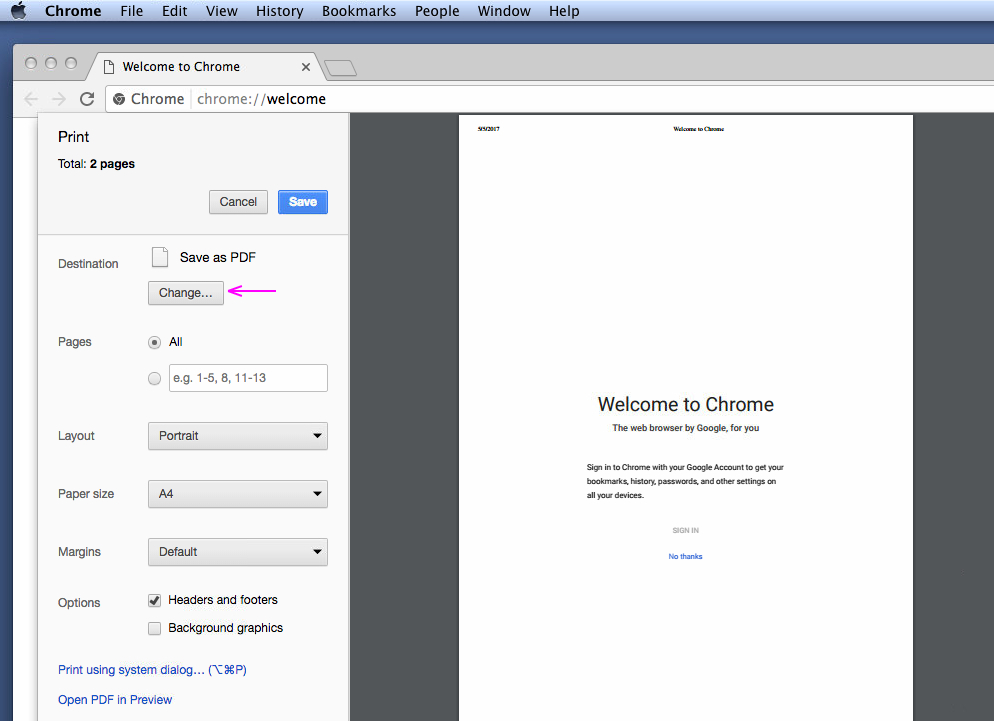

If you want to use the standard macOS dialog box for printing, as described in this article above, click on this option (the button is located at the bottom of the window).


Step 2:
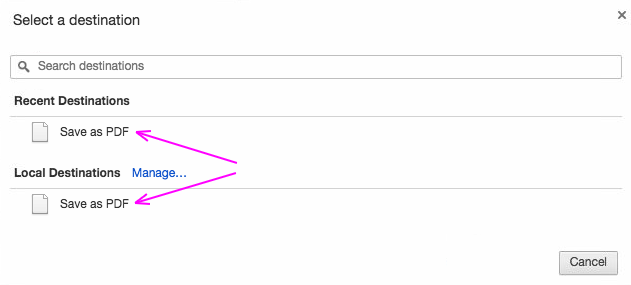
In the appeared window for specifying a directory, select “Save as PDF”. Now the system will remember your choice and will offer this option in the Recent menu.

Step 3:
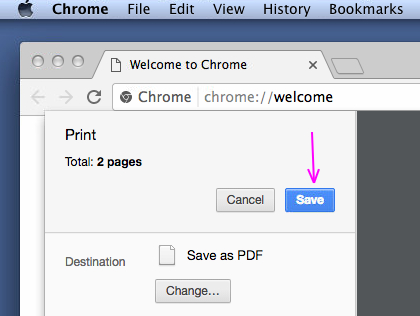
After choosing a destination, the window will automatically close and you will be redirected to the print dialog box. To print to PDF, click Save.

Regardless of whether you useThe standard macOS print dialog box or the version developed by a third-party application, creating PDF documents on a Mac will be your easiest task. By the way, printing PDFs from iPhone or iPad is also very easy.