iOS 12 has finally updated Do Not Disturb mode. It's not nearly as advanced as Android, but still
Advertising
Advertising
In addition, the iPhone began to behave differently when the mode is active. The lock screen turns black and all notifications disappear. The screen does not light up even when a new notification arrives.
Also read:iOS 12: all new and hidden features
Options in Control Center

Advertising
Advertising
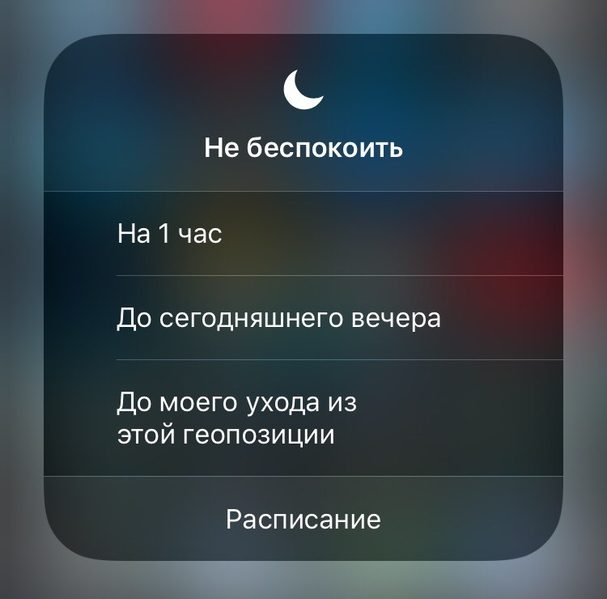
How to open new Do Not Disturb mode options? From the control center. With the Control Center open, click on the crescent-shaped mode icon using 3D Touch, or simply hold it longer than usual.
Advertising
Advertising
You will see additional options: you can turn on the mode for an hour, until tonight (or the end of the event), as well as before leaving the current geo-location.
The most convenient option is for 1 hour. Thus, you can easily and quickly temporarily deactivate your smartphone and not worry about the fact that you forget to turn off the mode.
Do Not Disturb at Night
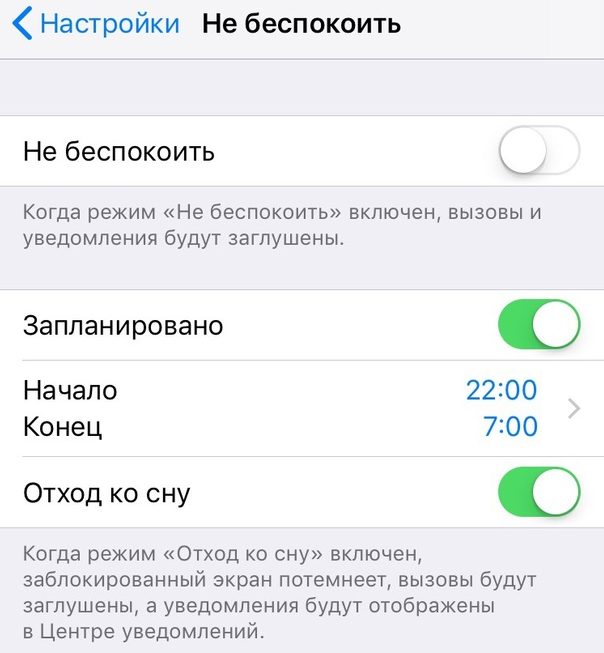

In sectionDo not disturbVSettingsa new item has appeared. When you press the switch next toScheduled, then you will see an additional option -Going to bed.
Turn on the option and your smartphone will not be youdisturb while you sleep. The screen will turn dark and you will see a message stating that the Do Not Disturb mode is active, and notifications will appear in the Notification Center without sound. You will not hear any sounds, and the screen will not light up from each new notification.
There is also a little trick that allows you to activate the weather widget on the lock screen. It is only available with the Sleep Away feature.
Do Not Disturb on steroids - Quiet Mode
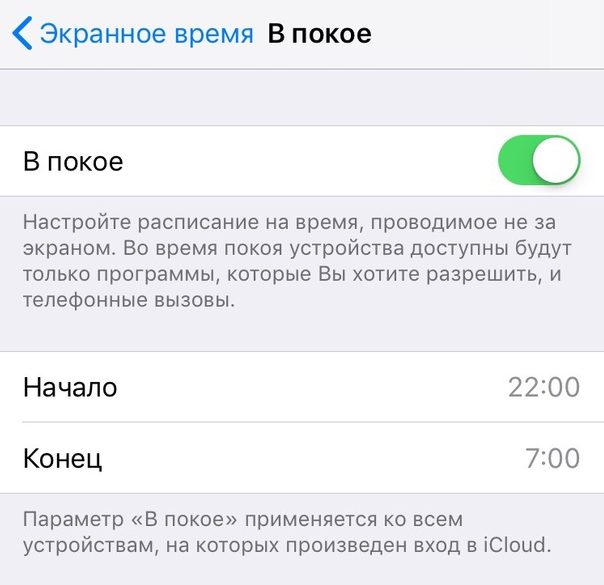

If you are addicted to social networks or notYou can postpone your smartphone at night, there is a solution. In the Screen Time section, a new mode - “At Rest” has appeared. It’s best to use it with Do Not Disturb.
Go toSettings->Screen time->At restand set up a schedule. Make it the same as for Do Not Disturb mode.
As soon as the Do Not Disturb mode is activated, youYou won’t be able to use most of the applications on your iPhone. Everything from Instagram to Facebook will be blocked until you wake up. Or, you can simply turn off the “Alone” function if you need it urgently.
Also read:How to use Screen Time and Program Limits in iOS 12
This is a great start to improving the “Don'tworry". We hope that in iOS 13 there will be even more useful options. It would be nice to be able to block only some notifications. In addition, the mode could be integrated with the Shortcuts function.