Apple has released iOS 10.3 for iPhone, iPad, and iPod Touch and includesa lot of updates, such as the ability to
Обновиться до iOS 10.3 you can “over the air” in “Settings” -> “Basic” -> “Check for new software.” If you updated to iOS 10.3 and are experiencing problems with this version of the firmware, you can still revert back to using the previous version of iOS 10.2.1.
Advertising
Advertising
For users who want to leave the optionjailbreak, we recommend staying on iOS 10.2.1 as it may contain security vulnerabilities that could be exploited in a future jailbreak tool. Thus, if you have already updated to iOS 10.3 and would like to increase your chances of jailbreaking your device, then we recommend that you return to iOS 10.2.1 while it is possible.
In this guide, we will show you howRoll back from iOS 10.3 to iOS 10.2.1 using the iTunes app. It should be remembered that downgrade is possible as long as the company still issues a digital signature for iOS 10.2.1. At the time of this writing, iOS 10.2.1 was still receiving its digital signature. Status with digital signature can be checked here.
What you need to check before the downgrade procedure
- Make sure you are using the latest version of the iTunes application.
- Downgrade is only possible up to iOS version10.2.1, since at the moment, only this version receives a digital signature for supported devices. You cannot downgrade to earlier versions of the firmware because Apple has ceased to sign them.
- Please back up your datafrom your iOS devices using the iCloud service or the iTunes application. Because if something goes wrong, you can always restore your data from backups. If you need help creating backups, follow our instructions:
- How to backup data from your iPhone, iPad and iPod Touch using iTunes or iCloud.
- Please consider the fact that duringDowngrade process, all data from your device will be erased and subsequently restored from a compatible backup. Therefore, the process can take a considerable time, depending on the amount of data and the speed of the Internet connection (if the data is restored from a backup stored in the iCloud service).
How to downgrade from a versioniOS10.3up to version iOS10.2.1
Note:Downgrading is possible to iOS 10.2.1 while Apple is still signing it. The digital signature issuance status can be checked here.
Advertising
Advertising
Step1:First of all, you need to download the iOS 10.2.1 IPSW file for your device. You need to make sure that the correct firmware is downloaded that matches the model of your device.
Note:When downloading firmware via Safari browseryou must turn off the automatic process of unpacking the archive or use the browsers Chrome or Firefox. Alternatively, you can rename the file extension from the name “.zip” to the extension “.ipsw”.
Step2:Now you need to transfer your device tothe so-called "DFU" mode. If you are using an iPhone 7 or iPhone 7 Plus device, then follow the instructions in this manual to switch to DFU mode. In any other case, if you use older iPhone or iPad or iPod models, then follow the instructions below:
Advertising
Advertising
- Connect your device to your computer.
- Turn off your device with the power button and the power off gesture.
- Next, hold down the Power button for 3 seconds.
- Then, without releasing the Power button, press and hold the Home button for 10 seconds.
- Then, release the Power button, but continuehold down the Home button until a message appears in the iTunes application that the device was detected in recovery mode. If the message does not appear, then repeat the process with the buttons again.
- Click on the “Ok".
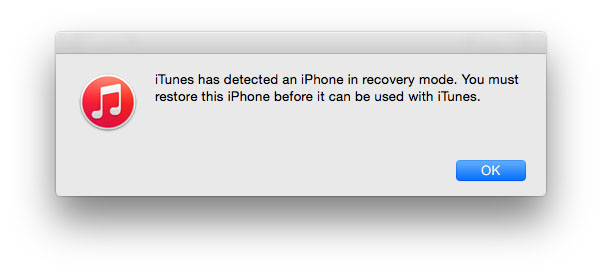

Step3:Hold down the “Alt / Option” key on your Mac computer or the “Shift” key in Windows, and then select the “Restore iPhone ... (iPad / iPod touch ...).


Step four:In the menu that appears, specify the path where the “iOS 10.2.1IPSW” file that was downloaded in Step 1 is located.
Advertising
Advertising
Step five:Then select the buttonRestore and Update"to continue.
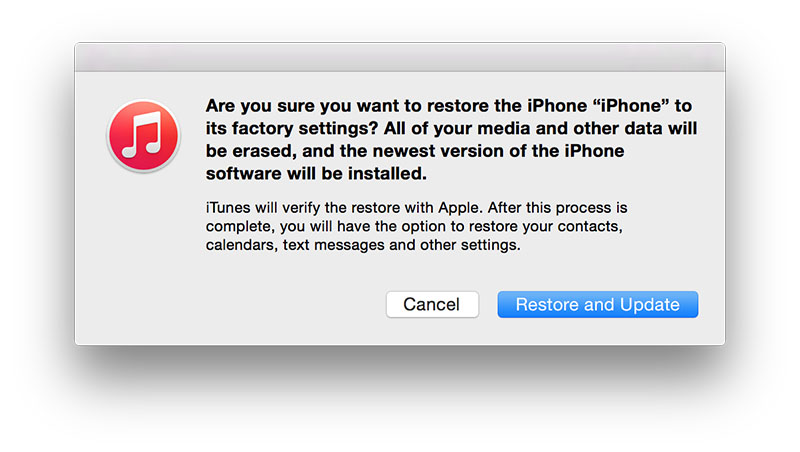

Advertising
Advertising
Step 6:On the next screen, information about updating the version of iOS 10.2.1 will appear. Click "Next",and then you need to select the "Agree".
Step 7:Next, the iTunes application will check the software and install it on your device. Installing the firmware will take some time, please be patient.
Stepeight:After a successful downgrade from iOS 10.3 to iOS 10.2.1, you will see the usual greeting on the white screen of your device. Follow the onscreen instructions and then restore your data from backup or start using your device from scratch.
And that’s all you need to do to conductdowngrade the firmware of your iPhone, iPad or iPod Touch from version iOS 10.3 to version iOS 10.2.1. If you receive an error message: "This device is not intended for use with the proposed assembly," then most likely you have downloaded the wrong firmware file for your device.
Please do not forget to share your downgrade results in the comment section and write if you have any questions.