Live Photo is a good thing. By adding a little animation to a photo, you will turn it from ordinary to truly
- How to make GIF from Live Photo via Teams without a computer
- How to convert live photo to GIF via the online service
- How to Send Live Photos as GIFs from iPhone or iPad Using the Mail App
- How to send a Live Photo as a GIF via iPhone
Live Photo is nothing but a combination of JPEG andMov files. 1.5 seconds are recorded on the camera before and after the moment of photographing, the result is a mini-video called live photo. Naturally, there is a desire to post such a photo on non-iPhone sites, for example, on VK, Facebook or Twitter, or post it on a blog. This can be done without much difficulty by converting to GIF format.
Advertising
Advertising
How to make GIF from Live Photo via Teams without a computer
First, make sure that you have installedthe Team app (Siri Shortcuts), in recent versions of iOS it is installed on the iPhone by default. If for some reason you do not have it, then install via the AppStore using this link.
- Follow the link and set up a special quick command for live photos in portrait. If your live photo was taken in horizontal orientation, then install this command.
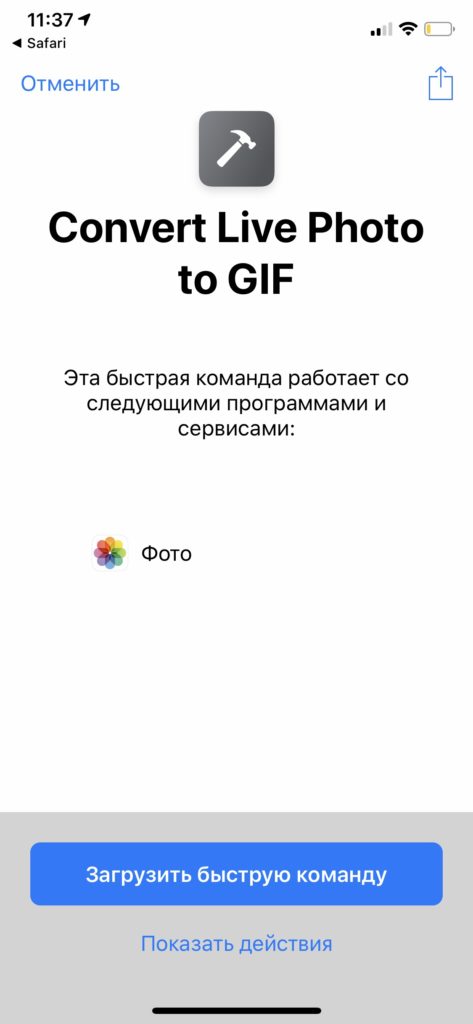

- Click “Load shortcut”
- Go to the “Library” tab. and select “Convert Live Photo to GIF”
- Select the live photo you want to convert to GIF


- Wait for the conversion to finish and save the finished GIF to your photo.
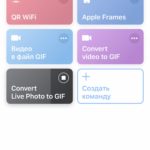

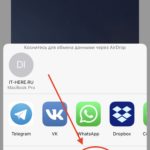

Now go to the Photos application, there you will find ready-made GIF-animation. An example of the resulting animation.
How to convert live photo to GIF via the online service
PC conversion
- Connect your iPhone using a standard USB cable.
- Find the folder on your device containing the desired photo (If you have a Mac, it’s convenient to useImage capture).
- Find a photo. Together with the JPG picture you will see the MOV video filmed at the same time.
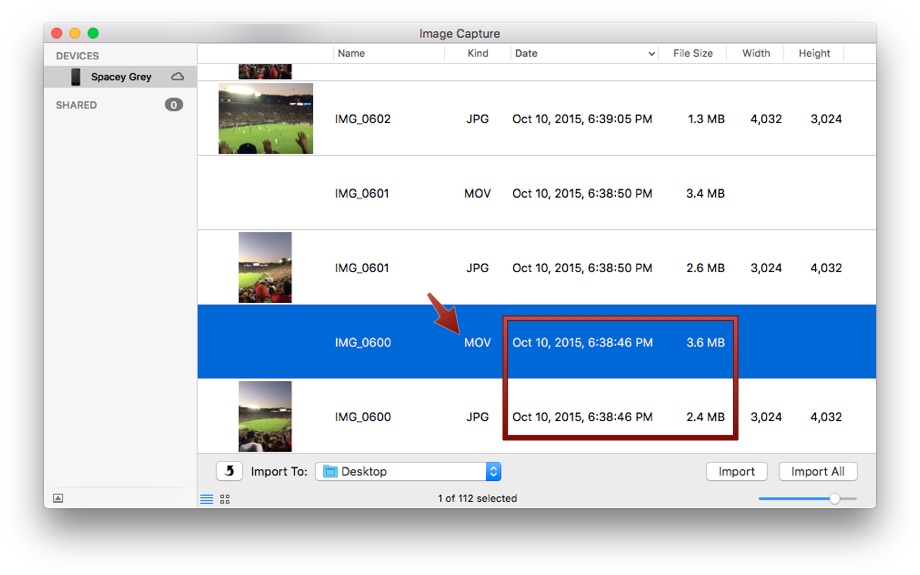

- Convert the MOV file to GIF using some program (GIF Brewery, for example) or online, on a site like MakeaGIF.
- Instructions for MakeaGIF: drag your MOV file into a special area on the site page.


- After it is downloaded and converted, your new gif will be assigned an age rating (18+ or Everyone) and it can be downloaded and used for its intended purpose.


How to send Live Photo GIFs from iPhone or iPad via the Mail app
On iPhone or iPad, live photos can also be converted to animated GIFs. To do this, just share them through the appropriate menu.
This method is very convenient, since you have practically nothing to do. In addition, it is much faster and more convenient than the previous method.
How to sendLive Photo in formatGIF via iPhone
- In the Photos application, find and select the Live Photo that you want to convert to GIF.
- Swipe up to discover more effects.
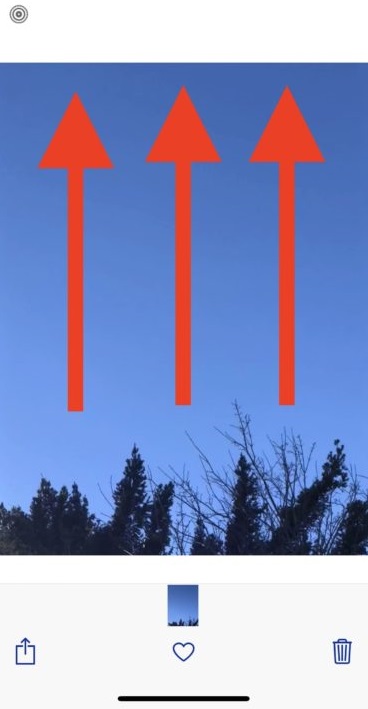
- Choose the “loop” or “rebound” effect of your choice.
- Now click the share button.

- Select the Mail app.
- As usual, enter the recipient's e-mail, and then click "Send." *
Live Photo is automatically converted to GIF so that the recipient can view it no matter what device it has.
Be careful: you can use only the effects of "loop" and "rebound."
This is very convenient in order to send live photos to users with devices with Windows or Android. Users will be able to view photos in the form of animation on any platform.
You can also send an e-mail with Live Photo to yourself, and then save it from Mail in GIF format.
It is worth noting that as a result, GIF files weigh a lot, and their quality leaves much to be desired. For example, you can easily get an animation with a resolution of 640 x 480, which will weigh as much as 6.5MB.
The following are sample GIFs made from Live Photo. Their sizes are 4.7 Mb and 6.4 Mb.


Perhaps one day iOS will have the ability to convert Live Photos to GIFs directly from the menu, but for now you'll have to make do with this method.