The Files app has been significantly updated in iOS 13.One of the new features is the ability to scan
Advertising
Advertising
This is a great way to save money and time on scanning documents. Below we will describe how to use scanning in the Files application.
How to scan documents through Files on iPhone
To get started, open the appFilesand then follow the steps below.
one)At the bottom of the screen, select the tabOverview.
2)Click the iconYet(...) in the upper right corner of the screen.
3)SelectScan documents.
four)Point your device's camera at the document and take a photo of it.
five)Now you can adjust the edges of the document, retake the photo, or continue scanning.
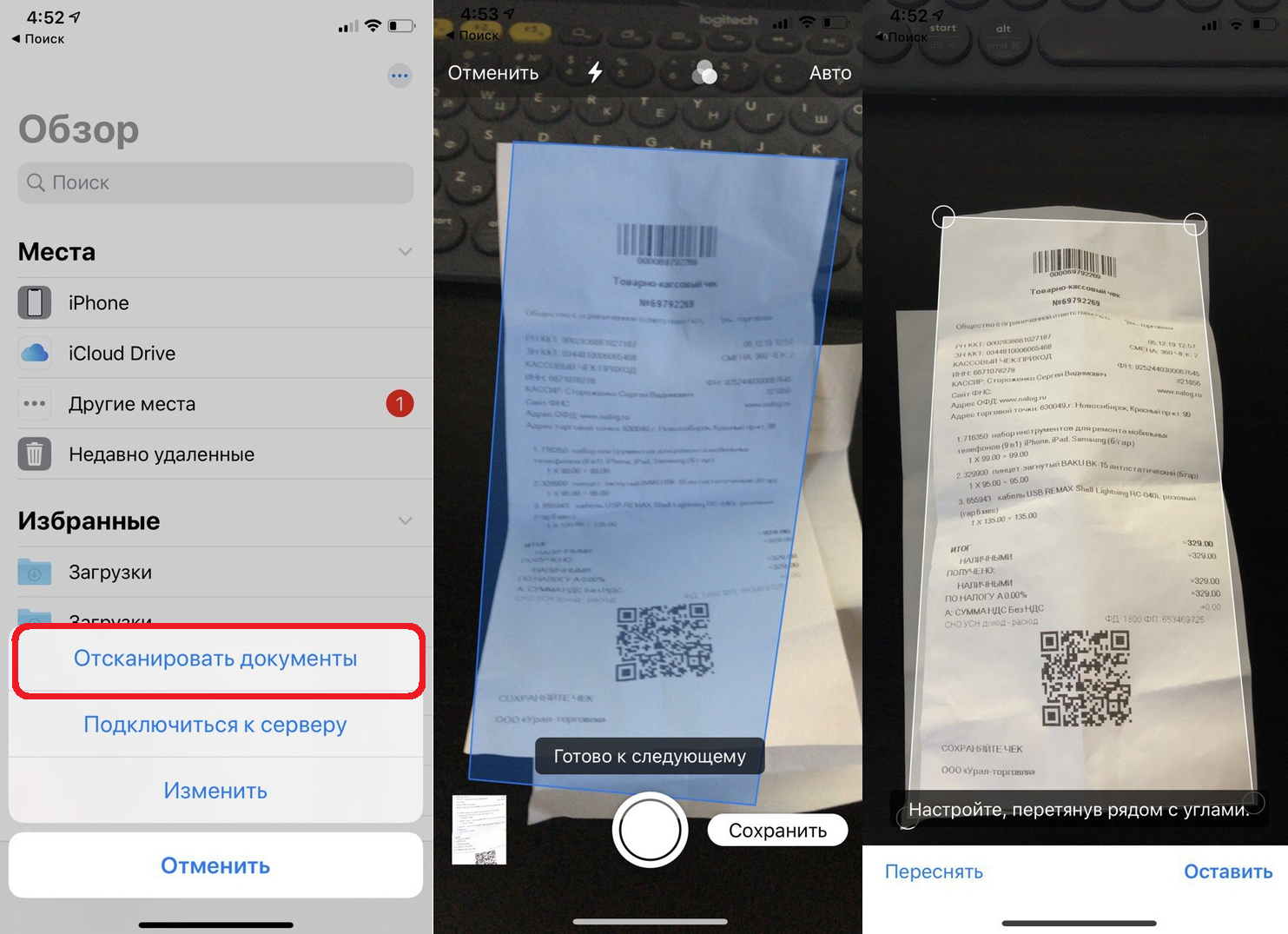

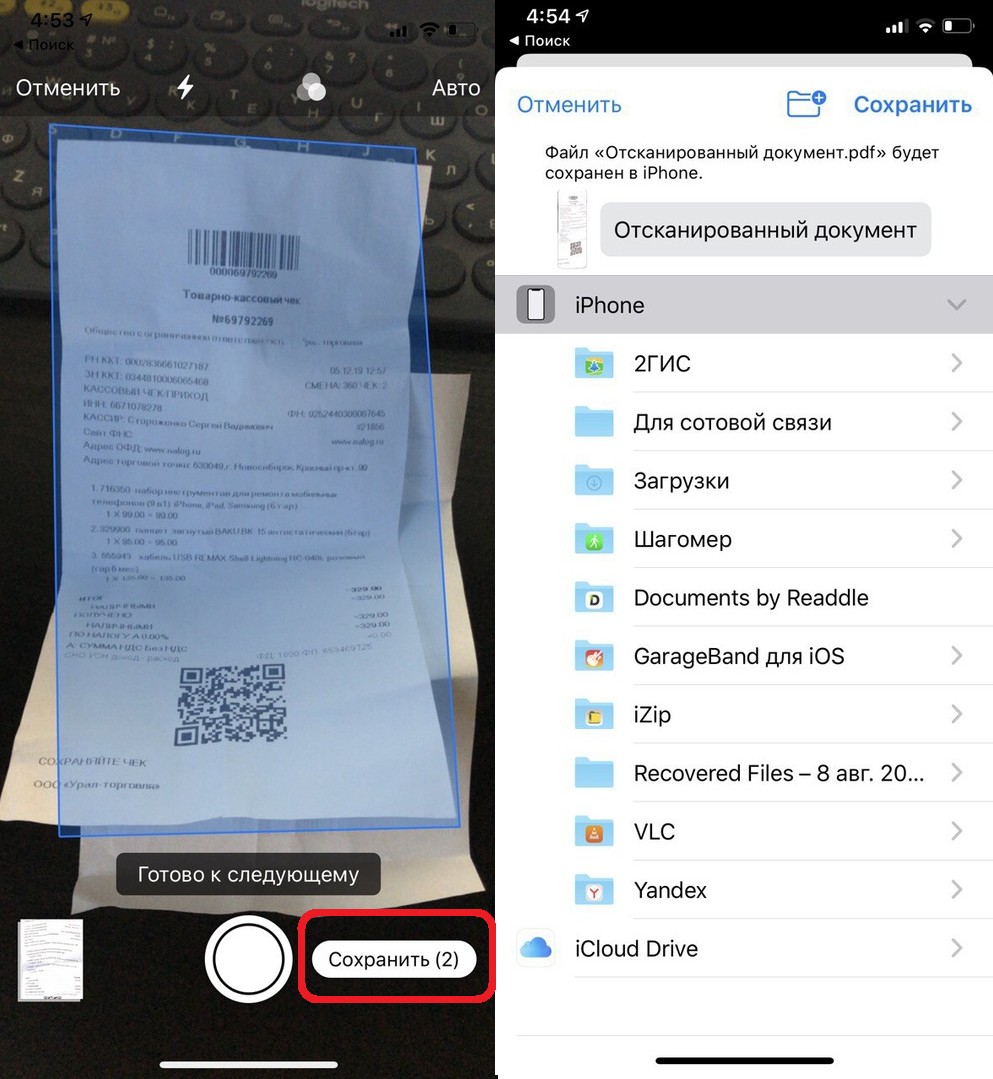
6)If you need to scan another page, do it on the next screen.
7)If you're done, tapSave.
eight)Select a save location for your document.

Scanning can also be activated in other parts of the application. Just click the three dots icon and follow the same instructions.
Scanning documents through Files is a great feature, because now you do not have to download a separate application for this.