Modern versions of iOS make it very easy to download and save Zip files on iPhone and iPad. This is possible thanks to the new
Advertising
Advertising
To use the method described below, yYou must have the Files application installed, which is in all modern versions of iOS. If you do not have it, then you have to update the system. Otherwise, you have to use a third-party application. We will not pull and move on to the instructions!
How to SaveZip-files oniphone AndiPad
- Open Safari on your iPhone or iPad and follow the link to the zip file you want to download.
- Click on the link to start the download.
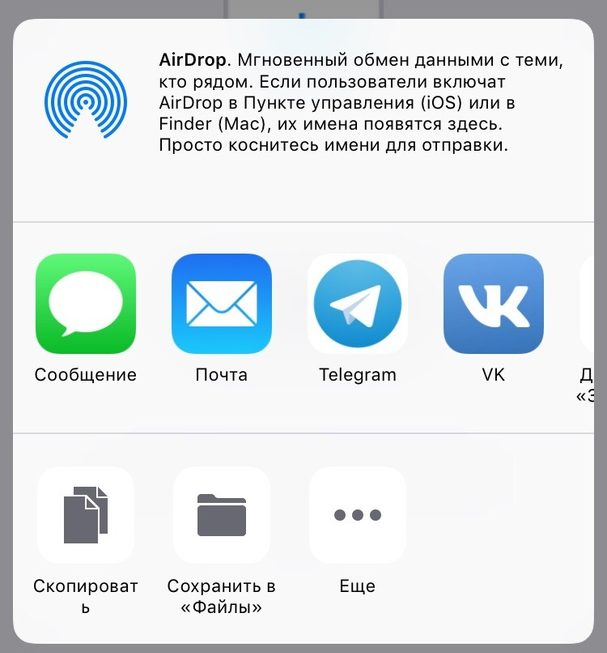
- Safari will display a screen with options and available applications.
- Click "Open Files in the program, and then select the desired location to save the file.


- You can also click "More ..." and then select "Save to Files".

Advertising
Advertising
That's all, the file will be saved to the device, and you can open and view it in Files. You can also unpack this archive there.
See also:How to create archives on iPhone and iPad with iOS 13 – eleven
Do not forget that the Files have direct access to iCloud Drive, so the files will be synchronized on all your devices tied to one Apple ID.
Saving zip files on iPhone and iPad is reminiscent ofthe process of saving attachments to emails in the Mail application, as well as saving any other files. The only exceptions are saving images and videos in mov format from Safari, since they will automatically get into the Photos application, and you will not be able to open them through Files. This does not mean that you cannot save images to iCloud Drive and Files. For example, archives with photos and videos will be saved in Files. The only limitation is the inability to open individual images through Files. Perhaps this will be fixed in the future.