Want to delete a reminder from your iPhone or iPad? Well, there is nothing complicated about it. Reminders are one of the
Below we will tell you how to completely delete reminders from the device, and not just mark them as completed.
Advertising
Advertising
How to delete a reminder with a gesture
The easiest and fastest way to delete a reminder from your iPhone or iPad is with a gesture.
1) Open the Reminders app.
Advertising
Advertising

2) Select the list containing the reminder you want to delete.
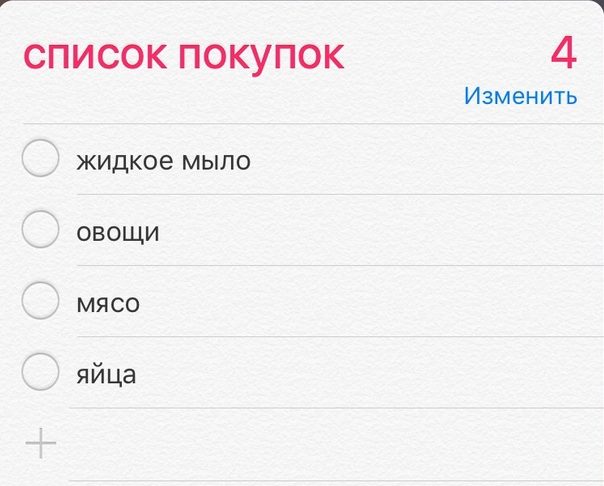

3) Swipe left on the reminder you want to delete.
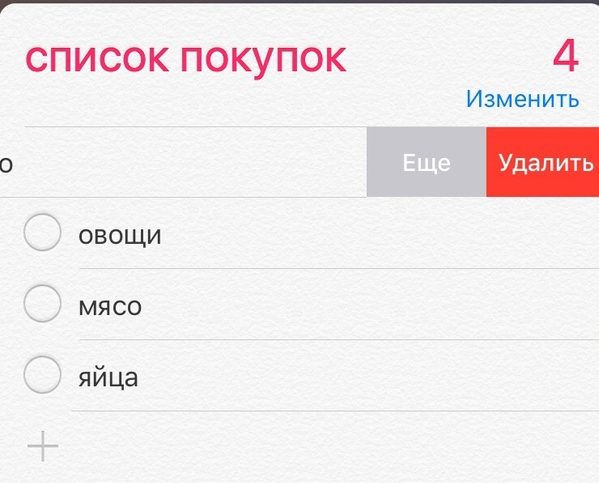

4) Click the red Delete button.
5) Repeat the process with all the reminders you need to delete.
In this way, you can delete some reminders, each time repeating the process again. This method is quite simple and fast, and you will get used to it right away, but there are other options.
how remove reminder buttons
1) Open the Reminders app.
2) Select the list containing the reminder you want to delete.
3) Click the Change button in the upper right corner of the screen.
4) Click the red minus sign (-) next to the reminder you want to delete.
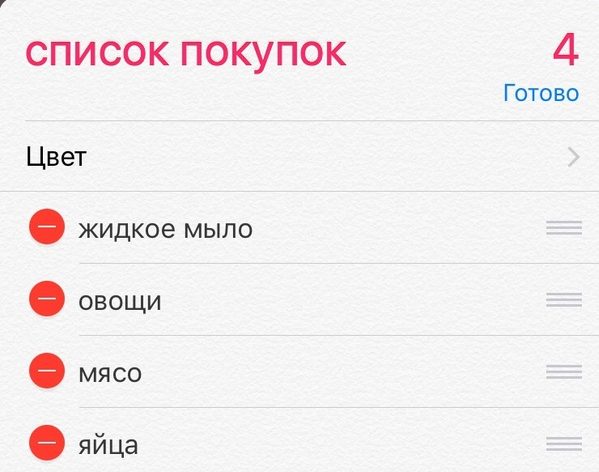

5) Confirm your action by clicking the Delete button.
6) Repeat the process.
In edit mode, you can also delete reminders quite quickly, but it is still longer and more inconvenient than using a gesture.
How to delete all reminders at once?
If you want to delete all reminders, then the easiest way is to delete the whole list. This will delete all reminders that were stored in it. You can also find a reminder through a search and then delete it.
Both methods work the same and will delete reminders no matter how you added them - in the application itself, using Siri or from another device through iCloud synchronization.