Dynamic Wallpaper is an interesting new feature of MacOS Mojave, thanks to which the desktop wallpaper changes in
You don’t even need the macOS Mojave version to install dynamic wallpapers on your Mac! The same effect can be achieved in any version of Mac OS.
Advertising
Advertising
To set dynamic wallpapers to any versionsystem, you need a set of similar wallpapers with different lighting or colors. If you know how to work with Pixelmator or Photoshop, then you can make such wallpapers yourself. Otherwise, they can simply be downloaded, created using the Time Lapse function on the iPhone, or selected from your collection. Just name the image files in the order in which they should change (for example, file 1, file 2, file 3, etc.). For best effect, use 10 to 25 similar images. The effect can be achieved by installing a change of wallpaper in any version of Mac OS, starting with Mac OS X.
How to set dynamic wallpaper inMac OS
- First, prepare a set of similar wallpapers that you will use. You can download the standard macOS Mojave wallpapersfrom hereorfrom here (zip-file)– save these wallpapers in one folder so that later it will be more convenient for you.
- Now open the Apple menu and go to System Preferences.
- Select Desktop and screen saver and open the Desktop tab.
- Drag the entire folder or the images themselves into the menu on the left. Or you can click the “+” icon in the same menu and select that folder.
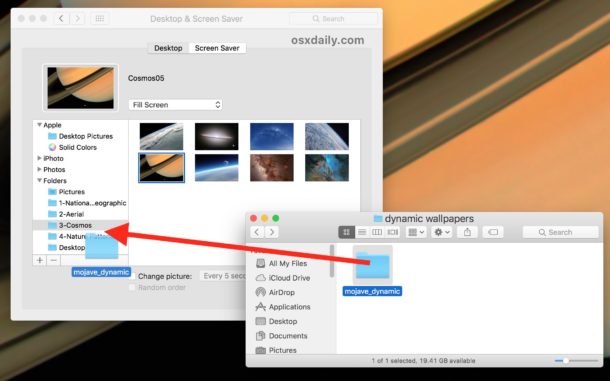

- Images will be uploaded to the wallpaper collection. Now click on the checkmark next to “Change Image” below. In the line with time, it is better to select "every hour."


Advertising
Advertising
Everything is so simple! Now your Mac wallpaper will automatically change throughout the day.
You can test the function by selecting "every 5 seconds" in the line with time - this will demonstrate the essence of its work.
In the video below, the effect is shown in action:
We used macOS Sierra for instructions, but the method will work on any version of Mac OS X.
Advertising
Advertising
The same effect can be achieved usingAs a wallpaper saver, but not every user will cope with this task. You can also set a GIF image on your wallpaper using a third-party program, but it will take a lot of time and perseverance.
You can just install macOS Mojave anduse the function, but so far this version is under development, and only the beta version is available. Before installing, be sure to back up your Mac.
If you want to find new wallpapers do itcan be on our website. You can also save your favorite image from the network, and then make several copies of it, slightly changing their color, brightness, etc.