With the Teams app in iOS 12, you can create long chains of commands that willRun
Advertising
Advertising
Easy Folder:folder with teams
Easy Folder is a convenient way to display a folderwith your teams. This is not a real folder. Easy Folder simply saves a text file to a folder in iCloud Drive, which contains a list of your commands. This is all displayed as a menu with a list.
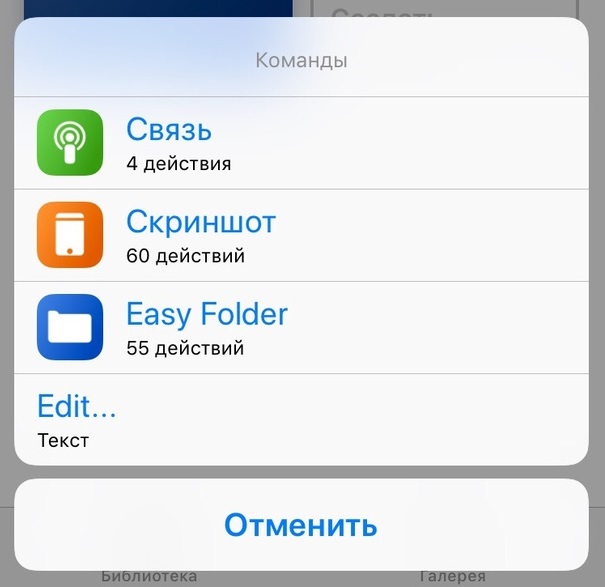

Easy Folder does not make copies of your commands, butjust uses a text file to display them. You can add and remove commands from the menu yourself by editing the text document Shortcuts.txt.
Advertising
Advertising
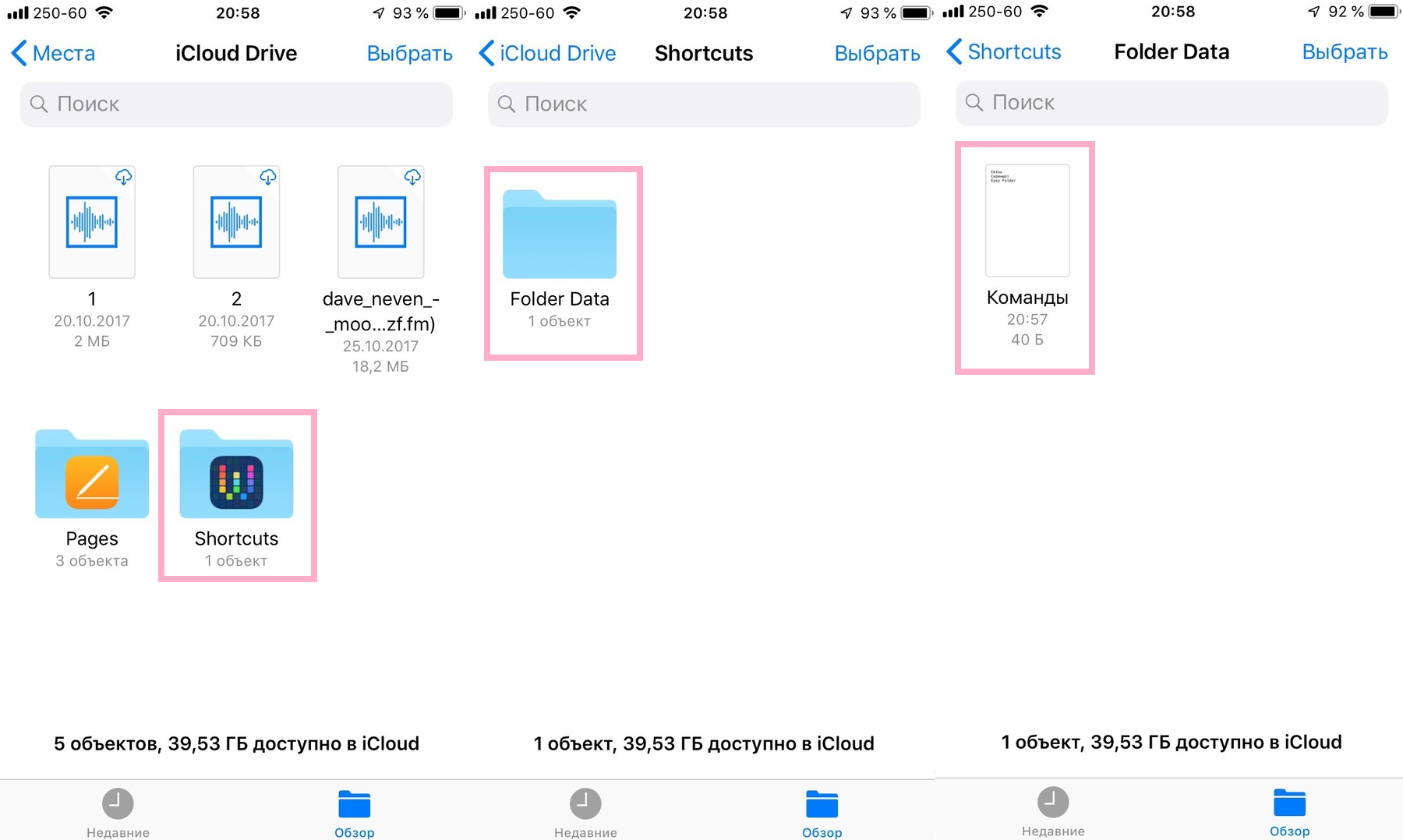

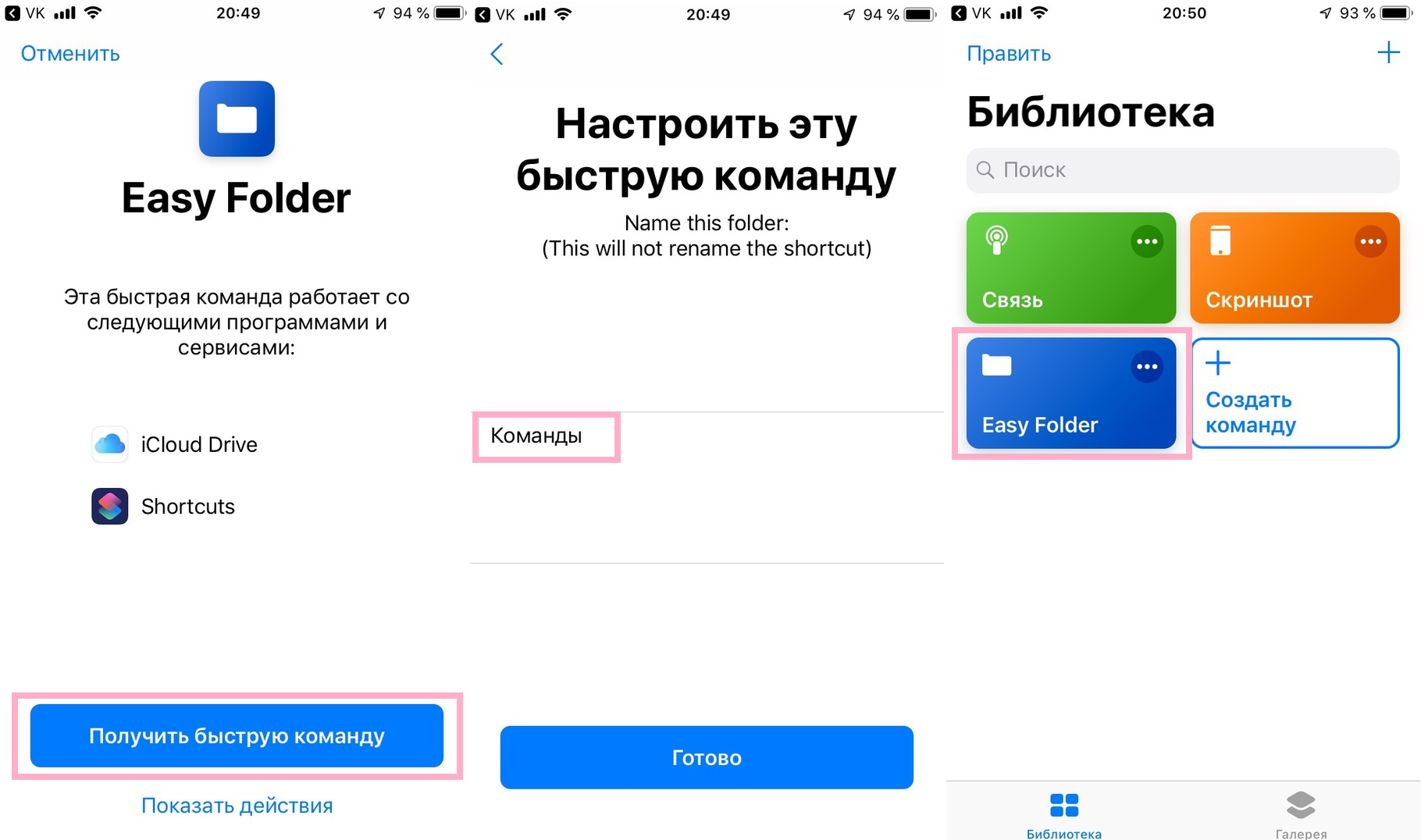
To download the command, visit this link from your iPhone or iPad with iOS 12 or later, and then press the blue buttonReceive quick the team. When prompted to open the file in Commands, click Open. The Easy Folder command will be imported into your teams.
Select a tabLibraryat the bottom of the application screen, and then click on the commandEasy Folderto launch it. Now click the buttonEditAndAdd, and then select your commands that you want to add to the folder.
When you run the Easy Folder command again,you will already see a list of all your added commands. Click on one of them to execute it. This is a great way to quickly access your favorite teams.
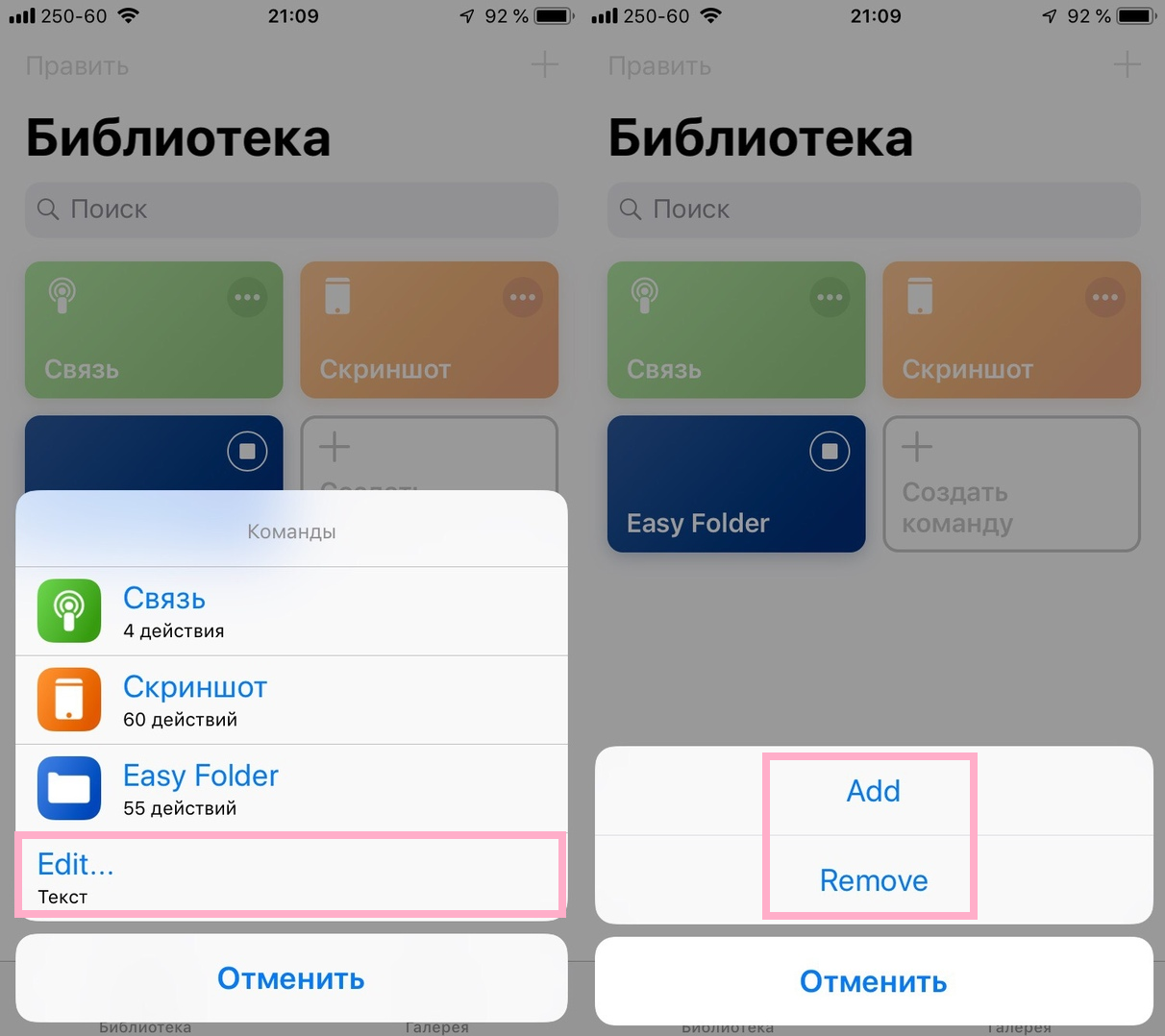

To remove a command from the list, click the button againEditAndRemove, and then select the teams you would like to remove and clickIs done. FileShortcuts.txt in iCloud Drive will be updated according to your actions.
Note:Easy Folder can also be opened from the home screen, through the Share menu, and through widgets.
how tuneEasy Folder
Easy Folder can be customized to your liking, just like any other command.
Advertising
Advertising
Open the applicationTeams, select tabLibraryand then clickthree dots iconin the upper right corner of the Easy Folder command. Now you need to click on the switches icon in the upper right corner of the screen.

Advertising
Advertising
To change the name of the folder where the Shortcuts.txt file will be saved, change it when saving the command. You can also clickSet up a quick commandin the edit menu.

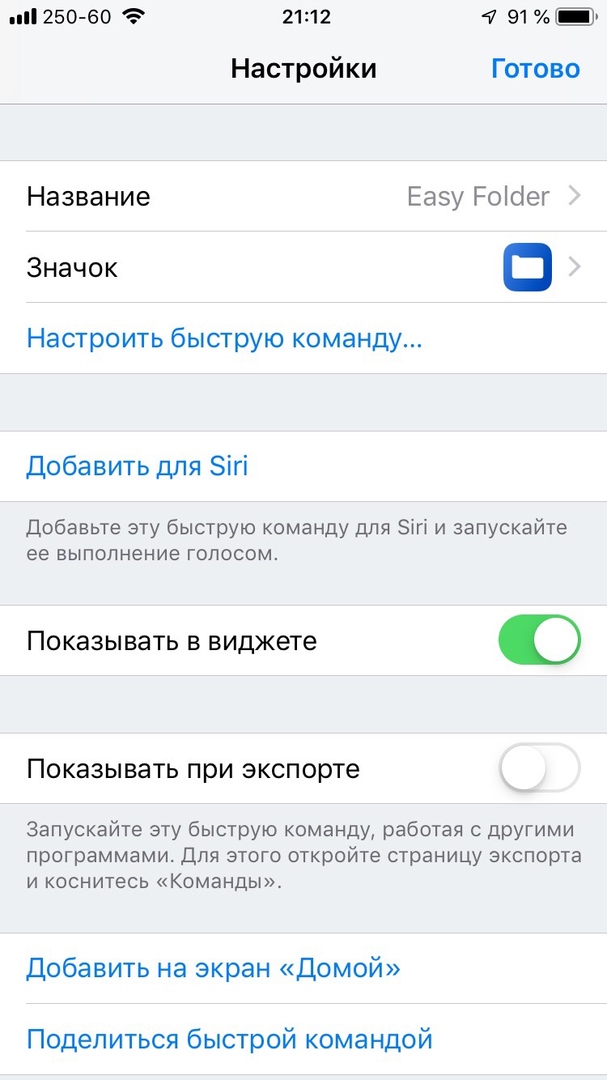
By clicking on the settings icon, which looks like in the screenshot below, you can change various characteristics of the team.


- Name: Enter your name for the team.
- Icon: Select the team icon to be displayed on the home screen.
- Colour: Change the color of the icon.
- Glyph: Select the icon to be displayed on the icon.
- Home screen: Use a new or existing photo for the icon.
- To add forSiri: To execute a command with a Siri voice command, you need to record and save it.
- Show in widget: Add a command to the Today screen with widgets.
- Show on export: Choose a team from different applications through the "Share" menu.
- Add to Home Screen: Add a team icon to your home screen for quick access.
How to add a command to the home screen
If you select the optionAdd to Home Screen, the command will open in Safari. The page will contain instructions on how to add a command to your home screen. Just tap the Share icon and selectTo the Home screen, and then select a name for the icon and clickTo add.
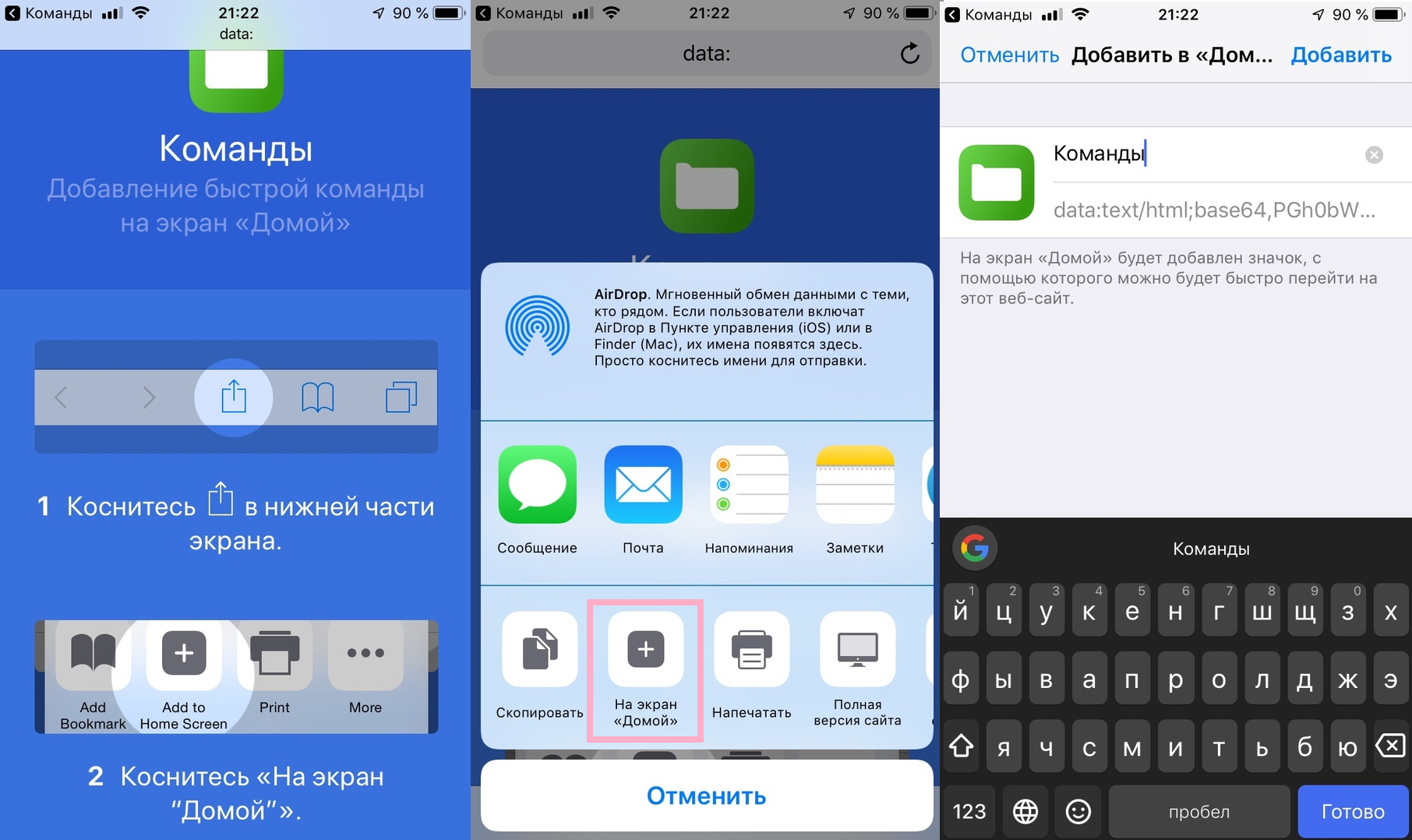

You can remove the Easy Folder command from the home screen, but this will only remove its icon. If you want to delete the command itself, you will need to do this in the Command application library.