iOS 11 adds many productivity-focused features. Using iPad for work
The multitasking function has become much easier and more convenient. You can move and delete data in different applications. Below are all the features that increase productivity in iOS 11.
Advertising
Advertising
1. Dock
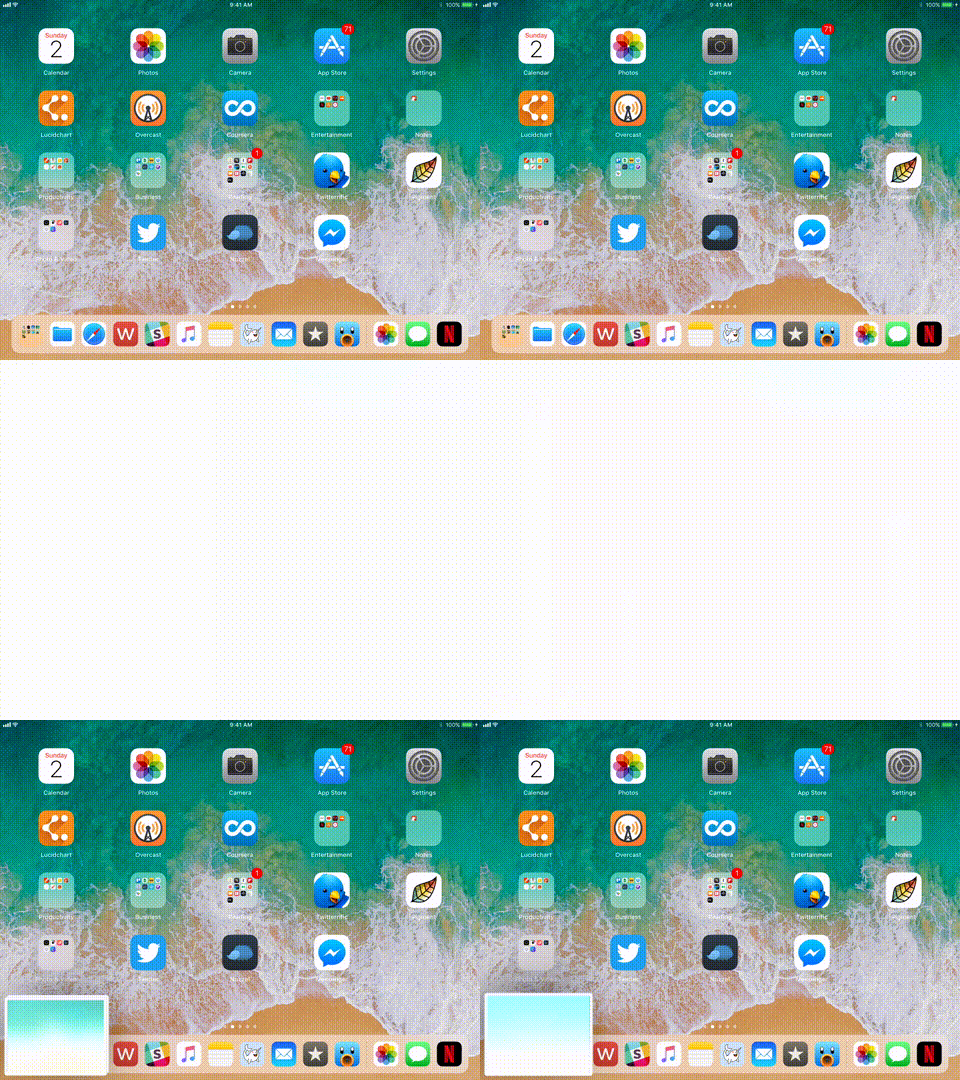

Apple has added improvements to the dock in iOS 11. The dock is now on top of all windows and is called with a simple “swipe” gesture from below (it replaces the transition to the Control Center)
The dock can now hold up to 16 icons (applications or folders). And in the right corner you can see the last 3 applications recommended by Siri.
Advertising
Advertising
2. New modeSplit View
The old Split View mode is in the past. When you swipe the screen from the left edge, nothing happens. Instead, the ubiquitous dock is now used to switch to Slide Over and Split modes.
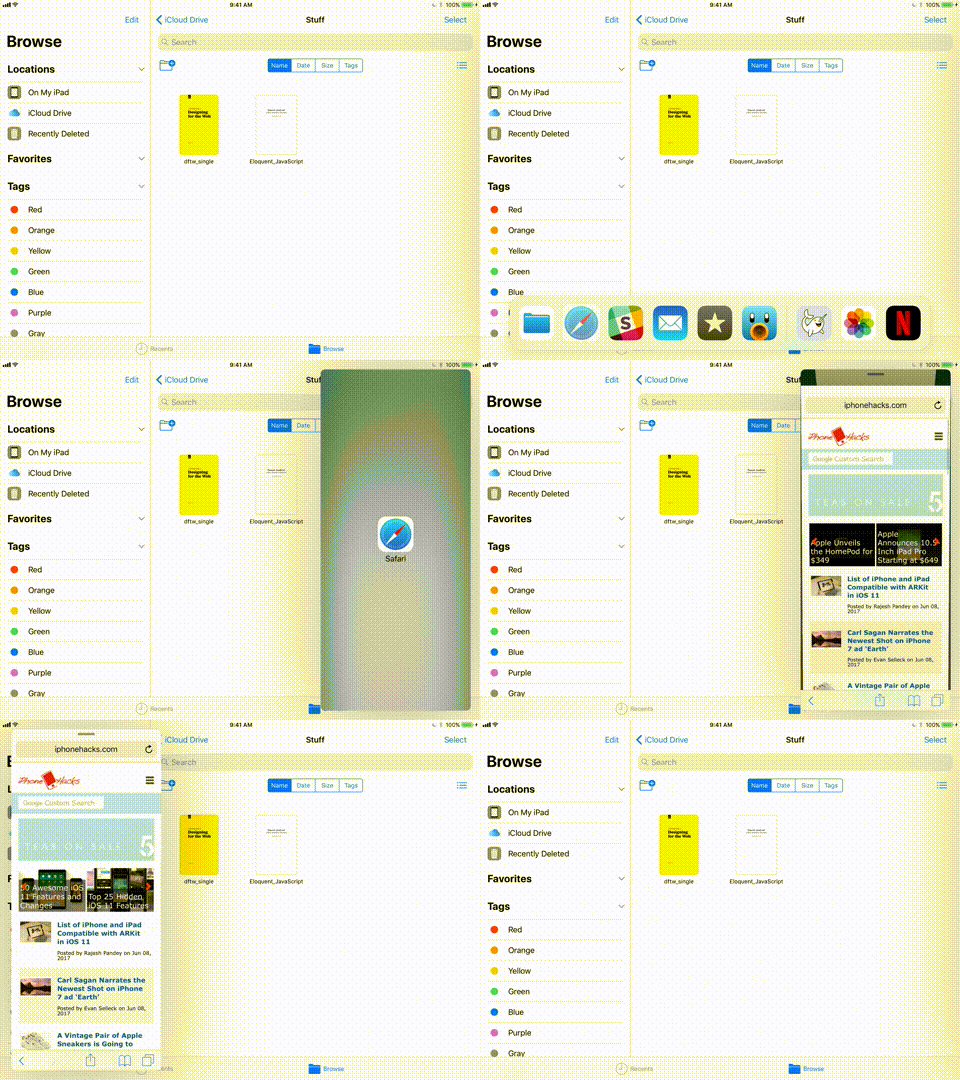

Go to the application, swipe downup to open the dock, then press and hold the application icon to move it to the middle of the screen. If you release your finger, the application icon will appear as a narrow floating window, as in the old version of Slide Over.
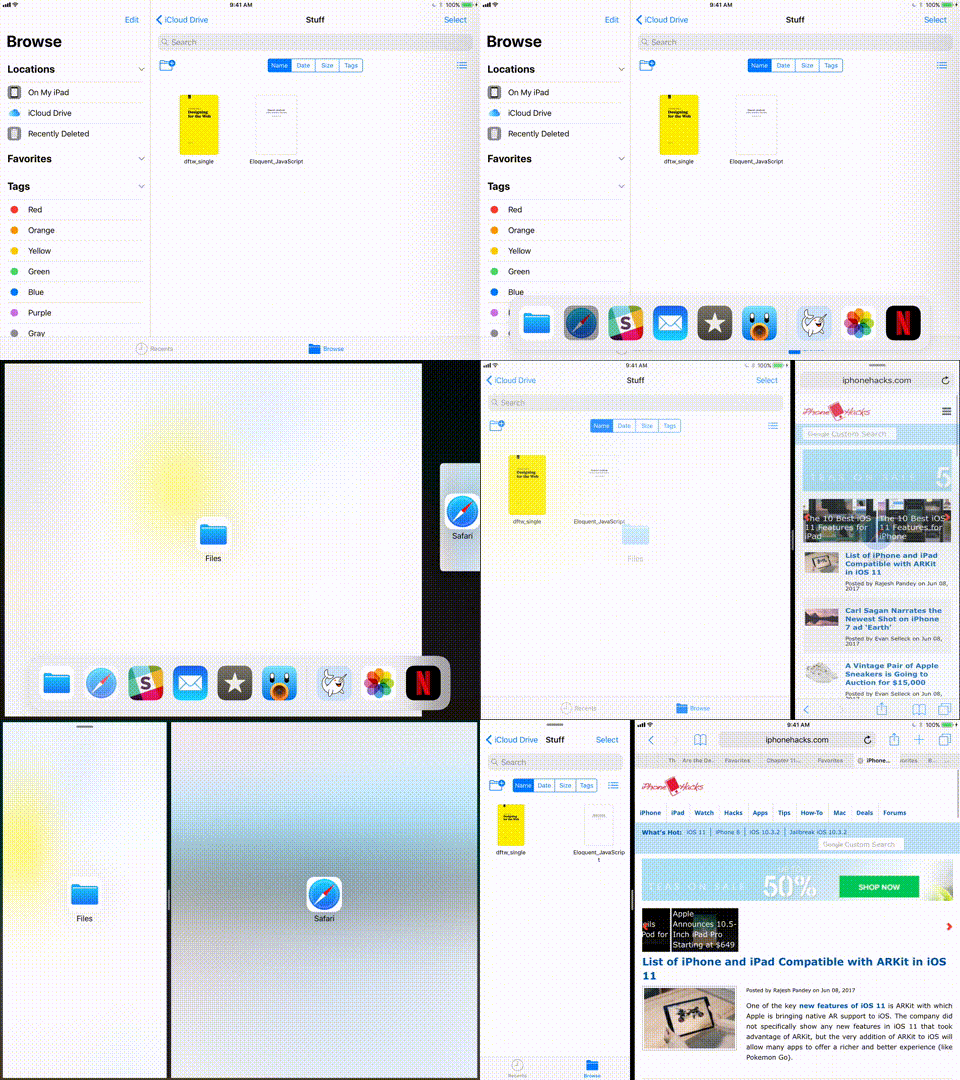
 But if you release your finger, leaving the application inleft or right corner of the screen, the application will be docked there. Then you can use the pointers to resize the window. You can also swap applications by holding the top pointer of one of the applications and moving it to the other side.
3. Application switching


When you swipe from the bottomscreen, you open the updated program switching. It shows the dock, the new control center, open applications and the Spaces feature. Your split screen combinations will be remembered here. Tap and hold on an app until an "X" button appears, allowing you to close the app.
4. Advanced drag and drop function
IOS 11 introduces advanced featuredrag and drop, and although it looks like the same feature on macOS, it’s adapted for the touch screen, and is actually quite modern. You can use the drag and drop function, both within the application itself and between applications. It works with almost everything - with text, images, links, media files and so on.
The function has been improved.First, you can drag multiple elements at the same time. By dragging one item, it sticks to your finger as long as you keep your finger on the screen. You can use your second hand to move around the OS, even going to another app to select a different item. Whatever you choose will be under your finger. You will also be able to see the number of selected items.
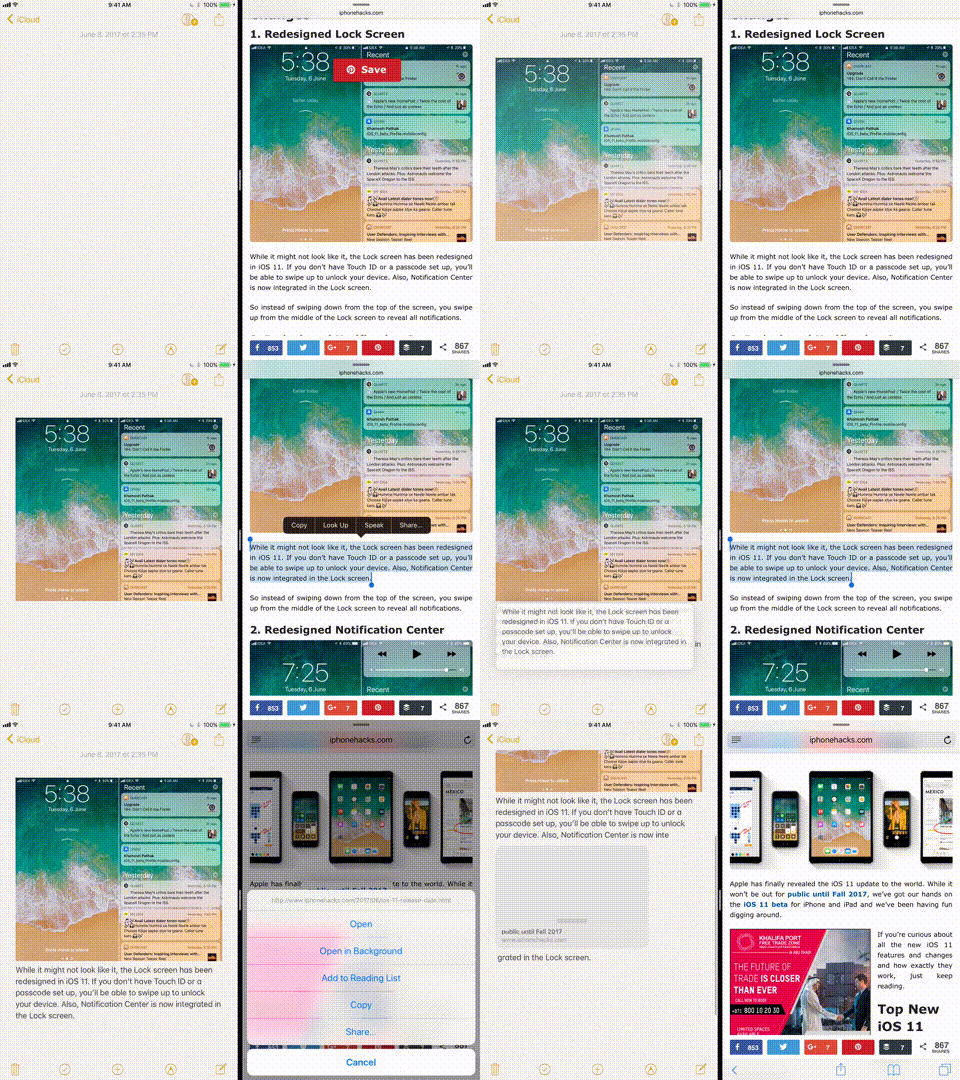

Now go to the application or to the screen whereYou want to move the item and just release your finger. The item will be moved in the appropriate format. Apple developers have created the ability to preview items. Therefore, if you drag a link from Maps to Notes, it will be displayed through a preview.
5. Work with files in the “Files” application
Application files are new userfile management application, which is supposed to allow you to perform any work with files. It will show all files on your iPad. And besides, you can connect to third-party servers such as Dropbox, Google Drive and many others.
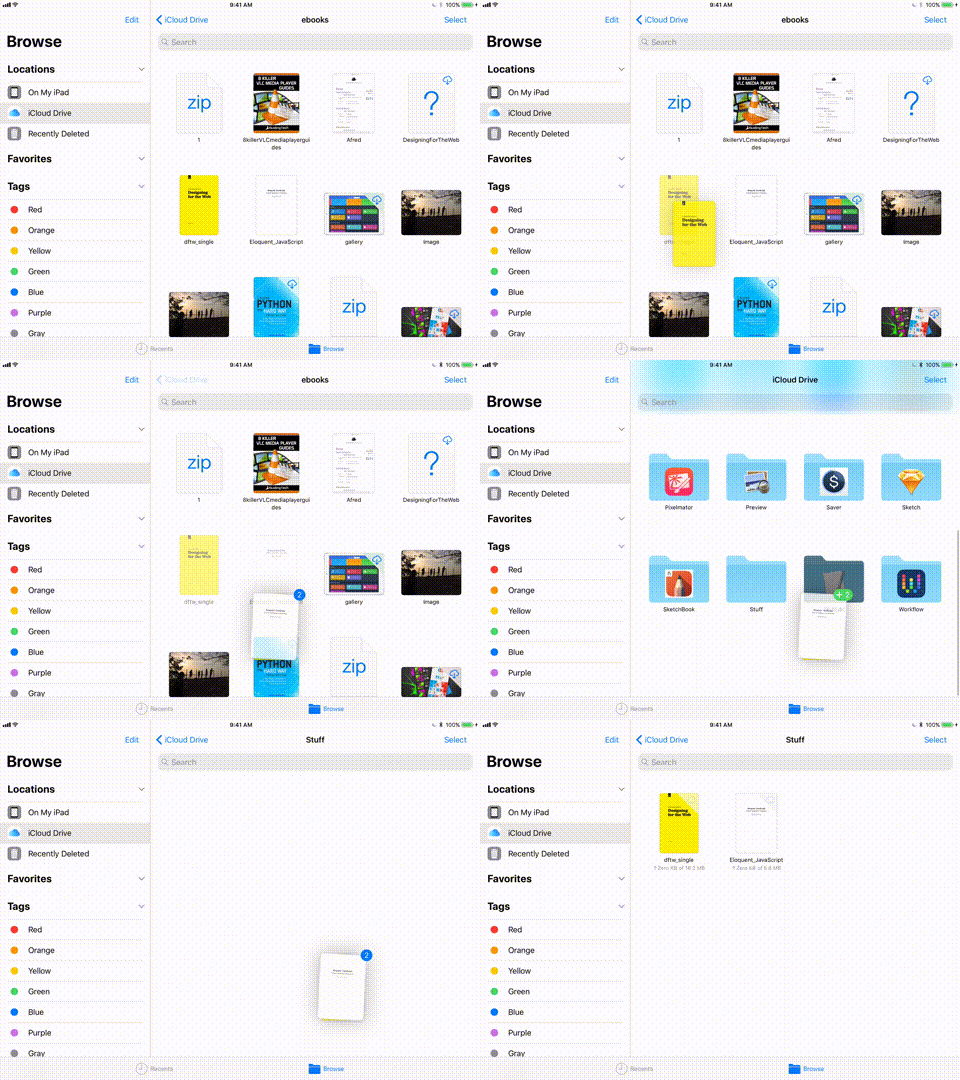

The application includes basic functions forfile management. Subfolders, tags, favorites and sorting options. And of course, you can use the drag and drop function to easily and easily move files.
Advertising
Advertising
6. Screen Recording
This is one of the hidden features in the recently updated Control Center. Screen recording appears as a control that can be added by going toSettings ->Control Center ->Customize Controlsand add Screen Recorder to the control point. After which, in the control center, click on "start recording", so you can record the actions taking place on your screen.
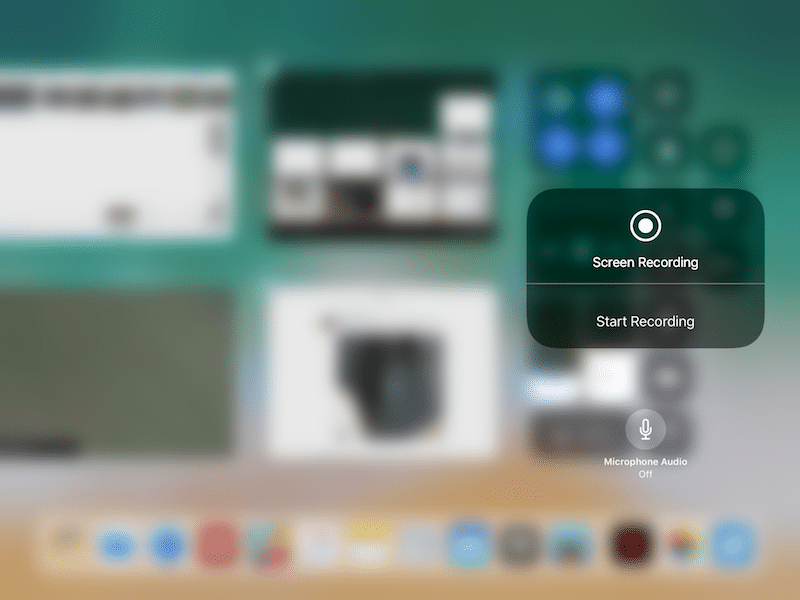

After recording, click on the blue bar and confirm to stop recording. Your entry will be saved in the Video album in the Photos application
7. Quick resizing screenshots
IOS 11 makes it easyShare and resize screenshots. Firstly, when you take a screenshot, it will remain at the bottom of the screen for a few seconds. You can take more screenshots and all of them will be saved at the bottom of the screen. Press and hold your finger on the screenshot preview and you will see the old well-known Share panel. By choosing an application such as Slack, you can send these screenshots directly to the dialog.
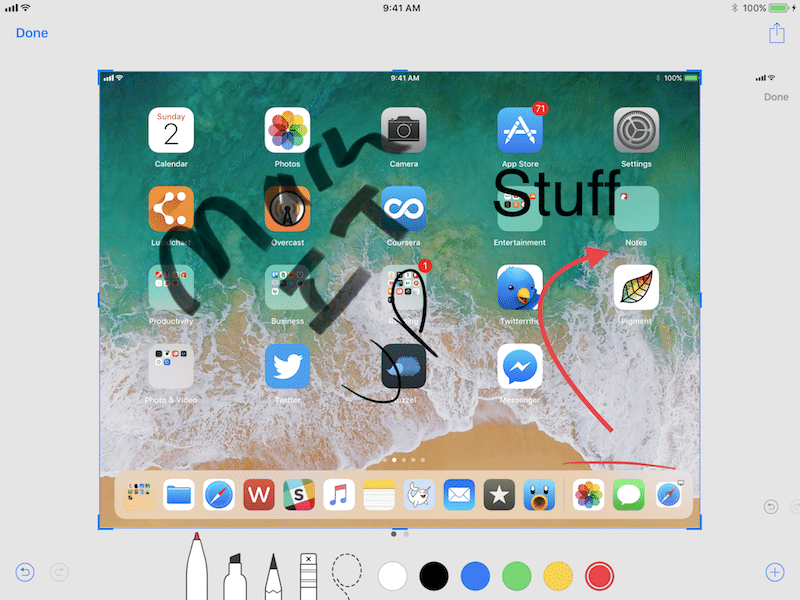

Or you can by clicking on the preview,open resize function. With the help of which you can easily crop a screenshot, make notes on it, add text, arrows or enlarge it. By doing this, you can share a screenshot. By clicking on “Finish”, you can save a screenshot in the “Photos” application or delete it. If you have already sent a screenshot to the dialog and do not want to clog the Photos folder, simply delete the screenshot from there.
8. Fast drawing with Apple Pencil
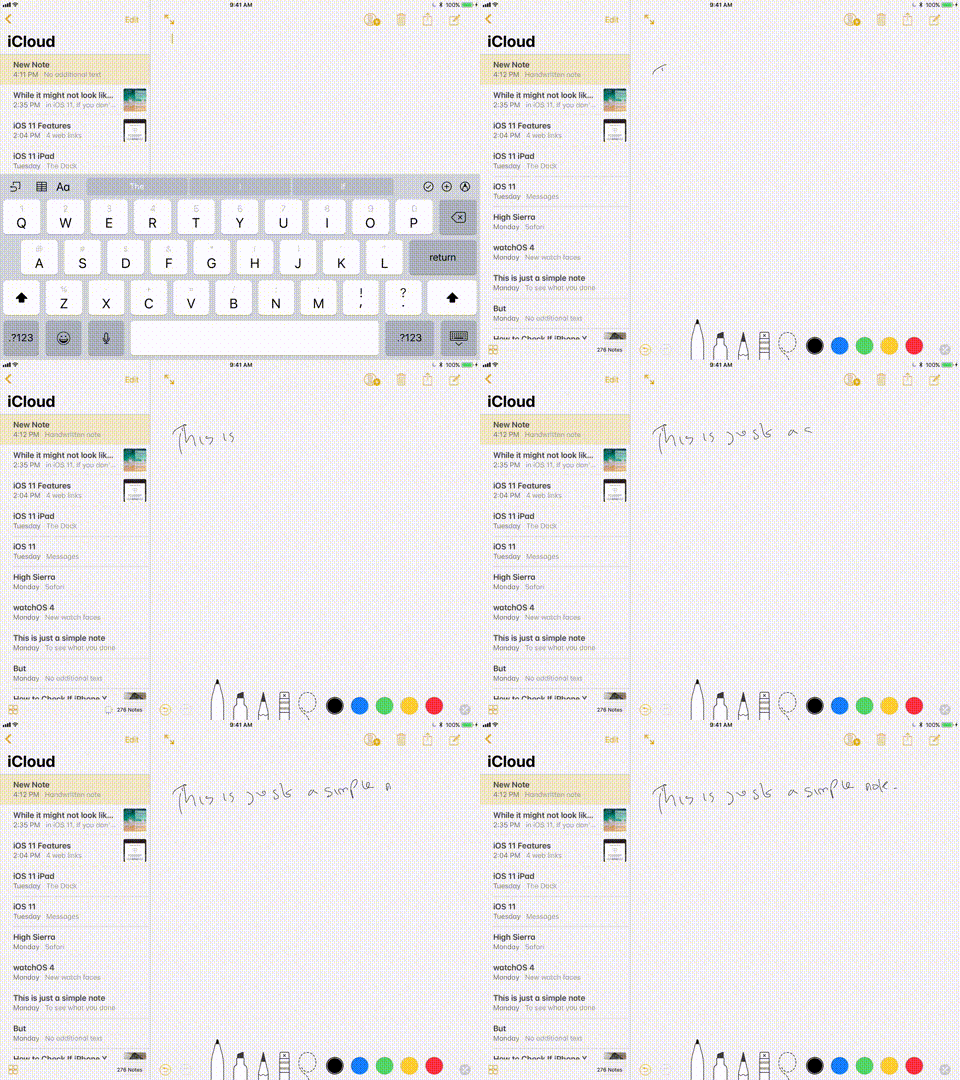
Using iPad Pro and Apple Pencil, taking notes is much faster. With the iPad locked, tap on the screen using the Apple Pencil to open special notes.

Advertising
Advertising
In the Notes application, start drawing anywhere in the recording. You can do the same when you write an email in the Mail application.
Advertising
Advertising
9. Scanning documents using the Scanner application
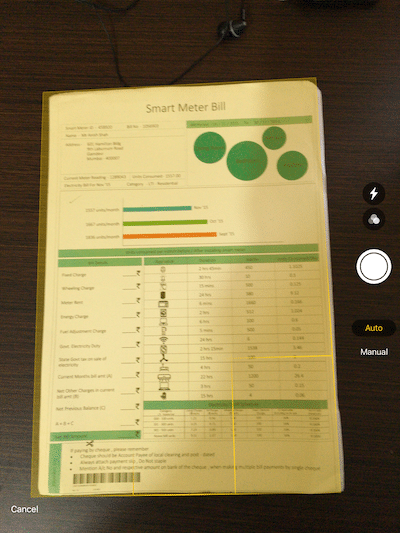

Notes application hides scan functiondocuments. In notes, click on the “+” button and select “Scan Documents”. By default, it works in automatic mode. Therefore, just make sure that the document is in the field of view of the camera and it will be scanned. The function of multiple scanning of documents is also supported. Documents are added to the note, but you can easily extract them to PDF format in the Dropbox application or the like.
10. Moving the keyboard
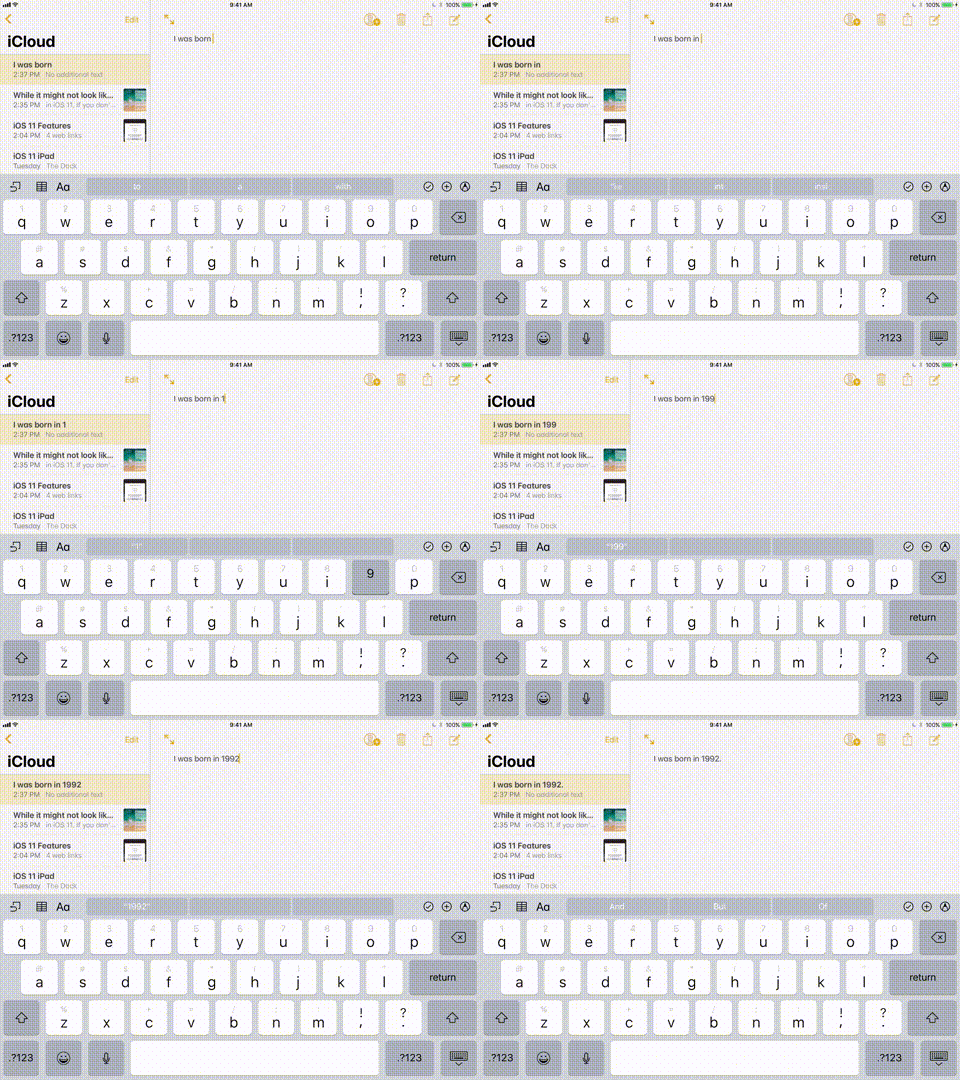

One small change that will helpsave a lot of time - new function of moving the soft keyboard. Each key on the keyboard is like an alternate character that you can enter by simply swiping down. So, for example, to enter the number 1, simply swipe down on the “Q” key.
What do you think of the changes for the iPad?
iPad will change a lot with iOS 11. Will your work with iOS 11 change? Do you think you'll use your iPad more often, or in a different way? Share with us in the comments below.