Some users with older versions of MacOS may have noticed that after they connected to their Mac
This problem may be related to the version.system and does not apply to all versions of Mac OS or Mac OS X. If you have not encountered it before, you can not worry. Most likely, the problem will not arise in the future.
Advertising
Advertising
how to close processPTPCameraatMacOS
- Connect your iPhone to Mac and unlock it with a password, Touch ID or Face ID.
- Press Command + Spacebar to open Spotlight (or click on the Spotlight icon in the upper right corner of the screen).
- Type “System Monitoring” and press Return (Enter) to open the program.
- Select the CPU tab and click on the %CPU column to sort processes by percentage consumed.
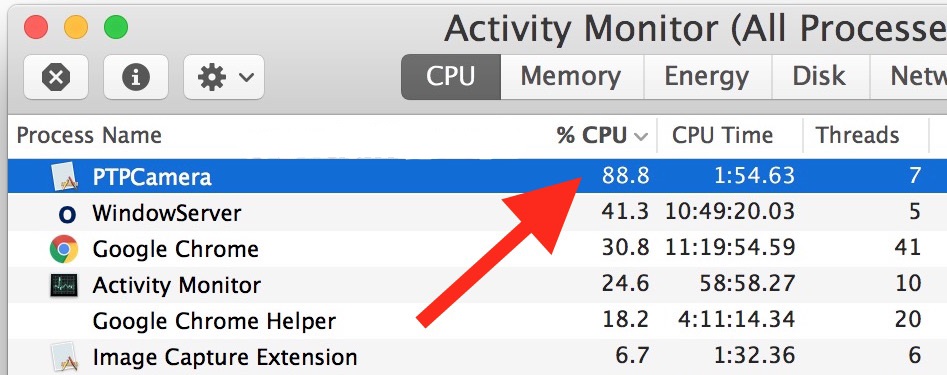

- Find the “PTPCamera” process, select it and click on the “X” to close the process.
- Confirm your action.
- Close the program.
You may need to repeat this process each time you connect your iPhone to a Mac. Not very convenient, but could be worse.
Closing this process does not affect the Mac, and you can safely continue to copy photos from your iPhone to your computer.
There is another way to solve the problem, but it may not work for everyone.
Advertising
Advertising
- Connect your iPhone to Mac via USB and unlock it.
- Open Photo.
- Unplug your iPhone from the USB cable.
- Close Photo.
- Open Photo again.
It is not clear how these actions disable the PTPCamera process, but this method also helped some users.
The fact that the process consumes so muchpercent of the CPU, may be a bug of some software versions or a bug that occurs when certain devices interact. In High Sierra or macOS Sierra, this should not be a problem, but Mac OS X El Capitan 10.11.6 or previous versions are not safe from it.
Another solution is to upgradesystem, but this method is not suitable for everyone. Some users deliberately avoid updates, and some are simply afraid to face new problems and bugs.
Another process that can consume many percent of the CPU is the Photos Agent, but you can avoid it by simply disabling iCloud Photos on Mac.