If you liked our articles with tips for owners of iPhone, iPad and Apple Watch, we recommend reading this one too. IN
Advertising
Advertising
1. Control the cursor using the keyboard
INSystem Preferences → Accessibility → Mouse and Trackpadcheck the box next toEnable Mouse Buttons. After that, you can control the cursor using the keyboard.
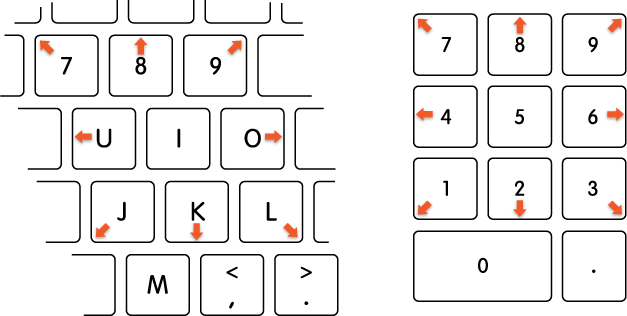

Cursor movement
Advertising
Advertising
- WITH help numbers:7, 8, 9, 4, 6, 1, 2, 3.
- Using the letters:7, 8, 9, U, O, J, K, L.
Mouse click
- WITH help numbers:5.
- Using letters:I.
Mouse button
- WITH help numbers:0 (zero).
- Using the letters:M.
Release mouse button
- WITH help numbers:"." (dot).
- WITH help letters:"." (dot).
This trick is useful not only in cases where the mouse or trackpad breaks, but also when the cursor needs to be moved with great accuracy. For example, in the image editor.
2. More precisely adjust volume and brightness
By default, pressing the brightness and volume keys on your Mac keyboard changes 1 unit of indicator. If you wish, you can adjust these indicators more precisely.


Advertising
Advertising
To change the volume and brightness not in whole units, but in quarters, hold down the keysShift+Optionand press the suggested buttons for changing indicators.
This trick is useful when you need to set the screen brightness as low as possible or adjust the volume so that the sound does not interfere with others, but you can hear it well.
3. Quickly open volume and brightness settings
To quickly open sound or screen settings, hold down the keyOptionand press the volume or brightness button. After this, the settings window will immediately open.
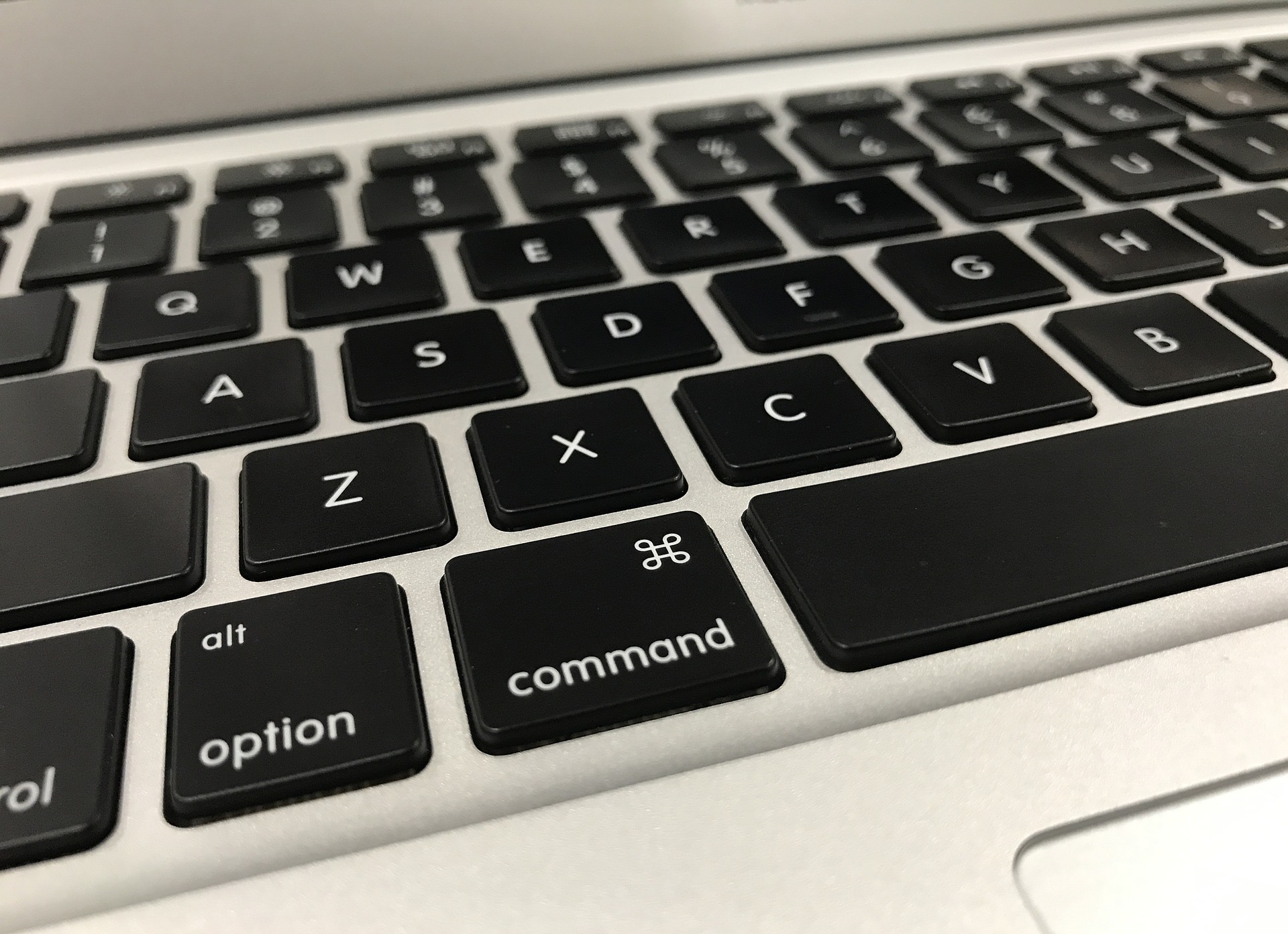

The Option key is used for a large number of other keyboard shortcuts. We recommend reading a selection of useful keyboard shortcuts for Mac.
4. Use the “picture-in-picture” on sites without its support
Picture-in-picture (PiP) video viewing modeIt is very convenient if during work you want to watch your favorite series. However, on some sites it is either not supported at all, or hidden, as on YouTube.
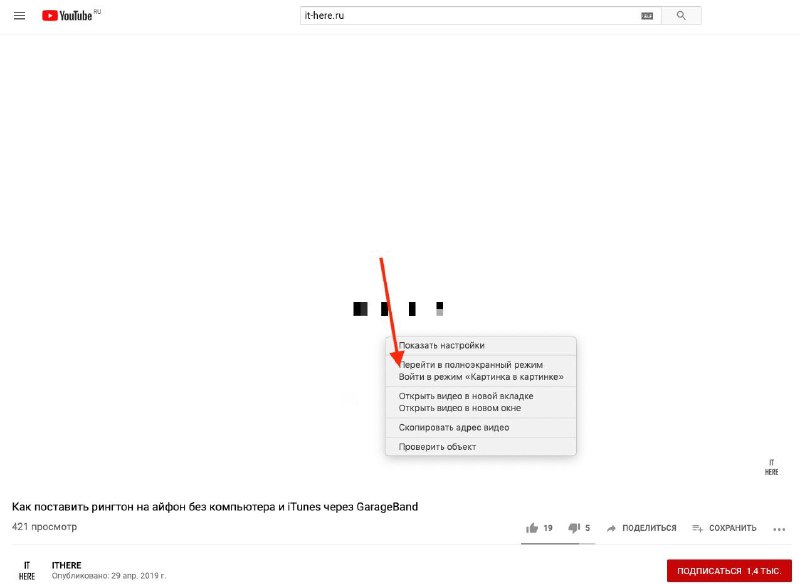
To open the menu with PiP hidden mode, double taprightmouse button on the video. Then click “Enter Picture-in-Picture mode”. This method works great on YouTube.

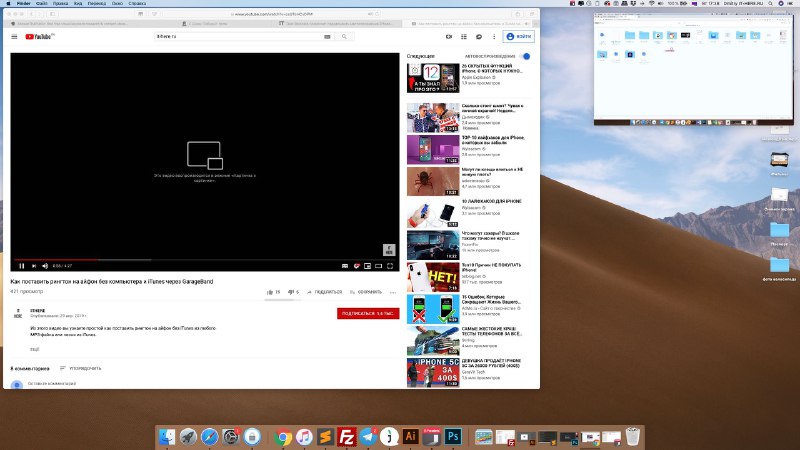
When you activate the mode, a small window with video will appear in the corner of the screen, from where you can move it by holding down the keyCommand.
Advertising
Advertising

5. Swap the menu bar icons
The macOS menu bar displays the most used system functions. Fortunately, their order can be changed.


To swap icons on the menu bar, hold down theCommandand just drag them.
6. Hide Dock and Menu Bar
The menu bar and Dock take up valuable space. To see more content in programs, you can hide them.


You can only display the menu bar when the cursor is in the top right corner of the screen. To do this, go toSystem Settings > Basicand check the box next toHide and show the menu bar automatically.
To automatically hide the Dock, go toSystem Settings >Dockand check the box next toAutomatically show or hideDock. It will appear when you move the cursor to the bottom edge of the screen.
Advertising
Advertising
You can also hide and show the Dock using a keyboard shortcutCommand–Option–D.
7. Clean the desktop using the Stack function.
Stacks is a new macOS Mojave feature thatmakes it easy to clean your desktop. When you use Stacks, your files will be automatically sorted by type. For example, screenshots will be combined into one folder, text files into another, etc.


Click menuViewin Finder and selectPileto quickly clean the desktop.
8. Use smart folders
Smart folders in Finder make it easy to find everythingyour files that match certain criteria in one place. All files of not only one type are collected in them, but also on one topic, etc., and they are constantly updated automatically.
To create a smart folder, select the menuFilein Finder, and then clickNew smart folder. Then you can use our detailed instructions.
- How to create and use smart folders on Mac
9. Use smart playlists
ITunes has a similar feature - smart playlists,which automatically collects songs by criteria. Playlists are also updated automatically. Learn how to create and use smart playlists below.
- How to create a smart playlist of selected songs in Apple Music
You can create a smart playlist with yourfavorite songs, with songs that are no longer available online, etc. Please note that in the Music application, you can only create regular playlists, and you need to use iTunes for smart playlists.
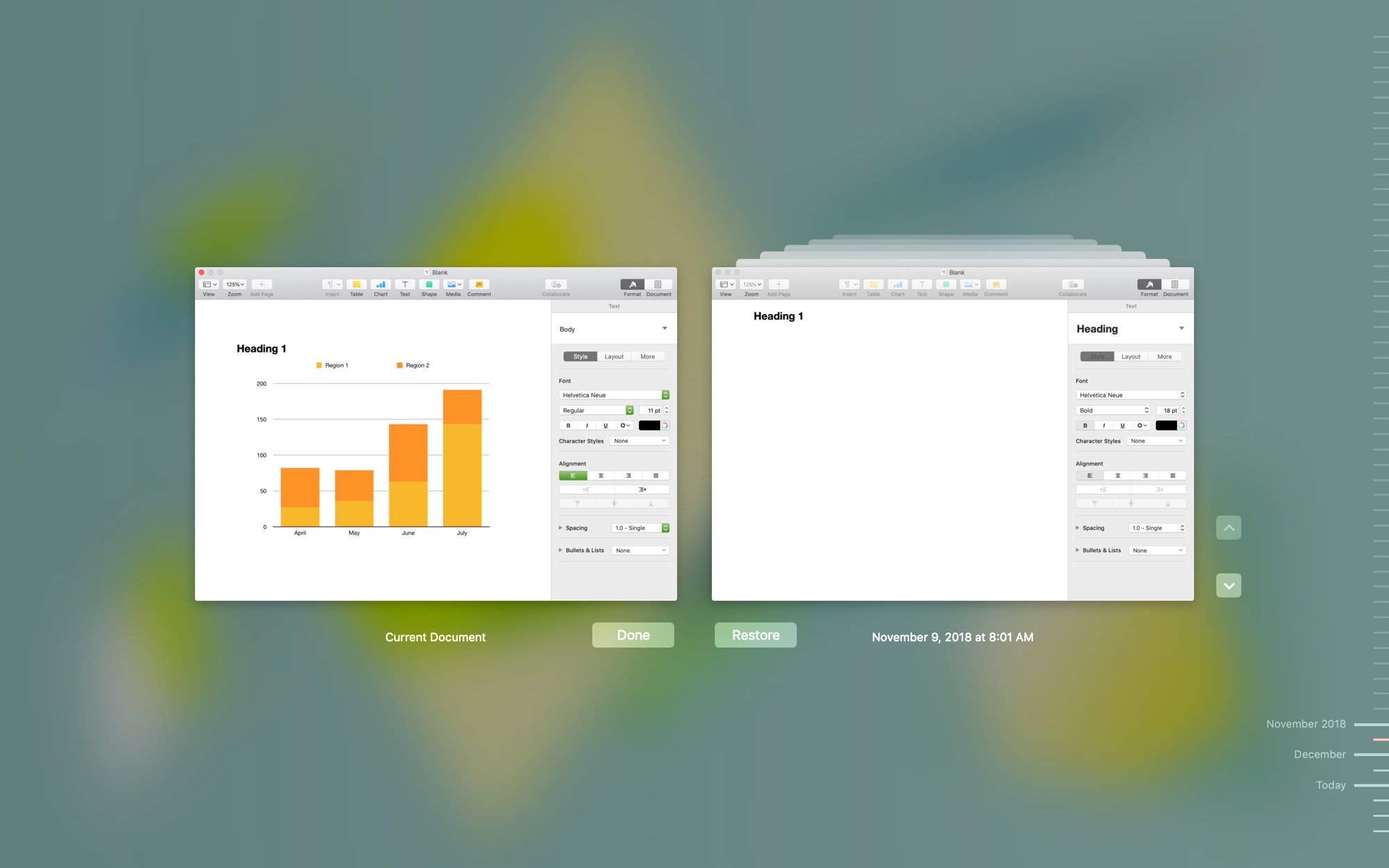
10. Restore previous versions of documents
When you save a file on a Mac, macOS keeps a history of all changes that are easy to mono revert to. Read how to do this below.
- How to view previous versions of documents on Mac

11. Check the running time of your Mac
You can find out the exact time to start or restart your computer, which is very useful for solving various problems. We also have a whole article about this, which you will find below.
- How to find out the time since the last boot of your Mac
12. Customize the touchbar for yourself
Standard touchbar icons for programs are not very gooduseful. Luckily, they can be customized to suit your tastes. You can add the icons you like and remove the ones you don't need. To do this, open the desired program, click menuViewand selectTuneTouch Bar.
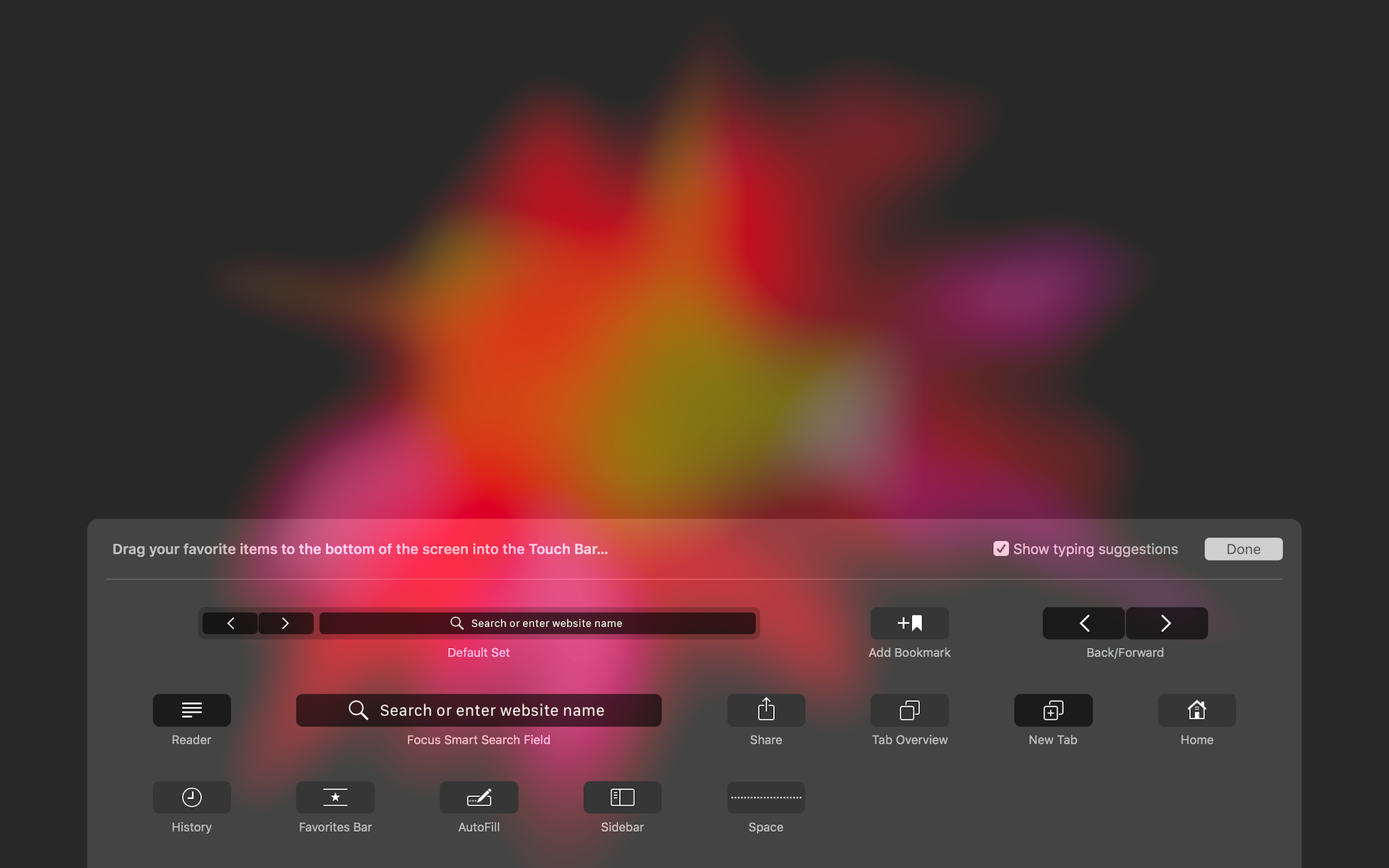

Using the techpad, drag the icons from the screen to the touchbar. You can also swap icons on the touchbar itself.
That's all! These little tricks are worth remembering, because they will significantly increase your productivity.