AirPods Pro are already on sale. Let us remind you that the headphones have active noise cancellation, protection from water and
Advertising
Advertising
We've put together some helpful tips on using the new AirPods Pro below. They will be useful to you, even if you already have regular AirPods, because the new model is significantly different from the previous ones.
1. Be careful with water
Apple proudly noted the fact that AirPods ProProtected against water and sweat. And so it is. However, there is one caveat: the degree of protection IPX4 means only that the headphones are protected from splashes. They can be worn in the gym or in the rain, but that’s all. You can’t swim in them, and they are unlikely to survive the wash. Although there are small chances.
In addition, Apple’s standard warranty does not cover fluid damage, so you will have to pay for repairs.
Advertising
Advertising
2. What does the light on the charging case mean?
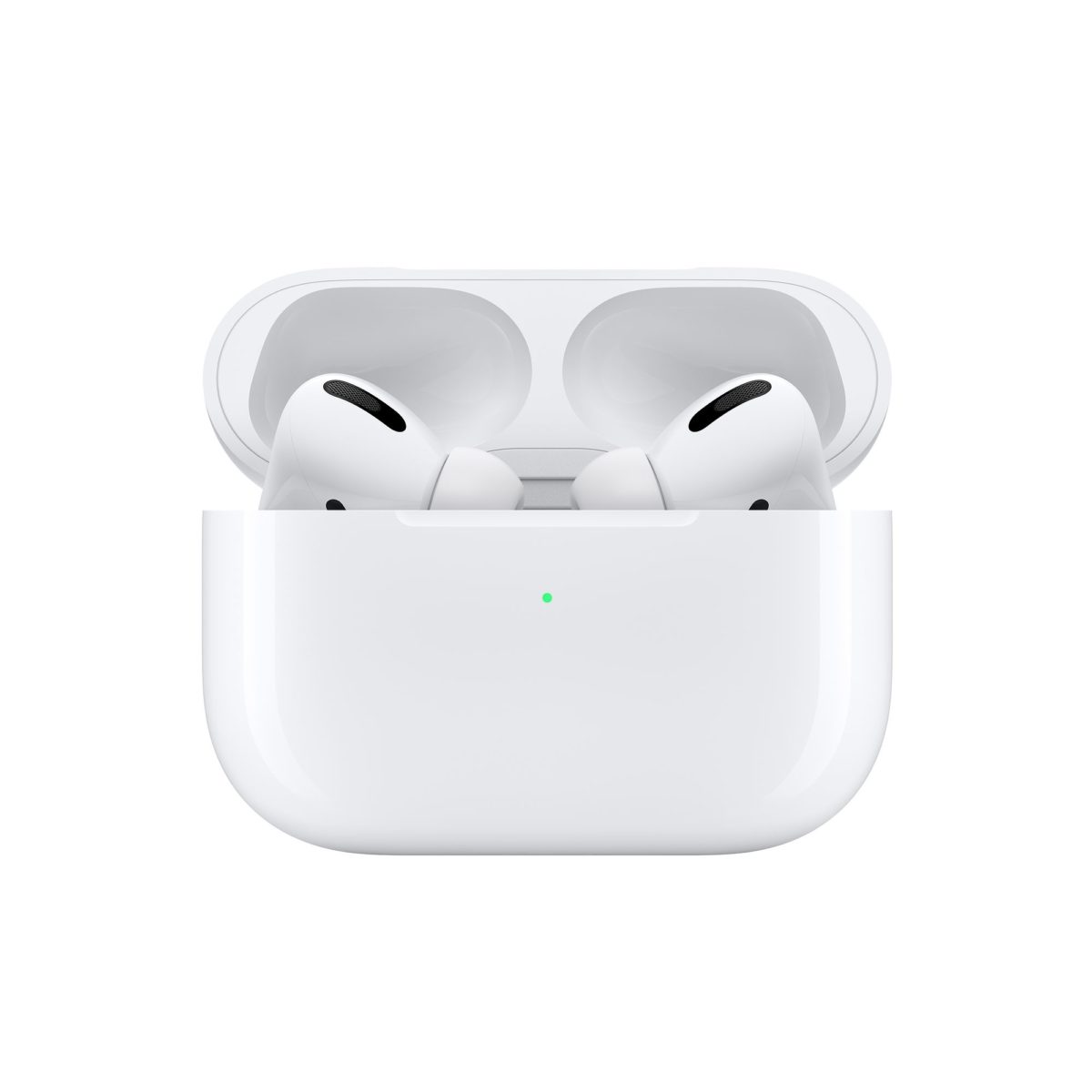
AirPods charging case can interact with you in just one way - with the help of a small light bulb. You can determine the status of your AirPods by the color and flashing of the light bulb.
Does not burn: Your AirPods are discharged and need to be charged.
Yellow light whenAirplans in case: AirPods are charging.
Yellow light withoutAirplans in case: The case contains less than one full charge for AirPods.
Green light withoutAirplans in case: The case contains more than one full charge for AirPods.
Advertising
Advertising
White flashing light: AirPods have been reset and ready to connect.
Yellow flashing light: AirPods cannot connect and need to be reset.

3. Use Transparent Mode
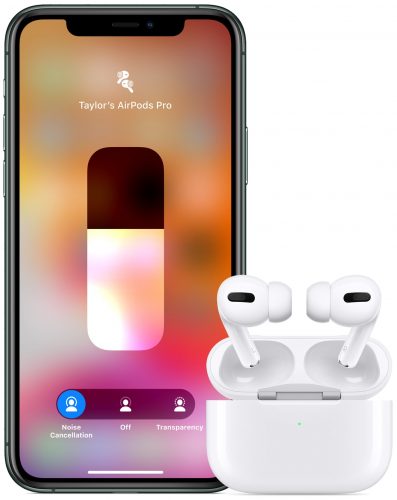
AirPods Pro has active noise reduction,which blocks all external sounds around you. Even without this feature, the headphones block most extraneous noise thanks to the design. This means that it will be difficult to conduct a conversation in the headphones, as well as to keep abreast of what is happening around.
Fortunately, there is a Transparent mode thatskips some sounds from the surroundings. This way you can even have a conversation with headphones, as well as hear cars approaching when crossing the road.
 4. Management
Manage music, calls, etc. On AirPods Pro, you can use pressure sensors.
Sensors are located on the bottom of eachheadphone. By clicking this part, you can perform various actions. For example, one click will stop or turn on the music, two clicks will switch the track, etc. Learn more about managing AirPods Pro here.
5. Switch modes
Using pressure sensors, you can also quickly switch between noise reduction mode and perception mode. To do this, simply use the long press.
6. Hello Siri!
Thanks to the H1 chip, AirPods Pro supportsHello Siri feature. This means that you can activate a personal assistant with this one phrase. The function works even if you use only one earphone.
7. Change the actions of pressing sensors
If you wish, you can activate Siri by pressing the earphone itself. For each of the headphones, you can configure different actions. For example, you can switch modes on the left and Siri on the right.
We talked about how to configure management in this article.
8. Ear Testing
AirPods Pro comes with three pairssilicone inserts in different sizes. Most of us know which size suits us best. However, some do not know. Fortunately, there is a special test in Settings that will help everyone find their ideal size. Moreover, you can determine the appropriate size for each ear separately. It is not necessary to use earbuds of the same size under both ears.
You can find the test in the app.Settings >Bluetooth. From here, click on the i icon next to your AirPods Pro.
9. Announcement of Siri Messages
Unfortunately, in Russia the function does not work, butresidents of other countries will be able to use it. Thanks to the function, Siri reads incoming messages out loud when you are in the headphones. To do this, you do not even need to unlock the smartphone.
10. Free engraving
If you will buy AirPods Pro onlineApple, you can order a free laser engraving on the charging case. It is very convenient if you buy headphones as a gift. Or you can engrave your name and phone number in case you lose your headphones.
11. Listen to others with Live Listen
This may be wrong, but the function is stilluseful. Live Listen is a universal access feature, but it can also be used for eavesdropping. It turns your smartphone into a microphone that transmits audio to AirPods.
Advertising
Advertising
You can read our instructions on how to use the Live Listen function.
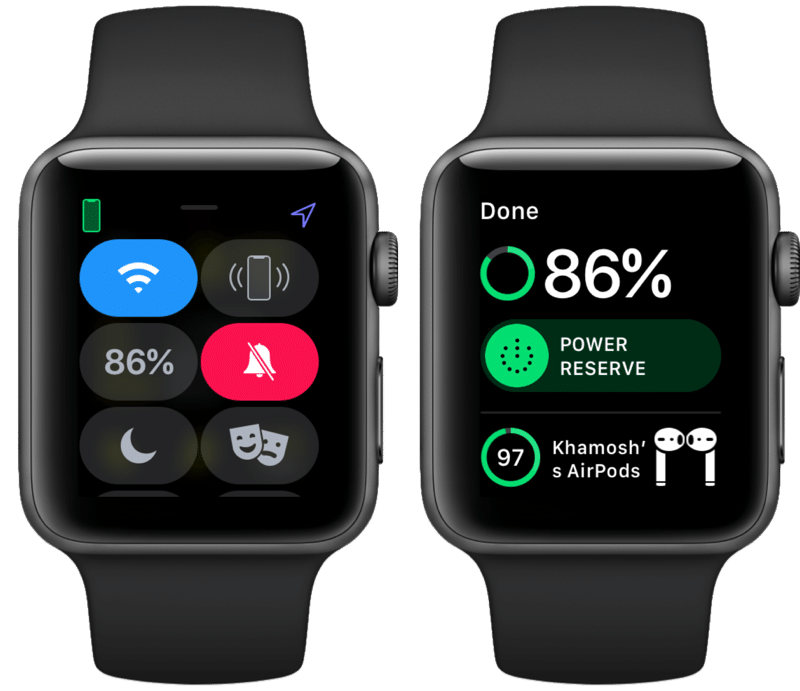
12. Check AirPods Charging Through iPhone
To understand how much charge AirPods has leftPro, you can just open the case. But what if you need to know the charging when the headphones are in use? There is a special convenient widget for this. Add it to your smartphone and at any time conveniently and quickly find out the exact charging of your AirPods Pro and case.


13. Check AirPods Charging Through Apple Watch
If your AirPods Pro is connected to the same iPhone as the Apple Watch, you can recognize the charging of the headphones through the smart watch. To do this, open the Control Center on the watch and press the charge icon.
Advertising
Advertising

14. Use AirPods with Apple TV
AirPods Pro does not appear as a deviceAirPlay on Apple TV automatically. They need to be connected manually. When you connect them, you can easily and conveniently stream audio to them through the AirPlay screen.
15. Stream audio to two pairs of AirPods at once
IOS 13 has the ability to broadcastAudio from one device to two pairs of AirPods Pro. You can connect second headphones through the music widget in the Control Center. Hold it, and then click the AirPlay icon. Select one headphone and then the other.
➤ Buy AirPods Pro