You can do a lot of useful things with the Teams app on your iPhone and iPad. You can add albums to
Advertising
Advertising
With the help of commands, familiar actions can be performed much faster and more conveniently. Below we will tell you about seven widgets that can be created using Commands on iPhone and iPad.
- Commands application
- 1. Speed dial
- 2. Time of arrival home
- 3. Route home
- 4. The timer for washing
- 5. Play the playlist
- 6. Water consumption log
- 7. I'm late
Commands application
To download each of the widgets, youyou will need to go to the Commands application on the Gallery tab. Enter the name of the desired widget in the search bar, and then add it. You can also use links.
You also need to add Commands to the widget page.
Advertising
Advertising
one)Open the pageToday, scroll down and press the buttonChange.
2)Click on the plus sign next to the Teams app.
3)If you wish, you can drag the Commands item to another location in the list.
four)When you're done, clickIs done.


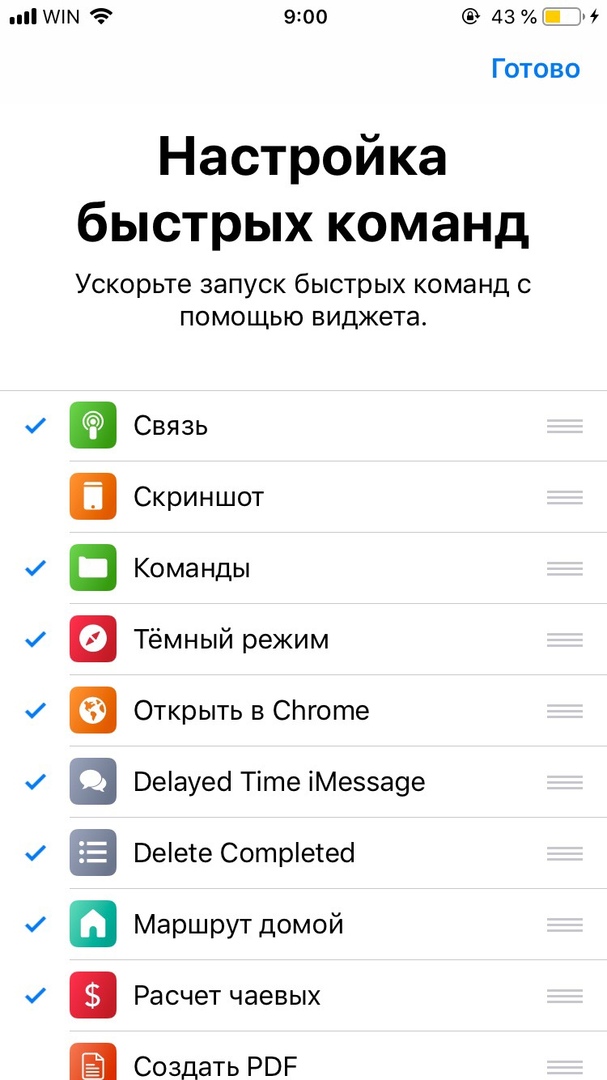
Now on the Today screen you will see all the widgets created in Teams. Select any one to use. ClickingSet up quick commands, you can choose which widgets are displayed and which are not. You can also change their order.

Advertising
Advertising
1. Speed dial
You can quickly dial someone using the Speed Dial command.
Add this command, and then select the number that it will dial.
Advertising
Advertising


To use the widget, you will need to give it access. After that, you can dial the selected number with one touch of the widget.
2. Time of arrival home
You can quickly notify family members or friends when you arrive home with this command.
When setting up the team, enter the address of your home, as well as the numbers or mailboxes of those whom you want to notify. You can also add someone from your contacts.
When you click on the widget, the person you select will receive a message or email with your estimated time of arrival.
You can select your message text and several recipients.


3. Route home
You can quickly build a route home from anywhere using the Route Home command.
To set up a team, you need to enter the address of your home, and also select Apple or Google Maps.
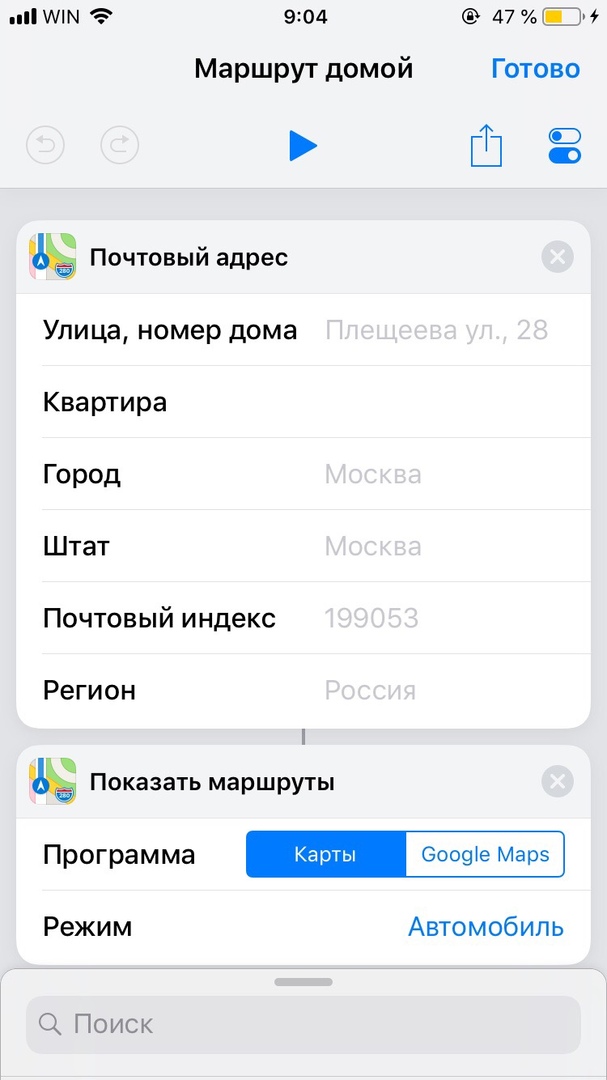

When you touch the widget, the route home will immediately open in the application with maps.
4. The timer for washing
If you often do the laundry, you will like the Laundry Timer widget. With it, you will not need to keep in mind a reminder that the wash has ended, etc.
There is no need to customize the widget. Add it and select, and then enter the number of minutes for the timer. When time runs out, you will receive a reminder.
The team uses the Reminders application, so you can use it for anything, not just for washing.


5. Play the playlist
You can quickly turn on your favorite songs using the Play Playlist command.
When setting up, just select a playlist and play it with one touch of the widget.


This is the easiest and fastest way to include your favorite songs.
6. Water consumption log
Want to keep track of how much water you drink per day? Then you can use the Water Consumption Log widget. With it, you can quickly record the amount of water you drink.
Just touch the widget, select the amount of water you drink and it will be recorded. The widget can also be customized.


7. I'm late
It doesn’t matter where you rush: to a meeting, meeting or date. Now you can quickly let a person know that you are late with this command.
Tap the widget to select an event from the Calendar, and a message opens with the time you’ll be late. Then just add the recipient and send the message.
You can customize the widget by selecting the message text, recipients, etc.


These are just a few useful widgets that you can create using the Commands application. There are many more in the application itself, so we recommend that you study it.