One of the security measures in macOS is a dialog box that appears when you first launch just
This warning may keep the averagea user from launching an application with malicious code accidentally downloaded from the Internet. But a more experienced user may want to get rid of such a warning once and for all, provided that he follows all the safety rules regarding applications that he downloads from the Internet and runs on his device. For this case, there are various solutions and in this guide we will show you the pros and cons of each of them.
Option 1: Launch the application by right-clicking
This option is the simplest anda safe way to avoid the appearance of the Gatekeeper service dialog box. It does not save time and you won’t be able to completely avoid the warning window, but this option will allow you to quickly launch the application, in which you do not have to turn off the security service.
To open a blocked service "Gatekeeper"File without disabling it in"System settings", Just right-click on this file (or use the"ctrl-click", If you like it more), and in the menu that appears, select the command"Open". Then a window will appear asking you to confirm this action. Choose “Open"Again and your application will start.


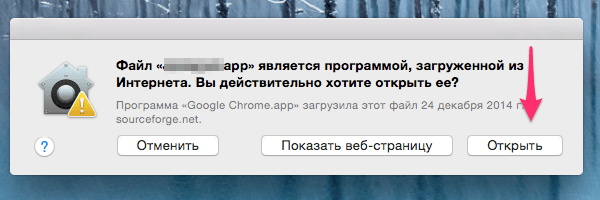


 In the future, this application will be launched withoutconfirmation, since its launch is already approved in the security system. This launch option is applied only once - at the first launch and is applicable in both cases when the following dialog boxes appear: “A file is a program downloaded from the Internet. Do you really want to open it? ” and “The program cannot be opened because its author is an unidentified developer.” Gatekeeper Security remains on all the time.
Option 2: Allow Launch in System Preferences
This option is identical to the previous one.option, but takes more action and time, so it is less preferable. Just keep in mind that it is available. So, double click on the application. After the warning window appears, clickCancel"And run"System settings"Where we select the panel"Protection and safety", In the tab"Main»You will see a locked application. To run them, select the "Allow From Anywhere". As in the previous case, this action will have to be performed only once, the first time you start the application in doubt.
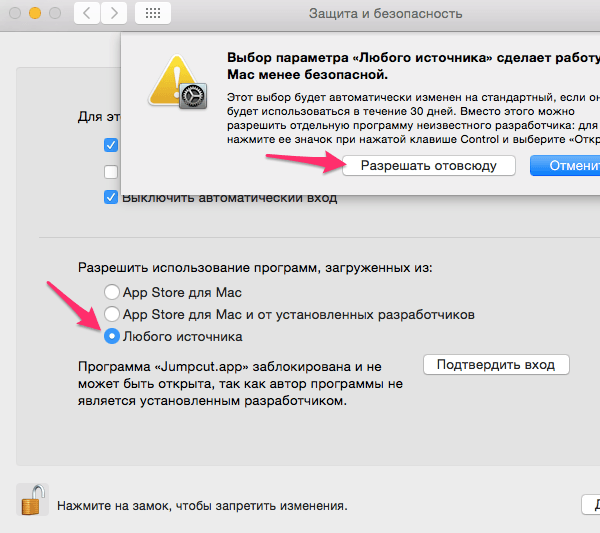

Option 3: Turning Off the Gatekeeper Security System Completely
This option will avoid seeingwarning dialog boxes on its screen, but it has one significant drawback for obvious reasons: the lack of any protection from the security service. For this reason, I do not recommend using this method, unless you really understand what you are doing and know other ways to verify the origin and integrity of the downloaded file.
To put the Gatekeeper security service in a completely helpless position, follow these steps:
1) Launch the application “Terminal", which can be found in/ Applications / Utilities, or run through the Spotlight search service.
2) In the terminal window, type and run the following command:
sudo spctl –master-disable
3) Press the "Enter"To execute it and then, run the application"System settings".
4) Select the panel "Protection and safety"And then the bookmark"Main". There you will see that a third option appeared, which was missing earlier: “Allow the use of programs downloaded from: Any source".


As you can see, your system is now in"Allow the use of programs downloaded from: Any source" and means that the Gatekeeper security system is completely disabled. The operating system will no longer bother you with warning messages when launching applications downloaded from unknown sources. This method saves time when launching unknown applications and is also the least secure method available. Be careful when using.
To enable the security system "Gatekeeper", Just select one of the offered options, in the form of switches. After closing System Preferences, the option “Any source» will disappear again and to activate it again you will need to repeat the steps described in point 2.
Option 4: Turn Quarantine / Isolation Off
This option has the same result asOption 3, but it works a little differently. I do not recommend the use of this method for the reason that it is not documented anywhere, unlike Option 3, which leads to the same result. This method is included in this publication for educational purposes only.
The whole point of this method isdisabling quarantine mode for files downloaded using browsers, mail applications, and even AirDrop services, which are usually assigned the quarantine attribute. It is the presence of this attribute that drives the Gatekeeper security service. Security Gatekeeper does not scan a file without the quarantine attribute. That is, all the work of the Gatekeeper security service is based on the presence or absence of the quarantine flag.
When using Option 3, the security service“Gatekeeper” is completely deactivated and file checks are not performed even despite the presence of the quarantine attribute in them. When using this method (Option 4), the mechanism for assigning the quarantine attribute to the file is deactivated and the Gatekeeper security system considers that there is no need to check this file for security. The security system itself remains active, operational.
Both methods produce the same results.although various mechanisms are used. As I mentioned above, with this method you have to use an unusual procedure and is not ideal to use.
To disable quarantine mode for downloaded files, do the following:
1) Launch the application "Terminal", which can be found in/ Applications / Utilities, or run through the Spotlight search service.
2) In the terminal window, type and run the following command:
defaults write com.apple.LaunchServices LSQuarantine -bool false
3) Press the "Enter"For its implementation.
4) To check the settings, type and run the following command:
defaults read com.apple.LaunchServices
With the right settings, the result will be the command line: LSQuarantine = 0.
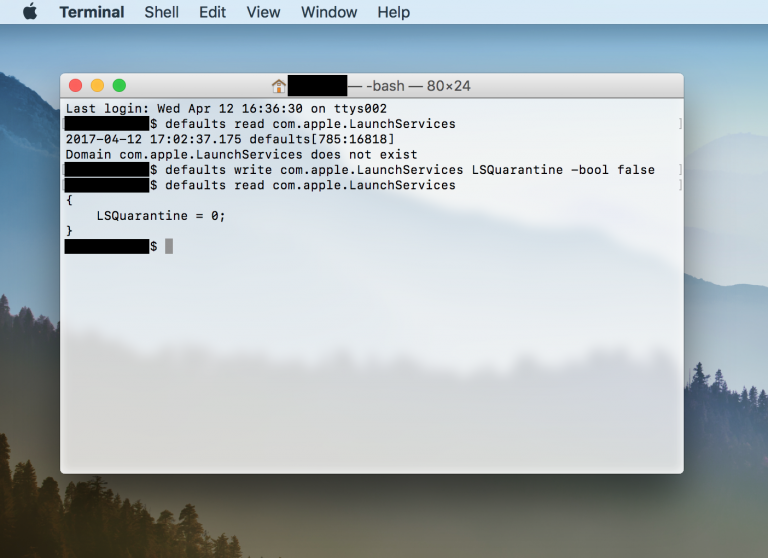

5) Restart your computer for the changes to take effect.
6) After restarting the computer, try running any application downloaded from the Internet.
If you decide to turn on quarantine mode back (which, in fact, you really need to do), then follow these steps:
1) Launch the application “Terminal".
2) In a terminal window, type one of the following commands:
defaults write com.apple.LaunchServices LSQuarantine -bool true
defaults delete com.apple.LaunchServices
The first command switches initiallythe changed parameter is set to true and returns warning messages to life. The second command completely removes the initially changed parameters and also leads to the appearance of warning windows. The end result of both teams will be the same, you can use any of the proposed options.
3) To check that the settings are correct, you must again enter the command to query the status:
defaults read com.apple.LaunchServices
If you used the “-bool true” setting in Point 2, then the result of the request will be the line:
LSQuarantine = 1 - Indicates warning messages are enabled.
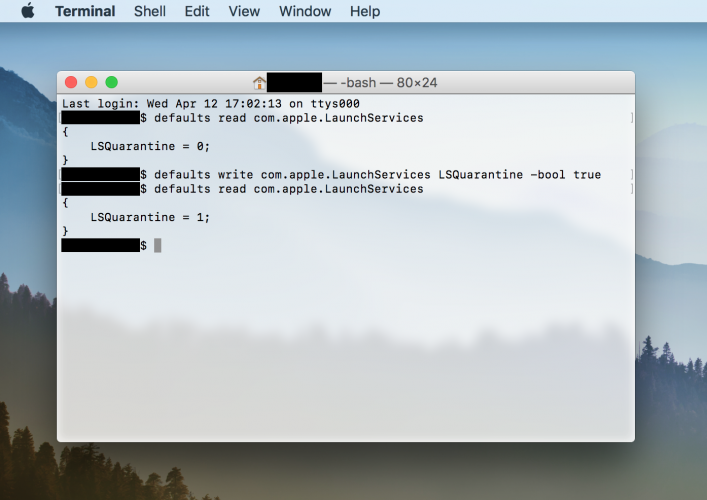

If you prefer to delete the settings using the second command, the query result will be the following line:
Which means that the parameter has been completely removed and the system returns to the standard procedure for conducting checks with warning messages.
4) Restart your computer
To remove the quarantine flag for onea separate file, you must run the terminal command below. This can be useful, since you do not change the settings for assigning quarantine mode for downloaded files, and also do not change the security modes of the “Gatekeeper” system, but for an individual file, make an exception to the general algorithm of actions and turn off warning messages specifically for the selected file. For example, you have an application downloaded from a trusted source and you need to install it on many computers. To disable warning messages on each computer, you must turn off the quarantine attribute for this application by performing the following action in the Terminal application:
xattr -d com.apple.quarantine / path-to-quarantined-file
Replace /path-to-quarantined-file withlocation of your file or simply drag the required file onto the terminal window into the appropriate part of the command line. Now this application will calmly avoid all the “traps” of the Gatekeeper system and will have the status of a “verified file”.
This is how these problems are solved. Using the power of the command line, we overcome small inconveniences created by the presence of a security system.