</ img>
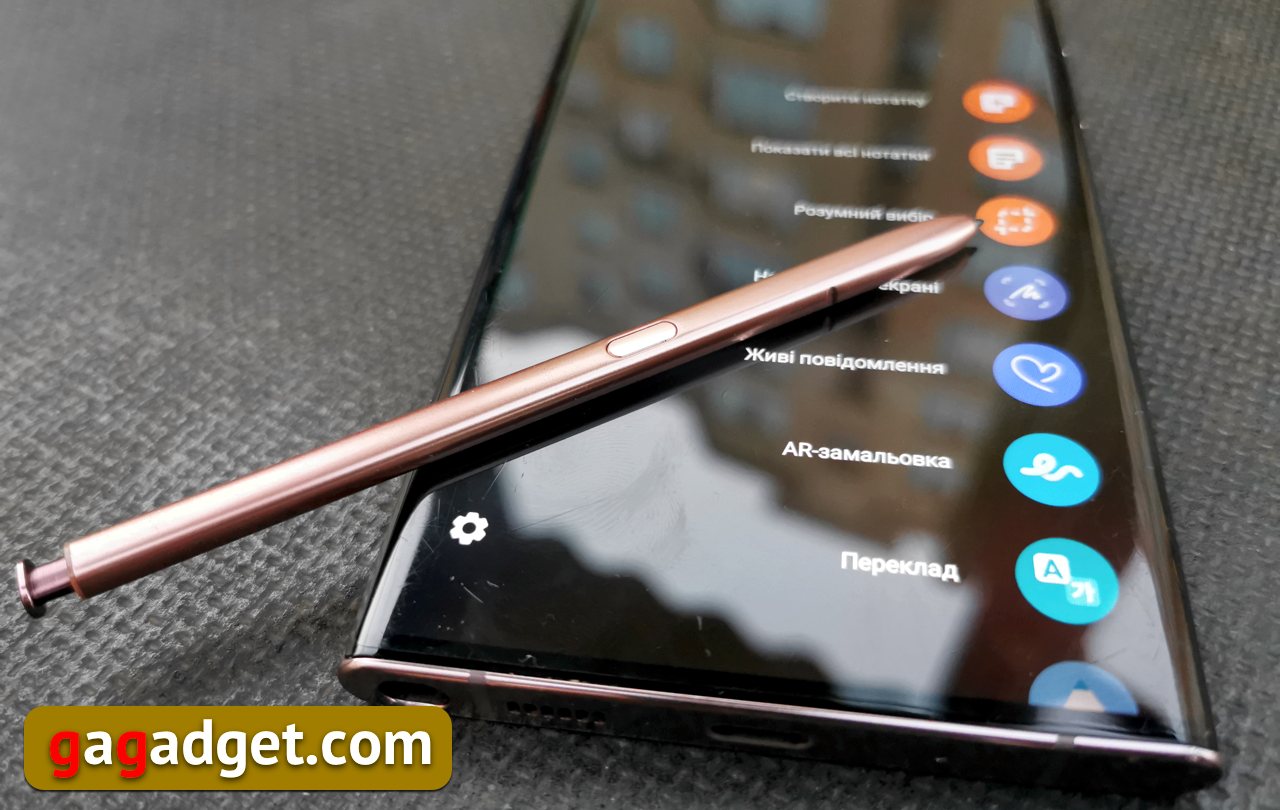
Of course, there is one thing that makes the entire Galaxy Note series of smartphones unique and unrepeatable.Samsung
How do I get started with the S Pen?
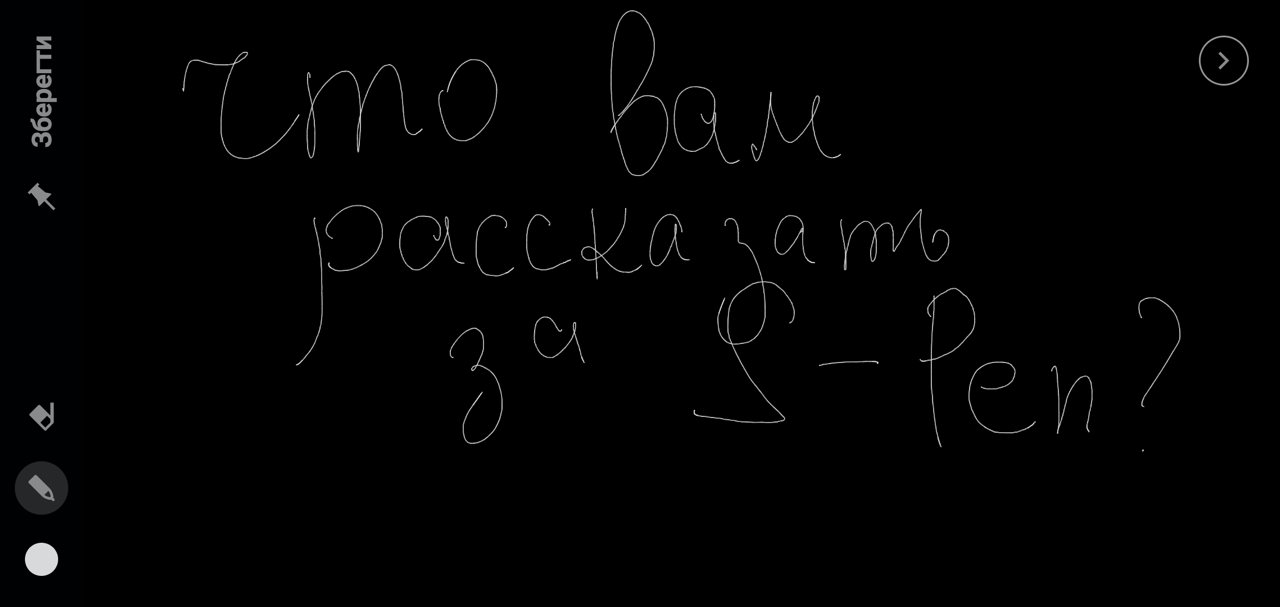
Nothing could be easier - just remove the penfrom its compartment inside the smartphone. To take a note on the Galaxy Note 20 Ultra, you don't even need to unlock it—you can write directly on the screen when it's off. It looks like this (yes, I warned you that my handwriting is disgusting):
</ img>
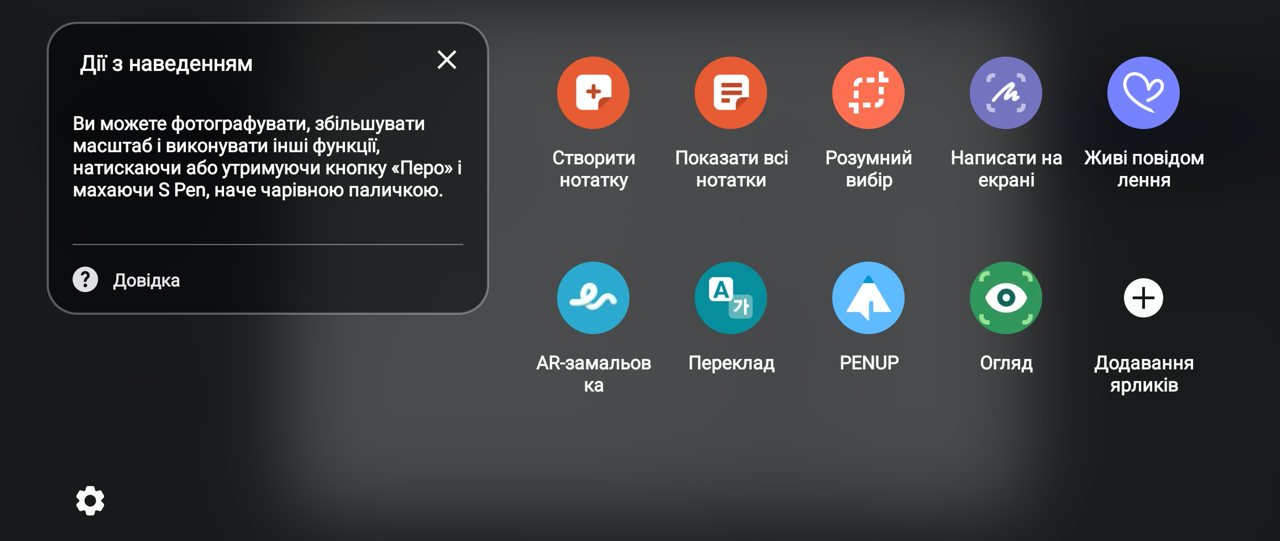
S Pen settings are located in the Advanced menuFeatures" and includes a bunch of toggle switches that allow you to turn on and off a bunch of technical features, depending on whether the user finds them useful or annoying. After removing the S Pen from the smartphone body, a list of application shortcuts available for working with the pen appears on the screen. The list is incomplete, it can be adjusted at your discretion. Until the S Pen returns to its compartment, this list is available by pressing a special button floating on the screen (whoever is suddenly annoyed by it can turn it off in the settings - it’s always nice when a manufacturer does not impose its interface solutions, like one well-known fruit company, but gives the ability for the user to decide for himself which line between convenience and intrusiveness he prefers).

</ img>
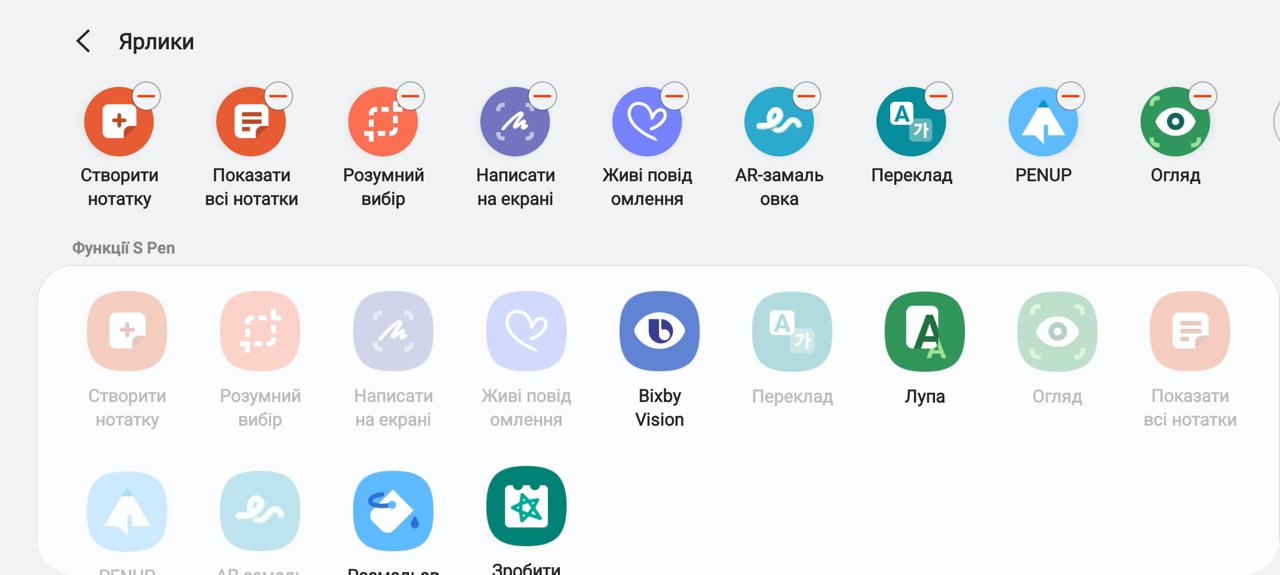
If you click on the button with the imageconnected pen, a window appears in which you can launch the S Pen help tutorial. By clicking on the plus sign, you can call the settings for the list of shortcuts and add those that are worth using, as well as, on the contrary, remove those that are not needed in the work.

</ img>
</ img>
</ img>



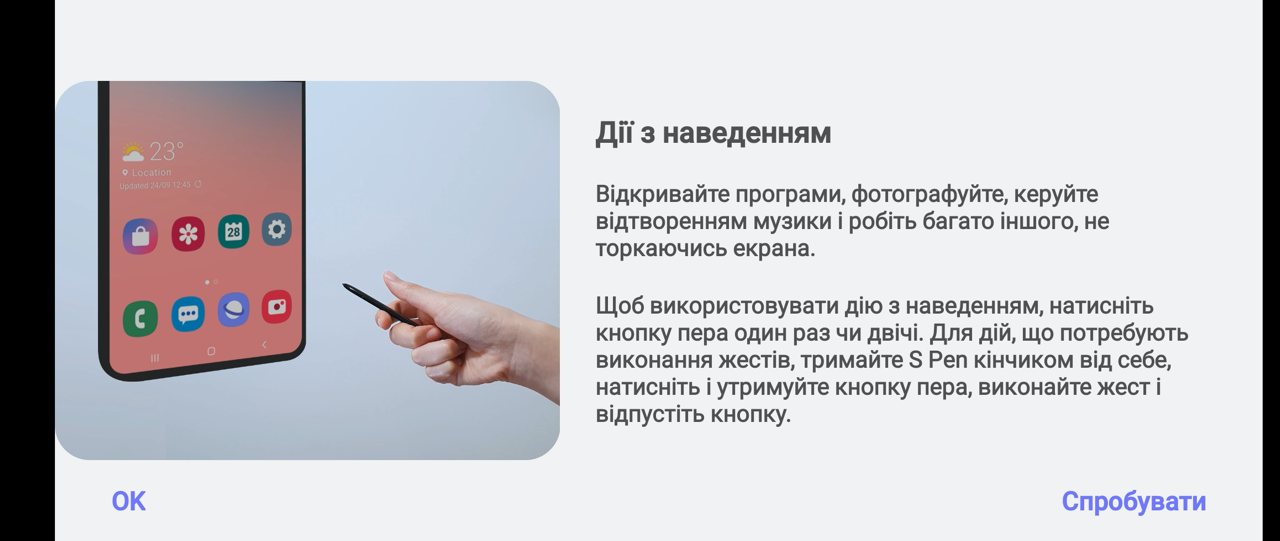
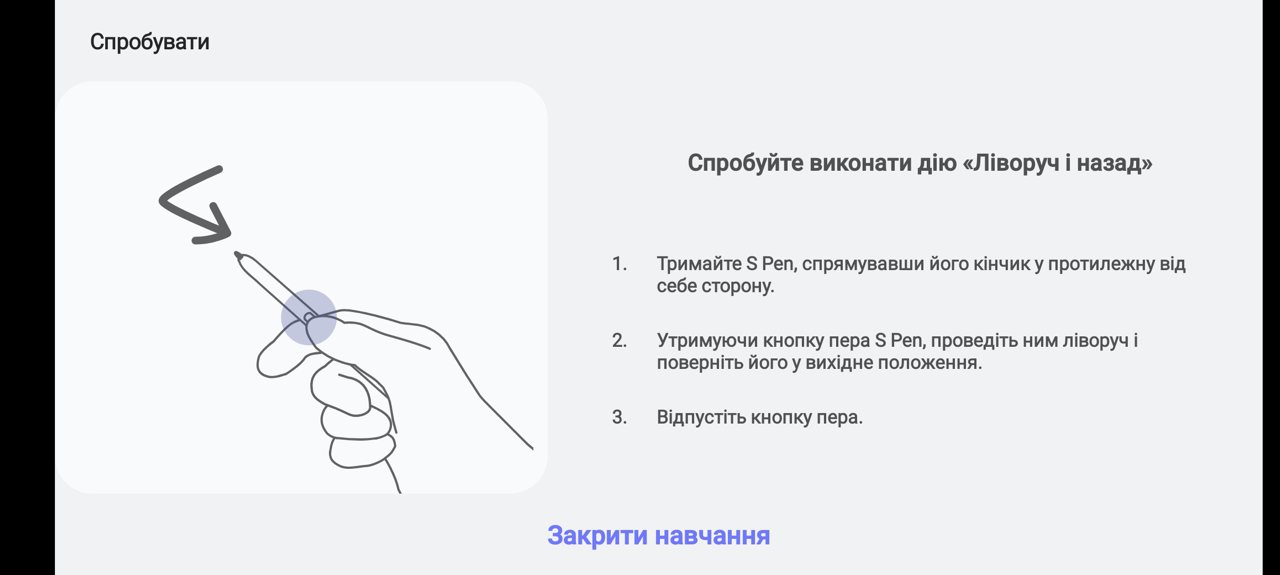
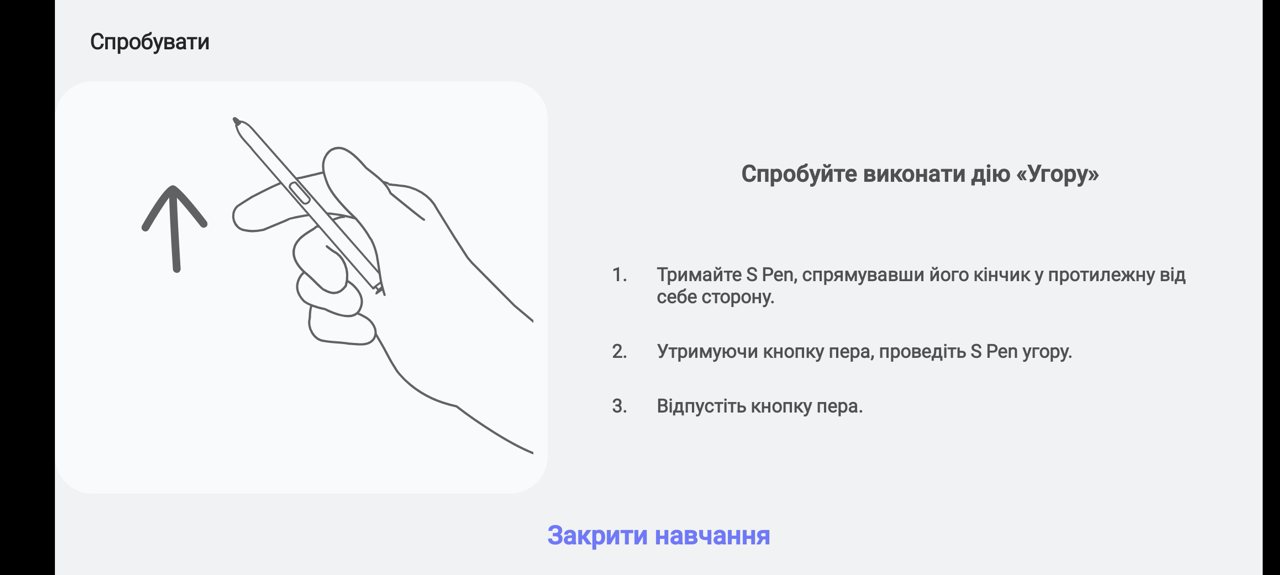
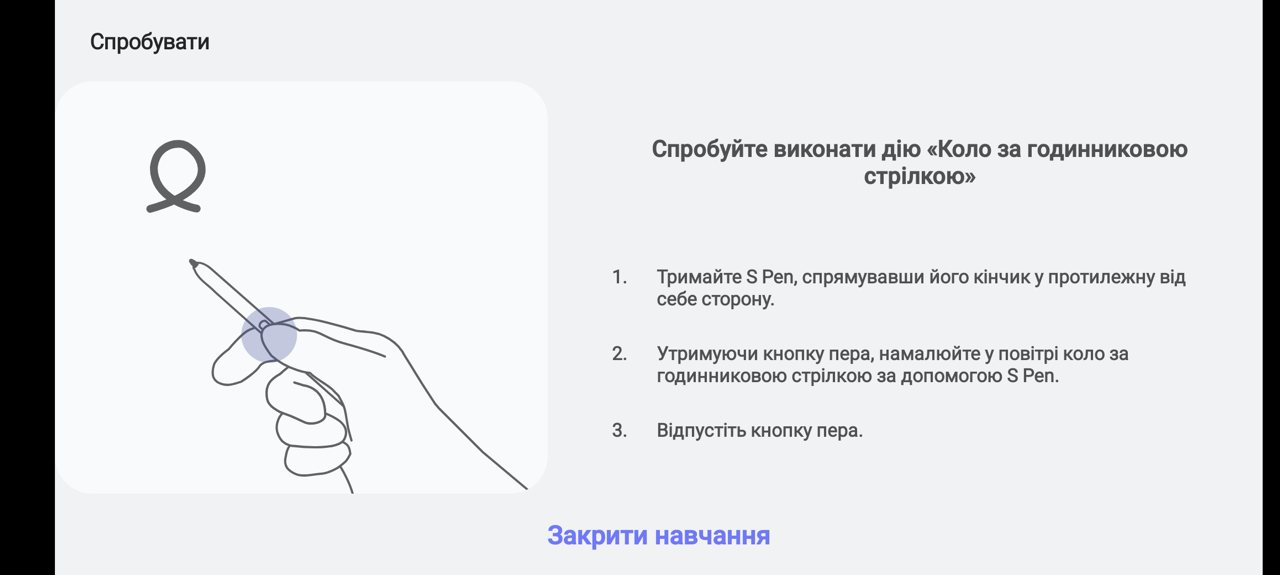
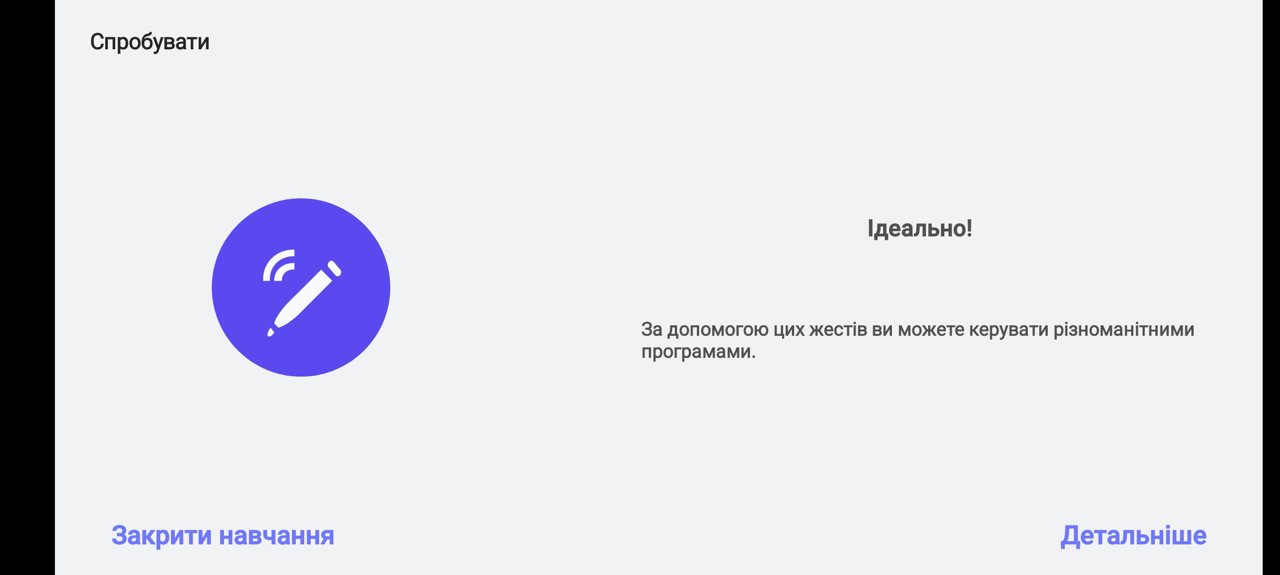
The educational application, by the way, will not work at allsuperfluous. In the Galaxy Note 20 Ultra, the pen can recognize 7 gestures - movement in four directions, rotation clockwise and counterclockwise, and flicking. It is worth practicing with the tutorial to master these gestures - you are unlikely to succeed on the first try, but the application will tell you how to make gestures so that the system recognizes them - move your hand a little faster or slower, make the circle a little larger, and so on. It only took me a couple of minutes to master.
</ img>
</ img>
</ img>

</ img>
</ img>
</ img>


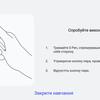


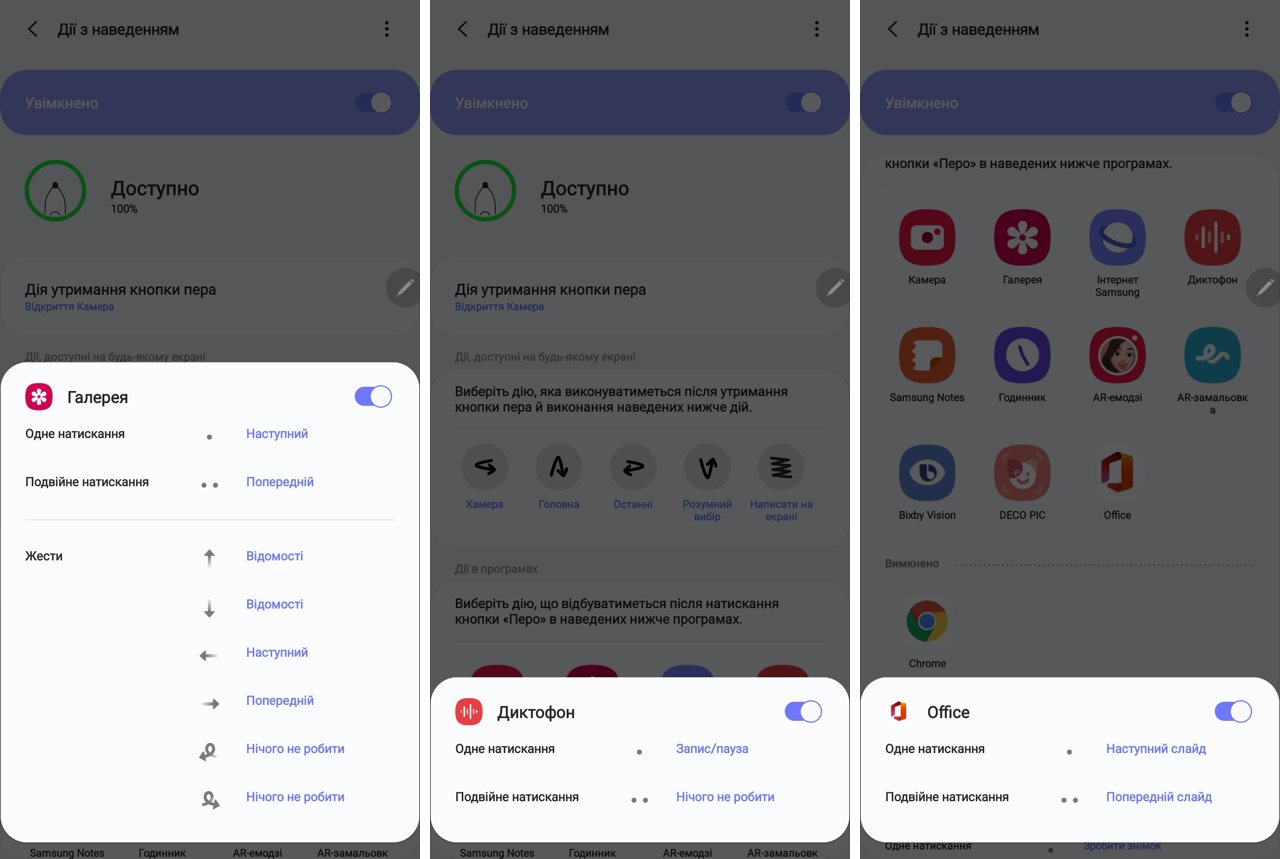
Each of the five gesture gestures can be usedto run some kind of application. Another application can be launched by long pressing the S Pen button. The result is some kind of magic from Harry Potter, it all looks a little funny and really smacks of techno magic. System apps have a list of gestures they recognize to control. For example, one of the most advanced is the camera app. By the way, a long press on the button launches it by default. A short press activates the camera shutter, a double quick press switches the camera to the front and back. You can select shooting modes with gestures. In general, by the way, remote control of the camera using the S Pen will sooner or later come in handy, for example, for self-portraits, when the arm's length is clearly not enough. And in general, it is convenient to shoot without touching the smartphone screen - this non-contact technique was used by photographers from the time of film photography - they had a special cable screwed to the shutter release button.

</ img>
Some applications have a larger list of gestures, others- less. By the way, another scenario for remote control of the Galaxy Note 20 Ultra using the S Pen is switching between presentation slides. Displaying a presentation file from a smartphone on the big screen and using the stylus as a clicker for presentations is not a superfluous feature for buyers of this smartphone; I am more than sure that it will not only be in demand, but will also provide an incredibly pleasant user experience.
</ img>
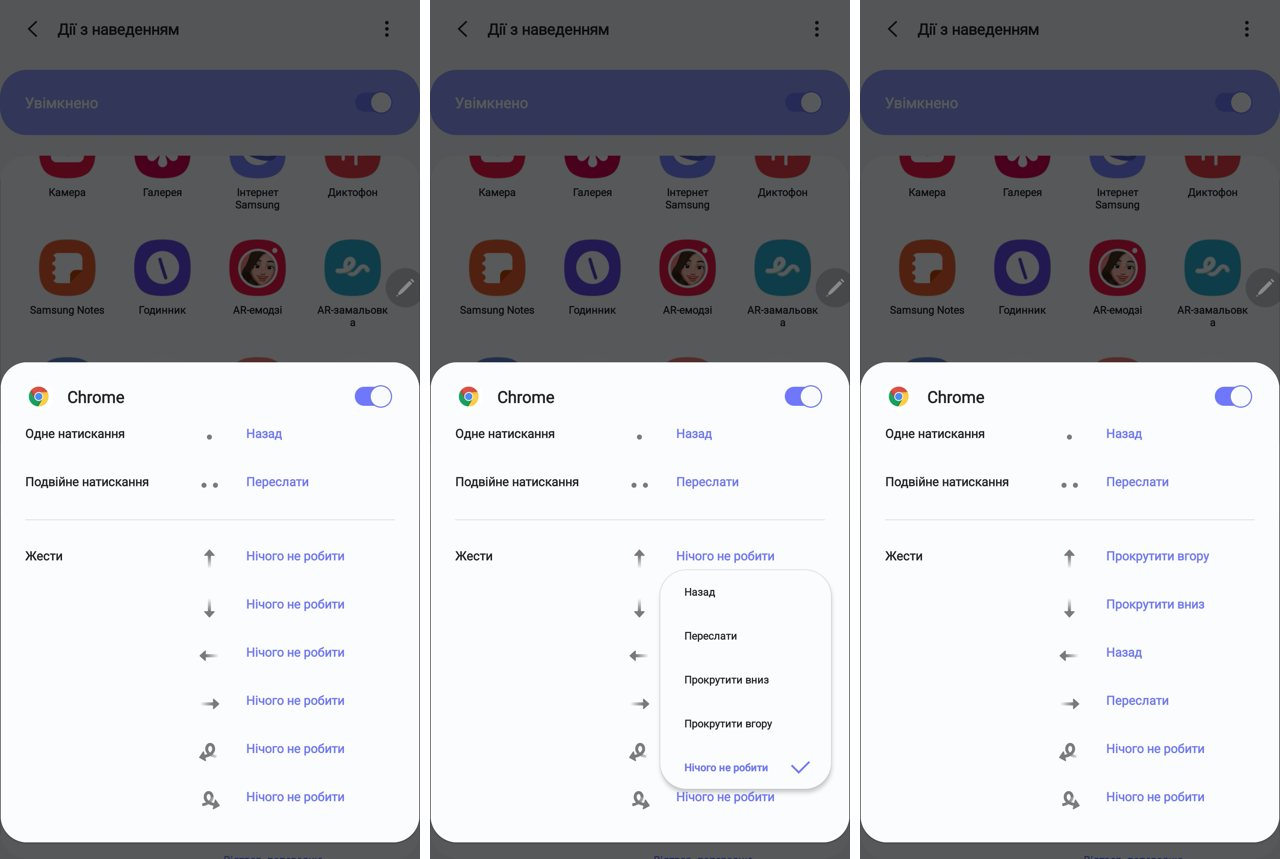
But the Galaxy Note 20 Ultra would not be itself,if it weren’t for (once again) giving the user the opportunity to configure something. By default, the Chrome browser does not use gestures for control, but they are easy to assign as you wish - you can control the scrolling of a web page up and down, go to the next or return to the previous page, and cause a link to be sent.
</ img>
How to caption screenshots
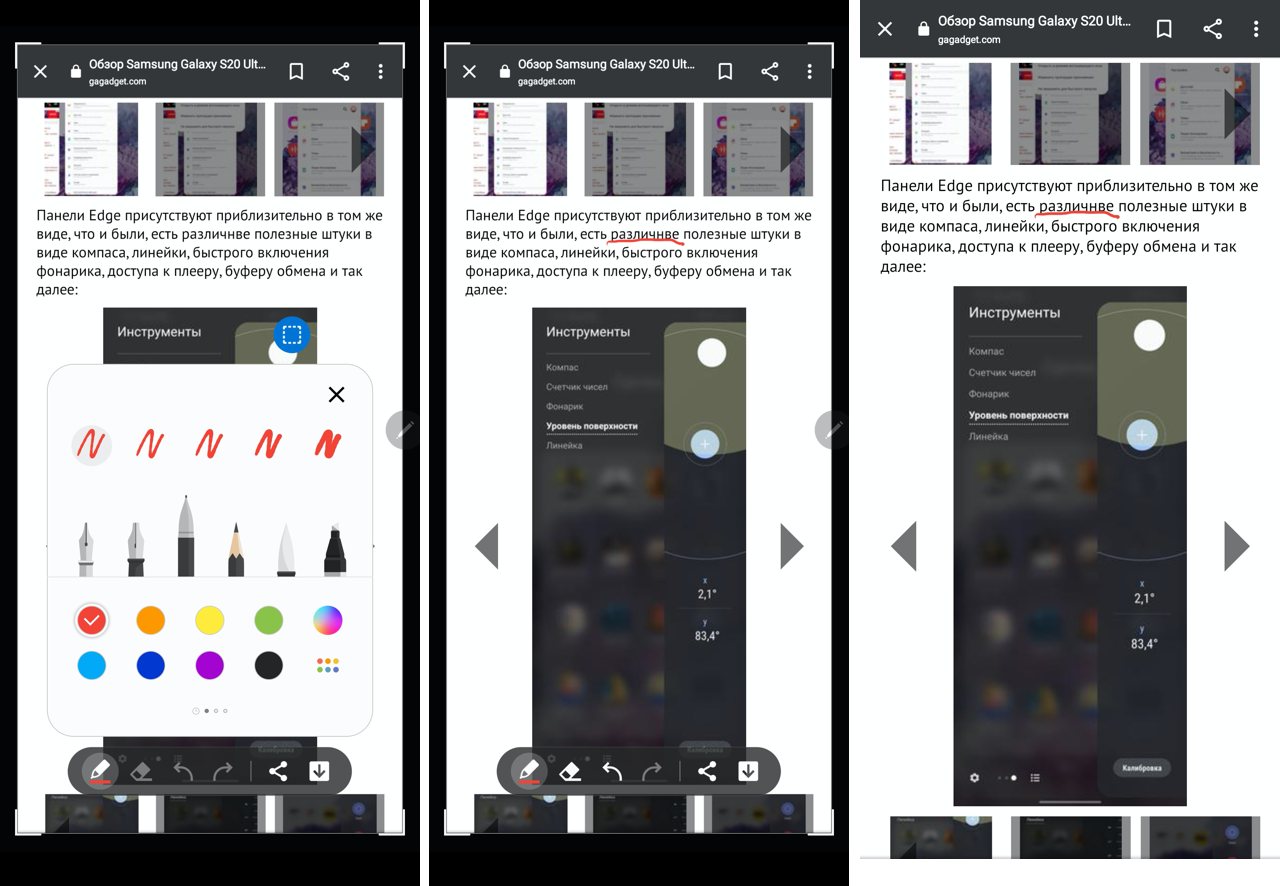
Probably everyone had to take screenshots,to show some mistakes in them or to highlight some important places. For example, I have to do this in my work more often than I would like. For example, on our website you cannot use the module for sending editorial errors from a smartphone. Smartphones don't have a Ctrl button and that's it. It is available on computers, but not needed on smartphones. In such cases, you can launch the Screen Caption application, which will first take a screenshot and then allow you to make an inscription. And thanks to the S Pen, you can do it much more accurately than using your finger on the screen.
</ img>
The S Pen profession: recognizing text in images
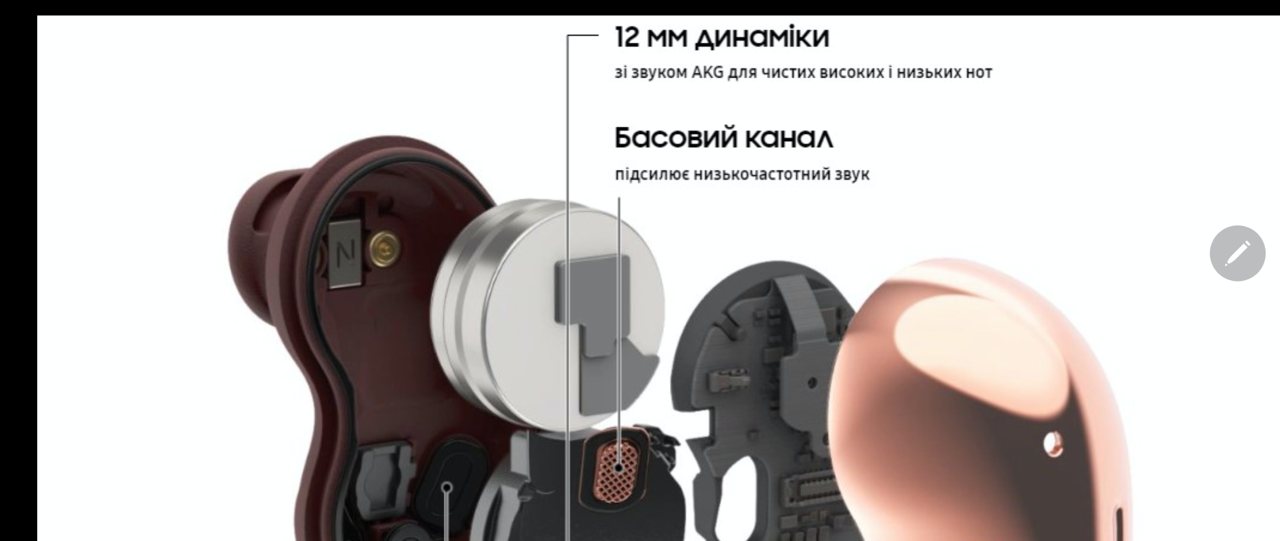
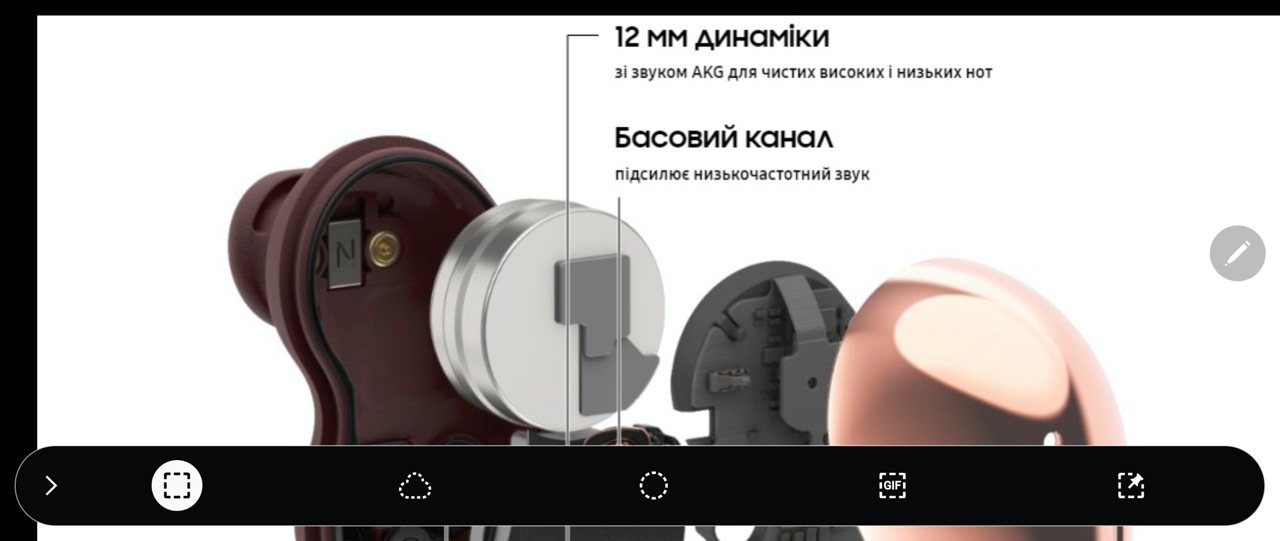
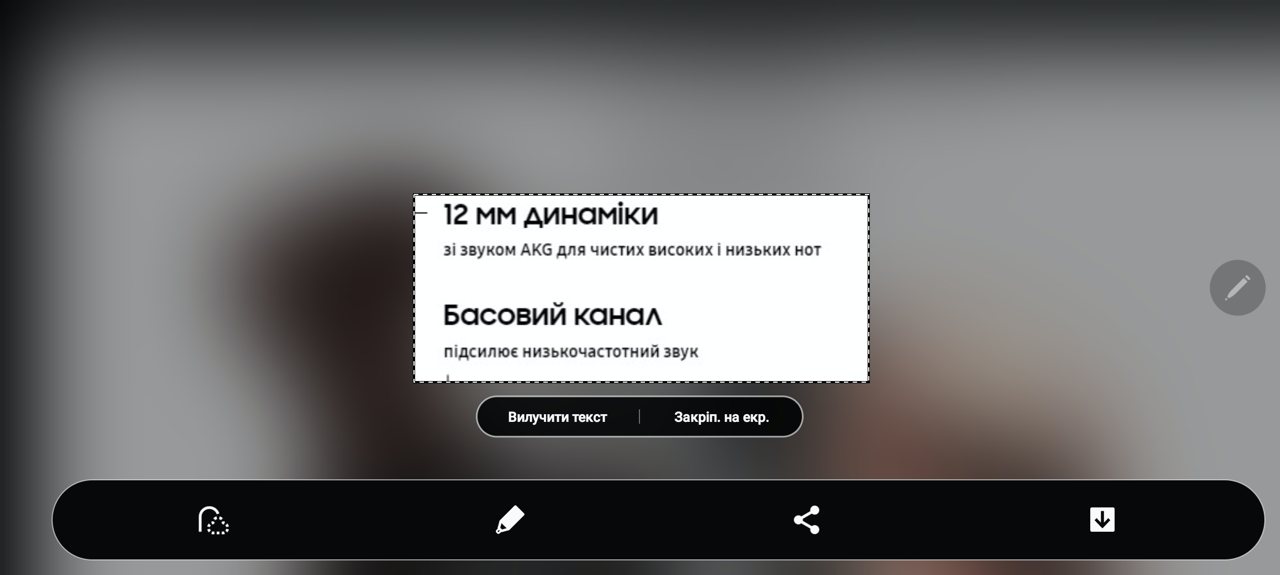
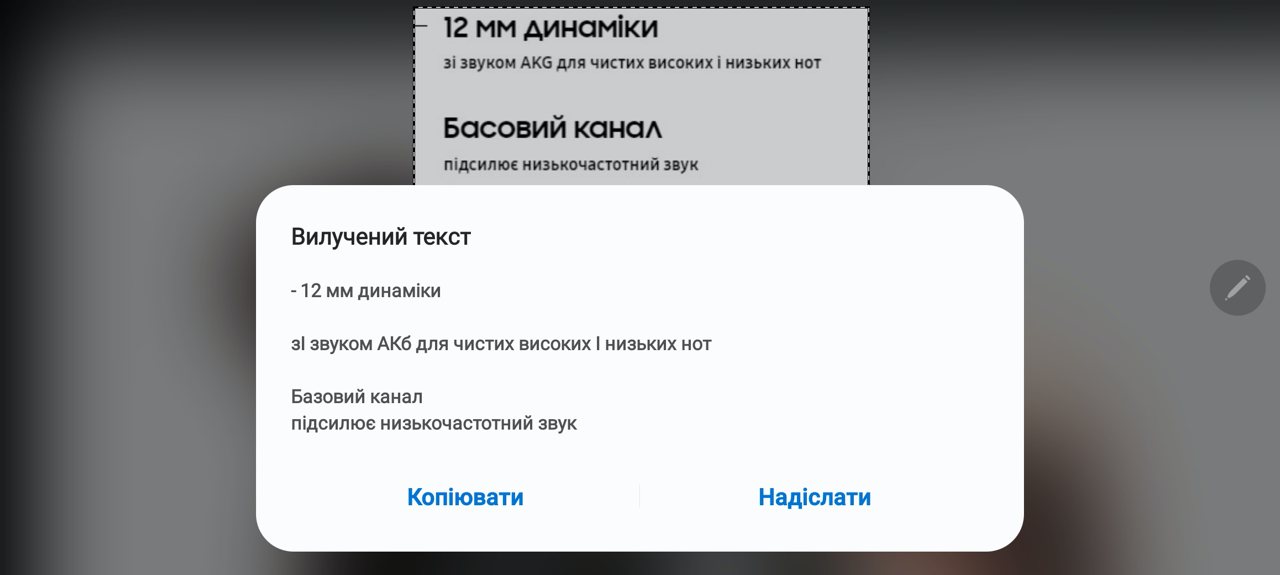
We all (hopefully) know how to copy text fromsmartphone, but what if the text is inside an image or photograph? Technologies for recognizing texts in images are not new, but for the Galaxy Note 20 Ultra user there is no need to install any application and pay for it. Simply remove the pen and launch the Smart Choices shortcut. Then select the frame of the desired fragment and voila! — the text is recognized, it can be copied to the clipboard and sent.
</ img>
</ img>
</ img>
</ img>


S Pen profession: translator
Of course, we all know that modernmobile applications allow you to translate texts. But if you don't do this all the time, there's always a risk that the application won't be available when you need it. Owners of the Galaxy Note 20 Ultra will never find themselves in this situation. Need to translate a page or paragraph of text? We take out the S Pen, launch the “Translation” shortcut, select a language pair (from which language you need translation and into which) and immediately get the result:

</ img>
S Pen Profession: Tik-Tok / Instagram Channel Producer
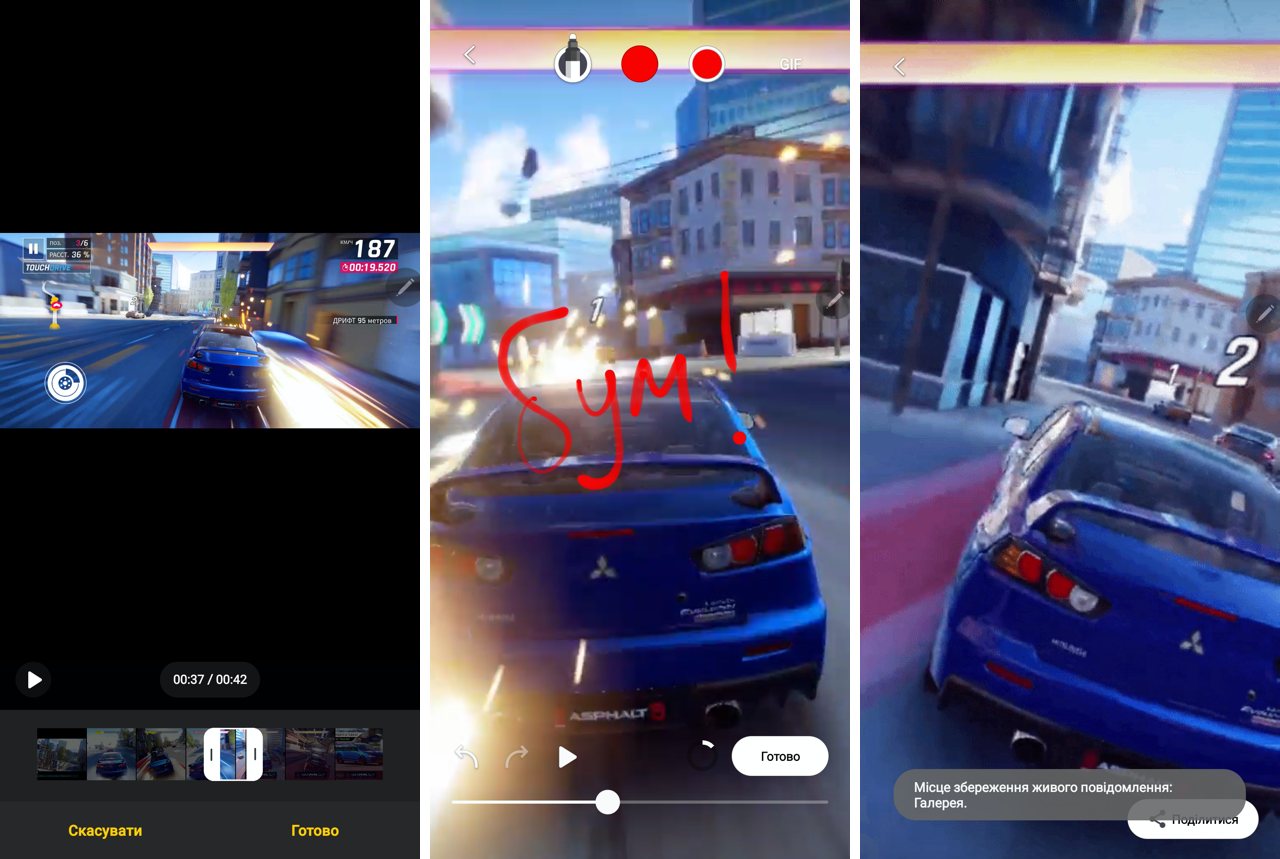
Another application for the S Pen will be appreciated by everyone whomakes vertical videos for Instagram or TikTok. If vertical videos annoy you, you are behind the times (by the way, we have a good article about how vertical video arose and conquered the world, I highly recommend it). You can select a photo or video from the gallery and add drawings or captions to it. If the video is long, you will need to first select a short fragment from it. The result can be saved as MP4 or GIF file.
</ img>
It looks like this. You can send to stories and collect likes.

</ img>
The S Pen profession: handwriting recognition
Handwriting recognition has been popular inhandheld computers one and a half to two decades ago. The technologies have been developed for a long time, but the peak of popularity has passed. Taking notes is one of the most common use cases for the S Pen. And Galaxy Note series smartphones are often purchased precisely for such recordings. I won’t talk about choosing backgrounds, experiments with thickness, color and style of lines - you know about all this. I will just note that the text recognition in the Galaxy Note 20 Ultra works perfectly even with my handwriting, which is not much ahead of the level of a chicken's paw, and copes with two languages at the same time.
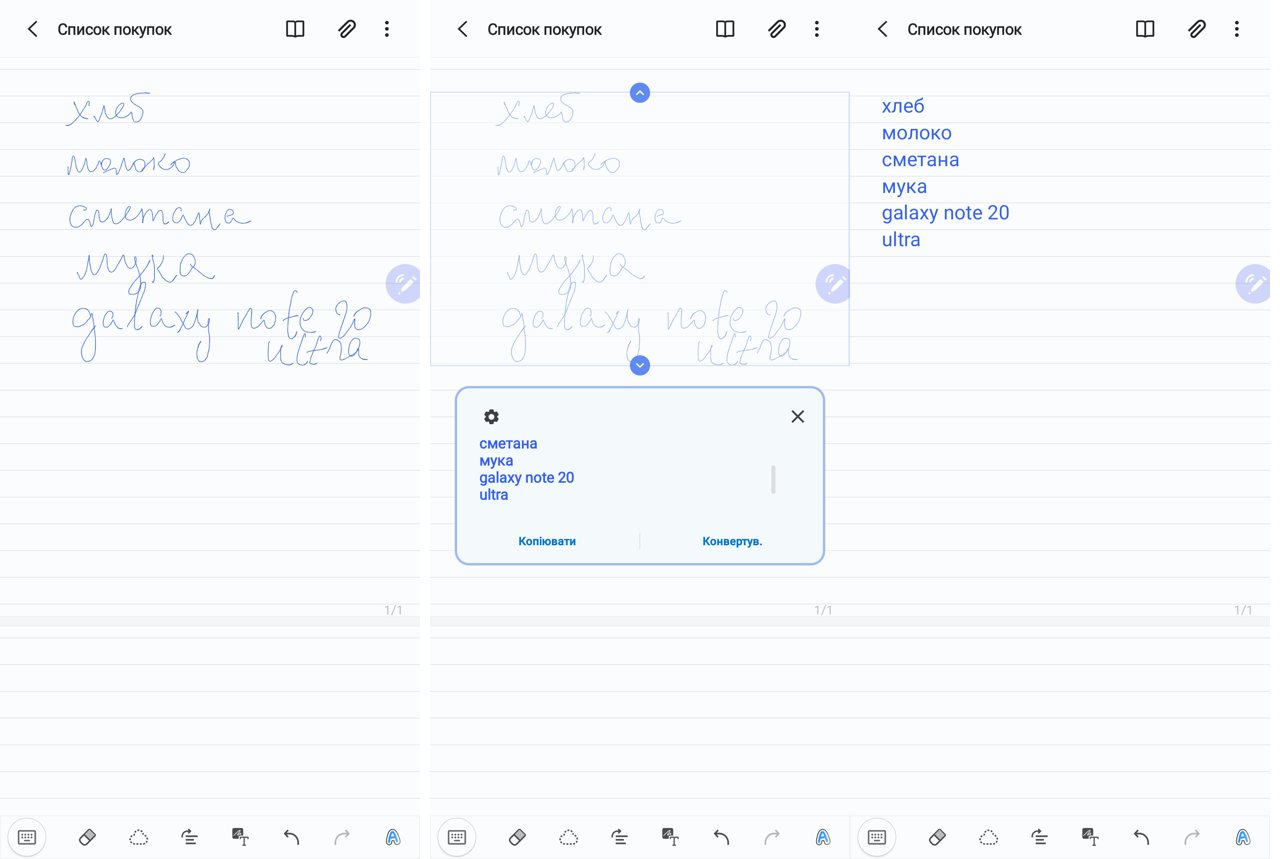
</ img>
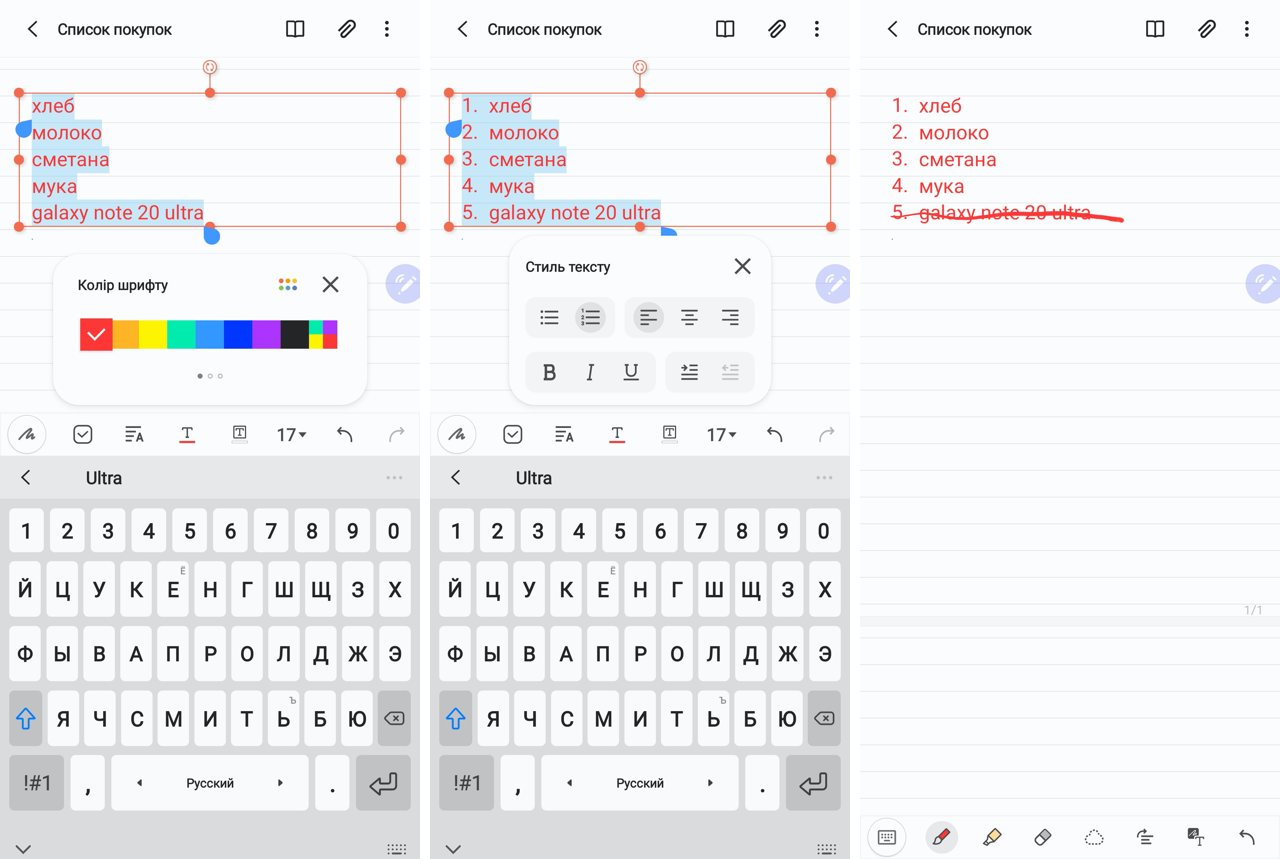
The recognized text can then be formatted: replace the color, font, make it a numbered list. And also cross out the completed shopping items.
</ img>
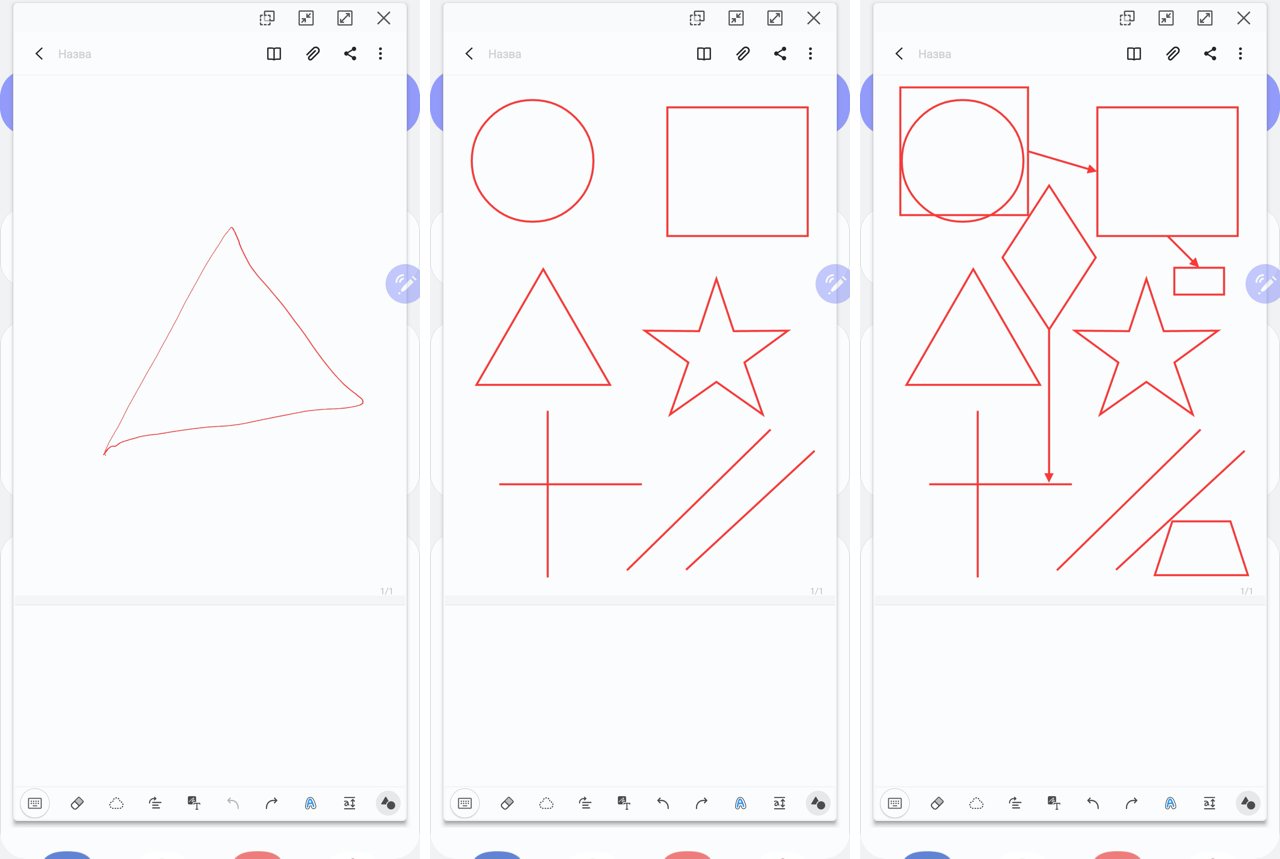
Another interesting opportunity for those wholoves to draw diagrams - automatic transformation of clumsy shapes into beautiful and geometrically perfect. Lines, squares, rectangles, diamonds, stars and even arrows are easily recognized.
</ img>
Three important things to know about the S Pen on the Galaxy Note 20 Ultra:
- This is a unique tool, available only in the Galaxy Note series smartphones, pushing the boundaries of what mobile users can do
- It allows you not only to write and draw, but to control smartphone applications using different combinations of button presses and gestures
- S Pen facilitates translation, recognition of texts in images and handwritten texts, which significantly increases the productivity of its owner
To be continued. If you have questions about the Samsung Galaxy Note 20 Ultra smartphone, leave them in the comments, I will try to answer.