With Messages on your Mac, you can easily and conveniently send iMessages to and from your computer
Most often, messages are not sent, loadeda very long time or give a sending error. Below we will tell you what to do in such cases to solve the problem. Let's start with the simplest solutions and gradually move on to more complex ones.
- 1: Make sure your Mac is connected to the Internet
- 2: Reboot Mac
- 3: Make sure Apple ID / iCloud is enabled on Mac
- 4: Disable and enable iMessage on Mac
- 5: Log out and log in to your iMessage account on Mac
- 6: Make sure messaging is enabled on iPhone
- 7: Check if iMessage works on iPhone / iPad
1: Make sure your Mac is connected to the Internet
The iMessage feature requires an internet connection to work. It doesn’t matter what it is: Wi-Fi, wired connection or access point. But the connection must be active, and the Internet should work.
First of all, check that your Mac is connected to the Internet and the Internet is working. To do this, open a browser and go to some site.
2: Reboot Mac
Often a regular Mac reboot solves the problem. Restart your computer, and then open Messages and check if the function worked.
3: Make sure Apple ID / iCloud is enabled on Mac
The iMessage feature also requires communication with an Apple ID account, which is also used for iCloud. Verify that your Apple ID is configured on the Mac:
- From the menu bar, selectbadgeApple, and thenSystem settings.
- Go to iCloud settings and make sure your Apple ID is configured on the Mac.
Mac and iPhone must have the same Apple ID, this is necessary for message synchronization.
4: Disable and enable iMessage on Mac
Sometimes the problem may disappear if you disable and re-enable iMessage on Mac.
- Open Messages on Mac.
- From the menu bar, selectMessages > Settings.
- Go to theiMessage.
- Make sure your Apple ID is set up and check the box next to theEnable this account.
- Now remove it, and then return it again to reconnect the function.
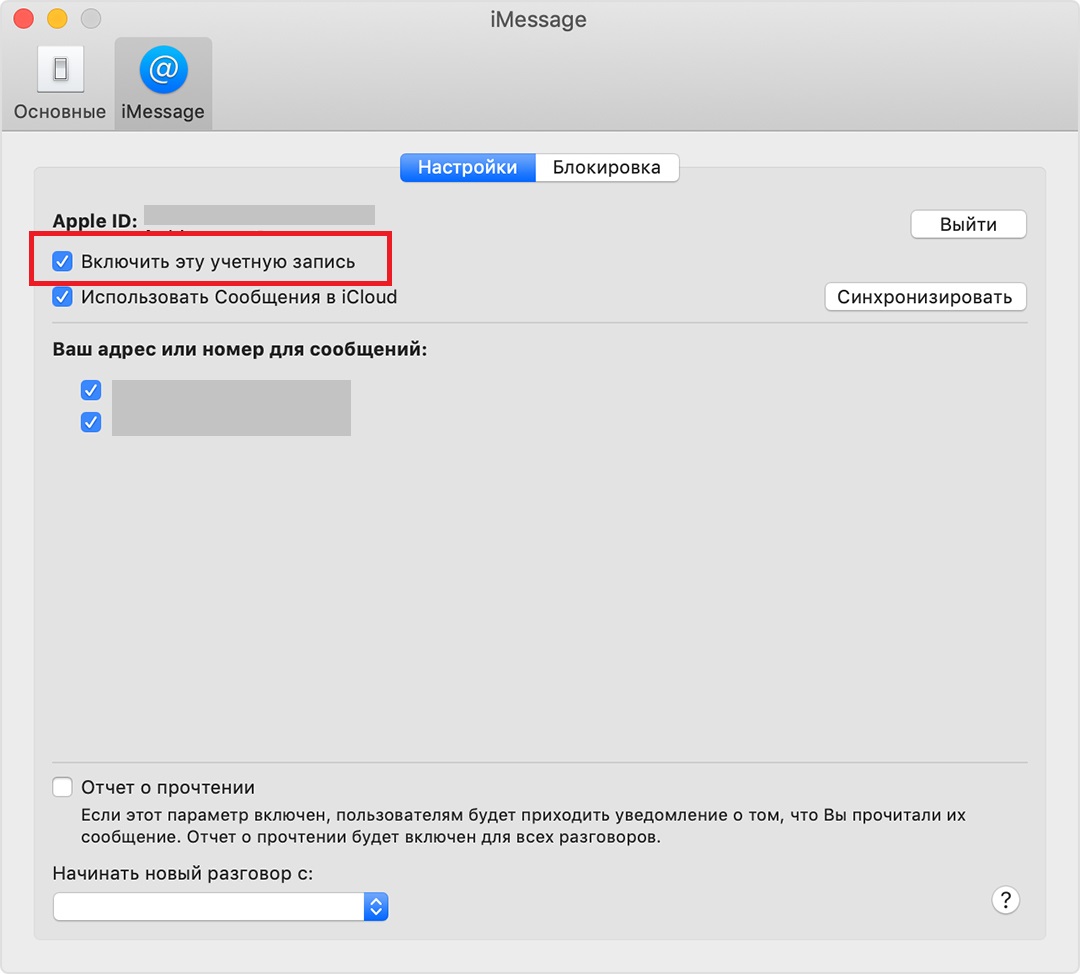

5: Log out and log in to your iMessage account on Mac
You can also try logging out of your iMessage account and then logging in again.
- Open Messages on Mac.
- From the menu bar, selectMessages > Settings.
- Go to theiMessage.
- ClickGo out.


- Close Messages.
- Run Messages again and log in to your account.
6: Make sure messaging is enabled on iPhone
If you have an iPhone and Mac, then check that onsmartphone has messaging enabled. Read more about the function here. If the function is disabled, you will not be able to send SMS messages from Mac, for example, to users with Android.
7: Check if iMessage works on iPhone / iPad
If you have an iPhone or iPad, not just a Mac, make sure iMessage works on them too.
If problems arise on the mobilethe device may be in iMessage servers. In this case, you can only wait. Sometimes iMessage works, but messages are not always synchronized between devices.
We hope that at least one of the methods above helped you solve your problem.