If you use QuickTime Player on your Mac to watch movies and videos, you'll love its new feature in macOS
Advertising
Advertising
How to enable picture-in-picture in QuickTime
To get started, run the programQuicktimeon your Mac with a video or movie you want to watch. Then follow the steps below.
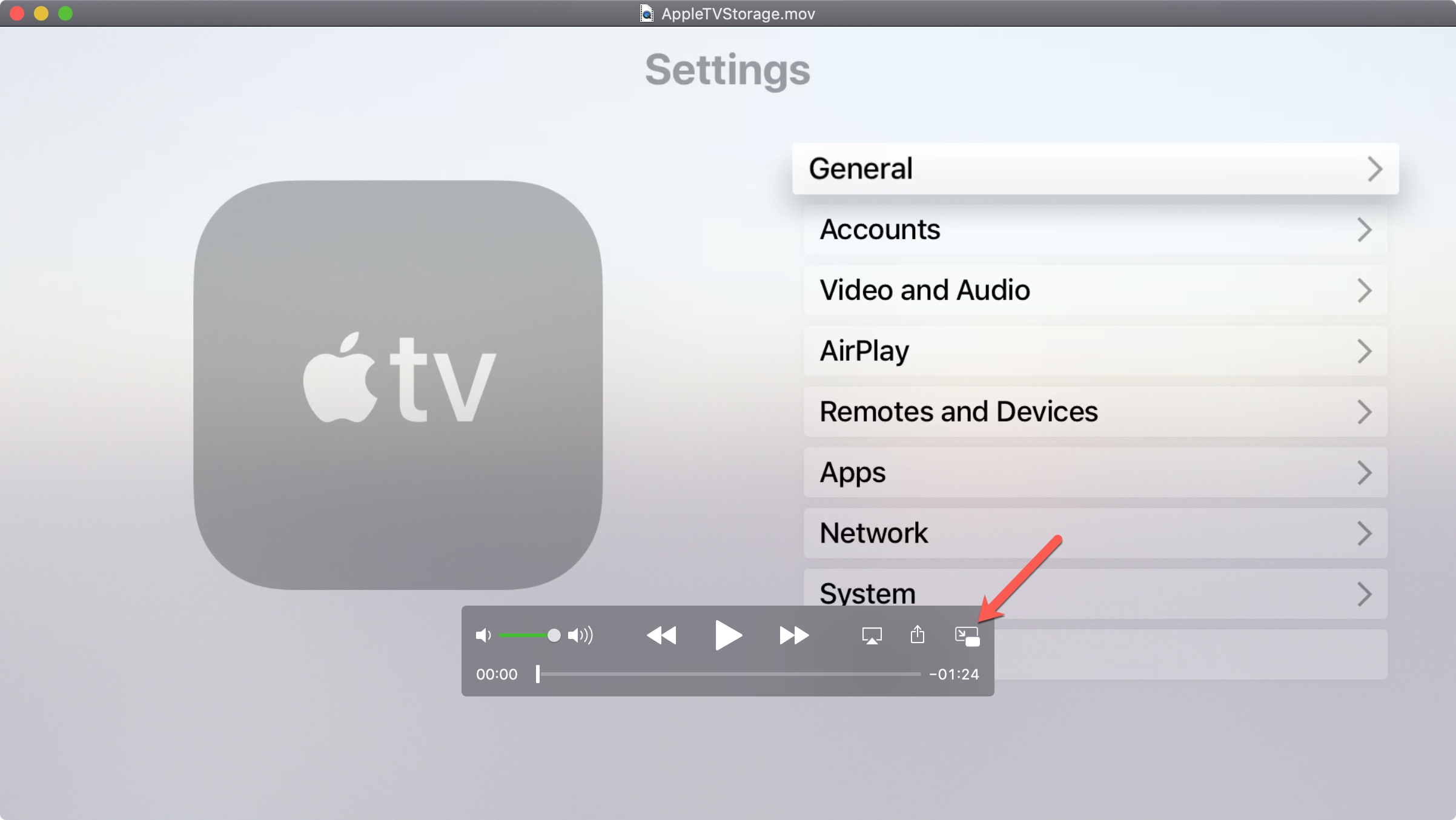
one)Click the buttonLike-in-picturein the navigation bar below.

Advertising
Advertising
2)The QuickTime window will shrink and move to the corner of the screen. You can change its size by dragging one of the corners.
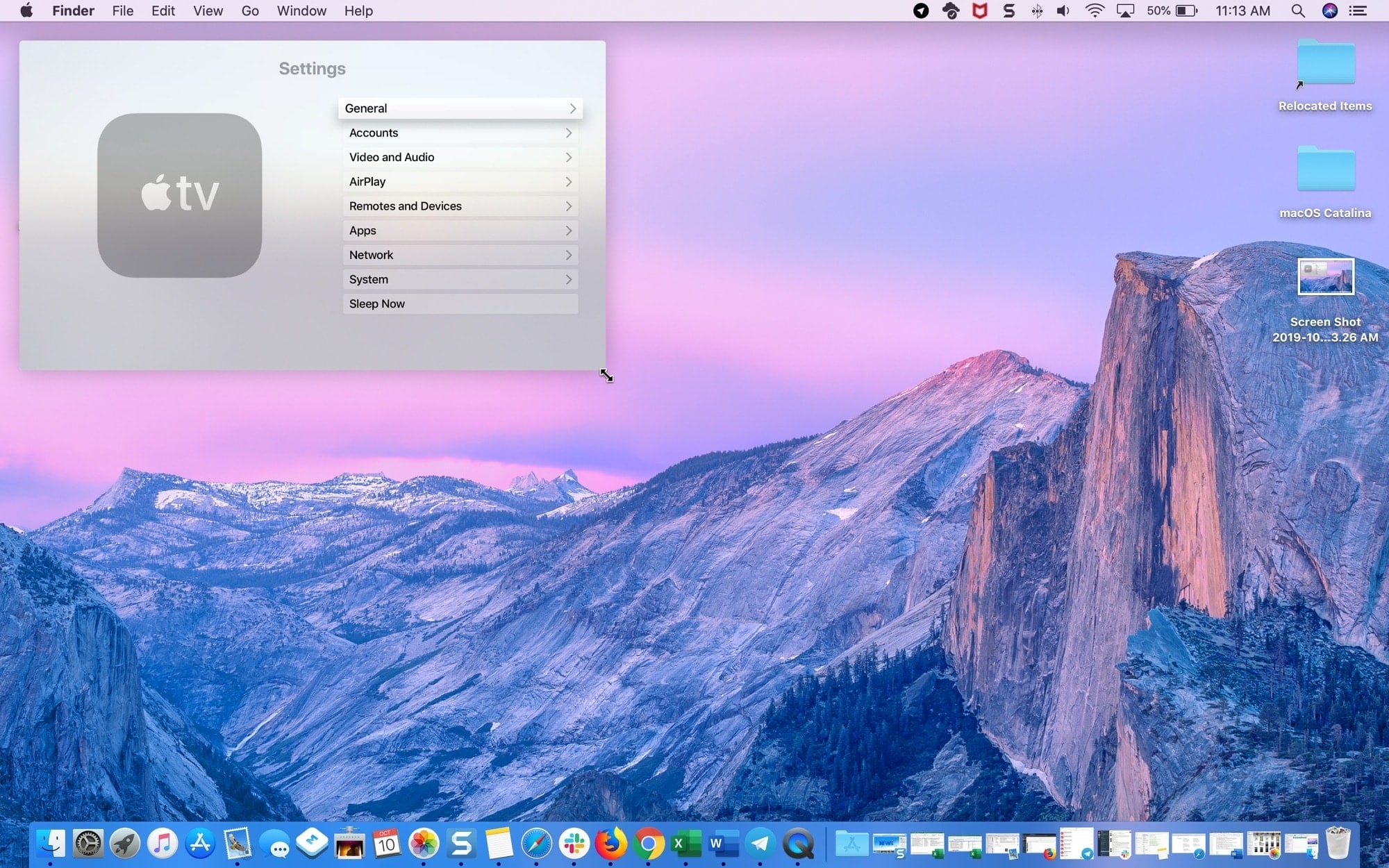

You can also move the window by holding and pulling it. The window can be placed in one of the corners of the screen.
3)Use the Start/Pause button to control the video.
four)Click the iconXin the corner of the window or buttonPicture-in-Pictureto return to normal size.


Important details
- While moving the window, hold down the CMD key on the keyboard, then you can place the window in an arbitrary place on the desktop, and not just push it to the side.
- Picture-in-picture mode can be activated even if the video is already running.
- When you enable the mode, the QuickTime window will appear on top of other running windows, even if they are open in full screen.
- So far, the picture-in-picture mode is only available for viewing video, but not for recording.
- You can turn off the picture-in-picture mode while the video is playing and it continues to play at its original size.
QuickTime's picture-in-picture mode is very convenient. Now you can combine your work with watching movies, etc.