Columns and rows in Numbers help you organize your data conveniently.However, there are cases when
Below, we’ll tell you how to add, remove, hide, and move columns and rows in Numbers on Mac.
Adding rows and columns toNumbers
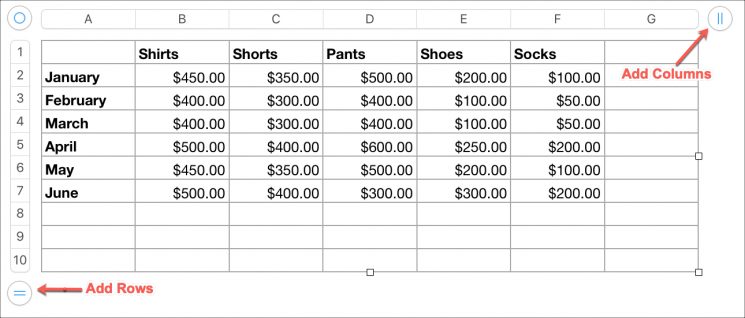
Adding multiple rows or columns
If the data has been added, then you will need more rows or columns. You can add multiple rows or columns at once.
one)Clampbadge with two stripes in a circlein the upper-right corner for columns or in the lower-left corner for rows.
2)To add multiple columns, drag the icon to the right.Release the icon when you have the required number of cells.

Adding rows and columns at the same time
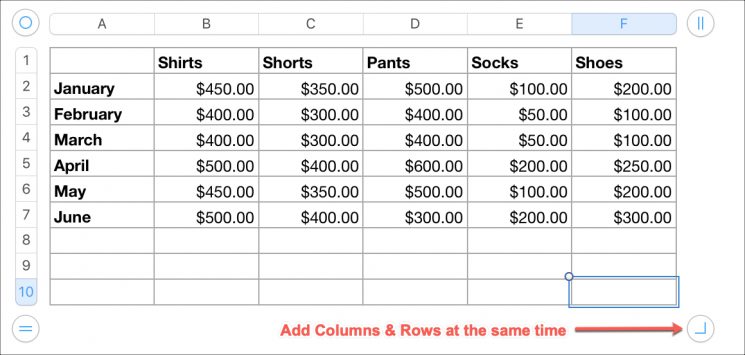
If you need to add both rows and columns at the same time, hold downround iconin the bottom right corner and drag it to add rows and columns at once.

Adding a single row or single column
If you need to add just one row or one column, you can use the method above, but release the icon immediately after one row or column is added.
Or you can use one of the methods below.
- Clickarrow buttonnext to a column or row and selectAdd columnorAdd row.
- Select a column or row, and then, in the menu bar, clickTable>Add columnorAdd row.
- Select a column or row, clickright mouse buttonand then selectAdd columnorAdd row.


Deleting rows and columns inNumbers
Delete empty rows and columns
one)Clampbadge with two stripes in a circlein the upper-right corner for columns, or in the lower-left corner for rows.
2)To remove multiple blank columns, drag the icon to the left.Release the icon when you're satisfied.
Delete blank rows and blank columns at the same time
If you need to remove both columns and rows at the same time, holdround iconin the lower-right corner and drag it inside the table to remove both rows and columns at once.
Delete a single row or column
If you need to delete only one row or one column without data, you can use the method above.
If there is data in a column or row, use one of the methods below.
- Clickarrow buttonnext to a column or row and selectDelete columnorDelete row.
- Select a column or row, and then, in the menu bar, clickTable>Delete columnorDelete row.
- Click on a column or rowright clickand selectDelete columnorDelete row.


Hide rows and columns inNumbers
You can quickly hide one or more rows or columns in Numbers.
- Clickarrow buttonnext to a row or column and selectHide columnorHide line.
- Select a column or row, and then, in the menu bar, clickTable>Hide columnorHide line.
- Right-click on a column or row, and then selectHide columnorHide line.
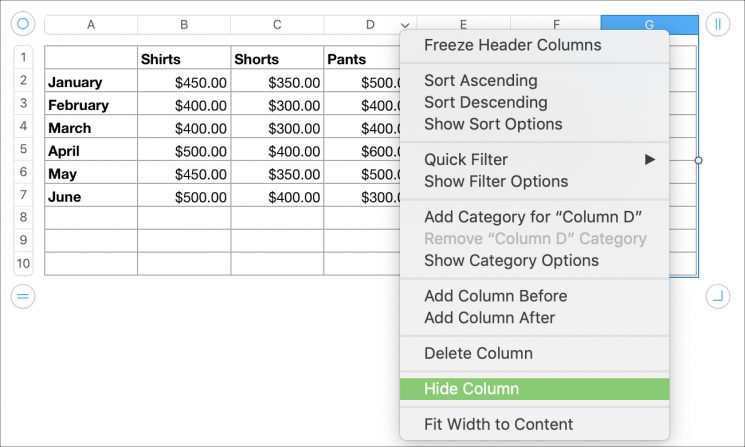

You can hide multiple columns or rows in the same way.
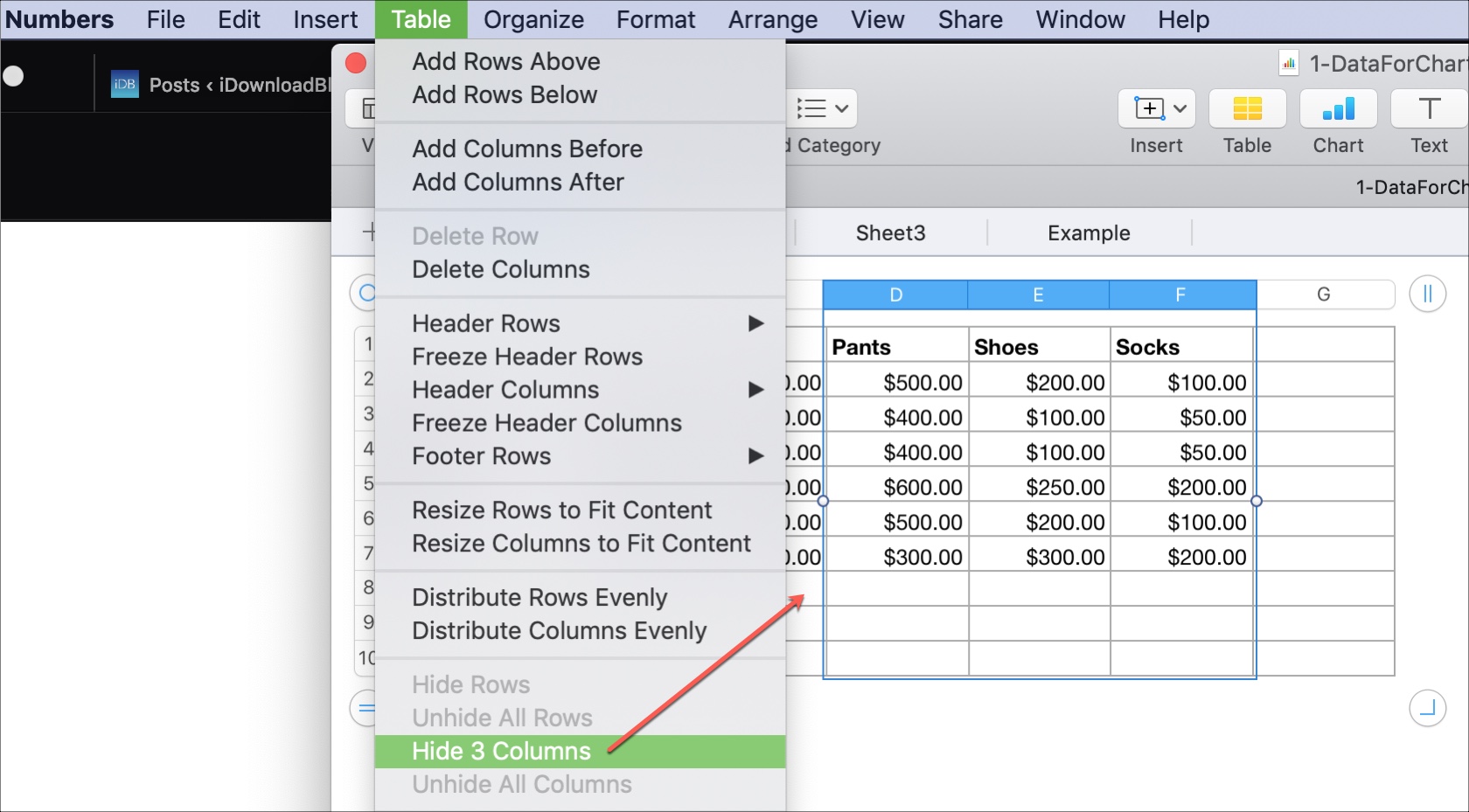

To display the rows and columns again, do the same, but select the optionShow.
Move rows and columns toNumbers
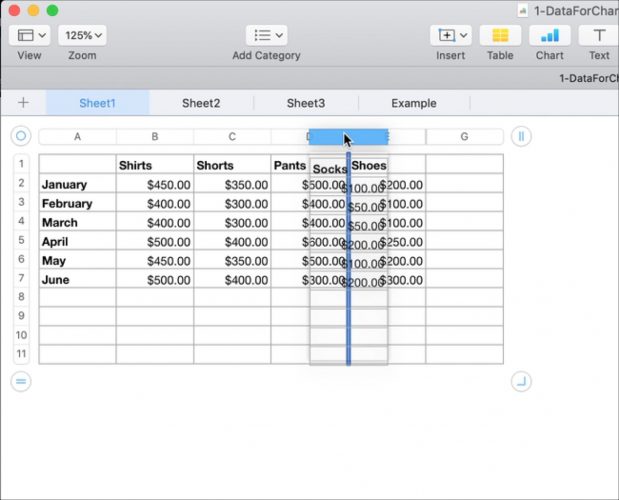
one) Pinchcolumn or row.
2) Dragthem to a new place in the table.
3)When is displayeddark linein the right new place,let gocolumn or row.

As you can see, there are many ways to manage columns and rows in Numbers on Mac, and they are all very simple.