The Save As keyboard shortcut allows you to quickly save a new version of the active document without
Advertising
Advertising
Previously, the Save As option was displayed in the File menu by default, but now it is hidden. Do not worry, the option can be returned with a simple key combination, and below we will tell you how.
How to get "Save As" back into the menu"File»
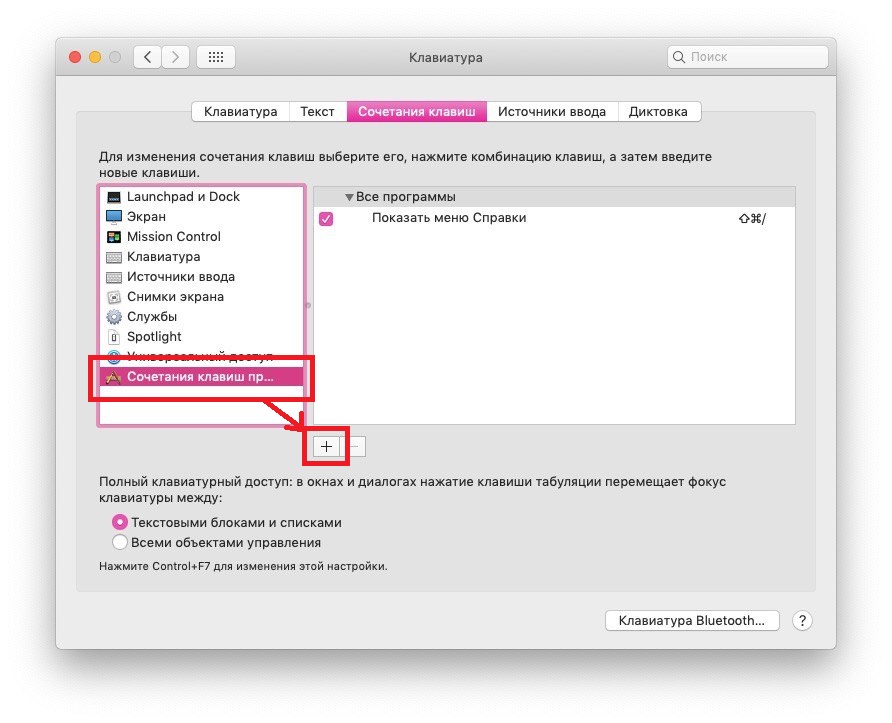
- Open the Apple menu and select System Preferences.
- Select Keyboard, and then the Keyboard Shortcuts tab.
- Select "Program Keyboard Shortcuts", and then click the + icon to create a new one.

Advertising
Advertising
- Enter the following data:
- Program: All Programs
- Menu Name: "Save As ..."
- Keyboard shortcut: select a field and hold down COMMAND + SHIFT + S
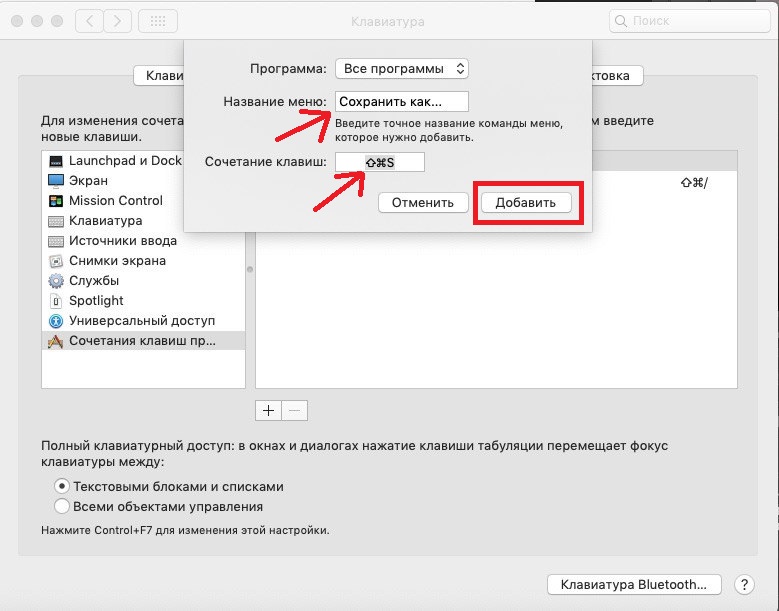

- Click Add to save the keyboard shortcut.


If you did everything correctly, the “Save As” option will appear in the “File” menu and will be available when you hold down the Command + Shift + S keys.
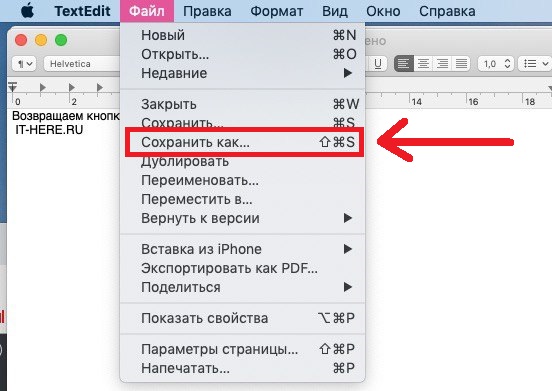

You can check by opening a program that supports saving files and selecting the File menu.
Does the option not work? Most likely, you made a typo when creating a keyboard shortcut. It is necessary to enter "Save As ..." with an ellipsis.
In modern versions of MacOS, including Mojave, this option is also there, but it is hidden and appears only when the Option key is pressed.
If you part use the option “Save As”,you will be glad to return it back to the "File" menu. These instructions apply to modern versions of Mac OS, such as Mojave or High Sierra. In older versions, the option is displayed by default.